How to Easily Allocate Free Space with Partition Assistant?
Overview of Allocate Free Space
To reallocate space between two partitions without deleting data, you can use a partition editor like GParted. Here's how: first, boot from a live USB or CD with GParted installed. Then, select the partition you want to shrink and move the free space to the other partition, which you want to expand. Be cautious not to delete any data or overwrite the partition table. If you're unsure, consider backing up your data and seeking professional help. Always ensure you have a backup before making significant changes to your partition layout.
Allocating free space is a function provided by Qiling Disk Master that helps redistribute free partition space, improving the traditional method of resizing partitions. This function allows users to transfer free space from one partition to another, directly enlarging the destination partition without needing to resize or shrink another partition first. It's a simple and fast way to increase partition space.
- The target partition is running out of space and needs to be expanded to continue saving files and folders and run efficiently.
- You want to keep fewer partitions on the hard disk and make the management of your disks easier.
- You want to extend the existing partition to use the unallocated space on the hard disk.
How to Allocate Free Space from One Partition to Another
Before you do
- Download and install Qiling Disk Master on a Windows computer.
- To ensure a smooth process, make sure there's another partition on the same disk with available free space. This will allow you to allocate the free space from one partition to another, making the process more efficient.
- If you're about to run an operation on a partition where other apps are currently running, Qiling Disk Master will alert you to close those apps by clicking "Retry" or perform the operation in PreOS Mode by selecting "Restart Now" (your computer will restart). Alternatively, you can cancel the operation by clicking "Cancel Operations" and reboot your computer to redo the operation without any open apps.
This tool is useful for extending a partition with space from another partition. It requires a paid version of Qiling Disk Master Professional, Server, or above versions to use.
To Allocate Free Space
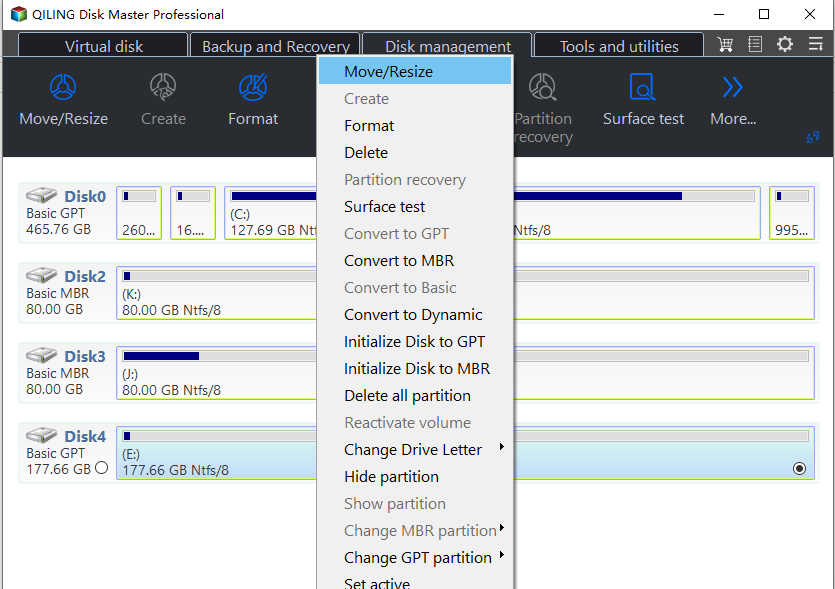
1. Launch Qiling Disk Master, right-click the partition you want to allocate free space from, and select "Move/Resize" to allocate free space from the chosen partition.
2. Type in the size of the free space which you want to cut from the E: partition and this free space will be directly added to the destination partition, allocating 50GB of free space from the E: partition to the C: partition.
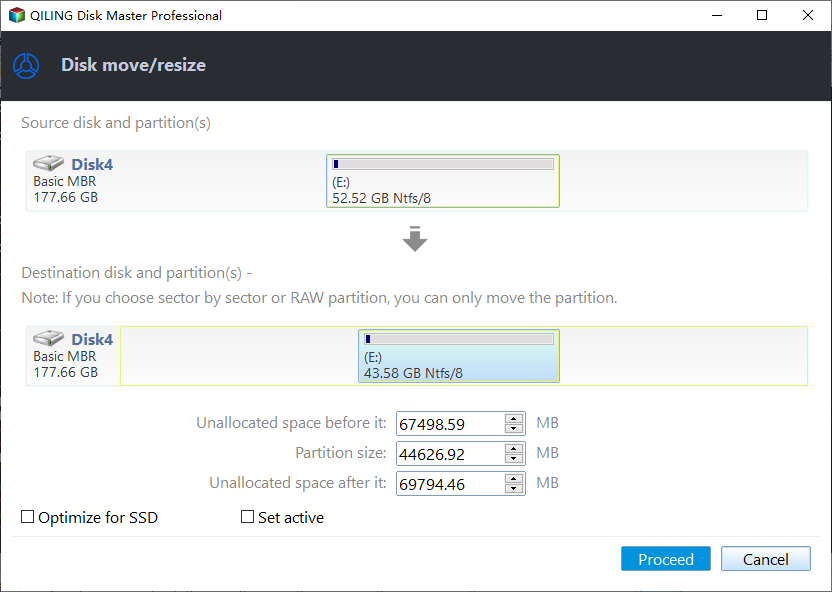
3. Please click "Proceed" to resize the partition.
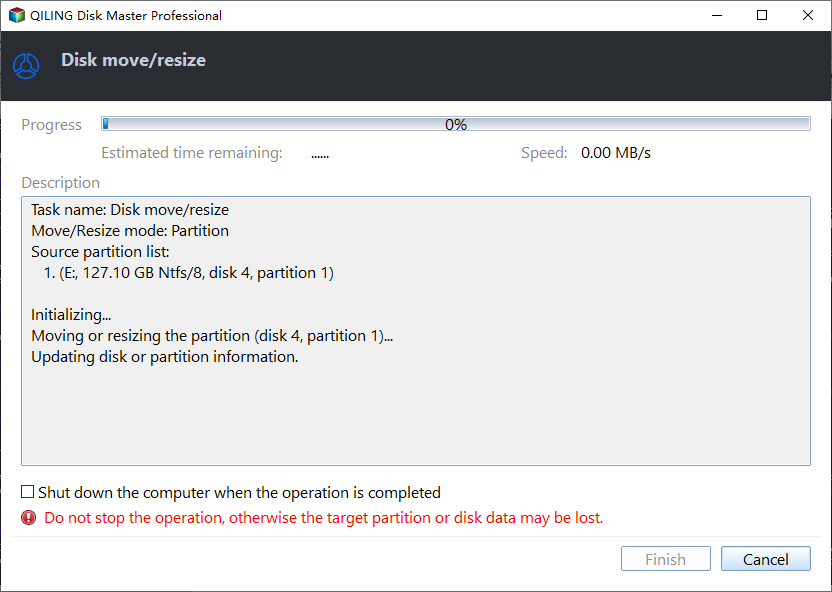
4. The process will start. Please wait until it is finished. Then, you can close the program to exit.
Conclusion
You can easily extend one partition with space from another on the same drive by following the steps above. This process allows you to utilize the allocated space in the destination partition, making it a convenient way to optimize your disk space.
With the help of Qiling Disk Master, you can easily manage partitions on your computer, including moving, merging, changing partition type ID or serial number, and other tasks, making it more convenient to handle your computer's partitions.
Notes:
- This operation may alter the original location of your data, but won't delete them yet. To ensure data safety, we recommend learning the tutorial "How to Safely Partition" before proceeding. You can also back up your data to another safe location.
- The program will then take some free space from the source partition and allocate it to the target partition, effectively shrinking the source partition and expanding the target partition.
FAQs:
Q: How long will it take to allocate free space?
A: The program will allocate a partition of a specified size, and prompt an estimated time after clicking the "Apply" button, depending on the size of the partition desired.
Q: Can I use the "Allocate Free Space" feature to extend a partition with space from another hard disk?
A: No, it is not possible to use the "Allocate Free Space" feature to extend a partition with space from another hard disk. This feature only works within the same disk. To extend a partition using space from a different disk, you would need to merge the free space from the other disk into the disk where the partition is located first, and then extend the partition using the merged free space. This is a more complex operation and requires additional manual steps.
Related Articles
- Can't Delete Files or Format My SD Card, What Should I Do?
This guide explains Can't Delete Files or Format My SD Card, What Should I Do with clear steps, key checks, and practical tips. - Windows 10 Won't Read SD Cards Unless I Reformat Them
This guide explains Windows 10 Won't Read SD Cards Unless I Reformat Them with clear steps, key checks, and practical tips. - How Can I Write a USB Drive Formatted as EXT4 in Windows 11?
On this page, you will learn the detailed answer and steps of how to write to a USB drive formatted as ext4 in Windows 11. And you will also get one of the best tools to help you with the formatting operation. - Diskpart Delete Server Partition: Get Solutions to Delete Recovery Partition
This guide explains Diskpart Delete Server Partition: Get Solutions to Delete Recovery Partition with clear steps, key checks, and practical tips. - What Is USB Format for PS3 | How to Format PS3 USB
Formatting your USB for PS3 is a must to use it. Fortunately, a professional tool from Qiling makes it easy, and we'll guide you through the simple steps. With this tool, you can get your PS3 up and running in no time. Just give it a try and start enjoying your PS3 right away. - How to Partition External Hard Drive in Windows 11/10/8/7
You can easily partition an external hard drive using one of three reliable tools: Qiling Partition Master, Disk Management, or DiskPart. These tools come with detailed tutorials that guide you through the process, making it simple to partition your external hard drive in Windows 11, 10, 8, or 7.
Products
Articles & Tutorials
- Data Recovery
- Data Backup
- File Recovery
- File Backup
- File synchronize
- System Backup and Restore
- Disk and Partition Clone
- Technical articles
- Disk Master Help
- Windows Deleted File and Disk Recovery Tutorials
- Windows File and Data Recovery Tutorials
- More Windows Tutorials for Install, Security, Files, and PC Tips
- Windows Boot, Repair, and Recovery Environment Tutorials
- Windows Backup Tutorials
- Windows Restore Tutorials
- Windows Clone and Migration Tutorials
- Windows Server Backup, Recovery, and Management Tutorials
- Windows Disk, Partition, and Storage Management Tutorials