Overview:
QILING Disk Master Technician is a complete toolkit for partition management, OS migration, backup, and recovery for IT administrators, technicians, and consultants. With a simple interface, users can protect critical business data in minutes and he
-
 System backup
Easy system drive backup of all contents, including Windows operating system and system settings without interrupting your work.
-
 Disk/partition backup
Block-level disk imaging quickly and efficiently backs up the entire disk or volumes.
-
 File backup
File-level backup allows you to selectively back up specific files, folders or file types, including network shared files.
-
 File zip
Compress selected files, folders, or file types, including network shared files, into a zip file.
-
 Schedule backup
Flexible backup scheduler allows backups to run daily, weekly, monthly, or by event.
-
 Backup management
Easily manage backup jobs and automatically delete out-of-date backup images to save storage space.
-
 Unattended backup
Runs as a Windows service, making it ideal for unattended servers. It backs up even when the system is logged out, asleep, or hibernated.
-
 Incremental & Differential
Based on a full backup, the software backs up only changed or new data to save time and disk space.
-
 Hot backup
Back up specific files and volumes without interrupting any current operations, especially for open files backup.
Steps to clone Windows 10 operating system with Qiling Windows cloning software
Qiling Windows cloning software supports file backup, system backup, partition backup, and disk clone. You can use it to clone an OS in Windows 10 through a fast and efficient disk-to-disk clone task. Follow the step-by-step guide below.
Note: Before you start, download and launch Qiling Disk Master, then click "System clone" on the tools page.
-
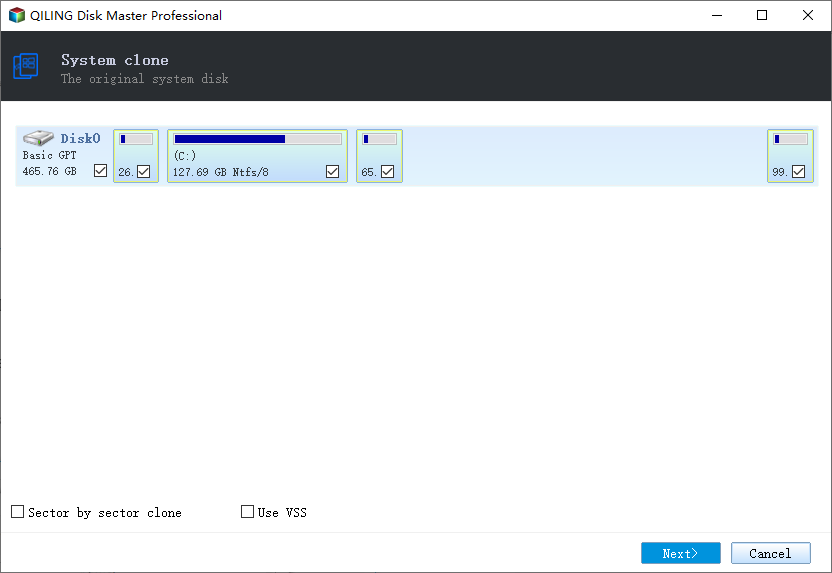
Step 1. The current system (Windows 10) partition and boot partition will be selected automatically. Click "Next" to continue.
-
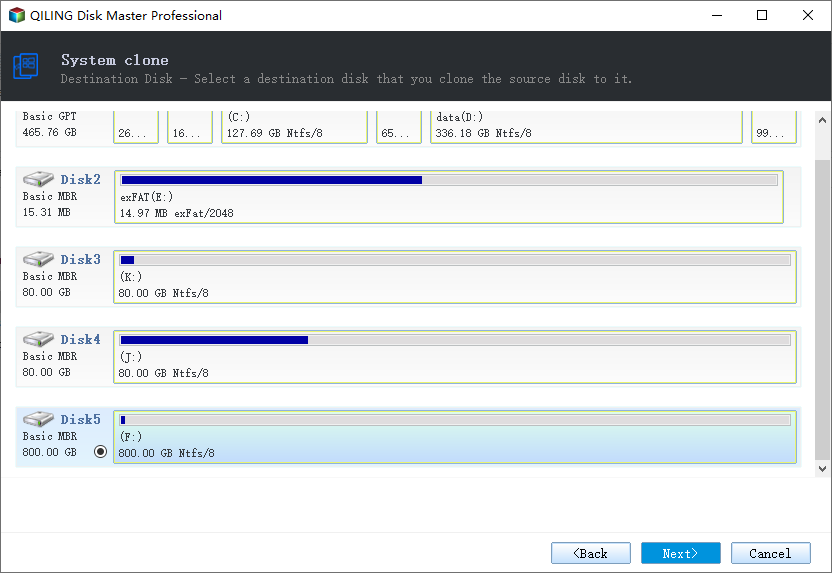
Step 2. Choose the target drive. It can be a hard drive or an SSD. Click "Next" to continue.
-
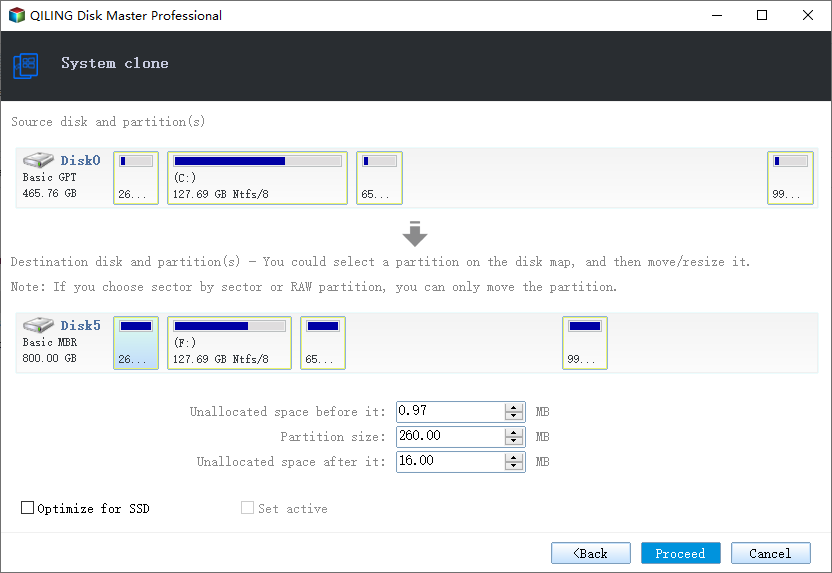
Step 3: Edit the disk layout and then click "Proceed" to start cloning Windows 10.