How to Backup Windows Server 2008 (R2) to External Hard Drive
Why Should We Backup Windows Server 2008 to External Hard Drive?
Backing up data is a common practice for computer users to ensure their important files are safe. Creating a backup image file is a clever way to safeguard data, and it can be stored on a local disk, CD/DVD, NAS/Network, or external hard drive for added security.
For Windows Server, backing up to an external hard drive has several advantages, including the ability to store a large amount of data, the portability of the drive, and the ability to easily transfer data between systems, as well as the cost-effectiveness and reliability of the storage method. This allows for efficient data protection and recovery in case of system failures or data loss.
💛 Ensure the safety of your business data
Data loss can occur due to various reasons like system crashes, virus infections, hacker attacks, user errors, hard drive failures, and even natural disasters. Having a backup, such as an image on an external hard drive, can help recover the server in case of an accident.
💛 Avoid reinstalling system and programs
After upgrading your old hard drive to a new one, you can restore a backup image from an external hard drive to get your server up and running again, saving you time and effort by not having to reinstall the system and commonly used programs.
How to Backup Windows 2008 (R2) to External Hard Drive with Snap-in Tool
In Windows Server 2008, unlike Windows 2003, there is no built-in backup software. However, you can install the Windows Server Backup feature through the Add Features Wizard. Once installed, you can access it by clicking Start -> Administrative Tools -> Windows Server Backup. To backup to an external hard drive in Server 2008 (R2), follow the subsequent steps.
1. Choose Backup Schedule or Backup Once according to your requirement. Here take Backup Once as an example.
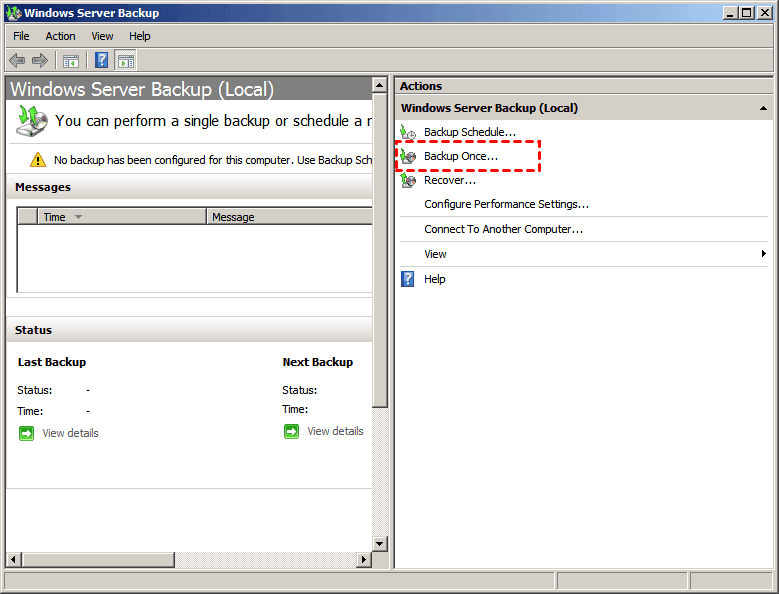
2. Tick Different options and click Next.
3. Select what you want to backup and click Next. Here, I choose Full server.
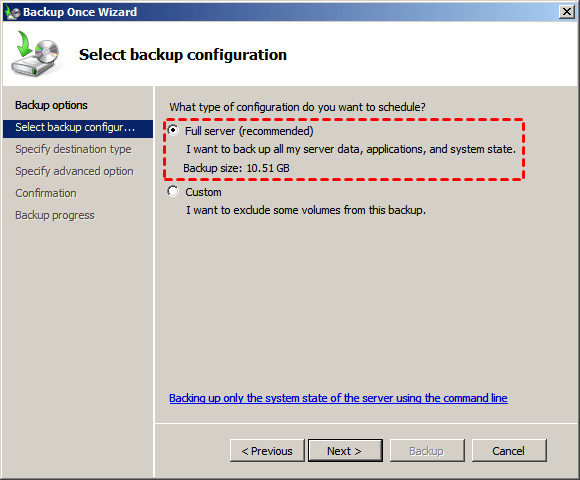
4. After selecting the option to store the backup image on local drives, choose the external hard drive you prepared as the destination for the backup. Click Next to proceed.
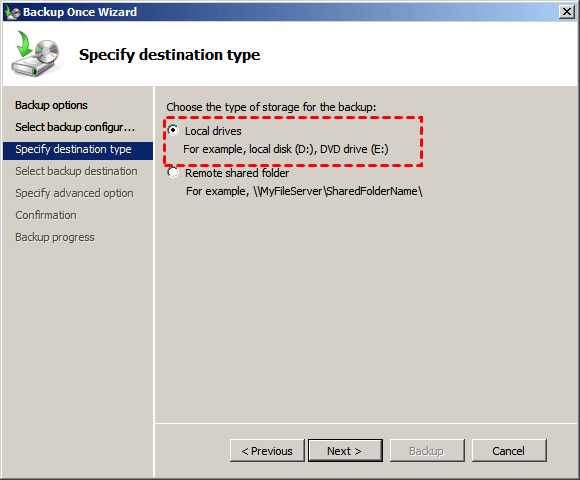
5. Select VSS copy backup (recommended) and click Next.
6. Confirm the backup items and click Backup to begin backing up Server 2008 (R2).
The Windows 2008 snap-in backup tool has several limitations, making it unsuitable for everyone's backup needs.
- To access the console, you must be a member of the Administrators or Backup Operators group.
- The backup set created will not be compatible with Windows Server 2008, requiring a reconfiguration of settings after upgrading the system.
- You can only backup NTFS format volumes with it.
- The schedule backups can only run with a separate, dedicated disk. This is because the data being backed up is too large for the system disk, causing it to become full and preventing the backup from completing.
To avoid data loss, you can hire a third-party server backup software like Qiling Disk Master Server, which offers more features than just backup. It provides a safe and reliable solution for protecting your data, making it a great option to consider.
Windows Server 2008 (R2) Backup to External Hard Drive via Qiling Disk Master
Qiling Disk Master Server has a wide range of features, including backup, cloning, and restoring, which are all simple and easy to use, contributing to its good reputation.
- It enables creating system or disk image backups and allows backing up specific server files as desired.
- You can back up to an internal/external hard drive, USB pen drive, network share, or NAS device, among other options.
- You can create Windows Server differential backup or incremental backup as needed.
- The software allows for multiple backup schedules, including daily, weekly, monthly, and event-triggered backups, as well as the option to back up via USB plug-in.
Want to have a try? Download it now!
Using Qiling Disk Master Server to backup Windows Server 2008 to an external hard drive is a straightforward process. First, prepare a large enough external hard drive, then follow the detailed steps to complete the backup.
Step 1. To use Qiling Disk Master Server, install and launch it, then click the Backup button to open the main interface. From there, you can choose the type of backup you need, such as taking a Disk Backup as an example.

Step 2. After clicking "Disk Backup", it will take you to the disk backup interface where you can set the backup details.
- Select the system disk (Disk 0) that you want to backup.
- Choose the external hard drive as the destination path.
- Click Proceed to proceed.

Tips:
- If you want to set up more details such as encryption, you can click Options at the left bottom.
- To create an automatic backup or enable automatic backup cleanup, click Schedule Backup to create a backup or click Backup Scheme to enable cleanup.
Step 3. Click "Finish" after the process reaches 100% to complete the operation.
You see, Qiling Disk Master provides a user-friendly interface that allows non-technicians to easily backup Windows Server 2008 (R2) to an external hard drive in a few minutes. Additionally, this software is capable of cloning hard drives in Server 2016 and other systems, making it a powerful tool for various cloning tasks. You can give it a try to experience its ease of use and functionality.
Related Articles
- Restore Windows Server 2008 R2 to Previous Date | 3 Ways
Learn how to Restore Windows Server 2008 R2 to Previous Date | 3 Ways with clear steps, key checks, and practical tips. - How to Repair Windows Server 2008 (R2)/2012 (R2)/2016 Using Command Prompt?
You will learn x ways to repair Windows Server 2008 R2 using command prompt and get your computer back normally. Also works for server 2012 R2/2016 R2/2019/2022. - Create Windows Server 2008 R2 Backup Schedule Weekly
Although Windows Server Backup can either schedule a daily backup, or more frequent backup, it's not enough. Read this guide to get two ways to configure Windows Server 2008 backup schedule weekly task. - NAS (Network Attached Storage) - Get to Know the Basic Information
This guide explains NAS (Network Attached Storage) - Get to Know the Basic Information with clear steps, key checks, and practical tips. - Norton vs McAfee: Ultimate Comparison to Decide Which to Use
If you are looking to find out what's better between Norton 360 and McAfee Total Protection, check it in our review. Take a look at out comprehensive review to find out who comes out as a winner in the Norton vs McAfee battle. - OneDrive Files Not Showing on Another Computer - 7 Simple Solutions
OneDrive by Microsoft is used globally for file hosting services. However, it may show errors like OneDrive files not showing on another computer. Learn the reasons for this problem, followed by the top seven solutions to use OneDrive easily.
Products
Articles & Tutorials
- Data Recovery
- Data Backup
- File Recovery
- File Backup
- File synchronize
- System Backup and Restore
- Disk and Partition Clone
- Technical articles
- Disk Master Help
- Windows Deleted File and Disk Recovery Tutorials
- Windows File and Data Recovery Tutorials
- More Windows Tutorials for Install, Security, Files, and PC Tips
- Windows Boot, Repair, and Recovery Environment Tutorials
- Windows Backup Tutorials
- Windows Restore Tutorials
- Windows Clone and Migration Tutorials
- Windows Server Backup, Recovery, and Management Tutorials
- Windows Disk, Partition, and Storage Management Tutorials