Windows Server Backup: Differential & Incremental Backup
What are Windows Server Backup types?
In Windows Server Backup, you can set up a scheduled backup to perform either a full backup or incremental backup. An incremental backup only saves the changed or newly created files since the latest backup, while a differential backup also only saves the added and changed files, but based on the latest full backup. Both types of backups are useful for saving space and time, but differ in their approach to saving data.
Windows Server Backup creates a full backup initially, and subsequent backups only save changed data, merging it with the previous full backup, which is similar to a differential backup, not a true incremental backup.
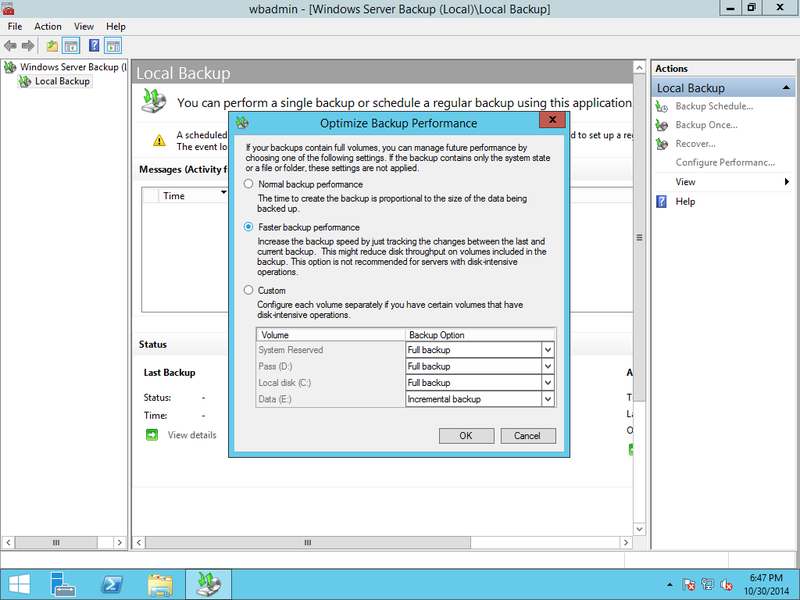
Create a differential backup in Windows Server
Actually, there is a third-party server backup software that supports both differential and incremental backup, ensuring your server is thoroughly protected. Additionally, it allows you to create multiple scheduled backup tasks for daily, weekly, and monthly backups, giving you peace of mind knowing your server is secure.
To create a scheduled backup in Windows Server 2008 using the Wbadmin command, you can use a command like this: `wbadmin enable backup -backuptarget:D:\ -schedule:Daily -time:00:00 -incremental:No -vssfull:Yes -quiet`, which will perform a full backup to the D:\ drive every day at 00:00. Note that the `-incremental:No` and `-vssfull:Yes` options are used to specify a full backup instead of a differential or incremental backup. The `-quiet` option is used to suppress the command output. This command can be scheduled to run automatically using the Task Scheduler or other scheduling tools.
Wbadmin enable backup -backuptarget:G: -allcritical -include:systemstate -schedule:00:00
Microsoft has provided an alternative to WBadmin, adding a schedule backup function to the GUI backup wizard in Windows Server 2008 R2. This allows for automated backups, utilizing volume shadow copy to save previous versions of backups.
If you schedule a backup job to a network shared folder or a mapped network drive, it will only perform full backups, as the network location is not considered a volume. To create differential or incremental backups to a network folder, you may need to use a third-party backup software.
Windows Server Backup has some crucial limitations, including inability to back up data from some system components, such as registry hives, system files, and some services.
- In Windows 2008, the backup drive must be a separate hard drive, and in Windows Server 2012, it must be a separate volume.
- Only NTFS-Formatted volumes can be set as either a backup source or a backup target.
- In Windows, system state backup can only be done as a full server backup, rather than other types of backup.
- To resolve this issue, manually delete the Windows Server Backup job when the backup disk is full. This will allow you to free up space on the disk and prevent further backups from failing.
- You cannot keep more than one scheduled backup task.
Windows Server differential & incremental backup software - Qiling Disk Master
For a more efficient way to perform Windows Server incremental backups or differential backups, consider using Qiling Disk Master Server, a server backup program that offers a better alternative to the limitations of Windows Server Backup.
- With this feature, you can schedule multiple backups to be performed at your preferred intervals, including full backups, incremental backups, and differential backups.
- Besides volume, you can include individual files or folders, system or the whole hard disk in a backup, making it easy to backup files in Windows Server.
- It supports all the Windows Server systems and mostly used file systems including NTFS, FAT32, EXT2, and EXT3.
Setting up a backup task is a breeze! With our tool, you can configure a backup in just a few clicks. Simply get the tool and follow these easy steps to set up differential or incremental backups tailored to your needs.
To create differential backups with Qiling Disk Master:
1. Install and open Qiling Disk Master Server.
2. To backup the system, go to the "Backup" tab and select "System Backup".

3. For system backup, you don't need to choose what to include, as the program will automatically include everything. You just need to select a location in File Explorer where you want to save the backup image.

4. Click the "Schedule Backup" button and choose the frequency you want the backup to run at.

5. In the Schedule window, click on the "Backup Scheme" option from the left panel.
The default backup method is incremental, but you can also choose differential backup from the dropdown menu.
To free up disk space, you can enable automatic cleanup of old backups by setting up Disk Space Management. This feature allows you to automatically remove old backups to free up space on your device.
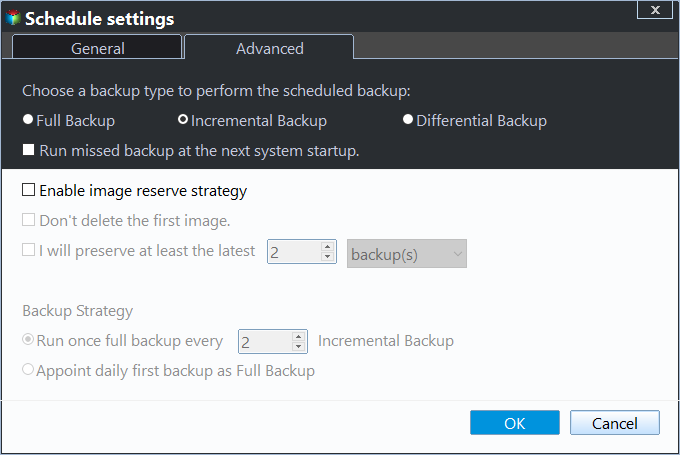
6. To initiate the backup job, click on the "Proceed" button once everything is set up correctly.

Tip: When disaster strikes, you can restore its backup image with the feature "Restore", or you can restore Windows Server Backup to another computer when necessary.
Conclusion
Qiling Disk Master is the best differential backup software for Windows Server, outperforming Windows Server Backup in terms of differential backup capabilities.
If your server experiences a serious issue, you can use bootable media created by Qiling Disk Master or Qiling PXE tool to restore your system from a backup, and it can even be restored to different hardware. In addition to backup and restore, Qiling also offers cloning functionality, which can be useful if you need to clone a hard drive to an SSD in a Windows Server.
To protect unlimited PCs and servers within your company, you can choose Qiling Disk Master Technician Plus, which offers unlimited billable technical services and allows copying of installation directories for portable version creation.
Related Articles
- Windows Server 2016 Incremental & Differential Backup Guide
Learn how incremental and differential backup work in Windows Server 2016 and choose a reliable backup method for server data protection. - Fix Windows Server Backup Failed Not Enough Space on the Disk
Learn how to Fix Windows Server Backup Failed Not Enough Space on the Disk with clear steps, key checks, and practical tips. - Create Backups with Windows Server Backup Command Line
You will learn how to use Windows Server Backup command line with Wbadmin or third-party tool. Besides, you can use the GUI version of backup software if you want a simpler way. - How to Backup Lenovo Laptop Windows 10 [Four Best Solutions]
Backing up your Lenovo laptop Windows 10 is necessary to prevent data loss and system crashes. This article will introduce four methods to backup Lenovo Laptop Windows 10. - How to Perform Windows Folder Backup [Step-by-step Guide]
This page covers Windows folder backup, elaborates on two ways to finish a Windows folder backup, and introduces a professional backup tool. - How to Set up Email Notification with Qiling backup Personal Edition
Set up email notifications in Qiling backup software so backup results, warnings, and task status can be sent to your inbox.
Products
Articles & Tutorials
- Data Recovery
- Data Backup
- File Recovery
- File Backup
- File synchronize
- System Backup and Restore
- Disk and Partition Clone
- Technical articles
- Disk Master Help
- Windows Deleted File and Disk Recovery Tutorials
- Windows File and Data Recovery Tutorials
- More Windows Tutorials for Install, Security, Files, and PC Tips
- Windows Boot, Repair, and Recovery Environment Tutorials
- Windows Backup Tutorials
- Windows Restore Tutorials
- Windows Clone and Migration Tutorials
- Windows Server Backup, Recovery, and Management Tutorials
- Windows Disk, Partition, and Storage Management Tutorials