Perform Windows Server Backup Command Line Easily (2 Ways)
Windows Server Backup Command Line Tool - WBadmin
Microsoft introduced Windows Server Backup in Windows Server 2008, offering both command line and graphic user interface options, replacing NTBackup. This tool provides block-level backups, allowing for faster, simpler, and more reliable restoration of the operating system, volumes, files, folders, or applications.
You can create a bare metal backup to restore a server to similar or dissimilar hardware, which is stored as a virtual hard drive (vhd) file along with some XML configuration files. This backup can be mounted in Windows Disk Manager to view its content or copy individual files if the original is damaged.
The software creates an original backup file using a different engine, then uses Volume Shadow Copy Service to update changes to the backup file on a daily or scheduled basis.
Execute Windows Server Backup Command Line Step by Step
Here, you will use the command line interface of Windows Server Backup to backup and restore system in Windows Server 2022, 2019, 2016, 2012 or 2008, which requires installing Windows Server Backup and Wbadmin command line in Server Manager beforehand.
To use Wbadmin.exe, you need to open an elevated command prompt with administrator permission, and then run a backup or recovery job, referring to the following WBadmin examples.
1. To create a system state backup to E: drive.
wbadmin start systemstatebackup -backuptarget:E:
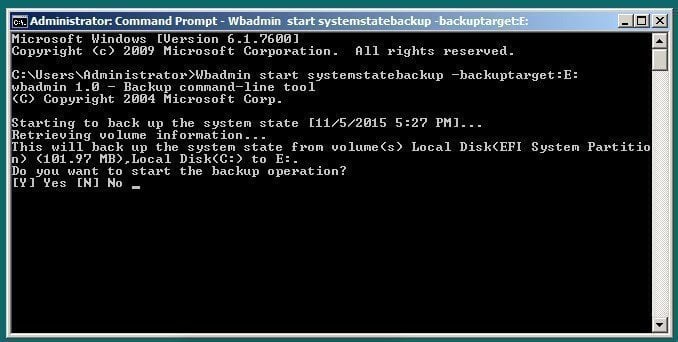
2. To create a wbadmin backup to a network share, including all critical volumes, system state, and a specific folder in the D: drive.
wbadmin start backup -allcritical -systemstate -include:D:\chrun -backuptarget:\\networkshare\backup -quiet
3. To create a scheduled backup job that runs daily at 00:00 and backs up to a shared folder, accessible only with a username and password, you can use the following command:
wbadmin enable backup -addtarget:\\192.168.0.225\Public\schedule -include:D: -systemstate -user:admin -password:1234 -schedule:00:00
4. To restore a full server backup to dissimilar hardware, navigate to the backup server, select the backup version 11/11/2015-00:00, and choose the option to restore to a new machine with the name Varlar. During the restoration process, the system will automatically detect the new hardware and adjust the settings accordingly.
wbadmin start sysrecovery -version: 11/11/2015-00:00 -backuptarget:E: -machine:Varlar
5. To restore system state with version: 01/11/2016-01:09:
wbadmin start systemstaterecovery -version:01/11/2016-01:09 -backupTarget: F: -quiet
- ★Notes:
- The switch: -quiet is used to run a wbadmin command without prompting for confirmation. This is useful for automated backup jobs where user interaction is not desired.
- Besides backup and restore, you can still delete old backups with Windows Server Backup.
The Wbadmin command line tool has some limitations, including being inconvenient for those who are not familiar with command line interfaces, and being restricted in its functionality compared to the Windows Backup feature in the Control Panel.
- Only partitions formatted with NTFS can be used as a source or target for backups.
- You cannot configure a scheduled backup less frequently than daily.
If you need more advanced command-line backup solutions, you can use third-party backup software.
Advanced Way to Perform Windows Server Backup Command Line
Qiling Disk Master Server is the best Windows Server Backup command line alternative, allowing you to perform backup and recovery with more options and in a more flexible way.
◈ Backup types and locations
You can choose any files, folders, partitions, disks, or system as the backup source, and save them to various locations such as local disk, external hard disk, USB flash drive, CD/DVD, network share, NAS, or even cloud storage.
◈ Backup schedule
Unlike Windows Server Backup, Qiling Disk Master allows for more flexible and customizable backup scheduling, enabling daily, weekly, monthly, or event-triggered backups, as well as full, incremental, or differential backups, and even USB plug-in backup tasks.
◈ Backup scheme
The software will automatically delete old backup images to free up disk space, with 3 automatic backup cleanup methods available in the backup schemes.
To use the command line backup feature, download and install Qiling Disk Master Server on your system, which supports Windows Server 2022, 2019, 2016, 2012, 2008, 2003, and Windows PCs. For unlimited servers and PCs, consider the Qiling Disk Master TechPlus version.
The free trial version works within 30 days. To continuously protect your system, it's recommended to upgrade to a paid server plan. A one-time discount of $100 is available for one server computer.
1. In an elevated command prompt, enter the path of the installation directory of this software and press Enter. For example, "cd C:\Program Files (x86)\Qiling Disk Master".
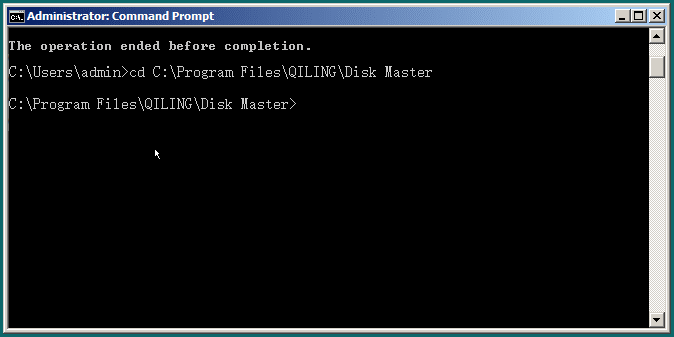
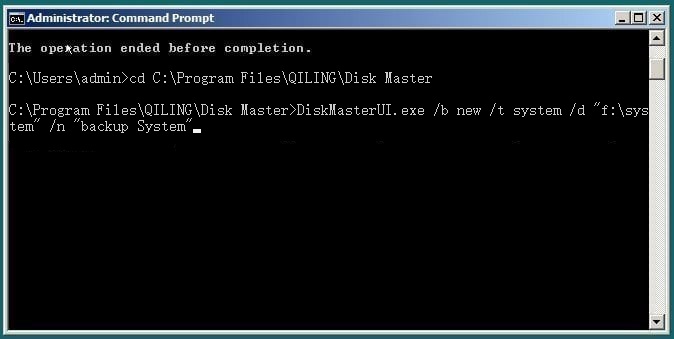
2. To perform a system backup of your server to a folder named "system backup" in F: drive, run the command "backup system backup F:" in Qiling Disk Master and press Enter.
DiskMasterUI.exe /b new /t system /d "f: \system backup" /n "Backup System"
Use GUI Version of Backup Software to Protect Server
You can also try GUI operations with Windows Server Backup, but keep in mind that it still has limitations similar to Wbadmin. If you're looking for more advanced server backup capabilities, it's recommended to use specialized backup programs. If you're interested in learning about the GUI version of Windows Server Backup, you can refer to this article for instructions on how to perform image backups.
1. Qiling Disk Master Server
Follow the steps below to backup server computer with Qiling Disk Master Server.
1. Launch Qiling Disk Master Server, and then choose Backup > System Backup.

2. Rename the Task Name if required and choose a destination to save the Windows Server 2019 system image, selecting all partitions related to Windows Server 2019 system files and boot files by default.

3. To create a system image for Windows Server 2019 or other systems, press the "Proceed >>" button. Alternatively, to schedule a backup system, set the Schedule Backup option, which has five available choices: Daily, Weekly, Monthly, Event triggers, and USB plug in.

The software is convenient as it eliminates the need for manual system backups. It also optimizes backup size using incremental backup, compression, sector backup, and automatic splitting. However, the disk space will eventually fill up due to accumulated backups, requiring manual or automatic deletion of old backups.
To avoid invalid backups, enable Backup Scheme and set it to delete backup files automatically, with options to delete by quantity, time, or daily/weekly/monthly frequency.
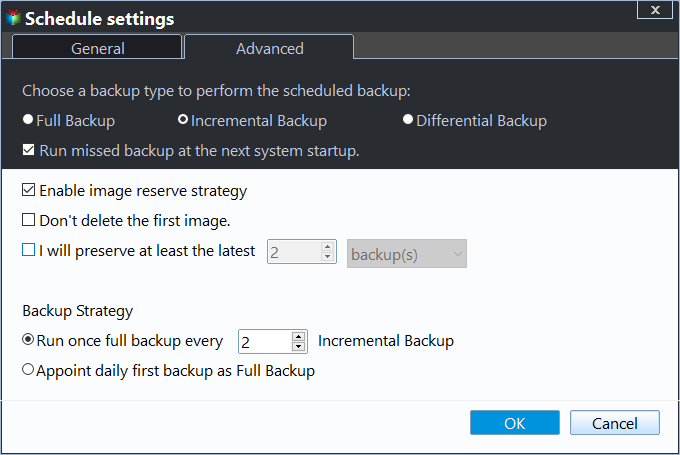
At the same time, you can choose to use differential backup as backup method for the scheduled task, which completely compensates for this problem with incremental backups. For differences between them, please refer to Incremental or Differential Backup.
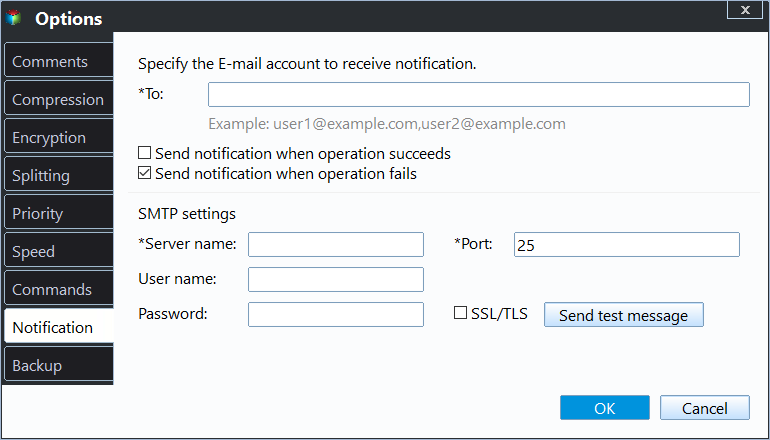
Additionally, you can still enable email notifications to confirm the backup task's completion. You can also customize the backup process by commenting, splitting, compressing the backup image, or selecting a backup mode, among other options.
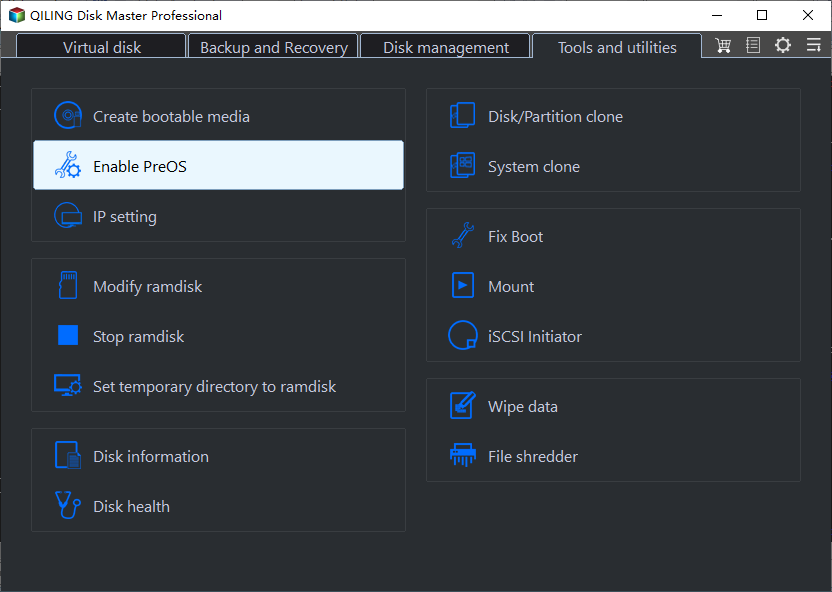
When your Windows computer fails to boot and you want to backup the system without using Windows, you can create a bootable media from a previous backup to access and backup your system. This approach allows you to bypass the unbootable Windows and still perform the necessary system backup.
If you created a recovery environment in advance, you can simply restart your computer and select "Enter into Qiling Disk Master" to access the main page of Qiling Disk Master, just like in Step 1.
2. Qiling Disk Master
Qiling Disk Master offers a centralized backup management solution for Windows operating systems, providing a convenient and reliable way to manage backups.
- It allows you to create a system image, disk image, or partition image for Windows PCs and Servers, enabling you to back up and restore entire systems or specific partitions.
- You can save backup images on a local disk, external hard drive, network share, or NAS device.
- You can schedule a backup task to run on a daily, weekly, or monthly basis, utilizing the full, incremental, or differential backup method, allowing for efficient and regular data protection.
- The software allows you to backup VMware, Hyper-V, and SQL databases, among other features.
Download this powerful enterprise backup software now to try it out and experience its capabilities firsthand.
Conclusion
You can use either Windows Server Backup or Qiling Disk Master Server to perform a Windows Server backup, either through the command line or their respective GUI versions. This allows you to easily create a system image backup in Windows Server 2012/2016/2019/2022 and other versions, with the option to set multiple backup settings in a few clicks.
If you're looking for a simpler way to backup or sync files, the GUI version of backup software is a better choice. You can also use File Backup, File Sync, or Disk Clone to protect data between Windows Server. This software is one of the best options to safeguard your server computer and can even create a bootable media with its TechPlus edition.
Related Articles
- Perform Windows Server 2012 System Restore Using Command Line
If you don't know how to perform Windows Server 2012 system restore command line, please read on and learn 2 practical methods as well as from easy graphics. - Use Wbadmin in Windows Server 2016 for Backup and Recovery
This article will introduce you to 3 very classis examples of Windows Server 2016 wbadmin, which help you safely protect the system and data on it. For novices, try the easier way! - Fix Windows Server Backup Failed Not Enough Space on the Disk
Learn how to Fix Windows Server Backup Failed Not Enough Space on the Disk with clear steps, key checks, and practical tips. - How to Backup Laptop to Google Drive Step by Step
Back up a laptop to Google Drive with step-by-step options for protecting files in cloud storage and keeping recovery copies available. - How to Move Files to External Hard Drive Without Copying - 2 Alternative Ways
Learn how to Move Files to External Hard Drive Without Copying - 2 Alternative Ways with clear steps, key checks, and practical tips. - Sync Files Between Desktop and Laptop | Easy!
This guide explains Sync Files Between Desktop and Laptop | Easy! with clear steps, key checks, and practical tips.
Products
Articles & Tutorials
- Data Recovery
- Data Backup
- File Recovery
- File Backup
- File synchronize
- System Backup and Restore
- Disk and Partition Clone
- Technical articles
- Disk Master Help
- Windows Deleted File and Disk Recovery Tutorials
- Windows File and Data Recovery Tutorials
- More Windows Tutorials for Install, Security, Files, and PC Tips
- Windows Boot, Repair, and Recovery Environment Tutorials
- Windows Backup Tutorials
- Windows Restore Tutorials
- Windows Clone and Migration Tutorials
- Windows Server Backup, Recovery, and Management Tutorials
- Windows Disk, Partition, and Storage Management Tutorials