Restore Windows Server 2008 R2 to Previous Date | 3 Ways
- How do I rollback a Windows Server?
- 3 effective methods to restore Windows Server 2008 R2 to previous date
- # 1: Restore system state backup in Windows Server 2008 (R2) using command prompt
- # 2: Restore system state backup in Windows Server 2008 (R2) with Windows Server Backup
- #3: More powerful way to restore Windows Server 2008 R2
- Conclusion
How do I rollback a Windows Server?
Windows Server 2008 R2 does have System Restore, which allows you to roll back to a previous date. To restore your server, go to Start, then type "system restore" and select the "System Restore" option. Follow the prompts to choose a restore point from a list of available dates. Note that System Restore only affects system files and settings, not user data. Make sure to select a restore point before the date when the issue occurred. If you're not sure, you can try a restore point from a few days before the issue started. Be cautious when restoring, as it may overwrite some recent changes. If you're not comfortable with System Restore, you can also try the Windows Recovery Environment (WinRE) or the Windows Server Backup feature.

Windows Server 2008 and similar server-based computers lack the System Restore feature, but you can achieve a similar goal by using system state backup or full backup, which can be more powerful but time-consuming, typically used for Windows Server backup and restore in critical or unbootable situations.
3 effective methods to restore Windows Server 2008 R2 to previous date
To restore Windows Server 2008(R2) to a previous date, you have three methods to consider.
- Wbadmin command line.
- Easier graphical backup software - Windows Server Backup.
- Best server backup software – Qiling Disk Master Server.
Well then, how to choose them?
- For IT professional or technician, The Wbadmin command line provides more flexible switches, allowing you to configure them to meet your specific needs as much as possible.
- For novices, If you're looking to backup your Windows Server, you can use Windows Server Backup or Qiling Disk Master Server. However, Qiling Disk Master Server is recommended as it's more intuitive and allows for a dissimilar hardware restore, making it a better option. It can be completed in just 4 steps, making it a convenient choice.
And this article wil introduce three methods in details later.
# 1: Restore system state backup in Windows Server 2008 (R2) using command prompt
To restore a system state backup in Windows Server 2008 R2, use the Wbadmin command line utility. This utility can also be used on other Windows systems, including Windows Vista, Windows Server 2008, Windows 7, Windows Server 2012/2016/2019/2022, and Windows 8.
Step 1. Type cmd in the search box, right click the command prompt and run as administrator.
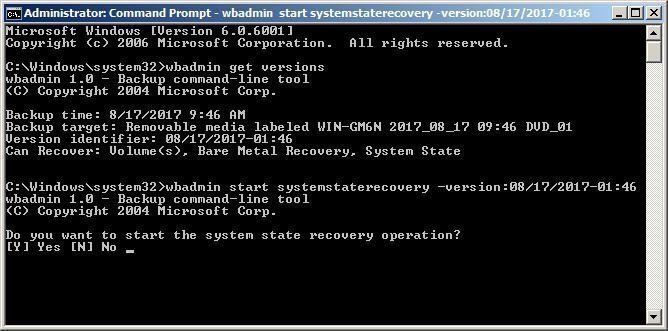
Step 2. Type the system state recovery command based on the following syntax and press enter to execute system state restore.
wbadmin start systemstaterecovery -version:versionIdentifier --backupTarget:Backup Destination location –machine:server name –quiet
Notes:
● If you don't know the version and backup target of your backup, you can type "wbadmin get versions" to find out.
● The backup destination location can be a drive letter, a volume GUID-based path, or a remote shared folder path, and you can choose not to specify a backup target if you only have one backup.
● If there are multiple computers backed up to the same location, you can use the "-machine" switch to specify the server to be recovered.
● The "-quiet" switch means to run the backup without prompt.
For example, to restore a system state backup with version identifier 08/17/2017-01:46, use the following command:
wbadmin start systemstaterecovery –version 08/17/2017-01:46
# 2: Restore system state backup in Windows Server 2008 (R2) with Windows Server Backup
To restore a system state backup on a server computer, you can use Windows Server Backup, a GUI-based built-in backup and restore software available for server 2003/2008(R2)/2012(R2)/2016/2019/2022. This approach is often easier and less error-prone than using the wbadmin command line.
Step 1. To recover Windows Server backup, type "windows server backup" in the search bar and select it from the result list. Then, click on "Recover" under the Actions tab on its main page.
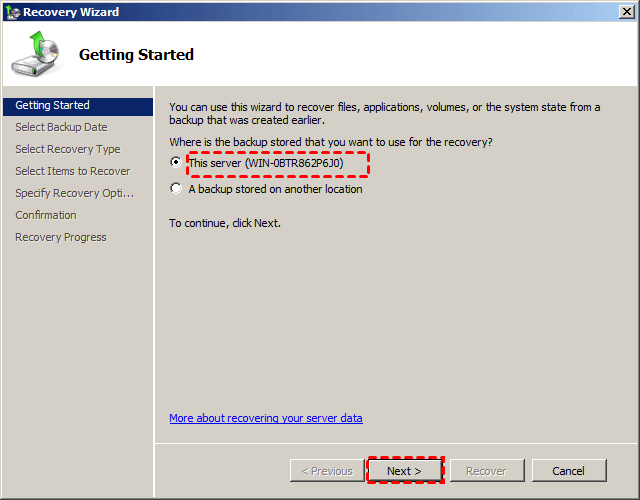
Step 2. On the Getting Started page, select This server and click Next.
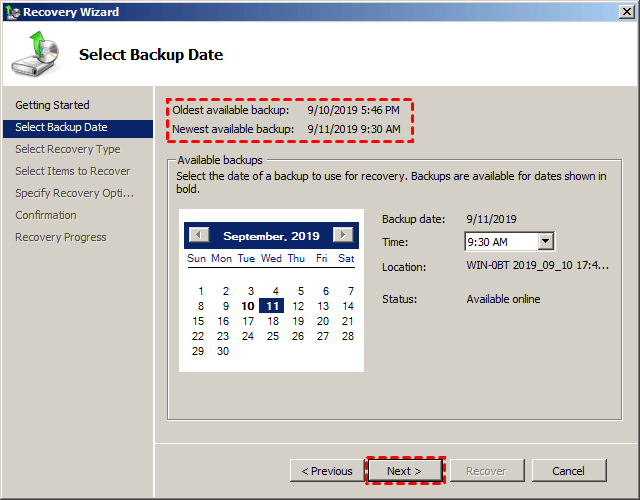
Step 3. Select a backup date to perform system state recovery and click Next, and a list of available backups for that date will be shown in bold.
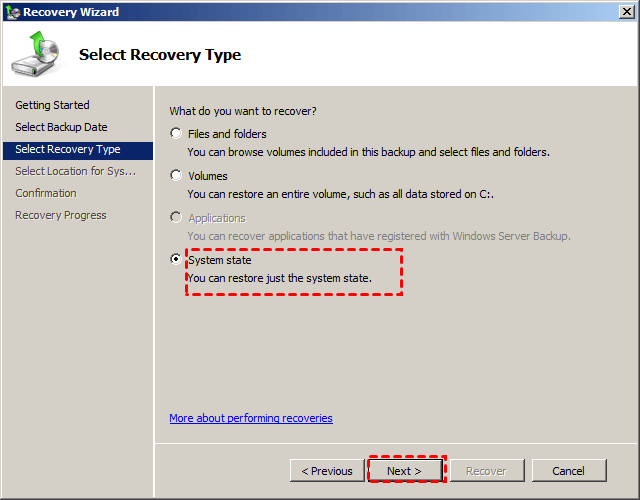
Step 4. Tick System State when you are asked "What do you want to recover" and click Next.
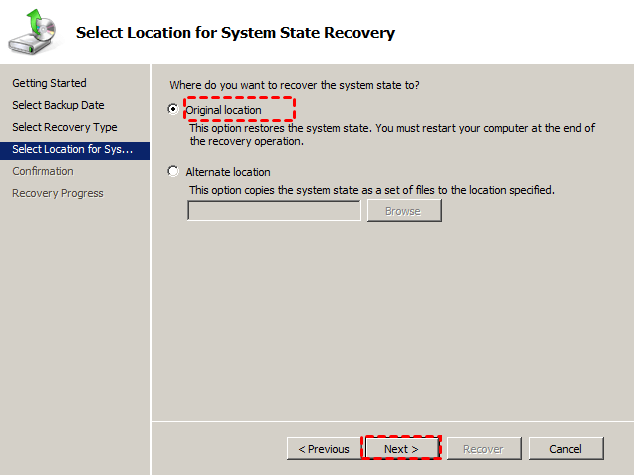
Step 5. Tick Original location and click Next.
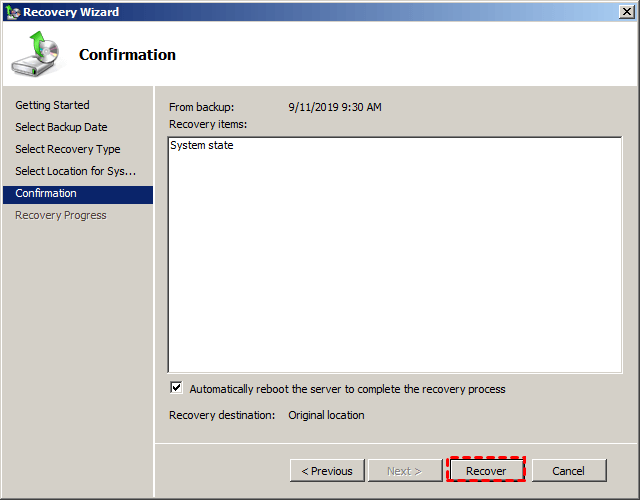
Step 6. In Windows Server 2008 R2, to recover from a system state backup, click Recover, wait for the process to complete at 100%, and then click Finish to exit.
#3: More powerful way to restore Windows Server 2008 R2
Restoring Windows Server 2008 R2 to a previous date can be achieved by using a system state backup, which contains boot files, active directory, cluster database, registry, and other system files. However, if you need to repair the operating system, a full server backup is recommended, providing two possible restoration methods.
- Windows Server Backup: The system image recovery process requires a repair disk or installation disc and needs to be performed in the recovery environment.
- Qiling Disk Master Server: Qiling Disk Master Server is considered the best alternative to Windows Server Backup. It offers advanced features, including the ability to restore system images in Windows Server 2008 R2 or recovery environments if the computer is bootable, as well as support for dissimilar hardware restore and selective file restore.
I strongly recommend using Qiling Disk Master Server to restore Windows Server 2008 R2 and repair the operating system, even if your computer is unbootable, by creating a bootable media in simple steps with this software.
Step 1. Download Qiling Disk Master Server, install and launch it. Then, click Restore and Select Task to find the image file.

Step 2. To restore a backup image, select the desired backup image from the list and click Next. If the list is empty, go back and manually choose the backup image by clicking Select Image File.

Step 3. Select Restore this system backup and click Next.

Step 4. Confirm the operation summary and click Proceed to restore Windows Server 2008 R2 to previous date.

Notes:
★ If you want to restore a Windows Server backup to a different computer with dissimilar hardware, the software will check the "Universal Restore" feature by default. If not, you can enable it to resolve driver compatibility issues and ensure a successful boot on the new computer.
★ This software supports multiple versions of Windows Server, including 2003, 2008, 2012, 2016, 2019, and 2022, as well as Server 2008 R2, allowing for the restoration of systems like Windows Server 2012 R2 to a previous date.
★ To upgrade a hard drive quickly, cloning Windows Server 2008 with a clone feature is the easiest method. This process transfers everything from one hard drive to another and makes the cloned drive bootable.
Conclusion
To restore Windows Server 2008 R2 to a previous date, you can use a system state backup or a full backup. If the issue is caused by Windows Updates, drivers, or installed software, restoring the system state backup can resolve the problem. However, if the system is experiencing boot issues, a full backup should be performed and the operating system can be repaired step by step.
Creating a backup image is a good idea in case you need to restore your computer. Qiling Disk Master is a good choice for this, as it not only creates a backup image but also makes it easy to operate, whether for backup or restoration. Additionally, it allows you to deploy the image to multiple computers over a network in Qiling Disk Master Technician Plus if needed.
Related Articles
- How to Perform Windows Server 2012 System Restore Using Command Line
If you don't know how to perform Windows Server 2012 system restore command line, please read on and learn 2 practical methods as well as from easy graphics. - Alternative Way to Create Restore Point in Windows Server 2008 (R2)
If you are looking for a quick way to capture a snapshot of your computer, please continue to read this article and learn 2 effective ways to create restore point in Windows Server 2008 R2. - Create Windows Server 2008 R2 Backup Schedule Weekly
Although Windows Server Backup can either schedule a daily backup, or more frequent backup, it's not enough. Read this guide to get two ways to configure Windows Server 2008 backup schedule weekly task. - What Is Windows Complete PC Restore Server 2008 and How to Use it
You will learn how to use Windows Complete PC Restore in server 2008 step by step. Also, you could use server backup software - Qiling Disk Master to achieve this goal, it's even easier. - How to Repair Windows Server 2008 (R2)/2012 (R2)/2016 Using Command Prompt
You will learn x ways to repair Windows Server 2008 R2 using command prompt and get your computer back normally. Also works for server 2012 R2/2016 R2/2019/2022. - A Quick Answer to: Will Updating My BIOS Delete Anything?
Updating BIOS is something you might have heard about. But have you ever been stuck on a question like, 'Will updating my BIOS delete anything?' This article will describe whether updating BIOS will delete anything on your PC and offer a tool called Qiling Disk Master to protect your data.
Products
Articles & Tutorials
- Data Recovery
- Data Backup
- File Recovery
- File Backup
- File synchronize
- System Backup and Restore
- Disk and Partition Clone
- Technical articles
- Disk Master Help
- Windows Deleted File and Disk Recovery Tutorials
- Windows File and Data Recovery Tutorials
- More Windows Tutorials for Install, Security, Files, and PC Tips
- Windows Boot, Repair, and Recovery Environment Tutorials
- Windows Backup Tutorials
- Windows Restore Tutorials
- Windows Clone and Migration Tutorials
- Windows Server Backup, Recovery, and Management Tutorials
- Windows Disk, Partition, and Storage Management Tutorials