Windows Complete PC Restore Server 2008 | How to Use It
Quick navigation:
- Need help: how do I restore my Windows Server 2008?
- How to use Windows Complete PC Restore in Server 2008
- How to perform Windows Server 2008 backup and restore to different hardware
- Wrapping things up
Need help: how do I restore my Windows Server 2008?
Windows Server 2008 reached its end of support lifecycle on January 14, 2020, but many users still utilize it. To address this, creating a system image for Windows Server 2008 is a crucial step, allowing users to perform Windows Complete PC Restore in the event of a disaster, thereby ensuring continuity and minimizing downtime. This is a common requirement for users who are either planning or have already taken this step.
To restore a Windows Complete PC Backup image on a Server 2008 system, boot the target server from the installation media (DVD or USB), select the "Repair Your Computer" option, and follow the prompts. Ensure the target server is in a stable environment, disconnect any unnecessary peripherals, and have a valid backup of the target server before attempting the restore, in case something goes wrong during the process. It's recommended to consult the official Microsoft documentation or seek professional help if you have any doubts or concerns.
Windows Complete PC Restore is a recovery tool in the Windows recovery environment of Windows Server 2008 that helps restore system images created by the built-in tool. To successfully restore, you need both a backup image or bare metal backup and an installation disc, which are crucial, especially when performing Windows Server Backup bare metal backup and restore on different hardware.
How to use Windows Complete PC Restore in Server 2008
Here you will learn how to restore Windows Server 2008 with Windows Complete PC Restore, and the detailed steps are below. Before start, you need to make some preparations first.
- An installation disc to boot computer from recovery environment.
- A system image backup or bare metal backup is necessary for recovery. Bare metal backup is specifically required when you want to restore Windows Server to different hardware, and you should select "Bare Metal Recovery" on the Select Items for backup page.
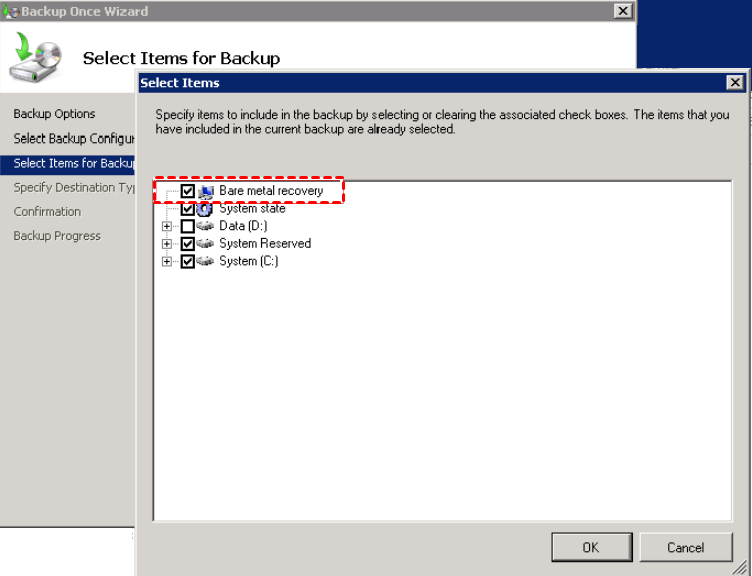
Step 1. To begin the installation process, set the server 2008 installation disc as the first boot priority in the BIOS settings. Once the disc is recognized, select the language and other preferences in the initial screen and click Next.
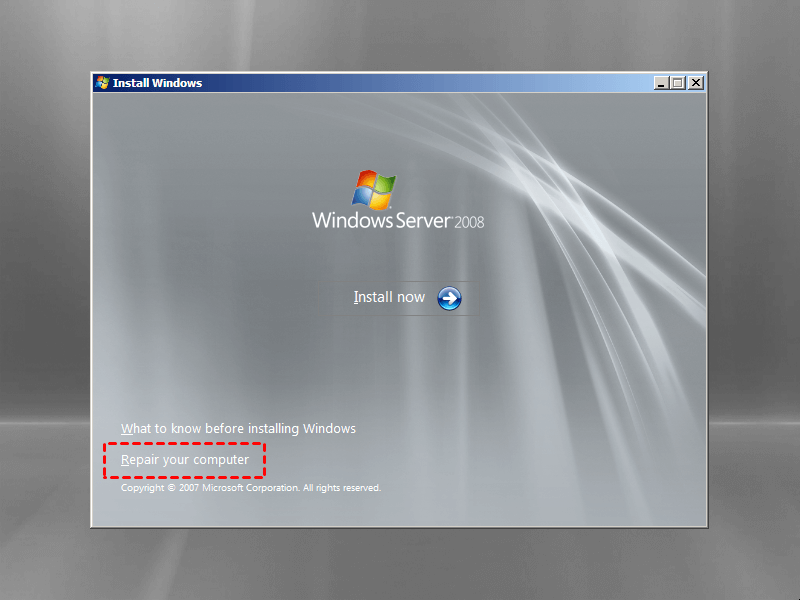
Step 2. Click the "Repair your computer" option and then select the default operating system. If there is no operating system, you can click "Load Drivers" and wait until the necessary drivers are loaded.
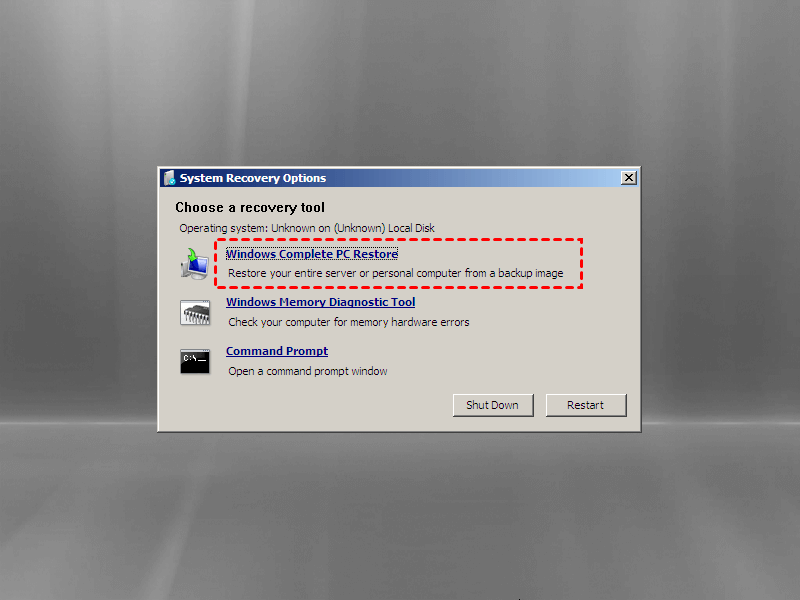
Step 3. Click Windows Complete PC Restore.
After running the Windows Recovery Environment, the system will scan your computer and find the image on it. You can then choose to use the latest available backup or Restore a different backup. However, if the backup image is stored on an external hard drive or network drive, you may receive a message indicating that Windows cannot find a system image on this computer.

Step 5. Confirm your settings and click Finish to start the restoration. If there are any prompts, click OK to continue. Once done, your server will reboot and load Windows.
In Windows Server 2008, using Windows Complete PC Restore requires both an installation disc and a backup image, as these are essential for a smooth operation. If you attempt to restore without these, the process will fail. Additionally, if you're migrating to a new server with different hardware, you'll need a bare metal backup to avoid issues.
At this time, you could consider using server backup software, such as Qiling Disk Master Server, to create system image backup for server 2008, create bootable media to boot the computer, and utilize its "Universal Restore" feature to backup and restore server to different hardware.
How to perform Windows Server 2008 backup and restore to different hardware
Similar to Windows Complete PC Restore in Server 2008, this method requires a system image backup created by Qiling Disk Master Server and a recovery disk (if your computer is not bootable). If you don't have these, create them beforehand.
You can backup and restore Windows Server 2008 to different hardware using this software, which is also applicable to Windows Server 2012 backup restore to different hardware, as well as other server systems including previous server 2003/2008 R2 and later versions, server 2012 R2/2016/2019/2022.
To backup your computer, download and install Qiling Disk Master Server on your computer. For IT technicians or small to medium-sized companies, Qiling Disk Master TechPlus may be a suitable alternative.
Step 1. To perform a Windows Server backup restore to a different computer, click "Restore" and "Select Task". If your computer is not bootable, start bootable media to access the recovery environment.

Step 2. Select the backup image and click Next.

Step 3. Select to restore the entire backup and Restore system to other location, then click Next.

Step 4. Then, select a destination location to store the backup image and click Next.

Step 5. Finally, in the Operation Summary window, tick Universal Restore, then click Proceed.

Wrapping things up
Windows Complete PC Restore in Server 2008 allowed users to perform a full system restore to a different computer, even with dissimilar hardware, but it required an installation disc that may be hard to find due to the OS's end-of-life in 2020.
To backup and restore Windows Server 2008 on different hardware, consider using 3rd party server backup software like Qiling Disk Master Server or its advanced version, Qiling Disk Master TechPlus.
You can easily perform dissimilar hardware restore with either of these tools, even when your computer is unbootable. The main difference is that the advanced software allows you to deploy an image to multiple server computers or PCs simultaneously, and use it on unlimited servers and PCs within one company.
Related Articles
- Move Windows Server 2008 (R2) to New Machine with Different Hardware
Moving Windows Server 2008 or 2008 R2 to new machine with dissimilar hardware can be as easy as pie if we find the best solution. Get a powerful server backup and restore tool to help you from this page. - How to Create Restore Point in Windows Server 2008 (R2)
If you are looking for a quick way to capture a snapshot of your computer, please continue to read this article and learn 2 effective ways to create restore point in Windows Server 2008 R2. - Restore Windows Server 2008 R2 to Previous Date | 3 Ways
Learn how to Restore Windows Server 2008 R2 to Previous Date | 3 Ways with clear steps, key checks, and practical tips. - How to Perform Windows Server Backup Restore (Step-by-Step Guide)
Learn how to Perform Windows Server Backup Restore (Step-by-Step Guide) with clear steps, key checks, and practical tips. - Windows Server Backup Restore to Virtual Machine
This guide explains Windows Server Backup Restore to Virtual Machine with clear steps, key checks, and practical tips. - Best Way to Backup PC to Synology NAS (2024)
It is wise always to create a backup of your PC, but backing up data to keep it safe can be tricky. So, you should learn here how to backup PC to Synology NAS to avoid any data loss and keep working seamlessly.
Products
Articles & Tutorials
- Data Recovery
- Data Backup
- File Recovery
- File Backup
- File synchronize
- System Backup and Restore
- Disk and Partition Clone
- Technical articles
- Disk Master Help
- Windows Deleted File and Disk Recovery Tutorials
- Windows File and Data Recovery Tutorials
- More Windows Tutorials for Install, Security, Files, and PC Tips
- Windows Boot, Repair, and Recovery Environment Tutorials
- Windows Backup Tutorials
- Windows Restore Tutorials
- Windows Clone and Migration Tutorials
- Windows Server Backup, Recovery, and Management Tutorials
- Windows Disk, Partition, and Storage Management Tutorials