How to Migrate Windows Server 2008 (R2) to New Hardware
Need to Move Windows Server 2008 to New Hardware
Migrate Windows Server 2008 to another server
You're trying to migrate a Windows Server 2008 R2 from a single HP server with a 1 TB hard drive to a new Dell server with RAID 1 level storage. The system isn't booting after the migration. This is likely due to the change in disk configuration and the server not being able to find the boot device.
You've tried using recovery mode to repair the system, but it still doesn't work. The server can only acknowledge the RAID driver manually. Have you tried booting with the RAID driver already included in the kernel, or using a different RAID configuration? Additionally, have you checked the system logs for any error messages related to the RAID driver?
- Question from Serverfault.com
To move a Windows Server 2008 installation to new hardware, a practical approach is to create a system backup and restore the image on the new hardware, rather than reinstalling the whole system, which can be time-consuming, especially when moving to multiple computers. A powerful tool is needed to facilitate this process.
Best 2 Tools to Migrate Windows Server 2008 (R2) to New Hardware
1. Qiling Disk Master Server
Qiling Disk Master Server is a backup program that offers data protection and transfer solutions at an affordable price, compatible with all Windows Server and PC operating systems.
- It offers System/Disk/Partition/File Backup that can backup all kinds of data to different storage devices.
- It offers a System/Disk/Partition Clone feature, which is useful for upgrading to a larger drive or migrating the OS to an SSD on a server.
- The device is equipped with a Sync feature, allowing for seamless file transfer to various locations and effortless sharing with others.
Qiling Disk Master can complete the task of moving Windows Server 2008 to new hardware using its Universal Restore feature. This function allows for the restoration of all kinds of Windows OS to different hardware, ensuring that all hardware can be properly booted after the restoration. To try it out, simply download Qiling Disk Master now.
2. Qiling Disk Master
Qiling Disk Master is a top-notch enterprise backup software that can also facilitate the migration of Windows Server 2008 (R2) to new hardware. It offers a user-friendly and reliable solution for centralized backup management across all Windows operating systems.
- It allows for centralized backup management of Windows PCs and Servers, enabling system, disk, and partition backups.
- You can schedule a backup task to run daily, weekly, or monthly using the full, incremental, or differential backup method.
- You can restore a backup image to the same computer or a different one with different hardware.
- If your backup has multiple versions, you can restore from any point in time you want.
Download this powerful enterprise backup software now to have a try!
How to Do Windows Server 2008 (R2) Backup and Restore to Different Hardware
1. Using Qiling Disk Master Server
To restore Windows Server 2008 (R2) to different hardware, you need to create a system image backup and a bootable USB flash drive or DVD/CD using the "System Backup" and "Create Bootable Media" features. This process involves creating a system image backup, which captures the entire system, including the operating system, applications, and settings, and then creating a bootable media that can be used to boot the system on the new hardware. This allows you to restore the system to the new hardware and have it up and running with all the settings and applications intact.
👉 To Create System Image Backup
Run Qiling Disk Master Server and click Backup, then click System Backup, select a path to save the backup image, and click Proceed.

👉 To Create Bootable USB Flash Drive
To prepare for the installation, create a bootable USB drive by clicking on "Tools", then selecting "Create Bootable Media" and following the on-screen instructions.

👉 To Restore System Image to Dissimilar Hardware
1. Connect the bootable media to your new server and boot from it. Also, connect any external drives that have the backup image if saved.
2. After loading the main interface of Qiling Disk Master, click "Restore" and "Select Image File" to locate the backup image you created before.

3. Select the "Restore this system backup" option and check the box next to "Restore system to other location" at the bottom.
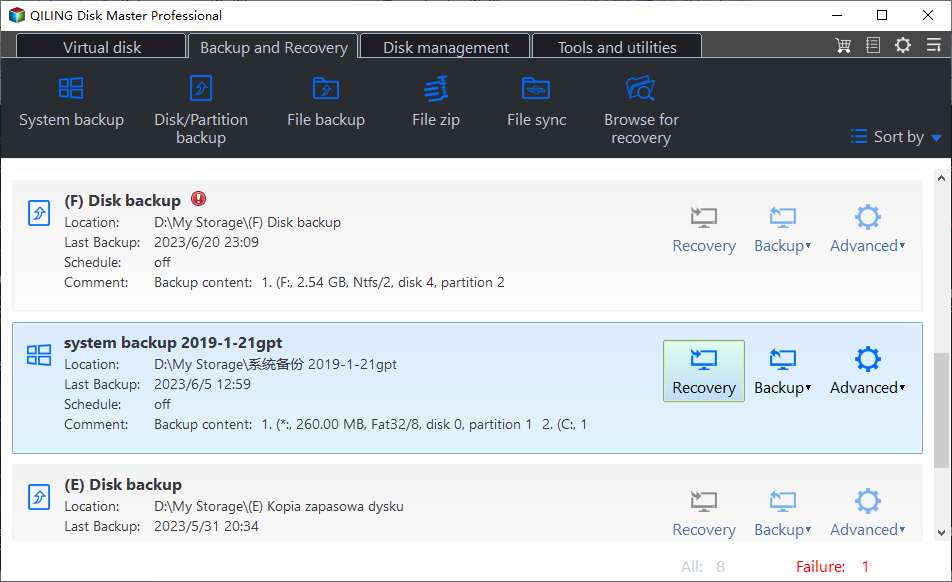
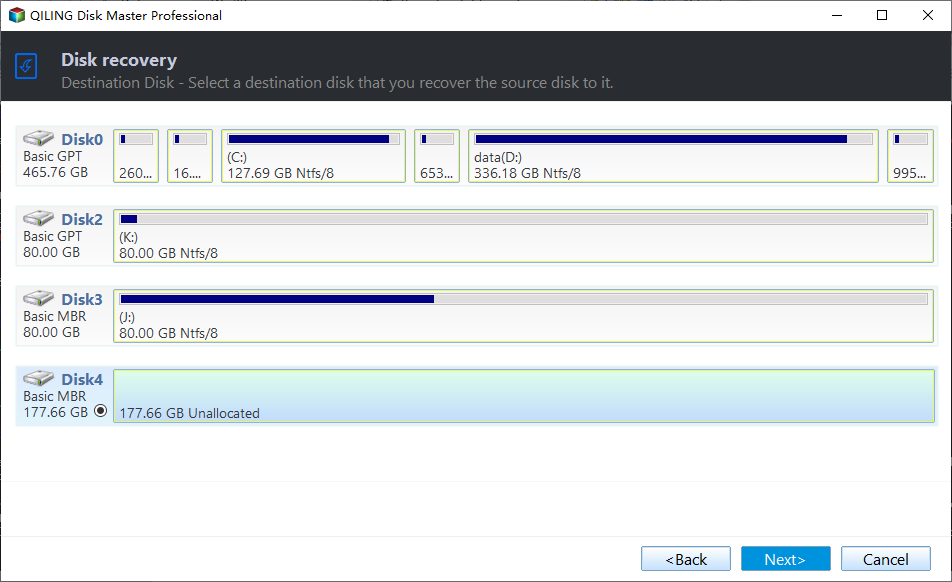
4. To restore data from a backup, specify the destination location where you want the restored data to be saved, and then click the "Next" button to proceed with the restoration process.
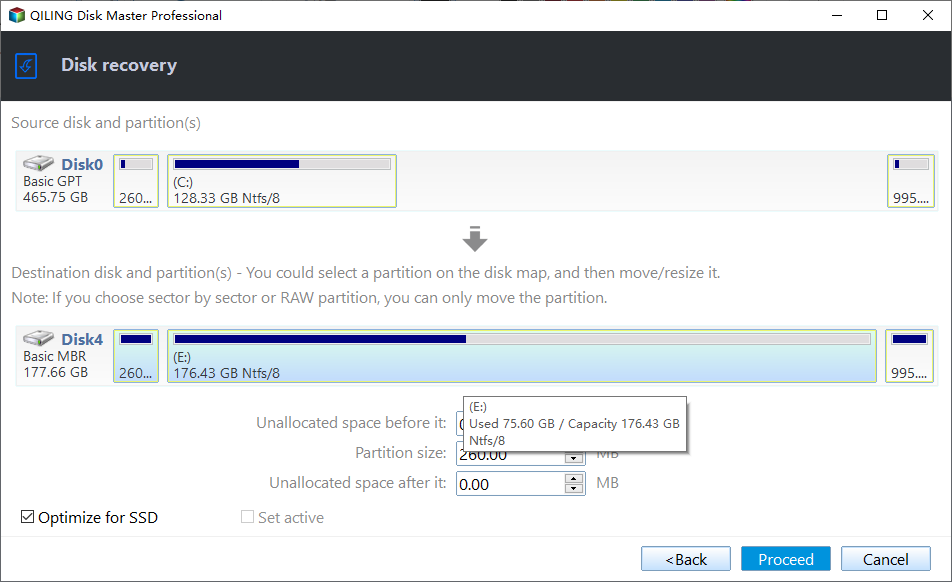
5. Preview the operation to be executed, ticking the Universal Restore option to ensure the system is bootable after restoring to dissimilar hardware, and then click Proceed to start the restoration.
✍ Tip: If you want to move Server 2008 to multiple computers, you can try using Qiling PXE Boot Tool, which allows you to boot and restore many computers from a single network location.
2. Using Qiling Disk Master
To move Windows Server 2008 (R2) to new hardware, start by creating a system image with Qiling Disk Master, which will allow you to restore the operating system to the new hardware. Once the system image is created, follow the steps to restore the image to the new hardware. This will ensure a smooth transition of the operating system to the new hardware.
1. Run and log in Qiling Disk Master.
2. To add a Windows device, click on "Source Device" then select "Windows" and click on "Add Windows Device". You will be prompted to enter the IP address, username, and password of the target server device.
Note: You need to turn on the target device before you add it.
3. Start server migration.
- To restore a system backup task, go to the Backup Task section on the left menu bar and click the three dots icon on the task you created earlier, then select Restore.
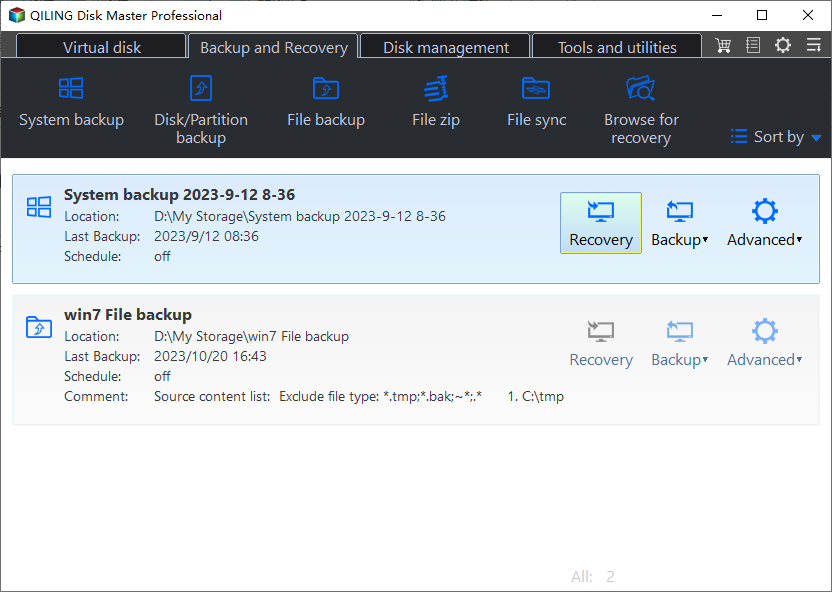
- Select the restore content, including the restore version and restore method, choosing the latest version and restoring the entire system.

- Select the target location. Choose Restore to new location and select the target device and target disk.

- To ensure a secure boot after recovery, check the "Universal Restore" option. This will help prevent any potential security risks or issues that may arise from the recovery process.
- Click Proceed to launch the system recovery process.
If you're unsure which to choose between Qiling Disk Master and Qiling Disk Master, check the comparison table on the Windows Server Backup page.
Conclusion
Migrating Windows Server 2008 to new hardware can be achieved with ease using Qiling Disk Master Server and Qiling Disk Master. These tools simplify the process, making it very straightforward. They also offer additional features to help you backup your Server on the new hardware, making the transition seamless.
To protect unlimited PCs and servers within your company, you can use Qiling Disk Master Technician Plus to provide billable technical support to clients, or create portable Qiling Disk Master by copying the installation directory.
Related Articles
- Windows Server Backup Restore to Virtual Machine (2 Ways)
This guide explains Windows Server Backup Restore to Virtual Machine (2 Ways) with clear steps, key checks, and practical tips. - Free Backup Software for Windows Server 2008(R2)
You can use the best 3 backup software for Windows Server 2008 to protect your server! Choose the built-in tool or third-party tools based on your need. - Create Windows Server 2008 R2 Backup Schedule Weekly
Although Windows Server Backup can either schedule a daily backup, or more frequent backup, it's not enough. Read this guide to get two ways to configure Windows Server 2008 backup schedule weekly task. - Reliable & Powerful Data Wipe Software
You can wipe disk or wipe partition to completely erase all data on the disk or partition and prevent data recovery via Qiling Disk Master. - Solved: External Hard Drive Shown as “Unknown device”
This guide explains Solved: External Hard Drive Shown as “Unknown device” with clear steps, key checks, and practical tips. - How Do You Fix External Hard Drive Won't Format in Windows 10/8/7?
If your external hard drive won't format or you have received "the format did not complete successfully" when you format your external hard drive, this post will help you to solve the problem with several practical ways.
Products
Articles & Tutorials
- Data Recovery
- Data Backup
- File Recovery
- File Backup
- File synchronize
- System Backup and Restore
- Disk and Partition Clone
- Technical articles
- Disk Master Help
- Windows Deleted File and Disk Recovery Tutorials
- Windows File and Data Recovery Tutorials
- More Windows Tutorials for Install, Security, Files, and PC Tips
- Windows Boot, Repair, and Recovery Environment Tutorials
- Windows Backup Tutorials
- Windows Restore Tutorials
- Windows Clone and Migration Tutorials
- Windows Server Backup, Recovery, and Management Tutorials
- Windows Disk, Partition, and Storage Management Tutorials