Fixed: C Drive Is Getting Full Automatically in Windows Server 2012 R2
Why C Drive Is Getting Full in Windows Server 2012 R2?
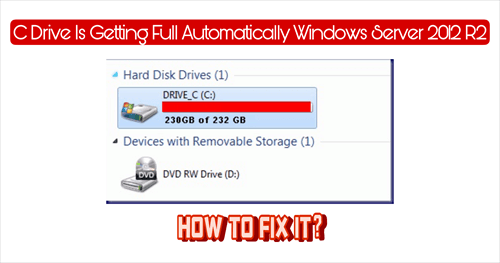
In Windows Server 2012 R2, the C drive often gets full automatically, a problem that also affects other Windows Server versions such as 2019, 2016, and 2012. Before finding solutions, it's essential to understand the reasons behind this issue, including the accumulation of system files, temporary files, and other data that can consume the C drive's storage space. Understanding these underlying causes will help in implementing effective solutions to prevent the C drive from getting full in the future.
♨ Windows generates a lot of system junk files on the C drive, including caches, logs, thumbnails, downloads, and internet files.
♨ Temporary files can cause system crashes or slowdowns if not deleted, potentially leading to a C drive full error in Windows Server.
♨ Windows native backups, restore points, and updates can consume a significant amount of storage space, potentially leading to disk space issues.
♨ The C drive is running out of space due to numerous large programs consuming a significant amount of memory.
Some programs may not function properly when your computer's registry becomes corrupted. This issue needs to be resolved quickly to get your computer back to work.
How to Fix 'C Drive Full' Error in Windows Server 2012 R2
Once you understand the cause of this problem, you can try the two methods provided below to help you solve the "C drive is getting full automatically in Windows Server 2012 R2" problem.
#1. Clean Up Disk to Increase Free Space
If Windows Server 2012 R2 reports a full disk but the total file size doesn't match, it could be due to junk files and temporary files. To free up space on the C drive, try performing a disk cleanup, which can help remove unnecessary files and recover space.
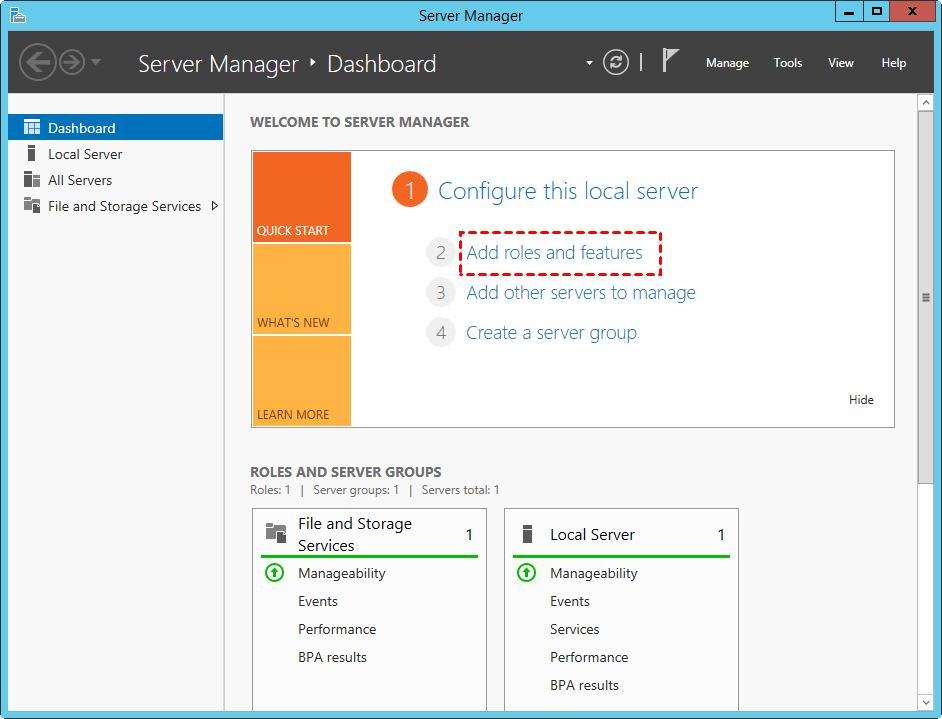
- To access the Server Manager, click on the Server Manager icon located at the bottom left corner of the screen. From there, click on the second option, which should be a list of available options, to proceed.Add roles and features.
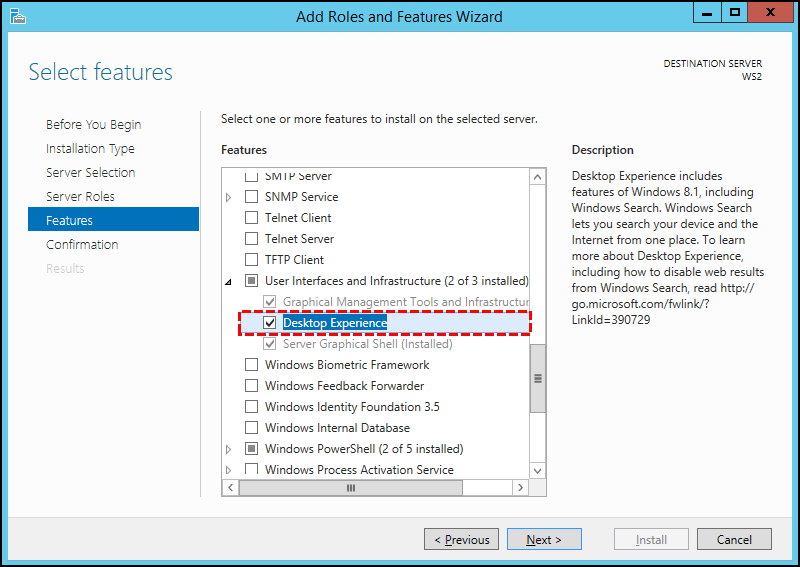
- Click Next till you see the Features.
- Click the check-box in front of "Desktop Experience" and click Next.
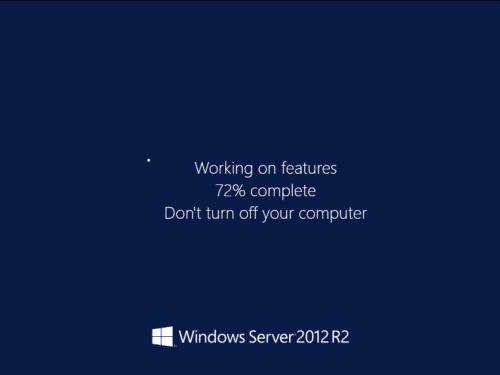
- After a few minutes, the installation is complete. Click "Close" to finish. Then, simply restart the server to finalize the feature addition.
- After rebooting Windows Server 2012 R2 to desktop, open "This PC", right click on the C drive and select "Properties".
- In the Properties window, navigate to the General tab and click on the Disk Cleanup button.
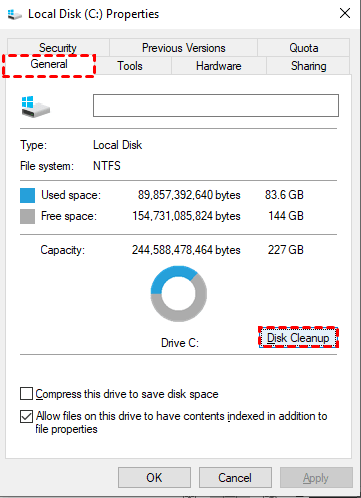
- To safely delete files, select the desired files, click on the "Delete" option, and confirm the action by clicking "OK" in the confirmation dialog box. This ensures that the files are permanently removed from the system.
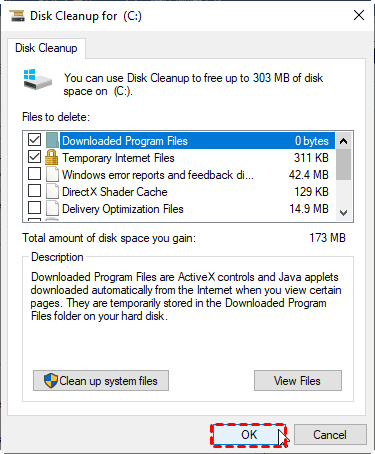
- After completing the freeing up of space, you may redo step 7 to clean up system files.
After completing these steps, you can free up some disk space.
#2. Transfer C Drive Data to Another Drive
You can use Windows' built-in Disk Cleanup tool to free up some disk space, but it might not be enough to keep your C drive from getting full again. To truly resolve the issue, consider transferring or migrating the data on your C drive to another drive, which can help prevent it from getting full automatically in Windows Server 2012 R2.
A reliable disk cloning software can help you clone your C drive to another drive, migrating all data and system-related files with just a few clicks. The software's System Clone function automatically selects the C drive, eliminating the risk of cloning the wrong drive. Additionally, it offers Disk Clone and Partition Clone options, allowing you to easily boot your computer from the cloned hard drive without any boot issues.
To transfer data from your C drive to another disk, you can use this software. Click the download button below to install it on your computer.
- Launch Qiling Disk Master and you will see a dark blue interface. Clicking on "Tools and utilities" followed by "System Clone" will prompt the selection of C drive and System Reserved Partition by default.
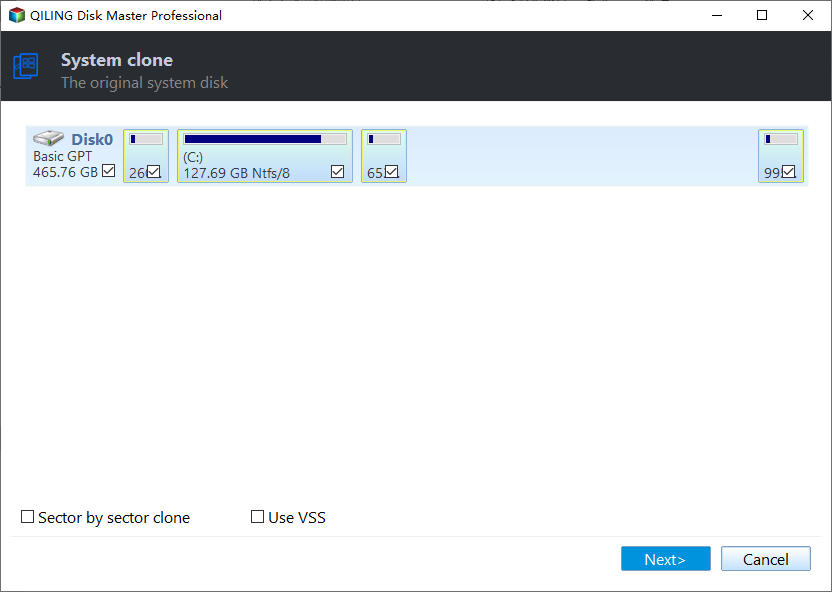
- You'll need to select a destination disk to clone the source disk to.

✭ Tip: This software can be used to clone a Master Boot Record (MBR) disk to another MBR disk, clone an MBR disk to a GUID Partition Table (GPT) disk, clone a GPT disk to an MBR disk, or clone one GPT disk to another GPT disk.
- To confirm the clone, go to the Operation Summary page and review the relevant clone information. Once you're satisfied, click on the confirmation button to finalize the clone.Proceed to transfer C drive data to another drive.

Useful Tips:
✶ SSD Alignment: If the destination disk is an SSD, it's recommended to select this option as it can improve the writing and reading speed of the SSD disk.
✶ Sector By Sector Clone: This software adopts "Intelligent Clone" by default, which just clones the used sectors on the disk. So it enables you to create a full image of your disk, including all used sectors, without having to manually select each one. It also allows you to clone a larger drive to a smaller one.
✶ Edit Partitions: This option allows you to adjust the partition size or location on the destination disk, giving you flexibility in how you allocate space on the target drive. Add unused space to all partitions: The destination disk partitions will be automatically resized to the entire disk, taking into account the disk size, so you won't encounter any issues with partition sizes or the cloned hard drive shows wrong size error.
NoteCloning the C drive from a MBR disk to a GPT disk requires booting in UEFI mode after cloning, otherwise the system won't boot.
Qiling Disk Master provides various useful functions beyond its Clone function, including backup, sync, and restore capabilities.
◉ 4 Backup Methods: You can use the Backup function to protect your files by setting up automatic backups, saving time and eliminating repetitive actions. This feature also allows you to create backups of your system, disk, and partition, providing comprehensive protection for your data.
◉ The backup scheme offers three options: Full Backup, Incremental Backup, and Differential Backup. The latter two methods can help conserve target disk space.
◉ Different Sync Options: You can sync your files to various cloud services like Google Drive, OneDrive, Dropbox, and also to network locations, external/internal hard drives, or NAS devices.
Conclusion
In Windows Server 2012 R2, if your C drive is getting full automatically, you have two solutions. While Disk Cleanup can help free up some space, it only frees up a limited amount of space and doesn't eliminate the issue of junk files being generated in the future. A better solution is to clone the C drive, which can prevent the problem of a full C drive from occurring again.
In the future, you can use Qiling Disk Master to easily upgrade your computer's hard drive, migrating your system and all your data, and successfully boot from the cloned hard drive.
Related Articles
- 5 Quick Solutions to Windows Server 2012 Backup Disk Full
You will learn 5 quick solutions to fix Windows Server 2012 backup disk full. Get details below. - Windows Server Backup Disk Full | Solutions & Workaround
This guide explains Windows Server Backup Disk Full | Solutions & Workaround with clear steps, key checks, and practical tips. - Create System Image Backup in Windows Server 2012 Easily (2 Ways)
You can choose to create a system image in Windows Server 2012 step by step with Windows Server Backup or Qiling Disk Master Server. It depends on the level of disaster recovery you need. - How to Clone a Navigation SD Card with a Few Clicks for Windows 11/10/8/7
Learn how to Clone a Navigation SD Card with a Few Clicks for Windows 11/10/8/7 with clear steps, key checks, and practical tips. - Move Windows Server from HDD to SSD without Reinstalling System
Here comes the best way to move Windows Server 2003, 2008, 2012, 2016, 2019, SBS or Home Server 2011 to SSD and boot the system from successfully. - How to Clone Windows Server 2012 (R2) to SSD?
To clone Windows Server 2012 (R2) to SSD without losing data, you can turn to disk cloning software, Qiling Disk Master Server. - Windows Server 2012 Hard Drive Keeps Filling Up
Find why a Windows Server 2012 hard drive keeps filling up and free space safely with logs, backups, shadow copies, and resizing.
Products
Articles & Tutorials
- Data Recovery
- Data Backup
- File Recovery
- File Backup
- File synchronize
- System Backup and Restore
- Disk and Partition Clone
- Technical articles
- Disk Master Help
- Windows Deleted File and Disk Recovery Tutorials
- Windows File and Data Recovery Tutorials
- More Windows Tutorials for Install, Security, Files, and PC Tips
- Windows Boot, Repair, and Recovery Environment Tutorials
- Windows Backup Tutorials
- Windows Restore Tutorials
- Windows Clone and Migration Tutorials
- Windows Server Backup, Recovery, and Management Tutorials
- Windows Disk, Partition, and Storage Management Tutorials