Cloned Hard Drive Shows Wrong Size - Quick Fix Once For All
Why is my cloned showing wrong size?
When you upgrade to a larger hard disk drive (HDD) or solid-state drive (SSD) by cloning the old drive, the cloned drive may not show its full capacity, with the partition size remaining unchanged.
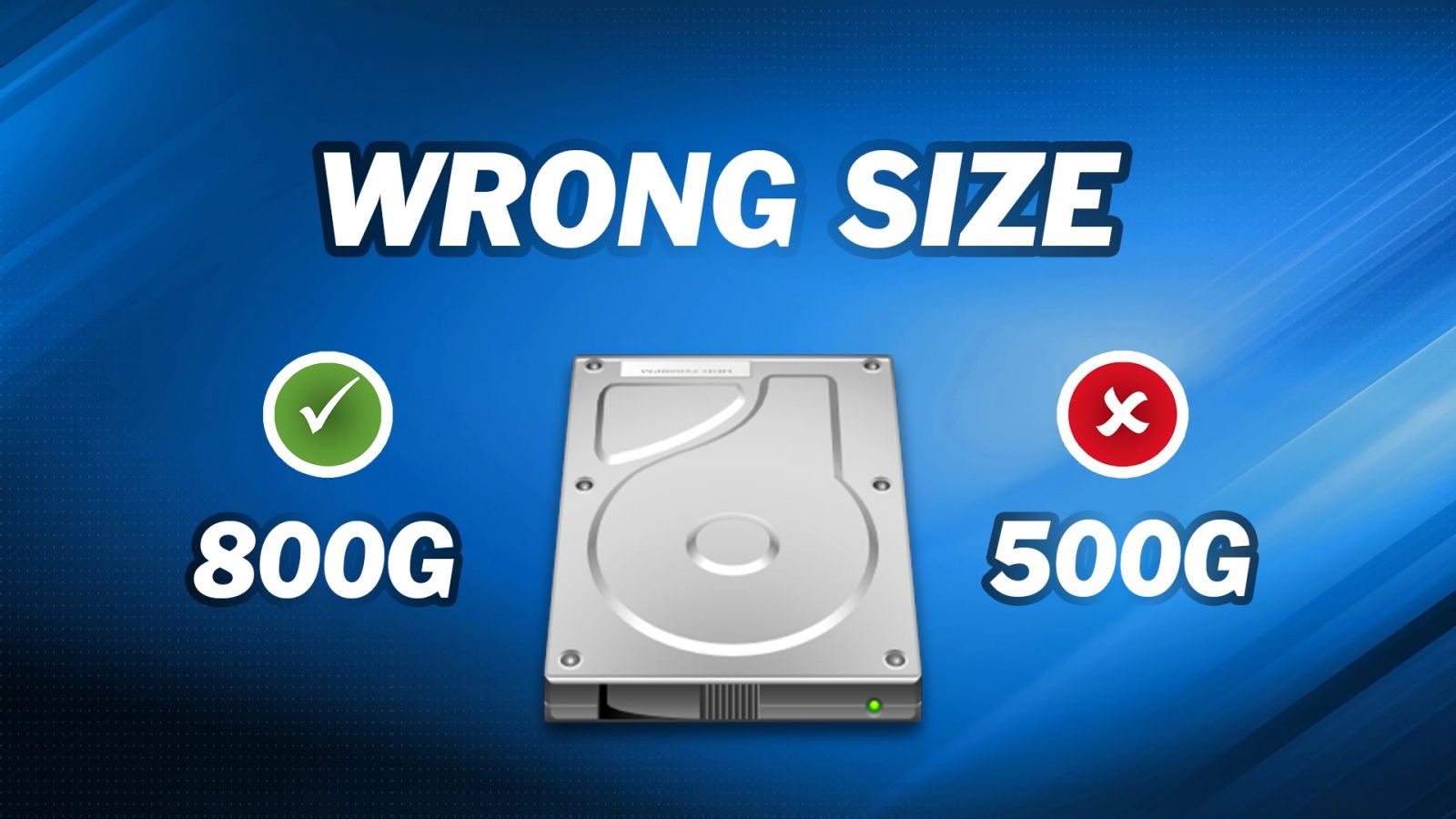
When you clone a hard drive, not only the data but also the partition size gets duplicated, which can lead to incorrect display of the HDD/SSD capacity if the cloned drive is larger than the original one, leaving additional unallocated space.
The unallocated space on a cloned hard drive in Windows File Explorer remains hidden, leading some users to believe they have lost disk space after the cloning process. However, accessing Disk Management reveals the unallocated space, allowing users to resolve the issue.
How to fix cloned hard drive shows wrong size
After completing the hard drive cloning process, you can resolve the issue of HDD/SSD showing wrong capacity by accessing Disk Management to manage the unallocated space.
If you want a comprehensive and swift fix, you can use specialized cloning software that enables you to clone to a larger drive without experiencing any loss of disk capacity.
- 1. How to use full capacity of cloned hard drive
- 2. How to avoid cloned hard drive shows wrong size
- 3. Video guides on how to fix cloned SSD not showing full capacity
1. How to use full capacity of cloned hard drive
To expand partitions after cloning in Windows 11/10/8/7, add the unallocated space on the cloned hard drive into the contiguous partition using Disk Management. This process involves expanding the partition to include the newly added space, making the entire disk contiguous and allowing for optimal performance.
1. To open the Disk Management window in Windows, press the Windows key + R to open the Run dialog box, type "diskmgmt.msc" and press Enter. This will open the Disk Management window where you can manage your disks, partitions, and volumes.
2. To extend the volume, right-click on the partition before the unallocated space and select Extend Volume. This will allow you to add the unallocated space to the existing partition, effectively increasing its size.
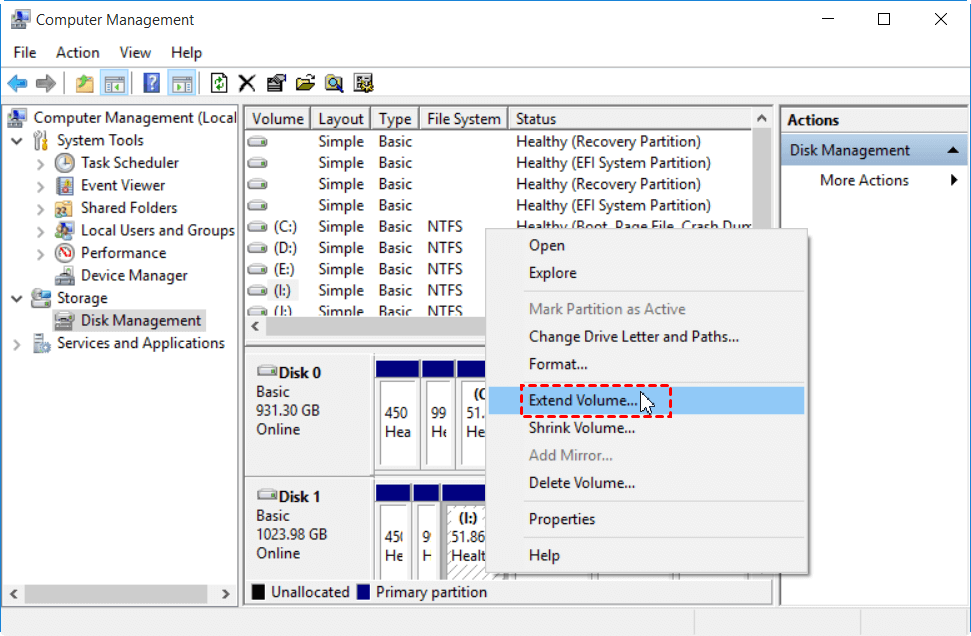
3. To add unallocated space to the current partition, follow the Extend Volume Wizard. This process will guide you through the steps to increase the size of the partition by incorporating the available unallocated space.
✍ Tips:
● If the partition and unallocated space are not adjacent, you may encounter the issue where the "Extend Volume" option is greyed out.
● To free up space, you can extend an existing partition by right-clicking on the partition you want to extend and selecting "Extend Volume" from the context menu. Alternatively, you can create a new partition by right-clicking on the unallocated space and selecting "New Simple Volume".
If you have a hard drive larger than 2TB using the MBR partition style, you may find that the unallocated space cannot be used to extend an adjacent partition or create a new partition on your cloned hard drive. This is because any space beyond the 2TB limit becomes unusable on MBR disks.
Converting a hard drive from MBR to GPT using Disk Management requires deleting all existing partitions, which means you won't be able to use the full capacity of your HDD after cloning unless you convert it to the GPT disk style.
If you want to avoid encountering the issue of the cloned hard drive not showing its full capacity, there are preventative measures you can take to ensure your cloned drive shows its full capacity from the start.
2. How to avoid cloned drive shows wrong size
Choosing the right cloning software is key to cloning hard drives of different sizes without leaving unallocated space. Specialized software like Qiling Disk Master Professional can help you clone a hard drive to a larger one without causing disk capacity loss.
- Qiling Disk Master offers two options for cloning to a larger HDD or SSD: manually editing the partition size on the clone disk or letting the program automatically adjust the partition size to fit the entire hard drive.
- When cloning an MBR disk to a GPT disk larger than 2TB, the process ensures that no disk space is lost beyond 2TB, and the cloned hard drive can be used as a GPT disk and remains bootable.
- Upgrading to an SSD allows for an option to align partitions, which optimizes performance for the solid-state drive.
- It won't interrupt your work while cloning due to VSS technology, which creates a snapshot of the disk.
Download Qiling Disk Master Pro now to have a try.
★ Step-by-step guide to clone to a larger SSD without cloned SSD not showing full capacity issue
Qiling Disk Master provides an intuitive interface, making all operations easy. To clone a hard drive to a larger SSD or HDD, you can follow these steps.
✎ Note: Cloning a hard disk drive (HDD) to a solid state drive (SSD) will erase everything on the target SSD and then transfer all data from the HDD to the SSD, so make sure to back up any important files on the target SSD beforehand to avoid losing them.
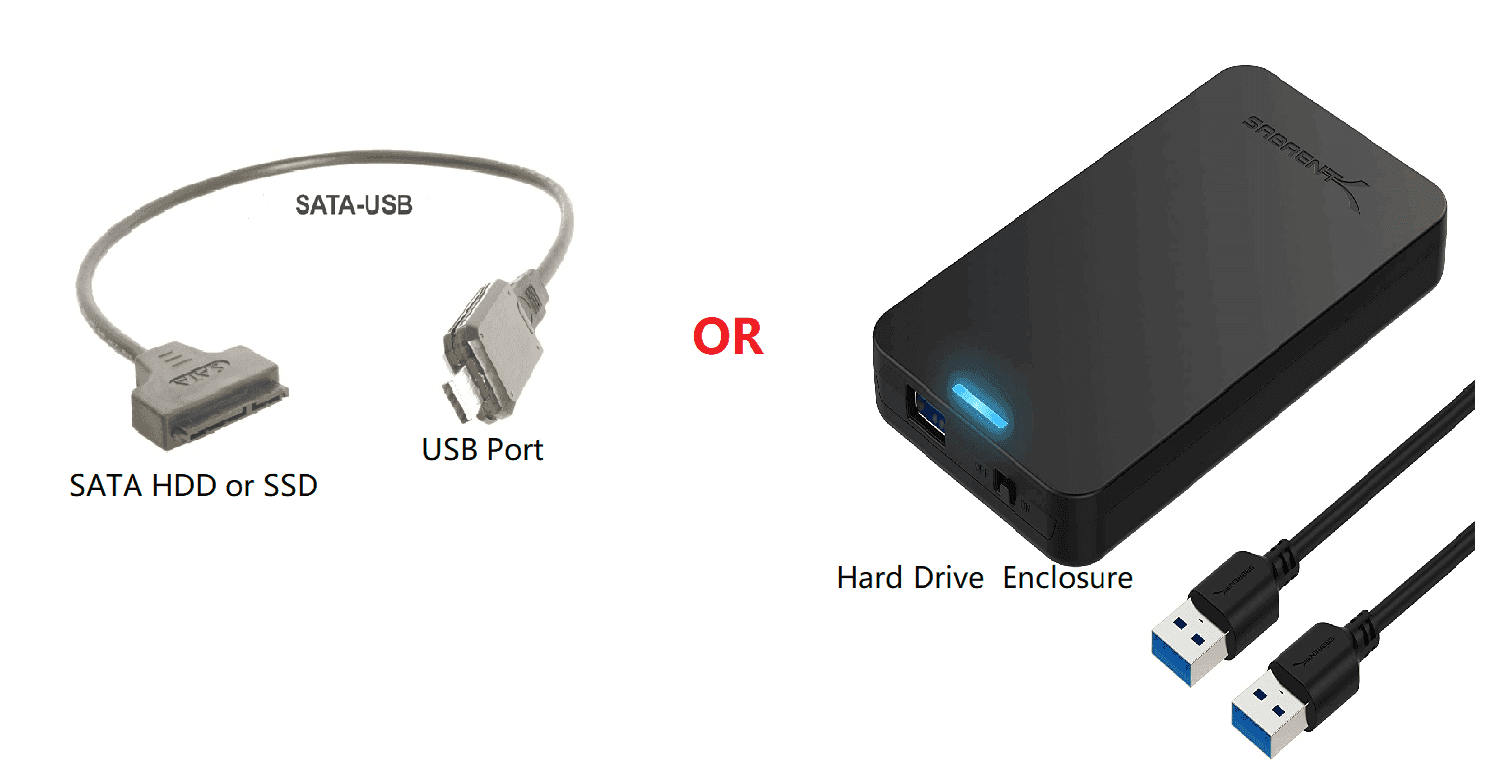
1. Connect the target SSD to your computer and ensure it is detected.
2. Install the program on your computer and open it. Select "Disk Clone" under the "Clone" tab.

3. Select the current drive as the source disk and click Next. Then select the larger SSD as the destination disk and click Next.

4. The Operation Summary page should be accessed, and then the "Edit partitions" option should be clicked. After that, use the two provided options to address the issue of the SSD not showing its full capacity after cloning.
The program automatically extends all existing partitions with unallocated space, effectively adding unused space to all partitions.

To manually adjust the partition size, click on each partition and drag the sidebar to edit the partition size.

5. To ensure optimal SSD performance, check the "SSD Alignment" option and click "Proceed" to execute the operation.
Cloning a hard drive ensures that the cloned drive will not display incorrect size, regardless of the destination disk's size. This applies not only to cloned hard drives but also to new hard drives, external hard drives, and even PS4 storage, which may not show their full capacity.
You can clone a larger HDD to a smaller SSD, and for optimal performance, clone the boot drive to an NVMe drive.
💛 Tips on what to do after cloning hard drive to SSD:
1. Boot from the cloned SSD and see if it's bootable.
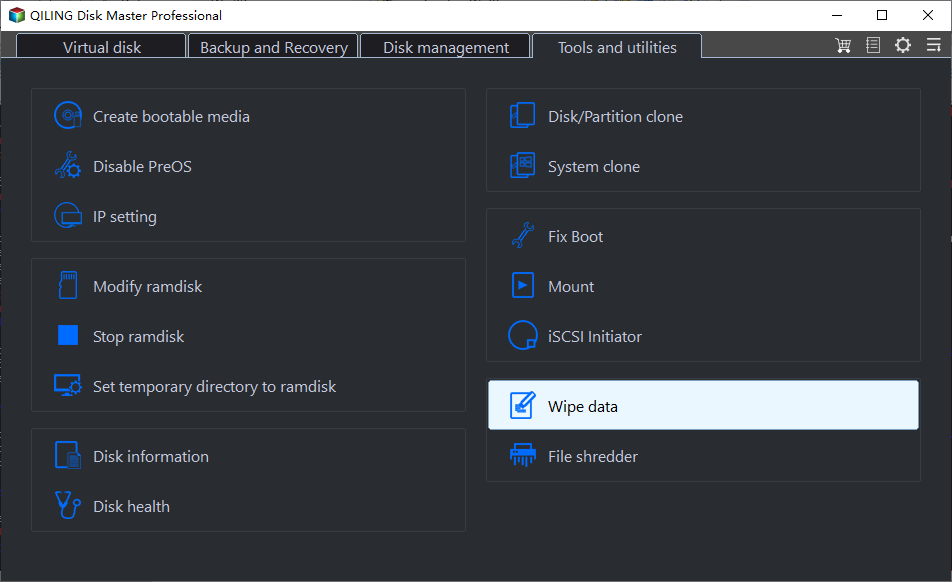
2. If the cloned SSD is bootable, you can wipe the HDD and use it to store data. To do this, go to Tools and select Disk Wipe.
3. If a cloned SSD isn't bootable, start by checking if it's set as the first boot option in the BIOS. If not, change it to the first one. For further assistance, refer to the "cloned SSD won't boot" guide.

3. Video guides on how to fix cloned SSD not showing full capacity
Conclusion
To fix the cloned hard drive showing wrong size problem, you can extend a partition or create a new one using Disk Management, or clone the hard drive and resize partitions with Qiling Disk Master to avoid the issue. This solution applies not only to cloning traditional hard drives but also to other types of solid-state drives (SSDs), such as cloning SATA SSDs, NVMe SSDs, WD SSDs, and PCIe SSDs.
Qiling Disk Master has excellent backup and restore features, allowing you to back up your operating system and restore your computer to a normal state in case of problems.
Related Articles
- Solved: Hard Drive Not Showing Full Capacity in Windows 10
- Clone Hard Drive to SSD of Different Size (Max 4 Steps)
- Clonezilla Destination Disk Is Too Small - Fixed Now!
- What's Taking Up Space on My Hard Drive in Windows 10? Here are 14 Fixes!
- How to Replace M.2 SSD in PC [Works on Windows 11/10/8/7]
Replacing an M.2 SSD in a PC can be done easily with the help of Qiling Disk Copy, which allows you to transfer data from one M.2 SSD to another without reinstalling Windows OS. This makes the process of upgrading or replacing an M.2 SSD much simpler and more efficient. - How to Replace Old SSD with New SSD on Windows Laptop/PC
This post is a step-by-step guide on how to replace an old SSD with a new one without losing any data, using the professional disk clone software Qiling Disk Copy.
Products
Articles & Tutorials
- Data Recovery
- Data Backup
- File Recovery
- File Backup
- File synchronize
- System Backup and Restore
- Disk and Partition Clone
- Technical articles
- Disk Master Help
- Windows Deleted File and Disk Recovery Tutorials
- Windows File and Data Recovery Tutorials
- More Windows Tutorials for Install, Security, Files, and PC Tips
- Windows Boot, Repair, and Recovery Environment Tutorials
- Windows Backup Tutorials
- Windows Restore Tutorials
- Windows Clone and Migration Tutorials
- Windows Server Backup, Recovery, and Management Tutorials
- Windows Disk, Partition, and Storage Management Tutorials