Clone Hard Drive to SSD of Different Size (Max 4 Steps)
Can I clone a large HDD to a smaller SSD in a different size?
You can clone a hard drive of different sizes without reinstalling Windows by using a cloning software that supports resizing partitions, such as Qiling Disk Master. These tools allow you to clone your 1TB hard drive to the 500GB SSD, resizing the partition to fit the smaller drive, and then expand the Windows installation to fill the remaining space on the new drive. This way, you can clone your hard drive without reinstalling Windows.
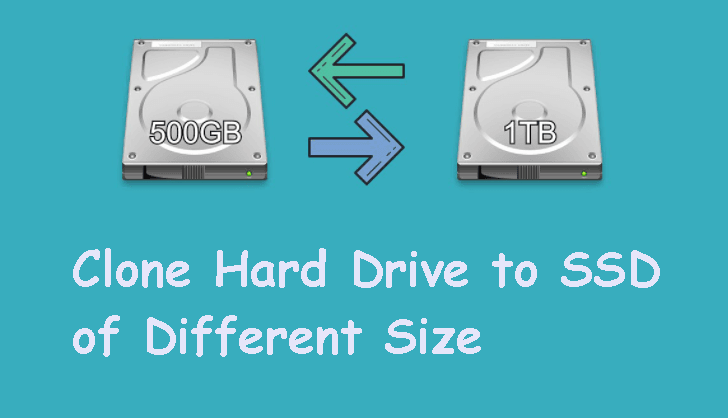
Cloning a hard drive is a popular method to boost performance, replace old hard drives, or create backups, and can be done with reliable software like Qiling Disk Master Standard, allowing users to clone a larger HDD to a smaller SSD or vice versa.
Potential cloning issues when disk sizes are different
Your computer's hard drive may eventually run out of space as you add more files and programs, leading to slow performance. In this case, replacing the hard drive is an option, but it often comes in different sizes than the original, which can cause issues when cloning.
😭 Cloned SSD won't boot: In most cases, a smaller SSD can't be made the same size as a larger HDD, as the HDD has much more storage space. However, the system needs the operating system, boot files, and other essential files to be present on the SSD for it to boot properly. If any of these boot files are missing, the SSD won't be able to boot.
When cloning a drive, the new drive will have the same layout as the original, resulting in extra space appearing as unallocated at the end. This can be resolved by extending the partition in disk management or resizing the disk size during the cloning process.

How to clone hard drive different size with secure boot
A reliable disk cloning software such as Qiling Disk Master Professional can help you clone a disk to a drive of different size, including larger and smaller drives, in Windows 7/8/10/11, and ensure that you can boot from the cloned disk after cloning.
 Qiling Disk Master
- Cloning a hard drive with different sector sizes is possible, regardless of whether the disk is MBR or GPT. This means you can clone a GPT disk to a smaller SSD, for example, without worrying about compatibility issues.
- Clone smaller SSD to larger SSD or smaller one.
- To ensure the cloned drive shows its full capacity, it's essential to resize the partition size on the destination disk. This involves increasing the partition size to match the capacity of the source drive. This step is crucial to avoid any issues with the cloned drive not showing its full capacity.
- Clone only the used sectors of a hard drive or SSD, ensuring the cloned drive is bootable.
- Try the premium feature - System Clone to migrate OS only to SSD To clone a system, disk, and partition with secure boot enabled on a smaller destination disk, you can follow these steps: First, ensure you have a backup of your system and important data. Then, use a cloning tool like Qiling to create an image of your current system. Next, select the destination disk that is smaller than the source.
If you need to clone and replace a hard drive, Qiling Disk Master Professional is a hard drive cloning software that can help. You can use it to clone your existing hard drive to a new one, or replace the old drive with a new one. To get started, you can click on the navigation link to jump to the relevant section based on your situation.
The Clone feature in the trial version can only be demonstrated, and upgrading to the full version of Qiling Disk Master Professional is required to clone a hard drive of different size and boot from it.
- Case 1: Clone 1TB HDD to 500GB SSD
- To clone a 500GB HDD to a 1TB HDD or SSD, you'll need a cloning software like Qiling Disk Master. These tools will create a sector-by-sector copy of the 500GB drive to the 1TB drive, preserving the original drive's structure, files, and operating system.
▶ Video Tutorial: You can see the whole process more intuitively.
▶ Graphic Tutorial: You can fully understand the details that need attention.
Case 1: Clone 1TB HDD to 500GB SSD
Step 1. To clone a disk, download and install disk clone software, such as Qiling Disk Master Professional, which is user-friendly and easy to operate. Launch the software and click on the "Disk Clone" option under the "Clone" tab.

Step 2. Select the large hard drive as the source disk (here is a 1TB HDD), and click Next.

Step 3. Plug in the smaller disk (a 500GB SSD) as the destination disk, and click Next.
This software will delete files on the destination disk. If there are any important data, please back them up before proceeding, as they will be lost forever once deleted.back up files to avoid any data loss during the cloning process.

Step 4. If you're cloning a hard drive to an SSD to improve reading and writing speed, select "SSD Alignment" to optimize the process. Then, click "Proceed" to clone drives of different sizes.

Notes:
✘ When cloning Windows 10 to a smaller SSD, do not select the "Sector by sector clone" option. This is because it will copy all sectors from the source disk, including empty and damaged ones, which can lead to disk failure.
✔ Besides cloning a 1TB HDD to a 500GB SSD, you can also clone HDDs to SSDs in other sizes, such as cloning a 2TB HDD to a 1TB SSD, a 1TB HDD to a 250GB SSD, and a 500GB HDD to a 250GB SSD, and so on.
Case 2: Clone 500GB HDD to 1TB HDD or SSD in detail
To clone a hard drive to a larger drive and ensure the new drive shows its full capacity, you can clone and resize the hard drive simultaneously. This can be achieved using Qiling Disk Master Professional, which features an "Edit Partitions" option that allows you to resize the drive during the cloning process. This approach ensures that the new drive utilizes its full capacity, making it an efficient way to migrate data to a larger storage device, whether it's an HDD or an SSD.
Step 1. Launch the professional version of Qiling Disk Master, click Clone and Disk Clone in order.
Step 2. Then, select the old 500GB HDD and 1TB disk (HDD or SSD) respectively. Remember to click Next.
Step 3. In the Operation Summary window, click Edit Partitions and select Add unused space to all partitions or Manually adjust partition size to fix the cloned hard drive showing wrong size issue.
- Copy without resizing partitions: If you select this option or just enable it without changing, the size of the partition on the destination disk remains unchanged by default.
- Add unused space to all partitions: It will automatically redistribute unallocated space to each partition on the target disk, taking into account the disk's size.
- Manually adjust partition size: The new method is more flexible, allowing you to select the partition you want to extend and then drag it to the left or right side to increase its size.
- Convert the destination disk from MBR to GPT: This option helps convert disk type and is only available when the source and destination disk have different types, such as converting from MBR to GPT or vice versa.
Step 4. After clicking "Proceed", the cloning and resizing of the hard drive will be completed for full capacity, and optionally, the "SSD Alignment" feature can be selected to optimize the larger drive if it's an SSD.
Frequently asked questions: cloning different size hard drives
1. Do drives have to be the same size to clone?
Cloning a HDD to an SSD is not necessary, but you can choose to do so if you want to improve performance, especially if the used space is less than the size of the HDD. If budget is a concern, cloning to a smaller SSD can be a better option.
2. Can I clone a larger hard drive to a smaller one?
If the used space of a larger drive is smaller than or equal to the smaller drive and the cloning software supports "Intelligent Clone", you can clone the smaller drive to the larger one, only cloning the used sectors.
3. Why is my SSD capacity smaller after cloning?
Cloning a drive creates an exact copy of the original, resulting in both drives having the same size, even if the target drive is larger, which is why your SSD's capacity appears smaller after cloning.
To avoid issues with partition size during disk cloning, you can adjust the partition size using options in disk cloning software, such as Edit Partitions in Qiling Disk Master Professional. Alternatively, you can extend partition size using the built-in tool Disk Management. This can help ensure a smooth cloning process.
4. How long to clone a 500GB hard drive?
The time it takes to clone a hard drive can range from tens of minutes to several hours, depending on the cloning speed and data size. For instance, a steady 100Mb/s cloning speed would take around 90 minutes to clone a 500 GB hard drive.
Wrapping things up
Qiling Disk Master is a great choice for cloning different size drives, ensuring a secure boot, and cloning large HDD to smaller SSD or resizing larger hard drives.
The full version of Qiling Disk Master Professional has more features, allowing users to migrate the operating system to a smaller SSD using the "System Clone" feature, clone a 2TB hard drive to a 3TB one, clone a GPT disk to a smaller SSD, clone Windows 10 to an NVMe SSD, and fix unallocated space left on a cloned hard drive using the "Edit Partitions" feature. To access these features, users should download the Qiling Disk Master Professional.
Related Articles
- Best Way to Clone GPT(UEFI) Disk to Smaller SSD Safely
- Clonezilla Clone Larger Disk to Smaller Disk-Workaround
- How to Clone MBR to GPT Disk in Windows 10/8/7 Directly
- Computer Keeps Crashing When Playing Games - How to Fix?
Learn the key steps, checks, and practical tips for this related guide. - Full Guide | HP Omen 15-ce0xx RAM and SSD Upgrade
This article shares HP Omen 15-ce0xx RAM upgrade tutorial and offers a guide to upgrading your SSD for better performance. - Clone HDD to SSD in Lenovo Laptop for Better Performance
Learn how to Clone HDD to SSD in Lenovo Laptop for Better Performance with clear steps, key checks, and practical tips.
Products
Articles & Tutorials
- Data Recovery
- Data Backup
- File Recovery
- File Backup
- File synchronize
- System Backup and Restore
- Disk and Partition Clone
- Technical articles
- Disk Master Help
- Windows Deleted File and Disk Recovery Tutorials
- Windows File and Data Recovery Tutorials
- More Windows Tutorials for Install, Security, Files, and PC Tips
- Windows Boot, Repair, and Recovery Environment Tutorials
- Windows Backup Tutorials
- Windows Restore Tutorials
- Windows Clone and Migration Tutorials
- Windows Server Backup, Recovery, and Management Tutorials
- Windows Disk, Partition, and Storage Management Tutorials