How to Clone MBR to GPT Disk in Windows 11, 10, 8, 7 Directly
Quick Navigation:
- User Case: Clone MBR to GPT Disk
- Question: Can You Clone MBR to GPT Directly?
- Best Software to Clone Between MBR and GPT
- Step-by-Step | How to Clone Hard Drive from MBR to GPT
- Fixed: Cloned Hard Drive Won’t Boot
- FAQs on MBR to GPT Cloning
- To Sum Up
User Case: Clone MBR to GPT Disk
You want to clone your Windows 10 Pro MBR disk to a new 4TB GPT disk, but keep the entire disk's capacity available. Cloning the MBR disk to a GPT disk is possible, but you'll need to ensure the cloned disk is formatted as GPT. The cloning process itself won't change the disk's partition style. The new nvme drive will be GPT by default, so you can clone the MBR disk to it and it will retain its GPT partition style. You won't need to format the nvme drive to GPT after cloning.
MBR and GPT are two distinct methods for storing partitioning information on a disk. Many users prefer to clone MBR to GPT disks due to the benefits it offers, such as supporting more partitions and being less prone to data corruption. This is evident from the examples provided, where cloning MBR to GPT disks resolved issues and improved overall disk performance.
Modern large hard disk drives and solid state drives are often initialized as GPT disks by default, allowing for more efficient use of disk space. Some users choose to migrate their operating system and applications directly from an old Master Boot Record (MBR) disk to a new GPT disk, rather than performing a complete reinstallation.
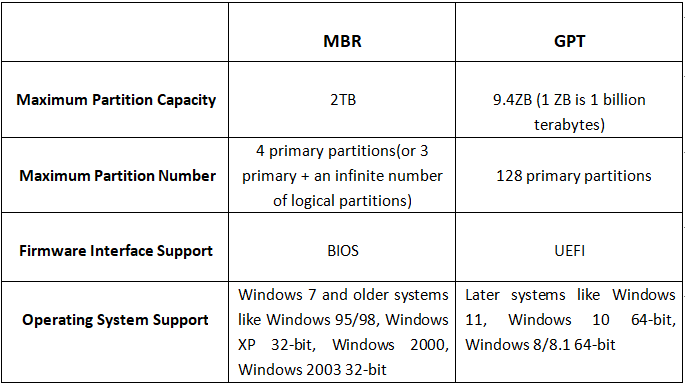
Regardless of the scenario, the challenge in cloning MBR to GPT lies in the differences between these partitioning methods. For more detailed information, please refer to the following data.
✐... Comparison of MBR and GPT disks:
- The Master Boot Record (MBR) uses standard BIOS, whereas the GUID Partition Table (GPT) uses UEFI. Therefore, ensure your computer supports UEFI boot before cloning an MBR to a GPT disk.
- MBR disks have a 2 TB limit, whereas GPT does not.
- The GPT disk has a higher capacity for partitions, allowing up to 128 primary partitions, whereas the MBR (Master Boot Record) disk has a more limited capacity, supporting either 4 primary partitions or 3 primary partitions and 1 extended partition.
- MBR disks support both 32-bit and 64-bit systems, but only 64-bit Windows or Server versions can be installed on a GPT disk. On 32-bit systems, GPT disks can be used as data drives.
Question: Can You Clone MBR to GPT Directly?
Users have been blocked from migrating old MBR disks to GPT disks due to differences between them. One solution is to convert the disk style from GPT to MBR, but this requires deleting all existing volumes and leaves unused space beyond 2TB. This conversion cannot be done on the source MBR disk.
Cloning MBR to GPT directly offers a convenient solution, allowing you to enjoy the benefits of GPT while eliminating the hassle of reinstallation or conversion, effectively achieving two goals with a single action.
You can clone a hard drive with a reliable cloning tool.
Best Software to Clone Between MBR and GPT
Qiling Disk Master Professional is a specialized disk cloning software designed for Windows 11/10/8.1/8/7, offering features such as high-speed disk cloning, sector-by-sector cloning, and cloning of operating systems, including Windows, Linux, and macOS. It supports various disk formats, including MBR and GPT, and allows for cloning of disks with different sizes. The software also provides options for disk wiping, formatting, and partitioning, making it a comprehensive tool for disk management.
💛 Clone between different partition styles
It supports both MBR and GPT disks, allowing you to clone MBR to GPT or vice versa without conversion. This means it will complete the process for you.
💛 Clone between different disk sizes
Qiling Disk Master can clone a larger drive to a smaller one by copying only used data, making it a smart choice in terms of disk size. It also allows for a sector-by-sector clone of the entire GPT disk, making it a versatile tool for data backup and cloning.
💛 Useful clone options
The software offers an "Edit Partitions" option to help users make the most of their disk space or convert the partition style of the destination disk if needed. Additionally, it provides an "SSD Alignment" feature to optimize SSD performance.
Step-by-Step | How to Clone Hard Drive from MBR to GPT
To clone a MBR disk to a GPT disk using Qiling Disk Master, ensure your system is 64-bit and supports UEFI boot mode. You can use either System Clone (cloning only the OS from the MBR disk to the GPT disk) or Disk Clone (cloning the entire MBR disk to the GPT disk). Here, we'll use Disk Clone as an example. This process will allow you to transfer the contents of your MBR disk to a GPT disk, preserving your data and settings.
Preparations:
- Click the button below to download and install the cloning software.
- Connect the target GPT disk to your PC in advance and ensure it can be detected.
- The cloning process will overwrite the target disk, so make sure to back up any important data before proceeding.
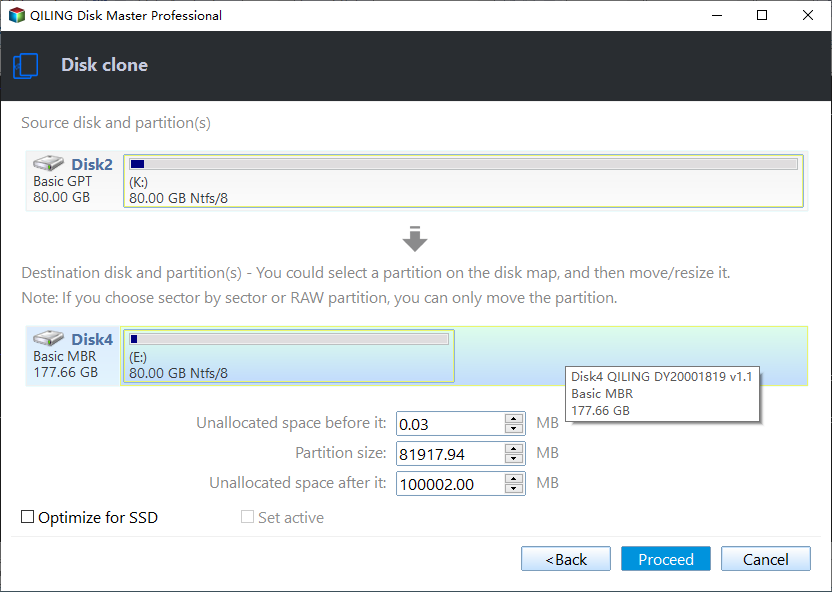
1. Launch Qiling Disk Master, choose Disk Clone under Clone tab.

2. In the screen, select the MBR disk as the source disk and click Next.

3. Select the GPT disk or SSD as the destination disk and click "Next".

4. To clone an MBR HDD to a GPT SSD, enable the "SSD Alignment" option to optimize the SSD's read/write speed. After that, click "Proceed" to initiate the cloning process, which will run in the background without disrupting your computer usage.
Notes:
- This software can be used to back up MBR disk and restore MBR system image to GPT disk, allowing for the replacement of MBR disk with GPT disk.
- Cloning a Master Boot Record (MBR) hard disk drive (HDD) to a GUID Partition Table (GPT) solid-state drive (SSD) and using the original HDD as a secondary storage device can provide optimal performance. This approach allows the SSD to take advantage of its faster read and write speeds, while the HDD can be used for less demanding tasks, such as storing large files or serving as a backup drive.
For a more intuitive guide, please check the following video.
Fixed: Cloned Hard Drive Won’t Boot
Many users experience issues booting their computer with a cloned hard drive. Don't worry, though - the issue can often be resolved.
1. After cloning a MBR system disk to a GPT disk, you need to change the boot mode from BIOS to UEFI to boot from the GPT disk. This is a simple fix.
2. To fix a Windows computer that won't boot, try using the Startup Repair feature from the Windows Recovery Environment. You can access this by booting from the installation disc and following the prompts to repair your computer, then selecting Troubleshoot, Advanced Options, and Automatic Repair (for Windows 8/8.1/10). Alternatively, if you're using Windows 7, you can navigate to Repair your computer, select the operating system, and click Startup repair.
3. To resolve the issue, try using the command line with the installation disc. Press the keys "Shift + F10" to open the command line, then type the following commands and press Enter after each: "bootrec /fixmbr", "bootrec /fixboot", and "bootrec /scanos".
- bootrec /fixmbr
- bootrec /fixboot
- bootrec /scanos
- bootrec /rebuildbcd
FAQs on MBR to GPT Cloning
1. Can I simply clone my MBR disk to a GPT disk using regular cloning software?
Unfortunately, no. You'll need special software that supports MBR to GPT conversion.
2. Are there any risks involved in cloning MBR to GPT?
Be aware that cloning your hard drive can lead to potential data loss, OS compatibility issues, and problems with applications, so it's essential to back up your data before attempting the clone.
3. What's the process for cloning an MBR disk to a GPT disk?
To switch to a GPT disk, you'll need to first back up your data. Next, initialize the GPT disk and use specialized cloning software to clone your existing system onto the new GPT disk. You can either use the software to set the GPT disk as the boot drive or perform the cloning directly using a tool like Qiling Disk Master Pro, and then check if it boots correctly.
To Sum Up
Cloning the Master Boot Record (MBR) to a GUID Partition Table (GPT) disk can be a simpler process than converting a GPT disk to MBR and reinstalling the operating system. To achieve this, a reliable disk cloning software is required that can clone from MBR to GPT without converting the disk, ensuring a secure boot.
I recommend Qiling Disk Masterpper Professional to you. It's a versatile tool that can clone disks, systems, partitions, and even back up files, making it a one-stop solution for your backup and cloning needs.
Download Qiling Disk Master Professional and give it a shot. If you are using a server, try Qiling Disk Master Server, which is designed for server-based operating systems, including Windows Server 2008/2012/2016 and their R2 versions.
Related Articles
- Free Seagate Disk Cloning Software - Qiling Disk Master
This guide explains Free Seagate Disk Cloning Software - Qiling Disk Master with clear steps, key checks, and practical tips. - Fix "Windows detected a hard disk problem" in Win 10/7/8
This article illustrates the possible reasons and corresponding solutions to the Windows detected a hard dsik problem in Windows 11, 10, 8, and 7. Let's get started below. - Best Free Alternative to XXClone for Windows 10/8/7
You will find the best alternative to XXClone and XXClone Pro alternative, just see the details to clone hard drive to SSD without losing data in Windows 10, 8, 7. - Create Image of SSD Drive with Free SSD Image Software
Be aware of how to create an image of SSD can prevent data loss when your SSD fails. Qiling Disk Master can be the best tool for your manipulation. - Easily Move Windows Server 2012 to New Hard Drive without Boot Issues (Two Ways)
No matter you want to move entire Windows Server 2012 hard drive, or just migrate Windows Server 2012 operating system partition to a new disk, Qiling Disk Master Server can make it easy to move Windows Server 2012 to new hard drive. - SSD Clone VS Fresh Install, Which Is Better?
This guide explains SSD Clone VS Fresh Install, Which Is Better with clear steps, key checks, and practical tips.
Products
Articles & Tutorials
- Data Recovery
- Data Backup
- File Recovery
- File Backup
- File synchronize
- System Backup and Restore
- Disk and Partition Clone
- Technical articles
- Disk Master Help
- Windows Deleted File and Disk Recovery Tutorials
- Windows File and Data Recovery Tutorials
- More Windows Tutorials for Install, Security, Files, and PC Tips
- Windows Boot, Repair, and Recovery Environment Tutorials
- Windows Backup Tutorials
- Windows Restore Tutorials
- Windows Clone and Migration Tutorials
- Windows Server Backup, Recovery, and Management Tutorials
- Windows Disk, Partition, and Storage Management Tutorials