SSD Clone VS Fresh Install, Which Is Better?
SSD clone VS fresh install, which you should choose?
If you want to perform HDD to SSD upgrade to improve the performance of your computer, you may have a question like "should I clone my HDD to SSD or perform a fresh install?" Next, I will explain the difference between clone and fresh install and help you to choose the better one.
☞ Fresh install
Fresh installing Windows 10/8/7 requires going through tedious installation steps and re-partitioning the hard disk, which can be overwhelming for non-technical users due to the professional vocabulary involved. Moreover, all data on the computer will be lost during the process, requiring a significant amount of time to set everything up again.
☞ SSD clone
Cloning is a process that transfers all data from an old hard disk to a new one, allowing for seamless use of the data on the new disk without needing to reinstall. This method is more convenient than a fresh install, as it's easier to operate and doesn't result in data loss.
Cloning is a better option than a fresh installation if the current operating system and software are in good working condition, as it saves time and energy by preserving the existing setup, including installed drives, software, and configured settings.
Perform hard drive to SSD clone (OS included)
To perform an SSD clone, you can use a cloning software such as Qiling Backup. These tools allow you to create an exact copy of your existing SSD, including all installed programs, settings, and data.
To clone a hard drive, you can use cloning software such as Qiling Disk Master Professional, which is a powerful and safe tool that can clone both system and data disks from MBR/GPT to MBR/GPT hard drives, with no risk of data loss.
Besides, it also has features such as Allocate Free Space from one partition to another, Move applications from one partition to another, Convert FAT32 to NTFS, and more advanced functions.
Notes:
1. To connect an SSD to your computer, use a SATA-To-USB cable to connect the SSD to a PC host, ensuring the SSD can be detected by your computer.
2. If you have important data on your SSD, back it up before proceeding, as this operation will completely erase all data on the SSD.
│Part 1. Disk clone
Step 1. Download and install Qiling Disk Master, then click on "Clone Disk" in the right menu.

Step 2. Select the source disk and hit on "Next".

"Sector-by-Sector Clone" feature will replicate all sectors from the source disk to the target disk, ensuring the destination disk is of equal size or larger than the source disk.
Step 3. Select the SSD drive as the destination disk and click "Next".

Tip: To improve the reading and writing speed of your Solid-State Drive (SSD), you can enable the "Optimize the performance of SSD" option. This setting is designed to optimize the performance of your SSD, allowing it to run at its best.
Step 4. The program allows you to adjust the partition size on the destination disk in this step.

PS.: When cloning to a smaller SSD, the first option is often grayed out because the destination drive doesn't have enough free space to accommodate the entire source drive. This is a safety feature to prevent accidental overwriting of important data.
Step 5. Click Proceed to submit all operations.

You have successfully cloned your HDD to SSD without losing any data. This is a great achievement!
│Part 2. Migrate OS to SSD
If you just want to clone the operating system partition from HDD to SSD, Migrate OS to SSD is enough. It can migrate all data on the system partition to the SSD, and you can click "Clone" in the top toolbar and choose "Migrate OS" to do so.

How to fresh install Windows on SSD?
If you're looking to upgrade your computer's storage, you may be considering cloning your existing hard drive (HDD) to a solid state drive (SSD) or doing a clean install of the operating system on the SSD. While cloning can be a convenient option, a clean install can provide a fresh start and potentially improve performance.
Before fresh install you should know:
1. If your SSD is unused, please partition the SSD first.
2. If you have data on your SSD, installing Windows 10 will erase all data on it, so please back up your data beforehand.
3. You need to prepare an empty DVD, CD or USB as the installation media.
Step 1. Download and use the Microsoft Media Creation Tool to create the installation media.
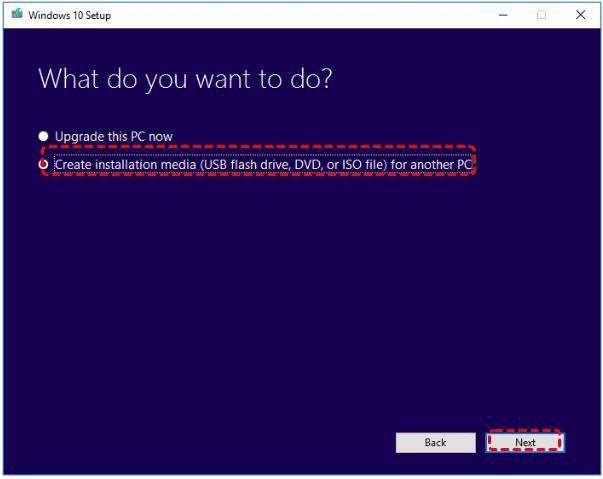
Step 2. Select the "Create installation media for another PC" option and follow the on-screen instructions to create a USB drive, DVD, or ISO file for installing Windows on another computer.
Step 3. Turn off the computer, remove the side panel to access the interior, pull out the old hard drive, and install the new solid-state drive into the available drive bay.
Step 4. When your computer restarts, enter the BIOS settings, change the boot order to prioritize the installation disk, and save the changes. This will allow your computer to boot from the installation disk and proceed with the installation process.
Step 5. After startup, various parameters need to be set and then click "Install Now".
Step 6. The system will ask you to enter the license key. You can enter it directly or skip it after the Windows 10 installation is complete.
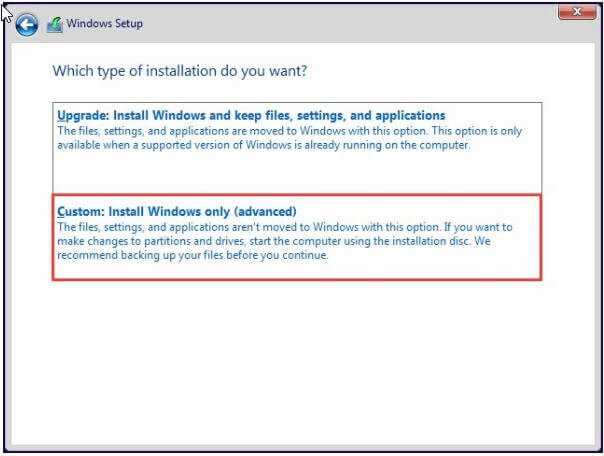
Step 7. Select the "Custom: Install Windows only (advanced)" option from the installation type dropdown menu.
Step 8. Select the SSD where you want to install Windows 10, and click "Next". Windows will then automatically start the installation process.
Sum up
Now, you must have a clear understanding of the two different approaches: cloning a hard drive (HDD) to a solid-state drive (SSD) or performing a fresh install on the SSD. Cloning involves copying the entire contents of the HDD to the SSD, including all data, settings, and applications, which can be a quick and easy solution. On the other hand, a fresh install involves erasing the SSD and installing a new operating system and applications from scratch, which can be a more thorough and potentially faster way to get up and running. The choice between the two ultimately depends on your specific needs and preferences.
Related Articles
- How to: Solve Samsung Data Migration Cloning Failed 00001 [ffffffff]
This guide explains How to: Solve Samsung Data Migration Cloning Failed 00001 with clear steps, key checks, and practical tips. - Fixed: Samsung Data Migration Not Working with Windows 11, 10, 8, 7
This guide explains Fixed: Samsung Data Migration Not Working with Windows 11, 10, 8, 7 with clear steps, key checks, and practical tips. - Samsung Data Migration: Clone Larger HDD to Smaller SSD
Learn how to clone larger HDD to smaller SSD with Samsung Data Migration or one practical software and boot from it successfully. - Fixed: Samsung SSD Clone Failed in Windows 11, 10, 8, 7
This guide explains Fixed: Samsung SSD Clone Failed in Windows 11, 10, 8, 7 with clear steps, key checks, and practical tips. - Guide: Asus X505ZA SSD Upgrade-No Data Loss and Boot Issues
You can learn how to perform Asus X505ZA SSD upgrade and safely migrate your data and system with a powerful disk cloning software on this page. - Benefits of SSD over HDD
This guide explains Benefits of SSD over HDD with clear steps, key checks, and practical tips.
Products
Articles & Tutorials
- Data Recovery
- Data Backup
- File Recovery
- File Backup
- File synchronize
- System Backup and Restore
- Disk and Partition Clone
- Technical articles
- Disk Master Help
- Windows Deleted File and Disk Recovery Tutorials
- Windows File and Data Recovery Tutorials
- More Windows Tutorials for Install, Security, Files, and PC Tips
- Windows Boot, Repair, and Recovery Environment Tutorials
- Windows Backup Tutorials
- Windows Restore Tutorials
- Windows Clone and Migration Tutorials
- Windows Server Backup, Recovery, and Management Tutorials
- Windows Disk, Partition, and Storage Management Tutorials