Easiest | Clone an SSD to a Larger SSD in Windows 10, 11
The scenario: can I clone an SSD to another SSD?
As SSD prices have dropped, people are upgrading from HDDs to SSDs or swapping out smaller SSDs for larger ones to boost storage space, with one user sharing their experience.
How do I clone a small SSD to a larger SSD?
You can clone your PNY SSD to the Samsung 850 using a third-party cloning software such as Qiling Backup, which support cloning to a larger drive. As for the recovery partition, it's likely a leftover from the original installation and can be safely deleted. However, it's always a good idea to back up your data and create a system image before making any changes to your drive. The recovery partition is 447 MB, which is relatively small, so deleting it shouldn't cause any issues. If you're unsure, you can also consult the manufacturer's support for guidance.
- Question from Tomshardware.com
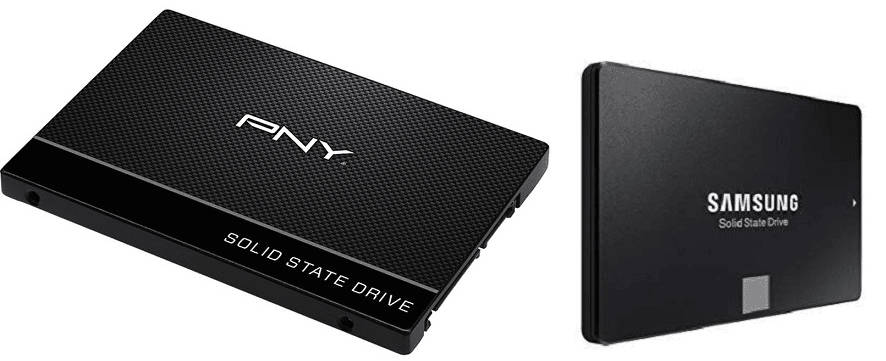
- Why do we clone smaller SSD to larger SSD?
- A handy SSD cloning software for Windows 11/10/8/7
- How to clone SSD to another SSD with Windows 11/10 installed
Why do we clone smaller SSD to larger SSD?
Cloning a smaller SSD to a larger one not only expands storage space but also boosts computer speed, saving time and effort compared to manual file transfer.
Cloning the operating system and applications from a smaller SSD to a larger SSD can save users time and effort, as it eliminates the need to reinstall all applications onto the new drive. This process can be performed by cloning the smaller SSD to the larger one, which can be done using various software tools.
A handy SSD cloning software for Windows 11/10/8/7
Qiling Disk Master Professional Edition, the best SSD cloning software, makes it easy to upgrade to a larger SSD in Windows 11/10, and also supports Windows 7, 8, and other operating systems. With its user-friendly interface, you can clone SSDs to larger SSDs effortlessly, making it a reliable tool for upgrading your storage.
- Offer Disk Clone to clone the entire hard drive, allowing cloning of a smaller drive to a larger one or a larger drive to a smaller one by cloning only used sectors.
- To clone specific partitions, you can use Partition Clone. This feature allows you to copy an NTFS partition, FAT32 partition, and exFAT partition, among others.
- The cloning software offers an option called SSD Alignment, which enables users to align partitions for optimal read and write speeds on the cloned SSD. This feature is particularly useful for SSDs, as proper alignment can significantly boost their performance. By selecting this option, users can ensure that their cloned SSD operates at its best, providing a seamless and efficient user experience.
- The software supports nearly all common SSD brands or models, including Samsung, PNY, WD, SATA, and M.2 NVMe SSD, so you won't need to worry about copying your SSD to a new one of a different kind.
You can try cloning an SSD to another SSD using Qiling Disk Master on your PC. First, download and install Qiling Disk Master, then follow the detailed steps to clone your SSD to another SSD in Windows 11/10.
How to clone SSD to another SSD with Windows 11/10 installed
To clone Windows 11/10 to a larger SSD, ensure that the destination SSD will be overwritten during the process, so backup any important data beforehand. Follow these steps to clone your Windows operating system: 1. Connect the new SSD to your computer, 2. Open the Disk Management tool, 3.
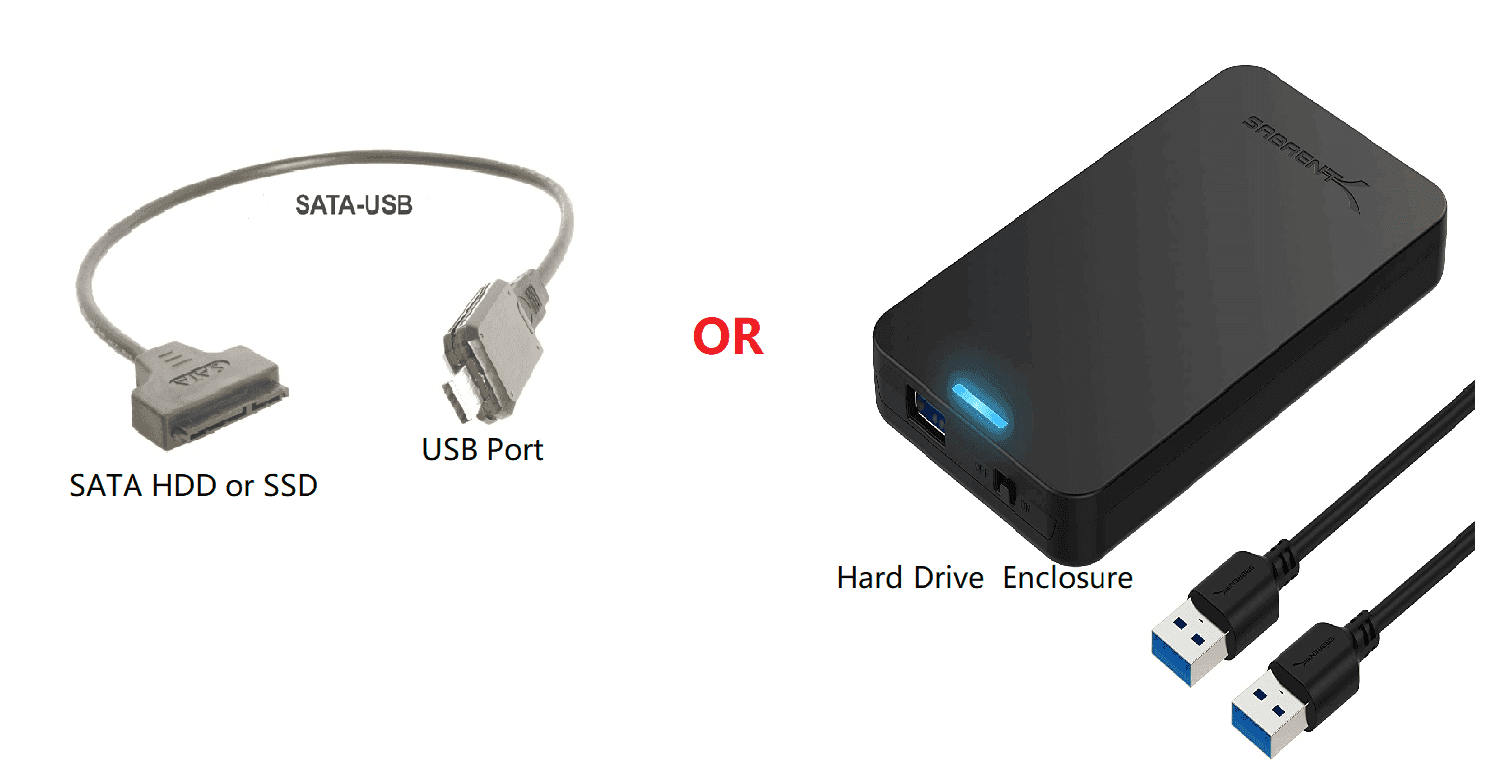
Step 1. Connect the target SSD to your computer via a USB cable or SATA cable and ensure it is detected by your computer. This can be done by checking the device manager or disk management utility.
Step 2. To clone a disk using Qiling Disk Master, click 'Clone' on the left side menu and select the 'Disk Clone' option.

Step 3. Select the original SSD as the source disk and click 'Next'.

Step 4. Select the larger SSD that you previously connected to your computer as the destination disk and click 'Next'.

Step 5. To maximize storage space on a larger SSD, go to the Operation Summary page, click on 'Edit partitions', and select 'Add unused space to all partitions'.
Step 6. Enable SSD alignment to improve SSD performance. Confirm the operation and click Proceed.

Step 7. After completing the cloning process, click 'Finish' to complete the operation. The steps are applicable for cloning a 250GB SSD to a 500GB SSD, a 500GB SSD to a 1TB SSD, and any other combination of storage sizes.
💡 Notes:
If you choose the 'Sector by sector clone' option, Qiling Disk Master will clone every sector on the source SSD, whether it contains data or not, and the 'Edit Partitions' option will be unavailable.
If you only want to clone the OS to the destination SSD, please use the 'System Clone' feature.
★ How to boot from the cloned SSD?
There are two methods for your reference:
Method 1: Replace the original SSD with the larger SSD and boot your computer.
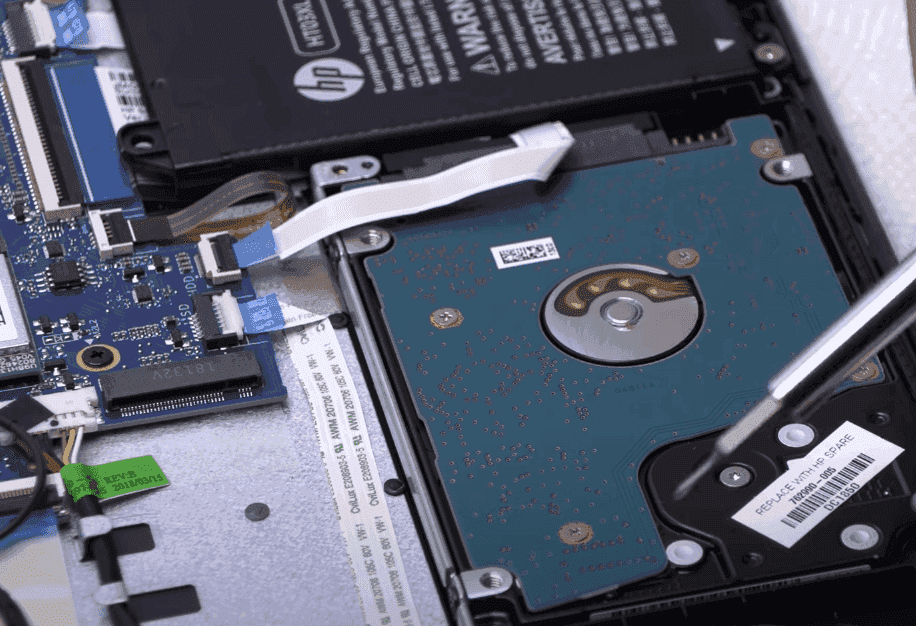
Method 2: Set the new SSD as the first boot option in BIOS and boot your computer.

★ What to do if the cloned SSD won’t boot?
If your computer fails to boot despite setting a proper boot order, try the following fixes: Check for loose connections, update your BIOS, run a diagnostic test, and try booting from a different drive or media if possible, or seek professional help if the issue persists.
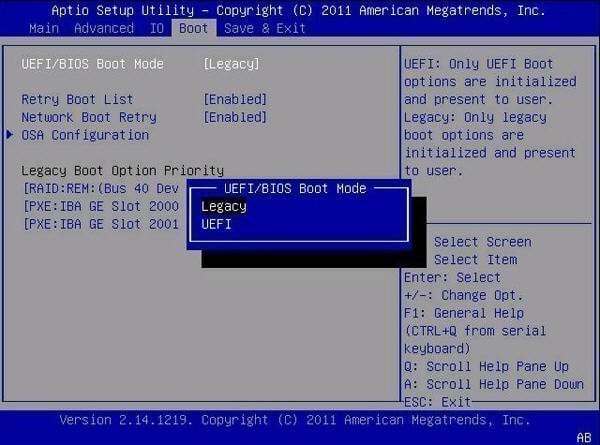
Fix 1: To clone a disk from an MBR disk to a GPT disk or vice versa, you need to change the boot mode in the BIOS settings. An MBR disk should be set to Legacy boot mode, while a GPT disk should be set to UEFI boot mode. This is necessary to ensure a successful clone operation.
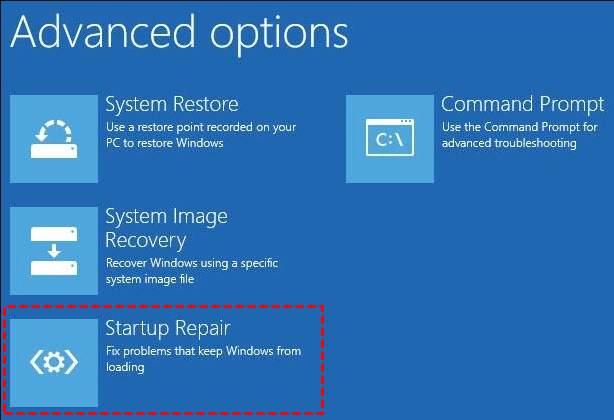
Fix 2: Run Startup Repair from an installation disc to fix problems that prevent Windows from loading. This process can help resolve issues that are preventing the operating system from starting up properly.
>> Learn more from cloned SSD won't boot Windows 11/10.
Conclusion
Qiling Disk Master provides an easy way to clone an SSD to a larger SSD in Windows 11/10, and is compatible with all types of SSDs, including cloning Windows 10 to an NVMe SSD, cloning an SSD to a larger Samsung SSD, and cloning a HDD to a Seagate SSD.
The software has an SSD cloning feature, among other benefits, allowing for auto backup of Windows 10 to WD My Cloud and DoD hard drive wipe capabilities.
Related Articles
- How to Clone SSD to HDD in Windows 10 via Freeware (Secure Boot)
- The Best Way to Clone Windows 10 to Smaller SSD
- Replace Dell XPS SSD and Clone Data to Larger SSD
- How to Make Bootable CD/DVD for Windows 7 Using CMD?
Learn the key steps, checks, and practical tips for this related guide. - Partition WD External Portable Hard Drive in Windows 10/8/7
The simple steps to partition WD (Western Digital) external potable hard drive, so you can make your Windows 10/8/7 files better organized by separating data into multiple sections. - Samsung PC Auto Backup -Wireless Photo Transfer
This article illustrates the Samsung PC Auto Backup Programs and how to use it step by step (with screenshot). Other PC auto backup software is included.
Products
Articles & Tutorials
- Data Recovery
- Data Backup
- File Recovery
- File Backup
- File synchronize
- System Backup and Restore
- Disk and Partition Clone
- Technical articles
- Disk Master Help
- Windows Deleted File and Disk Recovery Tutorials
- Windows File and Data Recovery Tutorials
- More Windows Tutorials for Install, Security, Files, and PC Tips
- Windows Boot, Repair, and Recovery Environment Tutorials
- Windows Backup Tutorials
- Windows Restore Tutorials
- Windows Clone and Migration Tutorials
- Windows Server Backup, Recovery, and Management Tutorials
- Windows Disk, Partition, and Storage Management Tutorials