The Best Way to Clone Windows 10 to Smaller SSD
Why should you clone Windows 10 to smaller SSD?
As your computer ages, its hard disk drive can become slower, taking a long time to open software or files. To boost its performance, consider taking steps such as running disk cleanup and disk defragmentation tools, uninstalling unused software, and upgrading to a solid-state drive (SSD) for faster data access. Additionally, regularly updating your operating system and software can also help improve your computer's speed and efficiency. By implementing these simple measures, you can breathe new life into your computer and enjoy faster performance.
For professional users, reinstallation is an option, but it may be challenging for those not tech-savvy. A better alternative for them is to transfer Windows 10 to a smaller SSD, which can be a good choice due to three main reasons.
- For a better preformance. Cloning Windows 10 to a smaller solid state disk (SSD) can significantly improve your computer's performance. Unlike traditional hard disk drives (HDDs), SSDs offer numerous benefits, including faster speeds, lighter volumes, and lower energy consumption. By transferring your operating system to an SSD, you can enjoy a smoother and more efficient computing experience, making it an excellent upgrade for anyone looking to breathe new life into their machine.
- For a good budget. SSDs are more expensive than HDDs, so a smaller SSD is more affordable than a larger one.
- For a replacement: When a hard drive starts to fail, it's essential to clone its content to a new disk to prevent data loss and ensure continuity of operations. This process involves creating an exact copy of the original disk's data, settings, and operating system on a new, identical disk. By doing so, you can replace the failing hard drive with the cloned one, minimizing downtime and ensuring that all data remains accessible.
- For a system backup. You can keep the old hard drive as a system backup drive, as the cloning process will not wipe out the original HDD.
How to move Windows 10 to smaller SSD?
A good system cloning software like Qiling Disk Master Professional is the first step for the clone process, offering a simple interface and easy operation steps, and is safe to install without bundling with other programs.
This utility performs an Intelligent Clone by default, which copies only the used part of the system to the target drive, as long as the used part fits the drive. This allows you to clone your system to a smaller SSD, and also accelerates the reading and writing speed of your SSD.
This software allows you to clone your system drive from MBR to MBR or GPT partition style, or from GPT to GPT or MBR partition style, and it supports Windows 11, 10, 8.1/8, 7, Vista, and XP (all editions, 32/64-bit).
Detailed steps of migrating OS to smaller SSD in Windows 10
✍ Tips:
◉ To ensure a smooth cloning process, it's recommended to clear out any unnecessary files or folders from your SSD to free up storage space beforehand. This will not only free up space but also reduce the time required for the cloning process.
◉ After cloning, the target drive will be overwritten, so it's essential to back up any important files to an external hard drive before proceeding.
- To open this software, download and install it first. Then, click the "Clone" option from the left column, and select "System Clone" from the available options.

- The system partitions are automatically selected, and the smaller SSD is chosen as the new location for Windows 10. Click "Next" (e.g.

- Confirm the destination disk and optimize the SSD by choosing SSD Alignment before proceeding with the Windows 10 migration to the smaller SSD.
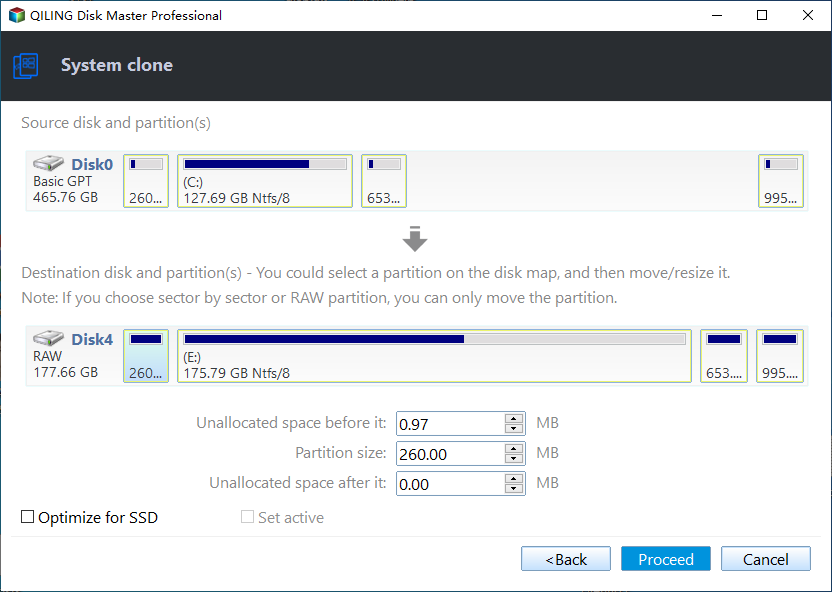
- After cloning, set your smaller SSD as the first boot device in BIOS to ensure it boots correctly.
Tips:
- To clone a system using Clonezilla, the smaller SSD must have enough free space to accommodate the used space of the system. If the smaller SSD's space is smaller than the system's used space, a larger SSD must be used instead. The source disk cannot be used as the destination disk.
- The Sector by sector clone will clone all sectors, making it a longer process. To confirm, ensure the destination disk is equal to or larger than the source disk.
- You can keep the old hard drive as a backup in case of a system crash, or reformat it to use as your secondary storage.
Conclusion
With Qiling Disk Master Professional, you can easily clone Windows 10 to a smaller SSD, improving system performance. Additionally, it offers features to clone Windows 7 to a new hard drive and migrate the C drive to an SSD in Windows 10, making it a versatile utility. If you're a Windows Server user, consider Qiling Disk Master Server.
Related Articles
- Best Way to Clone Windows to External Hard Drive
- The Easiest Way to Migrate Windows 10 to Smaller SSD
- Top Two Ways to Install Windows 10 to SSD
- How to Open Files With No Extension in Windows 10/11? [Updated 2023]
There are some files that come with no extension. Qiling shows you a guide to identify their types and open it easily. - How to Clone Windows OS from HDD/SSD to M.2 SSD
To clone your HDD to an M.2 SSD, follow the steps outlined in this tutorial, which utilizes Qiling Disk Copy to transfer data from your existing HDD or SSD to a new M.2 SSD or NVMe M.2 SSD. - How to Copy Your Windows Installation to an SSD with 4 Steps
This article will provide a detailed guide on how to copy your Windows installation to an SSD, offering a solution for those looking to move their Windows installation drive to an SSD.
Products
Articles & Tutorials
- Data Recovery
- Data Backup
- File Recovery
- File Backup
- File synchronize
- System Backup and Restore
- Disk and Partition Clone
- Technical articles
- Disk Master Help
- Windows Deleted File and Disk Recovery Tutorials
- Windows File and Data Recovery Tutorials
- More Windows Tutorials for Install, Security, Files, and PC Tips
- Windows Boot, Repair, and Recovery Environment Tutorials
- Windows Backup Tutorials
- Windows Restore Tutorials
- Windows Clone and Migration Tutorials
- Windows Server Backup, Recovery, and Management Tutorials
- Windows Disk, Partition, and Storage Management Tutorials