Migrate Windows 10 to Smaller SSD (Bootable)
Quick Navigation:
- Why move Windows 10 to smaller SSD?
- Can I move Windows 10 to a smaller SSD?
- Best system migration software for Windows 10
- How to migrate OS to smaller SSD without reinstalling
- Conclusion
Why move Windows 10 to smaller SSD?
Migrating Windows 10 to a smaller SSD involves cloning the existing Windows 10 operating system to the new SSD, effectively transferring the OS to the smaller storage device. This process is often undertaken to take advantage of the benefits of using a solid-state drive, including improved performance, faster loading times, and increased reliability. By migrating Windows 10 to an SSD, users can enjoy a smoother and more efficient computing experience, making it a popular upgrade option for those looking to breathe new life into their existing hardware.
● We can improve computer performance by migrating Windows 10 to a smaller SSD. This is due to the features of SSDs, which do not have mechanical components, resulting in much faster reading and writing speeds compared to traditional hard drives.
● SSD is more expensive than traditional HDD in the market, but a smaller SSD is more affordable than a larger one.
● Migrating Windows 10 to a smaller SSD is faster and more convenient than reinstalling the operating system on the SSD, allowing you to retain your original settings and save time.
Can I move Windows 10 to a smaller SSD?
You can move your Windows 10 installation to a smaller SSD, but you'll need to free up space on the new SSD by deleting unnecessary files, uninstalling unused programs, and potentially compressing files to make room. You can also consider using a tool like the built-in Storage Settings in Windows 10 to help you manage your storage and move files to the larger HDD. This way, you can keep your Windows 10 installation on the smaller SSD without reinstalling the OS.
The answer is Yes, you can migrate Windows 10 to smaller SSD as long as you use a professional disk cloning software that clones only used sectors of a hard drive. And I will introduce you to one such software below and how to migrate Windows 10 without data loss.
Best system migration software for Windows 10
Qiling Disk Master Professional is a system migration software that allows you to clone Windows 10 to a smaller SSD, effectively replacing the original HDD and enabling booting from the new drive. Its cloning function is seamless and efficient.
|
👍 3 Cloning Solutions |
Qiling Disk Master supports three cloning options: "Disk Clone", "System Clone", and "Partition Clone". The "Disk Clone" and "System Clone" features allow you to migrate your OS to a smaller SSD, with "System Clone" cloning just the OS and "Disk Clone" cloning the entire hard drive. To clone only the OS, use the "System Clone" feature, and to clone the entire hard drive to a smaller SSD, use the "Disk Clone" feature. |
|
🙌 2 Cloning Methods |
A hard drive cloning software uses the "Intelligent Clone" feature by default, which clones only used sectors of the drive. An alternative option is the "Sector by Sector Clone" feature, which clones all sectors, regardless of whether they are used or not. |
|
🚀 4K Alignment Technology |
The feature "SSD Alignment" allows for improved performance on SSD disks. |
|
🍀 User-friendly GUI |
The software features a user-friendly interface and a helpful wizard that makes it simple to use. |
How to migrate OS to smaller SSD without reinstalling
It's a good habit to back up data before any disk operation, so if you haven't made a backup yet, you can use Disk Backup in Qiling Disk Master to back up data to an external hard drive.
The clone feature can only be demonstrated in the free trial version, but to actually migrate Windows 10 to a smaller SSD with cloning, you'll need to upgrade, and doing so will also give you a 20% discount.
Step 1. Plug your SSD into your computer using the USB-to-SATA cable, then launch Qiling Disk Master and click the System Clone option under Clone.

Step 2. The program will automatically select the system partition and system reserved partition. Just select your SSD as a new location for Windows 10 and click Next. For example, take Disk 2.

Step 3. The operation summary will be displayed, and ticking the SSD alignment box will improve the speed and lifespan of the SSD, after which clicking proceed will migrate Windows 10 to the smaller SSD.
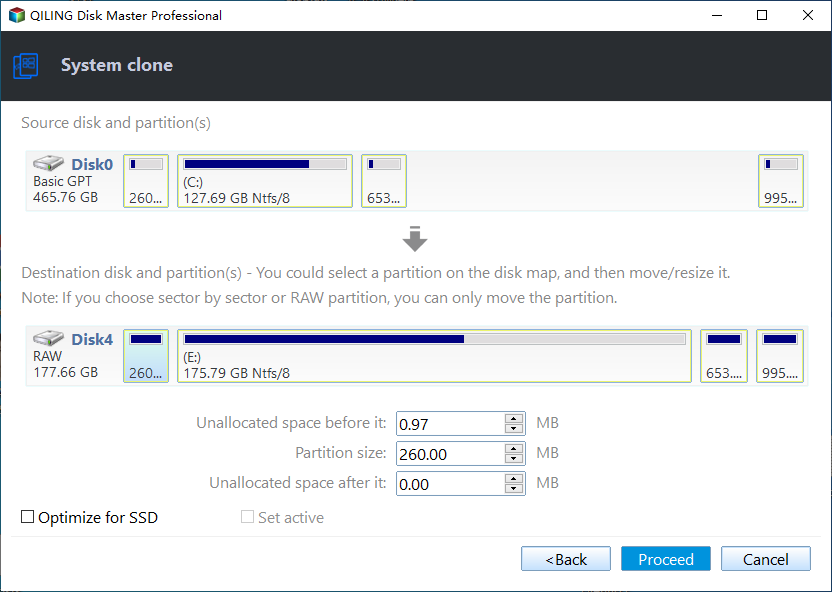
Note: If you choose to clone a sector by sector, it will clone all sectors, so ensure the destination disk is as large as or larger than the source disk.
After cloning, click Finish to complete the process. Then, enter the BIOS settings and set the SSD as the primary boot device. This will allow you to boot from the SSD without wiping the original drive, which can then be used as secondary storage. Alternatively, you can also choose to back up the SSD to the original HDD in case of a system crash.
Conclusion
You can successfully migrate Windows 10 to a smaller SSD using Qiling Disk Master, a professional disk cloning software. By default, it clones only used sectors on a hard drive, so you just need to ensure the used space of the original disk is smaller than or equal to the target disk. This feature also supports cloning to a larger drive, making it a convenient option.
Qiling Disk Master is a comprehensive backup tool that offers various backup options, including system, disk, partition, and file backup, making it suitable for almost all backup needs.
Related Articles
- Top 2 Easy Ways to Install Windows 10 on SSD
- A Simple Way to Move Windows 10 Hard Drive to New Computer
- Restore Windows 10 from Recovery USB (4 Ways included)
- How to Find Motherboard on Windows 11, 10, 8 and 7
This article details how to clean install Windows 10 on new SSD or transfer OS from old hard drive directly, and solution to Windows 10 cannot install error. - Best OCZ Data Migration Software for Clone & Backup
If you need to clone data from an OCZ SSD to another disk or vice versa, you'll likely require a free OCZ data migration software to facilitate this process. - Why My PC Suddenly Slow and How to Fix it?
Learn how to Why My PC Suddenly Slow and How to Fix it?. This guide explains the causes, steps, and practical tips for pc suddenly slow, why is my pc suddenly so slow windows 10, gamimg pc suddenly slow on Windows with Qiling. - Windows 10 Slow After Clone: Fix Performance Issues
Fix Windows 10 slow after clone by checking alignment, drivers, boot mode, disk health, and cleanup steps.
Products
Articles & Tutorials
- Data Recovery
- Data Backup
- File Recovery
- File Backup
- File synchronize
- System Backup and Restore
- Disk and Partition Clone
- Technical articles
- Disk Master Help
- Windows Deleted File and Disk Recovery Tutorials
- Windows File and Data Recovery Tutorials
- More Windows Tutorials for Install, Security, Files, and PC Tips
- Windows Boot, Repair, and Recovery Environment Tutorials
- Windows Backup Tutorials
- Windows Restore Tutorials
- Windows Clone and Migration Tutorials
- Windows Server Backup, Recovery, and Management Tutorials
- Windows Disk, Partition, and Storage Management Tutorials