Windows 10 Slow After Clone: Fix Performance Issues
Windows 10 may become slow after cloning if the destination disk is misaligned, boot mode changed, old drivers remain, or the SSD is not optimized.
Understand the problem
Cloning moves the old system state to new hardware. Performance depends on the destination disk layout, controller mode, free space, and Windows storage settings.
- Confirm the exact disk, partition, file system, Windows version, boot mode, or sync setting before making changes.
- Back up or recover important files before wiping, formatting, converting, cloning, reinstalling, or repairing Windows.
- For boot and update tasks, prepare recovery media and check BIOS or UEFI settings before deeper repair.
Use Windows built-in tools
Check clone-related causes.
- Confirm the cloned disk is connected to a fast port.
- Check boot mode and boot order.
- Update storage and chipset drivers.
- Confirm TRIM is enabled for SSDs.
- Check partition alignment and disk health.
Use Qiling tools for guided steps
 Qiling Disk Master
Reclone or adjust the disk layout with SSD alignment enabled if Windows 10 is slow after cloning.
Function. Clone the disk with a guided wizard
Step 1. Connect the SSD or replacement drive and make sure it can hold the used space on the original Windows 10 disk. Back up the destination because cloning may overwrite it.
Step 2. Open Qiling Disk Master and choose the clone function. Select the original Windows 10 disk as the source disk.
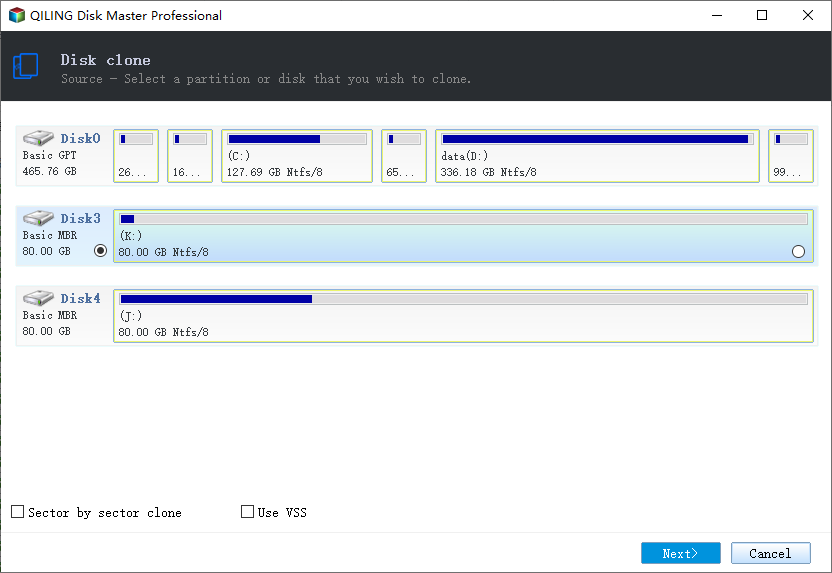
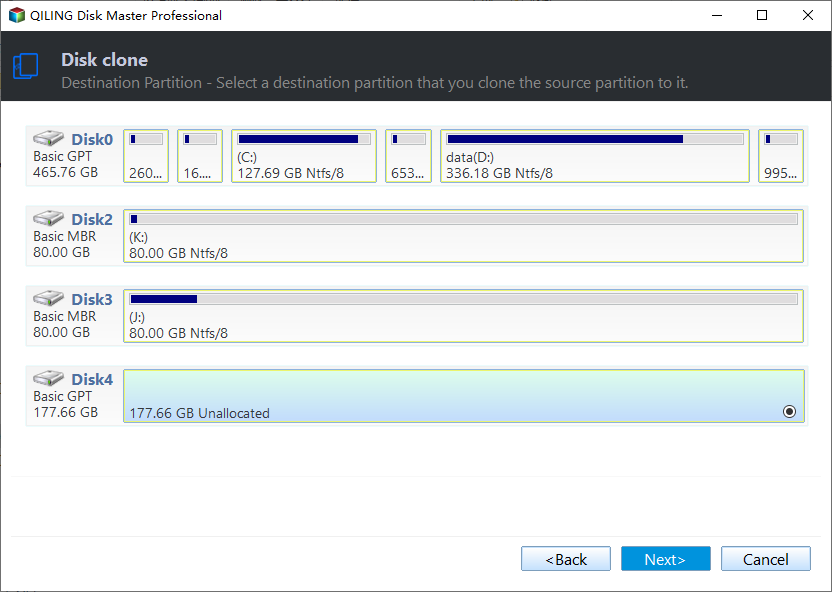
Step 3. Select the SSD or replacement drive as the destination disk and verify its model, size, and partition layout.
Step 4. Review the clone preview. If the destination is an SSD, keep SSD alignment enabled.
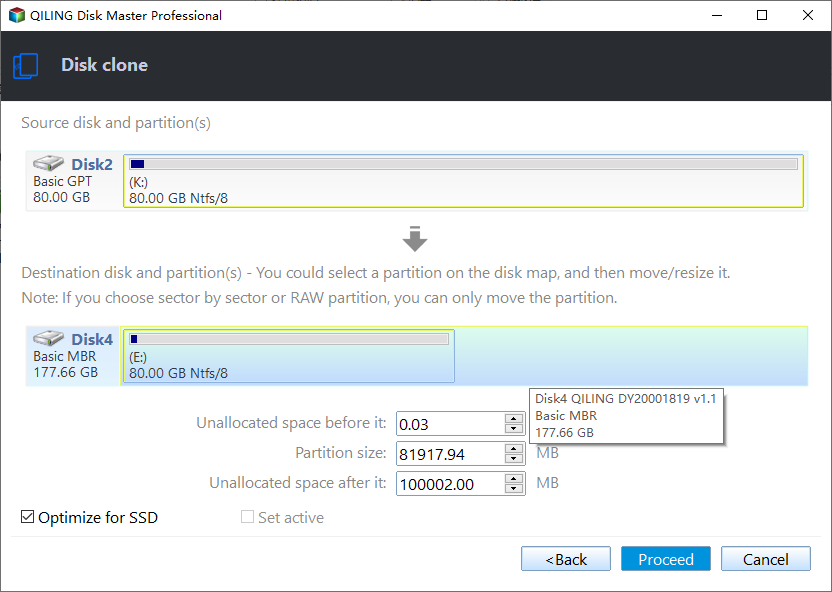
Step 5. Click Proceed. After cloning, test boot order and Windows startup before reusing the old disk.
Check the result
After fixing, compare startup time, app launch speed, and Task Manager disk usage. Keep the old disk until the cloned system is stable.
Related Articles
-
Cloned SSD Will Not Boot
Fix boot problems after cloning Windows to an SSD. -
C Drive Clone Software
Clone C drive and boot partitions with safer preparation.
Products
Articles & Tutorials
- Data Recovery
- Data Backup
- File Recovery
- File Backup
- File synchronize
- System Backup and Restore
- Disk and Partition Clone
- Technical articles
- Disk Master Help
- Windows Deleted File and Disk Recovery Tutorials
- Windows File and Data Recovery Tutorials
- More Windows Tutorials for Install, Security, Files, and PC Tips
- Windows Boot, Repair, and Recovery Environment Tutorials
- Windows Backup Tutorials
- Windows Restore Tutorials
- Windows Clone and Migration Tutorials
- Windows Server Backup, Recovery, and Management Tutorials
- Windows Disk, Partition, and Storage Management Tutorials