Best Way to Clone Windows 11, 10, 8, 7 to External Hard Drive
Quick Navigation:
- Can I clone a hard drive with Windows 10 on it?
- Why do you clone Windows to external hard drive?
- Best cloning software to migrate Windows
- Example: how to clone Windows 10 to external hard drive
- How to boot from cloned external hard drive
- Written in the end
Can I clone a hard drive with Windows 10 on it?
You can clone your Windows 10 installation to an external hard drive using tools like Qiling Disk Master. These programs will create an exact copy of your OS, including apps, drivers, and settings, on the external drive. Once cloned, you can boot from the external drive by setting it as the first boot device in your BIOS settings, allowing you to run Windows 10 from the external drive. This way, you can free up space on your internal hard drive and still have a fully functional Windows 10 installation on the external drive.
You can easily clone Windows 10 to an external hard drive using powerful disk cloning software like Qiling Disk Master Professional, as long as the external hard drive is well-prepared and can hold everything on the internal disk.
Why do you clone Windows to external hard drive?
Imagine your computer's disk is old and fragile, with insufficient space, causing it to run slowly. You may also experience periodic unresponsiveness of your hard drive, leading to frustration. In such cases, cloning Windows to an external hard drive can be a helpful solution. This process can help you transfer your operating system and data to a new, reliable storage device, effectively rescuing your computer from its current state.
Replace or upgrade the old disk, either by cloning it to a larger disk or upgrading to a faster SSD for improved performance.
Cloning a drive can serve as a backup copy, offering a convenient alternative to traditional backup methods. Unlike the traditional approach, which requires preparing temporary storage and restoring an image file before accessing data, a cloned drive can be accessed directly at any time. This means that in the event of a sudden computer crash, you can simply boot from the cloned drive and access your data without experiencing downtime.
Cloning Windows is an easier and more energy-saving alternative to reinstalling the operating system, as it preserves customized settings, installed programs, and personal data, eliminating the need for a lengthy reinstallation process.
Best cloning software to migrate Windows
The best disk cloning software should be able to successfully clone a hard drive to another one, including the operating system, customized settings, installed programs, and personal data. This means everything on the original disk will be duplicated exactly, and you can boot from the cloned disk after the cloning process is complete.
Qiling Disk Master Professional is a useful tool for copying Windows to an external hard drive, compatible with all Windows systems, including Windows 11, 10, 8.1, 8, 7, XP, and Vista. It offers several benefits, making it worth trying for those who need to clone their Windows installation.
- Disk Clone: Clone HDDs/SSDs or MBR/GPT disks of any capacity and brand, including Samsung, WD, and Seagate.
- Intelligent Clone: This feature allows you to easily clone a hard drive to one of a different size, even if it's smaller, by only cloning the used sectors to the new drive.
- Edit Partitions: This software enables the cloning and resizing of hard drives, including large ones, without leaving unallocated space. It also supports converting the destination disk from MBR to GPT or from GPT to MBR.
- SSD Alignment: This feature is designed to enhance SSD performance, including faster read and write speeds, and extend its lifespan.
- Compatible: It supports all Windows PC systems, including Windows 11, 10, 8.1, 8, 7, XP, and Vista.
In addition, this software still supports the System Clone feature. Unlike Disk Clone, it is to clone OS only and requires less disk space. So if your external hard drive is a smaller SSD, try it.
Example: how to clone Windows 10 to external hard drive
Before copying Windows 10 to an external hard drive, make sure you have everything you need: a reliable external hard drive with enough space to hold the Windows 10 installation, a computer with a working copy of Windows 10, and a USB cable to connect the external hard drive to the computer. Additionally, ensure that the external hard drive is properly formatted and ready to receive data.
1️⃣ External drive like a larger or smaller HDD, SSD, USB external disk, etc. Be sure its capacity is enough to save data on the internal disk, or the cloning process will fail.
2️⃣ If your computer only has one slot, use a USB to SATA adapter to connect your external hard drive. If your computer has two slots, simply slide your external disk into the slot and screw it tightly.
3️⃣ Initialize the external drive in Disk Management. Right-click the new disk, select "Initialize Disk", then choose "MBR or GPT" and click "OK", ensuring the partition style matches the original disk.
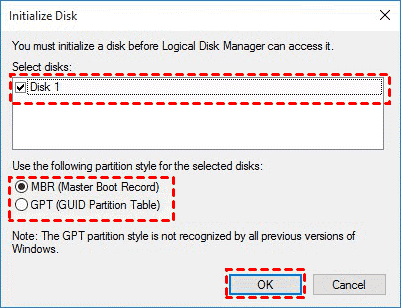
Here are simple steps to check the disk partition style:
- To open disk management, press Win + R to open the Run window, then type "diskmgmt.msc" and hit OK.
- Then, right-Click the disk you want to clone and select Properties in the pop-up window.
- The Properties window should be used to select the Volume tab and confirm the partition style, which can be either MBR (Master Boot Record) or GPT (GUID Partition Table).

4️⃣ Backup any important data on the external hard drive to a safe location, then clone the internal drive to the external drive, overwriting any existing data on the external drive.
For users in need of powerful disk cloning software, Qiling Disk Master Professional is a reliable option. Additionally, for server users, Qiling Disk Master Server is also available, offering a suitable solution.
This software uses the Intelligent Clone feature to clone a hard drive, making it okay to use a smaller target disk. To copy Windows 10 to an external hard drive, follow these steps, which also apply to Windows 11, 8, and 7.
Step 1. Select "Clone" and "Disk Clone" on the main page to clone the entire disk, or click "System Clone" to clone only the operating system.

Step 2. Select the internal hard drive of Windows 10 and click "Next".
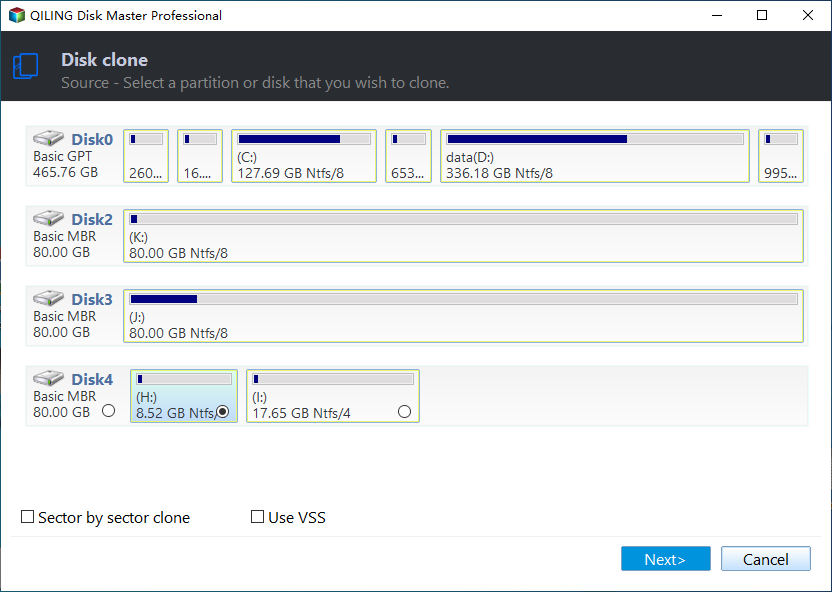
Step 3. Select the external hard drive you prepare and click "Next".
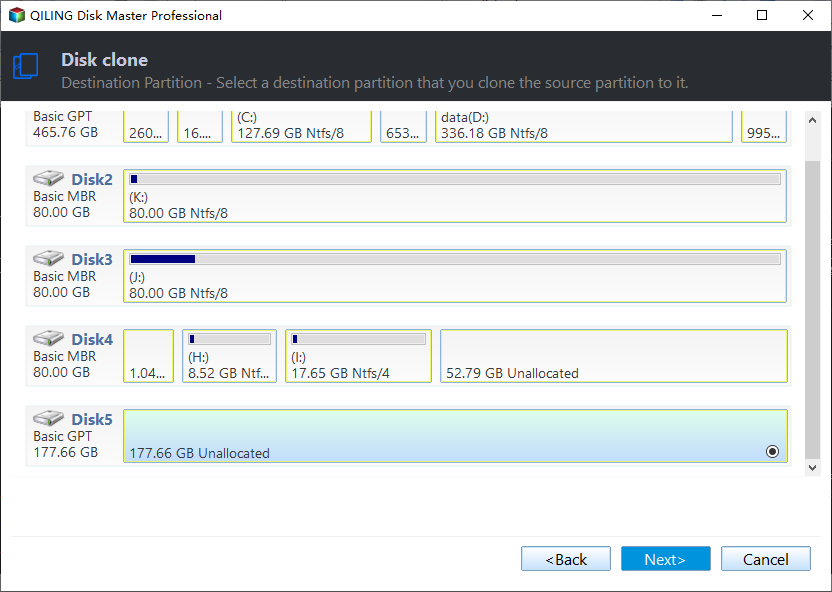
Step 4. If the external hard drive is an SSD, tick "SSD Alignment". Then, click "Edit Partitions" and select "Add unused space to all partitions" and "Manually adjust partition size" to ensure the disk shows its full capacity. Finally, click "Proceed" to clone the computer to the external hard drive.
👉Copy without resizing partitions: It will not resize the partition size.
👉Add unused space to all partitions: It will redistribute the unused space to each partition of the target disk, taking into account the disk's size.
👉Manually adjust partition size: You can extend unallocated space to any partition on the destination disk you want.

Step 5. Finally, confirm the cloning settings and click "Proceed" to clone computer to external hard drive.
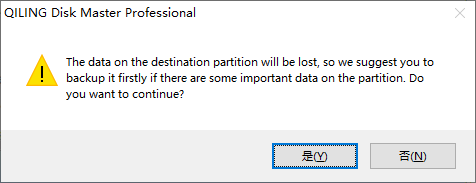
Click "OK" to continue this operation if you have already backed up your important data. If not, click "Cancel" and back up files to an external hard drive first.
- The sector-by-sector clone process creates an exact replica of the original drive, including all sectors, empty and bad ones, and maintains the same partition layout as the original drive.
- Edit Partitions: The software can be used to clone a disk, including converting the disk type from MBR to GPT or vice versa, allowing for a successful boot after cloning.
- To clone a hard drive without booting into Windows, you'll need to create a bootable USB drive and boot from it before initiating the cloning process. This allows you to access the system's boot environment without needing to load Windows.
How to boot from cloned external hard drive
After cloning Windows to an external hard drive, the process is half done. To complete it, simply replace the old disk with the cloned drive and see if your computer can boot from it. To boot from the external HDD or SSD, follow these steps.
Step 1. Open the drive bay. Shutdown your computer, plug out all power, remove the hard drive bay cover with a screwdriver.
Step 2. Remove the original hard drive by unscrewing the screws that hold it in place, then carefully lift it out at an angle, such as 30 or 45 degrees, to avoid any potential damage to the surrounding components.
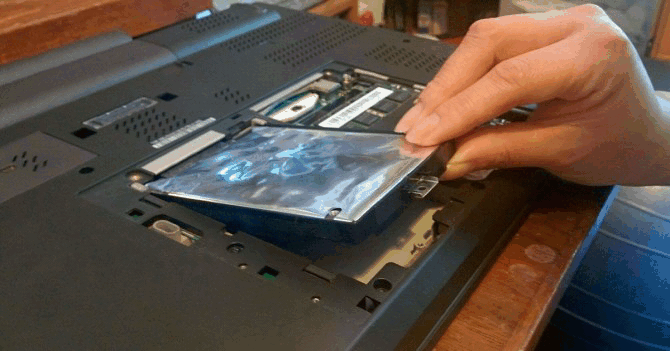
Step 3. Installed the external hard drive back into your computer.
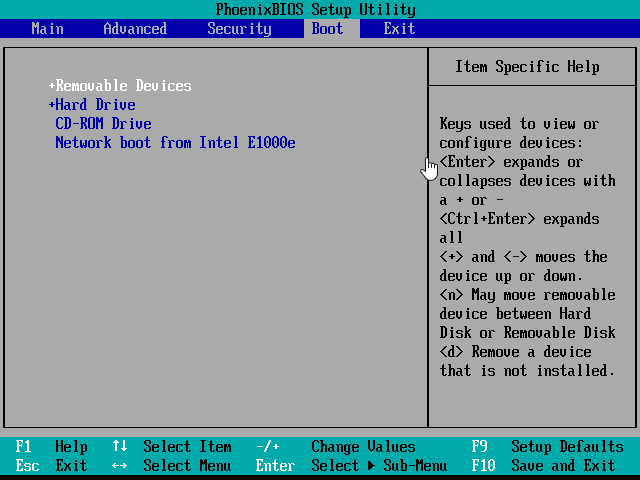
Step 4. Change boot order after replacing hard drive and boot from it.
To access the BIOS settings, turn on your computer and immediately hit the specified key (usually F2 or ESC) on the initial screen. Navigate to the Boot tab and use the "+" symbol to move the external drive to the top position, indicating it should be the first option to boot from.
Written in the end
With the help of Qiling Disk Master Professional, you can easily clone Windows 11/10/8/7 to an external hard drive, regardless of whether it's larger or smaller. This software breaks the limitation of cloning MBR to GPT disks without losing data and vice versa, making it a reliable option. Additionally, it can fix unallocated space left after cloning and further improve the performance of SSD disks, making it a comprehensive solution for disk cloning needs.
This utility offers a range of useful features, including creating system backups, incremental backups, and dissimilar hardware restores, as well as creating bootable USB drives and mirroring folders to network drives. You can try it out now.
Related Articles
- How to Clone Windows 10 to NVMe SSD (Step by Step Guide)
- Cloned SSD Won't Boot in Windows 10/8/7- How to Solve
- Best Way to Migrate Windows 10 to SSD Samsung
- 4 Steps to Create Windows 7 Bootable Clone Disk
- 3 Tips | How to Install Windows 7 on NVMe SSD for Laptop & PC
If you're unsure how to install Windows 7 on an NVMe SSD, this post can guide you. After reading, you'll learn 3 ways to install your Windows 7 on an NVMe SSD, making the process easier. - Super Easy | How to Install Windows After Replacing Hard Drive🔥
This is a detailed tutorial on how to install Windows after replacing hard drive. In this article, you will get how to install Windows after changing a laptop hard drive.
Products
Articles & Tutorials
- Data Recovery
- Data Backup
- File Recovery
- File Backup
- File synchronize
- System Backup and Restore
- Disk and Partition Clone
- Technical articles
- Disk Master Help
- Windows Deleted File and Disk Recovery Tutorials
- Windows File and Data Recovery Tutorials
- More Windows Tutorials for Install, Security, Files, and PC Tips
- Windows Boot, Repair, and Recovery Environment Tutorials
- Windows Backup Tutorials
- Windows Restore Tutorials
- Windows Clone and Migration Tutorials
- Windows Server Backup, Recovery, and Management Tutorials
- Windows Disk, Partition, and Storage Management Tutorials