4 Steps to Create Windows 7 Bootable Clone Disk
How do I make a bootable Windows 7 clone?
To create a bootable clone of your Windows 7 hard drive to a new Samsung 1TB hard drive, you can use software like Qiling Disk Master. These tools will allow you to clone your entire hard drive, including the operating system, programs, and data, to the new disk. Make sure to select the "clone this disk" or "clone entire disk" option to ensure a complete transfer. Additionally, ensure the new disk is properly connected and recognized by your computer before initiating the cloning process.
Windows 7 bootable clone is an exact copy of a bootable hard drive or partition with Windows installed, including the operating system, system settings, user configuration, and boot files. To create a bootable clone in Windows 7, you can clone the entire disk or only the system partition using a reliable disk cloning software.
Why clone boot drive in Windows 7?
In Windows 7, cloning a boot drive can be a useful process for various reasons. Some common motivations for cloning a boot drive include backing up the operating system and all installed programs, creating a duplicate drive for testing or troubleshooting purposes, or even upgrading to a larger storage capacity while keeping the existing boot drive intact.
- Your computer is running slowly.
- Your computer is running low on storage space, making it difficult to install new programs or store data. As a result, your computer may take a long time to run certain programs.
- You're concerned that the disk might get damaged or corrupted in some way, potentially leading to data loss. Is that correct?
Cloning Windows 7 to a larger hard drive or SSD can provide a smooth computer experience and additional storage.
How to create Windows 7 bootable clone step by step
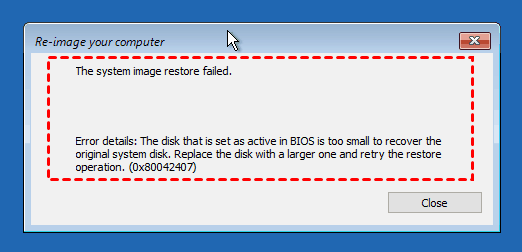
Unfortunately, Windows 7 doesn't come with a built-in disk clone software, making it a bit of a hassle to clone or restore a system image to a new hard drive, especially if the target disk is smaller or has a different partition style.
To clone Windows 7 to a new hard drive and make it bootable, you can use Qiling Disk Master Professional, a reliable disk clone software that allows you to clone and boot from the cloned disk without needing a bootable USB or CD/DVD. This applies to various Windows systems, including Windows 8/8.1/10/11/XP/Vista.
- ✮ If you only want to keep everything on the system partition or the new hard drive has a smaller size, it's highly recommended to use the "System Clone" feature to clone Windows 7 or 10 to the new hard drive, whether it's on the MBR or GPT disk. This method is suitable for both cloning Windows 7 and Windows 10 to a new hard drive.
- ✮ If you want to keep your OS, installed programs, and data intact, you can try the "Disk Clone" function to clone everything, including the OS, programs, and data. This way, you can adjust the partition size manually or automatically to make the most of your disk space. Additionally, if the source and destination disks have different partition types (MBR or GPT), you can convert the destination disk to match the source disk.
Steps to create Windows 7 bootable clone
To clone Windows 7 to a new hard drive using System Clone, download and install Qiling Disk Master Professional, then connect the new hard drive to receive the Windows 7 OS. For server users, use Qiling Disk Master Server.
The Clone feature in the trial version can only be demonstrated, and to create a Windows 7 bootable clone and boot from it, you need to upgrade to the pro trial, with a 10% discount for one computer.
1. Run Qiling Disk Master Professional, refresh the program to ensure it detects the latest information of your Windows 7 hard drive, and then select System Clone under the Clone tab.

✦ Tip: If you want to make an exact copy of the original hard drive, you can choose to clone the hard drive to an SSD or HDD using the Disk Clone feature.
Choose a new hard drive to save Windows 7 system files. Click Next.

3. To create a Windows 7 bootable clone, view all the details, then click "Proceed" to commit the information. If cloning to a new SSD, select "SSD Alignment" for improved disk performance.

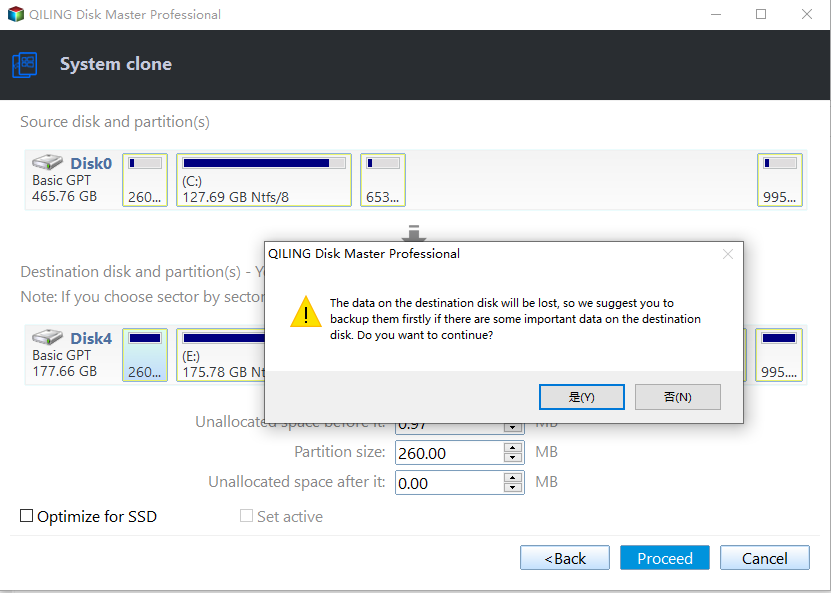
✦ Tip: The Qiling Disk Master will notify you that the external hard drive will be wiped out and all the data in that drive will be lost. Please backup critical data on that drive first. Otherwise, click OK.
Besides "SSD Alignment" feature, you can still enjoy other useful features at the lower location, including but not limited to, a wide variety of food options, a clean and well-maintained environment, and a team of friendly staff who are always willing to help.
❉ Make full use of disk spaceThis option is automatically selected when cloning a system to a larger drive, and it's used to expand the system partition by using adjacent unallocated space.
❉ Sector by sector cloneThis option clones all sectors of the selected partition or disk, requiring the destination disk to be equal to or larger than the source disk.
Windows 7 will be cloned to a new hard drive in a few minutes without losing data, resulting in a bootable clone disk that can replace the current hard drive. To do this, change the boot order in BIOS and boot from the new hard drive to work normally.

This software can be used for cloning Windows 10, 11, 8.1, 8, XP, and Vista operating systems.
You can also create bootable media, such as a USB drive, in case of system boot failure due to unexpected errors.
Won't Boot After Cloning?
Many users experienced issues with Windows 7 not booting after cloning, which could be due to several reasons, including incorrect cloning settings, corrupted system files, or issues with the target disk's partition table. To resolve this, users can try re-cloning the system with the correct settings, running a system file checker, or re-partitioning the target disk to ensure a clean and proper clone. winload.efi missing after clone or just cloned a partial of boot partitions or boot files.
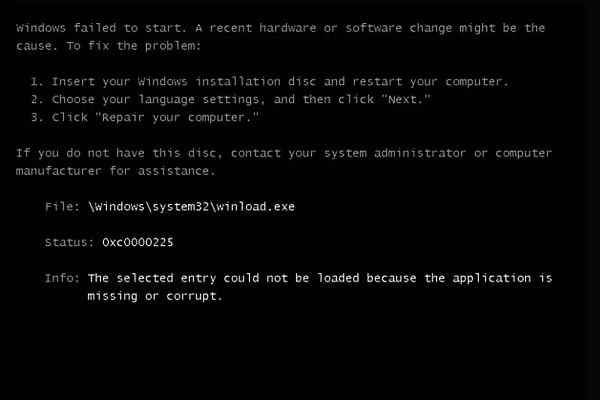
Here is how to fix the error:
- Prepare a Windows 7 recovery disc, then boot from it.
- Choose Repair your computer.
- Select your preferred language and other preferences, then click Next. Next, click on Startup Repair in the System Recovery Options window. This will initiate a scan to identify any issues with starting your Windows 7 installation.
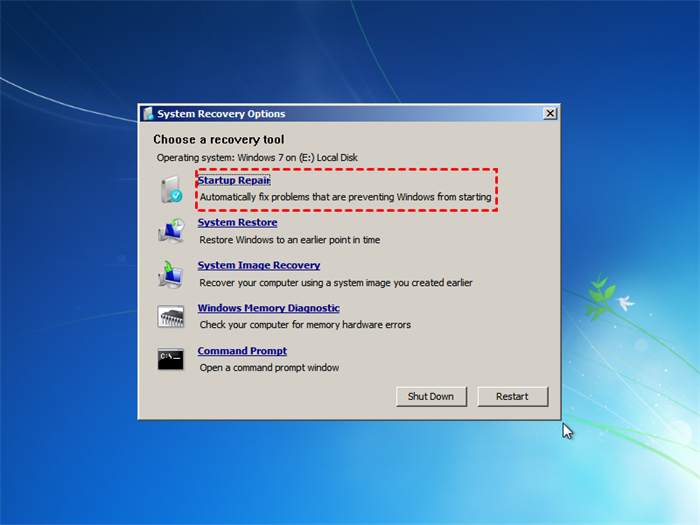
- If the Startup Options window is not working properly, clicking the Repair button and restarting your computer may resolve the issue.
Then check if the problem is solved.
Use Windows 7 recovery disc, and choose to Command Prompt in Advanced.
Input the following commands and execute in turn:
- diskpart
- list volume
- select volume X (X is Windows partition or boot partition)
- assign letter w (w should be the drive letter that does not in use)
- exit (exit diskpart)
- bcdboot X:\Windows /s w: /f UEFI (X is the partition letter that contains the Windows folder)
- reboot system (select the new boot option if more than one)
- msconfig (Boot - leave only the c:\Windows option)
Summing Up
With Qiling Disk Master, you can create a Windows 7 bootable clone disk in just a few simple steps. This tool also offers useful features, such as automatically enlarging your system partition size to make full use of disk space, and accelerating the performance of an SSD disk. For server users or technicians, the Technician Plus edition offers additional benefits, including the ability to increase your income by offering billable technical services to clients.
Related Articles
- How to Clone Windows 7 Partition to the Same Drive
Use this guide for How to Clone Windows 7 Partition to the Same Drive, with cloning or migration steps, boot checks, and tips to keep data safe during the move. - Fastest Way to Clone Bootable USB Drive in Windows 7/8/10
Cloning USB bootable drive to another drive or USB in Windows 11/10/8/7 with "Disk Clone" feature in Qiling Disk Master is the fastest and easiest way. Scroll down to learn the detailed steps. - Solved: Clone to New Computer Windows 7 Won't Boot
If you are troubled with the error that cloned to new computer Windows 7 won't boot, you can learn how to fix the error and restore Windows 7 image to different hardware stably from this page. - 2022 Tips| How to Clone Windows XP to USB Drive
If you are still using Windows XP, it is wise to clone it to a USB drive in case it suddenly breaks or fails to boot, resulting in losing all data. Don't hesitate! let's ensure your data! - [Solved]Transfer Data From One SD Card to Another
Learn how to Transfer Data From One SD Card to Another with clear steps, key checks, and practical tips. - Excellent Tool: Transfer OS to New Hard Drive without Reinstalling
If you wish to transfer OS to new hard drive without reinstallation Windows 11, 10, 8, and 7, you can download the Qiling Disk Master Professional. Its "Migrate OS to SSD Wizard" can help you move Windows OS to a new hard drive and boot from it successfully.
Products
Articles & Tutorials
- Data Recovery
- Data Backup
- File Recovery
- File Backup
- File synchronize
- System Backup and Restore
- Disk and Partition Clone
- Technical articles
- Disk Master Help
- Windows Deleted File and Disk Recovery Tutorials
- Windows File and Data Recovery Tutorials
- More Windows Tutorials for Install, Security, Files, and PC Tips
- Windows Boot, Repair, and Recovery Environment Tutorials
- Windows Backup Tutorials
- Windows Restore Tutorials
- Windows Clone and Migration Tutorials
- Windows Server Backup, Recovery, and Management Tutorials
- Windows Disk, Partition, and Storage Management Tutorials