How to Clone Windows 7 System Partition to the Same Drive
Scenario
You installed Windows 7 on a separate partition (F drive) alongside Windows XP on the same drive, and after removing XP, you repaired Windows 7, which is now booting fine.
You're trying to move Windows 7 to the beginning of the drive, but Acronis won't let you clone the partition to the same drive. One possible solution is to use a third-party partition manager like Qiling Partition Master, which can help you move the Windows 7 partition to the beginning of the drive without cloning. Alternatively, you could try using a bootable USB drive with a Linux distribution like Ubuntu, which has built-in tools for managing partitions. Would you like me to provide more details on either of these options?
Why clone Win 7 partition to the same drive?
Users are often willing to clone Windows 7 to a new hard drive or SSD, but if that's not possible, they may choose to clone the Win 7 partition to the same drive instead. This approach is often taken due to various reasons, including the need to preserve existing data, the desire to avoid reinstalling software and drivers, and the convenience of not having to reinstall Windows 7.
- Your computer only has one slot for hard drive.
- To move the system partition to the first partition for better performance, you can follow these steps:
- Your Win 7 partition has bad sectors, but cloning software can skip them and clone only used sectors. This might be an option if the bad sectors are few.
How to clone Win 7 partition to another partition
To prevent data loss, please backup files to an external hard drive before cloning a Win 7 partition, as the cloning method will delete all data on the destination partition.
For Windows 7, 8, 10, and 11 users, a reliable backup software like Qiling Disk Master Professional can be a lifesaver. This professional disk cloning software not only offers backup capabilities but also allows for system, disk, and partition cloning, giving you flexibility and control over your data.
The software clones a disk or partition in Windows 7 using the Intelligent clone method by default, which copies only used sectors and skips bad and empty sectors.
The software can automatically detect the system partition and other boot partitions, such as the system reserved partition on MBR disks or the EFI system partition on GPT disks, and select the correct one to ensure a secure boot after cloning.
To try out Qiling Disk Master Professional, please download it. For server users, Qiling Disk Master Server is also available to try.
Here is how to clone Win 7 to another partition:
Step 1. To launch the Qiling Disk Master Professional software, select "Tools" followed by "System Clone" in order. This will automatically select the system partition and boot partition(s).

Step 2. Select a destination partition to store the system partition, and click Next.

Step 3. On the Operation Summary window, set up the cloning settings and click Proceed to clone the Win 7 partition to the same drive.
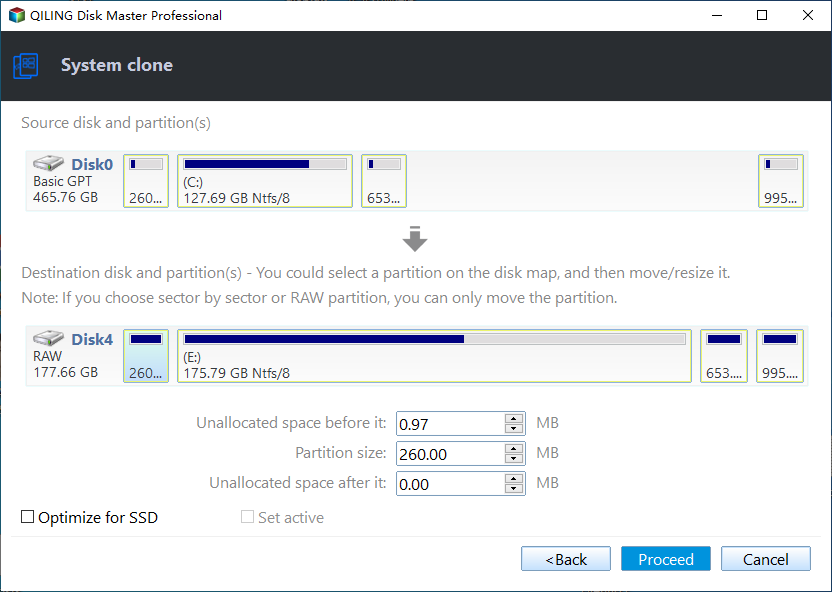
Here are three options in the following:
- Edit Partition allows you to adjust the size of the destination partition, making full use of its disk space.
- SSD Alignment: Improving the reading and writing speed of an SSD disk can be achieved by optimizing its performance. This can be done by running a disk cleanup tool to remove temporary files and system logs, defragmenting the SSD (although this is not necessary for SSDs, it can still be done to maintain performance), and updating the SSD's firmware to the latest version. Additionally, disabling hibernation and sleep modes, and closing unnecessary programs and background applications can also help improve the SSD's performance.
- Sector by Sector Clone: Clonezilla is a cloning method that clones all sectors of a partition, including both used and unused sectors, and even bad sectors.
Workaround to clone Win 7 partition to SSD
Here, I am going to introduce you a different way I saw in the forum. You can try it with the detailed steps below.
Step 1. Create a backup for your first partition and delete it.
Step 2. Right-click your system partition and copy it to the first partition.
Step 3. Right-click the original system partition and delete it.
Step 4. Connect the installation disc to your computer, run Startup repair 3 times, and it will repair the problem on your computer, then move your partition to the start of the disk.
Summary
Cloning a Windows 7 partition to the same drive using Qiling Disk Master Standard is a straightforward process, allowing you to boot your computer without any issues.
If you have a desktop computer, you can clone the entire disk, including the operating system, to a new one, or create a system image in Windows 7 and save it to a network drive or NAS, allowing you to restore it to the current disk if needed.
Related Articles
- Use Freeware to Clone Windows 7 to New Hard Drive Without Reinstallation
This guide explains Use Freeware to Clone Windows 7 to New Hard Drive Without Reinstallation with clear steps, key checks, and practical tips. - How to Clone Only OS Partition to SSD in Windows 7
This page shows how to easily clone only OS partition to SSD (even smaller) in Windows 11/10/8/7 with secure boot. And you don't need to reinstall Windows. Please read on to learn more details. - How to Clone Old Computer to a New One in Windows 10/8/7
If you want to transfer the operating system, programs, files etc in the fastest way possible, try to clone old computer to new computer in Windows 11, 10, 8, 7, XP, and Vista. - How to Clone Hard Drive to SSD in Windows 7/8/10 (Updated)
HDD to SSD cloning offers a convenient way to upgrade your Windows 11/10 PC without having to reinstall the operating system from scratch. Valuable tips & tricks included. - Seagate Cloning Software: Migrate Data to Seagate Drive Easily
This post will introduce you great and overall Seagate cloning software for Windows 10,8, 7, and show you how to complete disk copy under the help of it. - Seagate DiscWizard Free Alternative | Review and Guide
DiscWizard is a practical cloning tool for Seagate and Maxtor hard drives. But it do have some deficiencies in addition to brand restrictions. So I'd like to share a free alternative to Seagate DiscWizard.
Products
Articles & Tutorials
- Data Recovery
- Data Backup
- File Recovery
- File Backup
- File synchronize
- System Backup and Restore
- Disk and Partition Clone
- Technical articles
- Disk Master Help
- Windows Deleted File and Disk Recovery Tutorials
- Windows File and Data Recovery Tutorials
- More Windows Tutorials for Install, Security, Files, and PC Tips
- Windows Boot, Repair, and Recovery Environment Tutorials
- Windows Backup Tutorials
- Windows Restore Tutorials
- Windows Clone and Migration Tutorials
- Windows Server Backup, Recovery, and Management Tutorials
- Windows Disk, Partition, and Storage Management Tutorials