2 Easy Ways | Clone Old Computer to New Computer
Quick Navigation:
- Clone Old Computer to New Computer for Upgrading
- Top 2 Concerns When Transferring OS to New PC
- Clone PC to New PC Completely via Professional Tool
- Case 1. Clone PC to another PC with the same hardware
- ◐ Preparations
- ◐ Steps to Clone Old Computer to New Computer
- Case 2. Transfer One Computer to Another with Different Hardware
- ◐ Part 1. Create a disk image of the old computer
- ◐ Part 2. Create bootable media for a new computer
- ◐ Part 3. Restore image to new computer
- ◐ Bonus tip: How to transfer OS to multiple computers
- Conclusion
Clone Old Computer to New Computer for Upgrading
As you accumulate more files and programs on your computer, its performance may decline over time. Upgrading your computer can resolve this issue, resulting in a faster startup time and improved overall speed.
When transferring everything from an old computer to a new one, the approach depends on your preferences. A viable option is to perform a clean installation of Windows directly onto a solid-state drive (SSD), allowing you to start fresh with a completely new operating system.
To avoid the hassle of reinstalling and reconfiguring everything, you can clone your entire current computer setup to the new system, effectively transferring your existing operating system and settings to the new device.
Top 2 Concerns When Transferring OS to New PC
Compatibility and licensing concerns can make users hesitant to perform computer-to-computer operations, as they worry about encountering boot failures and activation errors. This apprehension stems from a desire to understand these potential issues better. (Note: I've rewritten the text in a single paragraph as requested, while maintaining the original meaning and tone.)
👉 Device drivers incompatibility
When cloning a computer, the cloned computer may not boot due to errors like "hardware abstraction layer" or "hal.dll", or even a blue screen of death, because the cloned computer has its own specific drivers that are not compatible with the original computer's motherboard and chipset, including the storage controller drivers that help the motherboard communicate with the hard disk.
The new computer can't start up properly if it has drivers that are not compatible with its hardware, leading to a boot failure.
👉 Reactivation issues
If you have retail or volume licenses, reactivating Windows is relatively easy. These types of licenses allow you to use the operating system on any computer, but only on one computer at a time. Windows will automatically activate your computer when connected to the Internet. If not, you can manually enter your license key to reactivate your system.
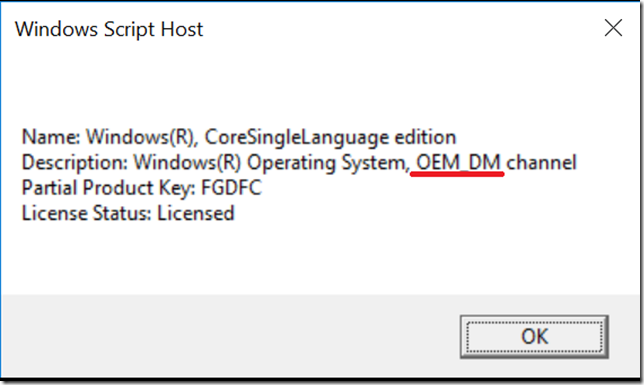
If you have an OEM copy of your computer, it can be a hassle because it's tied to the first computer with the operating system installed. To check your license type, you can follow this method.
To check the Windows product key, press the Win + R key combination to open the Run dialog box, type `slmgr.vbs -dli`, and press Enter. This will open the Windows Activation window, where you can find the product key in the Description column.
Clone PC to New PC Completely via Professional Tool
On Windows 11/10/8/7/XP/Vista, there are two primary methods to transfer everything from one PC to another: hard drive cloning and universal restore. The choice between these two options depends on the specific computer situation, and understanding the difference between them can help determine the best approach.
💛 1. When the target computer has the same hardware or CPU as the source:
Cloning the old computer's hard drive to an empty disk, and then installing the cloned drive on the other computer is a recommended method to transfer the operating system and data to the new computer. This approach allows for a seamless transfer of the system and data, minimizing the need for manual setup and configuration.
If you want to keep only the operating system drive on the new computer, you can try the System Clone feature of cloning software, which will migrate only the system and boot related drives.
💛 2. When the target computer has dissimilar hardware:
The cloning method won't work if the two computers have different hardware, but the Universal Restore feature can easily fix this issue. This feature, also known as Dissimilar Hardware Restore, can restore a backup image of a system to a different hardware platform or to a virtual machine, making PC migration possible through three core steps: backup, bootable media creation, and restoring.
Now that you know the computer hardware is different, you need to find a tool that can transfer your data. A professional backup and cloning software like Qiling Disk Master Professional is recommended, as it can satisfy both transfer needs, regardless of computer hardware.
The software is popular among users worldwide due to its user-friendly interface. To clone a PC to a new PC, follow the guided procedures in the sections below.
 Qiling Disk Master Professional
The best software to transfer everything from an old computer to a new one is likely to be a cloning or migration tool, such as Qiling Disk Master. These tools can help transfer all files, programs, and settings from the old computer to the new one, making the transition as smooth as possible.
Case 1. Clone PC to another PC with the same hardware
Cloning a computer requires specialist software and preparation work.
◐ Preparations
1. When cloning a laptop to a new laptop, To prepare for the computer upgrade, you need to check if the back cover of the new computer is removable and also verify the number of hard drive slots in the old computer. If the old computer has only one drive bay, it's recommended to prepare a USB-to-SATA adapter, a dock, or an enclosed new drive connector in advance to ensure a smooth transition.
2. Check the space used by both hard disks. If the target disk is too small to hold all the data from the old disk, the cloning process will fail. If you use sector-to-sector cloning, you'll need a new disk that's larger than the old one.
3. Confirm the partition style of the two hard drives. The partition style of a disk can be either GPT or MBR format, each with its own boot method. This can be a crucial factor in system booting. To ensure a smooth transition, it's a good idea to convert or initialize the target disk to the same format as the old one before proceeding.
4. Back up important files in advance. To minimize data loss, it's recommended to back up files to an external drive, network drive, or cloud drive, as the two methods mentioned may not prevent data loss due to improper operation or unexpected events.
◐ Steps to Clone Old Computer to New Computer
To clone Windows 10 to a new computer, you can use a cloning software to create an exact replica of the operating system, including all installed programs, settings, and files. This process involves creating a backup image of the current Windows 10 installation, and then restoring that image to the new computer. The cloning software will handle the process of copying the operating system, programs, and settings to the new computer, making it identical to the original.
Step 1. To transfer your old computer's data to the new hard drive, first connect the new drive to your old computer and ensure it can be detected. Next, download the cloning tool Qiling Disk Master Professional, which will help you clone your old hard drive's contents onto the new one.
Step 2. Open Qiling Disk Master Professional. Then, click the "Disk Clone" option under the Clone tab.

Step 3. To start the process, select the source disk on the old computer, which typically contains the operating system, installed programs, and files, and click "Next".

Step 4. Select the destination disk (Basic GPT) that you connected before and click "Next" to continue.

Step 5. Please note that the target disk will be completely erased and replaced with the contents of the source disk, so it's essential to back up any important files or data on the target disk before proceeding.
Step 6. To clone an old hard drive to a new computer, ensure you're selecting the correct disk on the operation summary window and click "Proceed" to initiate the cloning process. Additionally, if the target disk is an SSD, check the box for "SSD Alignment" to optimize its performance.
Notes:
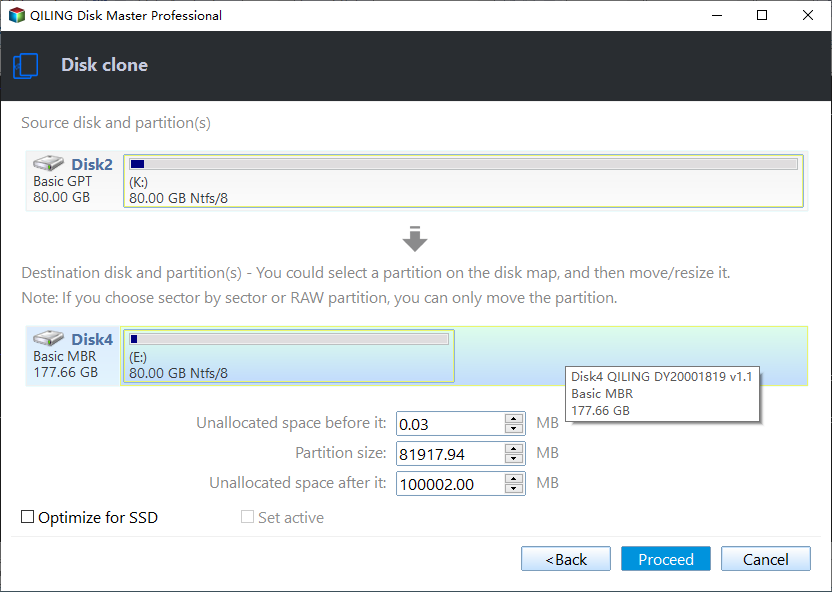
✔ If you don't tick the Sector by sector clone feature, this software will clone only used sectors of the hard drive in the old computer, which is amazing for cloning a larger drive to a smaller drive, even for different computers.
✔ If the target drive is larger, you need to enable the "Edit Partitions" feature to prevent cloned drive shows wrong size issue. You should also select "Add unused space to all partitions" unless you want to extend space for a specific partition. This is an automatic and effective process.
Step 7. Cloning can take a long time to complete, depending on the data stored. Click "Finish" when it completes.
Step 8. Uninstall the target hard drive from your old computer, install it directly to your new computer, and you should be able to boot from it. If not, check the common reasons for cloned drive won't boot error.
Tips:
✦ Since Windows 10 has compatible drivers required for booting, you can use the same cloning method to clone a Windows 10 system to a new SSD or hard drive.clone Windows 10 to dissimilar hardware as long as it supports secure boot.
✦ Qiling Disk Master offers a 30-day free trial, allowing users to access all backup and restore functions. Registration is required to unlock clone features, and for server computers, a different version should be tried.Qiling Disk Master Server!
Case 2. Transfer One Computer to Another with Different Hardware
As mentioned before, there are totally three parts while performing Universal Restore to dissimilar hardware. Let's get to know them one by one.
◐ Part 1. Create a disk image of the old computer
To prepare for restoring, create an image file of the old computer using the "Disk Backup" feature in Qiling Disk Master, and store it in a location accessible to the new computer, such as LAN, network path, external drive, or cloud.

◐ Part 2. Create bootable media for a new computer
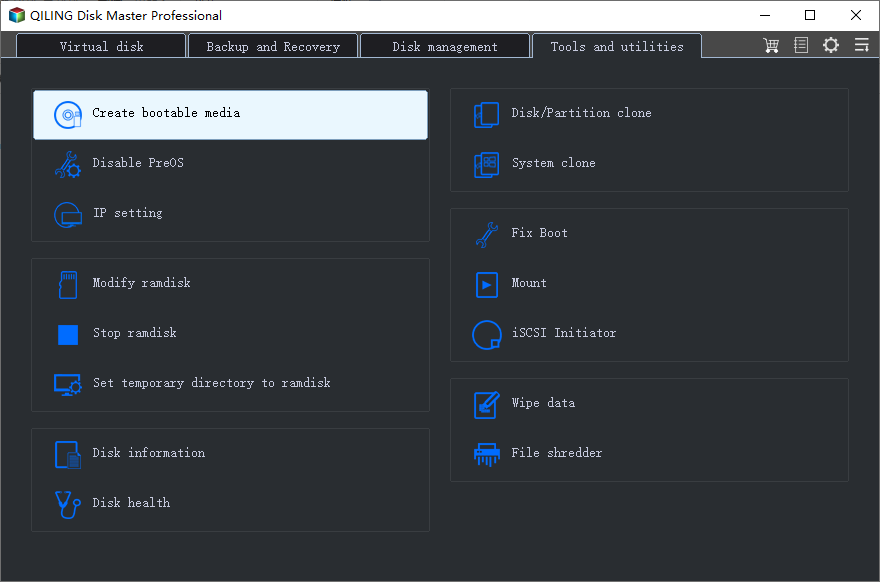
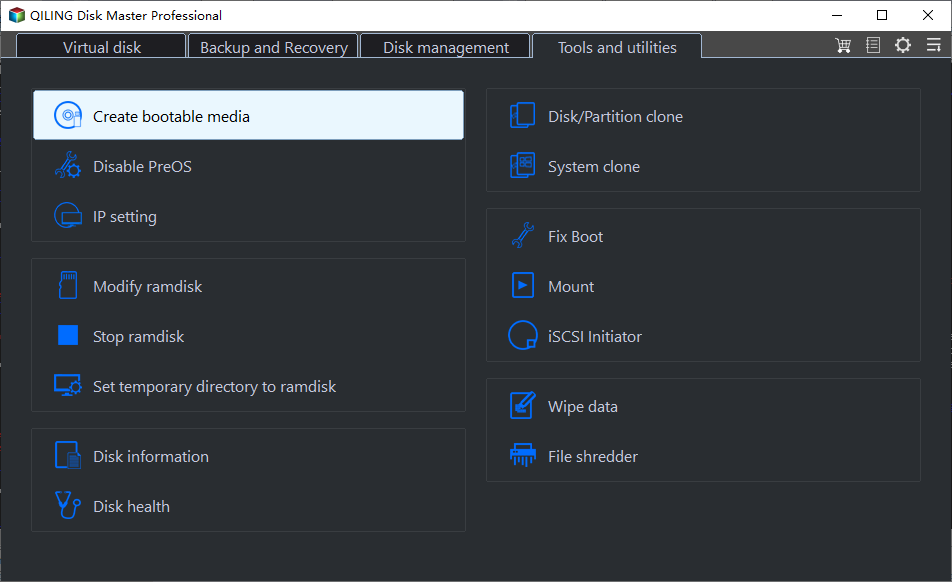
Insert a USB drive larger than 13 GB into your old PC, ensuring it's detected. You can create a bootable USB drive using the "Create Bootable Media" feature in Qiling Disk Master.
Tips:
✔ If you don't have a device for a boot repair disk, it's suggested to install the software on a new computer and create a recovery environment using the Recovery Environment feature.
✔ To boot up multiple computers simultaneously for restoring, you can use a PXE boot tool, which allows multiple computers to boot with LAN at the same time.
◐ Part 3. Restore image to new computer
Here details the process of restoring an old computer disk image to a new computer. You'll need to connect the image file to the new PC, i.e. make it can be accessed by the new PC.
Step 1. Boot the new computer via bootable media. You may need to change boot priority before starting.
Step 2. To restore an image using Qiling Disk Master, go to the "Restore" tab, click "Select Image File", and choose the prepared image file, noting that the drive letter may have changed under the WinPE environment.

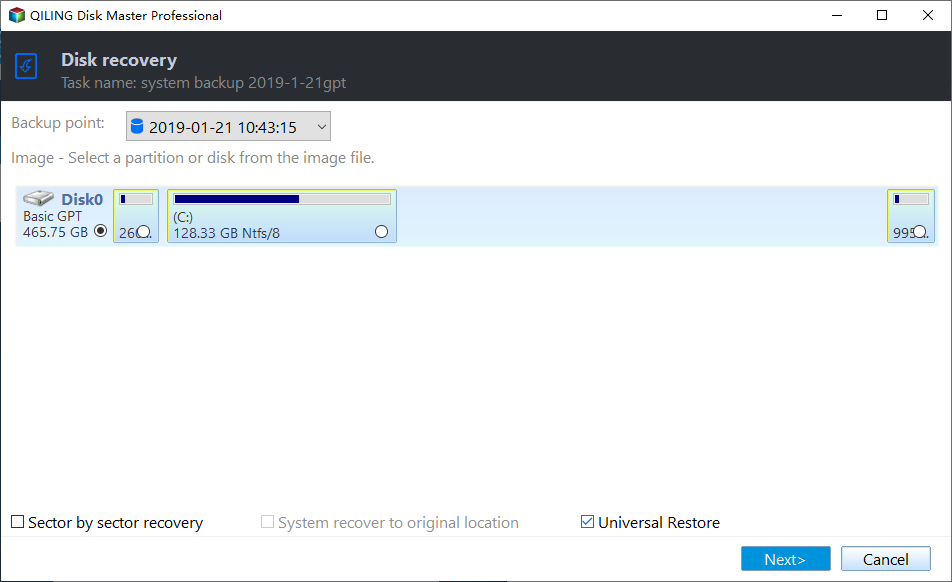
Step 3. After selecting the disk image, go to the "Image Information" page and check the box next to "Universal Restore". Then, select the entire disk and click "Next" to proceed.
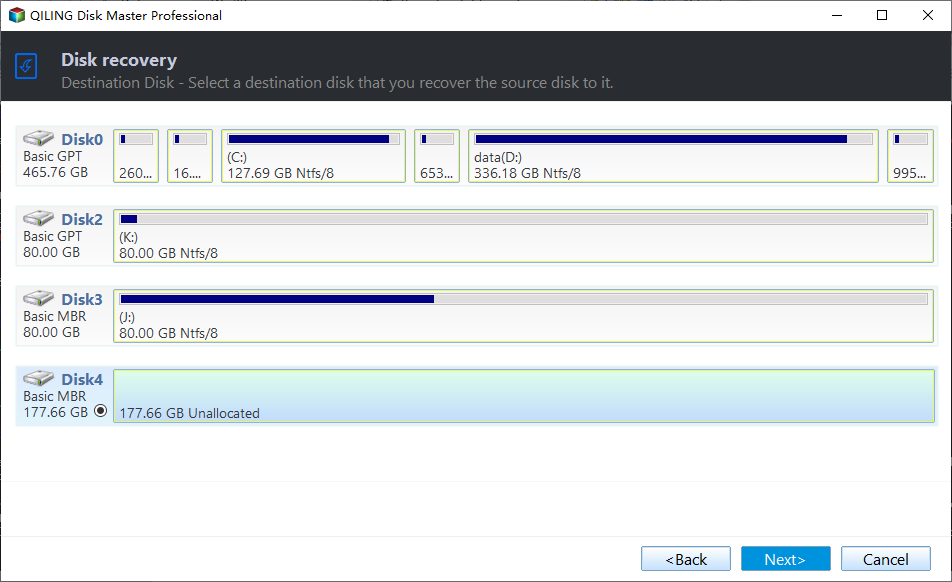
Step 4. Select the destination location to restore the image backup and then click "Next".
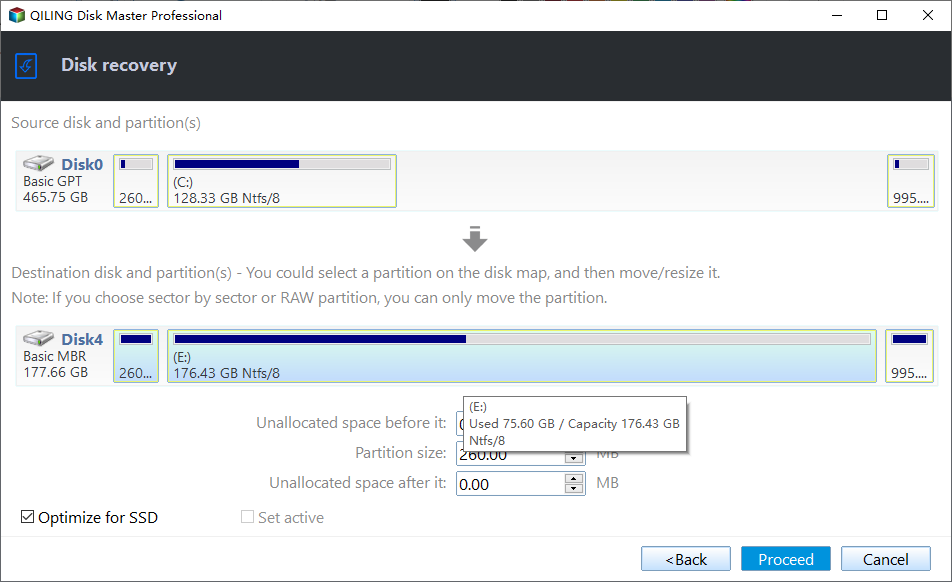
Step 5. In the summary window, Click "Proceed" to restore image to new computer.
The new computer will automatically reboot. Once it has, you can remove the bootable media to see if it functions normally.
◐ Bonus tip: How to transfer OS to multiple computers
Transferring an operating system to multiple computers can be a laborious process, especially when considering the time and effort required to reinstall the OS, programs, and files on each individual machine. It can be a tedious and time-consuming task.
Try the image deployment tool Qiling Image Deploy, which only requires computers to be in the same LAN and supports dissimilar hardware, available on Technician or Technician Plus edition of Qiling Disk Master.
You can still enjoy creating a portable version of the software using the Create Portable Version feature, which allows you to use it on any PC without installing again. This feature supports unlimited PCs or servers.
Conclusion
Cloning an old computer to a new one can be a quick way to upgrade, assuming the new computer has similar hardware and the license key is transferable, allowing for a seamless transition.
To avoid boot failure when restoring a computer with different hardware, it's recommended to use a universal restore method that involves backing up the system and then restoring it using a backup and restore method, rather than relying on the original hardware to handle the restore process.
Related Articles
- Fix SSD Slow Boot on Windows 10 with 8 Effective Methods
This article tells you how to fix SSD slow boot on Windows 10. 8 methods are provided. Try them individually and get your computer back to normal. - Best Free Windows 11 Migration Tool
You will know the best Windows 11 migration tool and learn how to migrate the operating system, files or data to a new drive easily using this tool. - How to Clone SSD in Windows 7 Easily for Free
Learn how to Clone SSD in Windows 7 Easily for Free with clear steps, key checks, and practical tips. - How to Migrate Windows 7 to SSD with Excellent Software
Qiling Disk Master can help to migrate Windows 7 to SSD through two means: backup the system drive to an image file, and then restore it to the SSD, or directly clone the system drive to the new SSD. - How to Transfer Windows 10 from One SSD to Another (2 Ways)
This article illustrates how to transfer Windows 10 from one SSD to another, as well as an easier way to migrate OS than using the built-in system image recovery. - How to Clone Windows 11 to Another Hard Drive (Bootable)
You can easily clone your Windows 11 operating system to another hard drive using cloning software, which allows you to transfer your OS and data to a new drive with just a few clicks, making it a convenient way to upgrade your system.
Products
Articles & Tutorials
- Data Recovery
- Data Backup
- File Recovery
- File Backup
- File synchronize
- System Backup and Restore
- Disk and Partition Clone
- Technical articles
- Disk Master Help
- Windows Deleted File and Disk Recovery Tutorials
- Windows File and Data Recovery Tutorials
- More Windows Tutorials for Install, Security, Files, and PC Tips
- Windows Boot, Repair, and Recovery Environment Tutorials
- Windows Backup Tutorials
- Windows Restore Tutorials
- Windows Clone and Migration Tutorials
- Windows Server Backup, Recovery, and Management Tutorials
- Windows Disk, Partition, and Storage Management Tutorials