Clone or Restore System to Dissimilar Hardware (Secure Boot)
Quick Navigation:
- When should I perform dissimilar hardware clone or restore?
- Best software to clone or restore system to dissimilar hardware
- How to clone Windows 10 system to different hardware safely
- Way 1: Directly clone system to different hardware
- Way 2: Backup and Restore system to different hardware
- FAQs on cloning to dissimilar hardware
- Wrapping things up
When should I perform dissimilar hardware clone or restore?
Cloning a system with dissimilar hardware is often necessary in situations where the target system has different hardware specifications than the source system, such as when upgrading or replacing hardware components.
- Migrate system to new computer. You want to transfer the entire system, including settings and preferences, from an old computer to a new one, without having to reinstall Windows and programs from scratch.
- Recover a computer without backup image.You can't create a system image or disk backup before your computer fails, so you have to create a system image on another working computer and then restore it to your failed computer.
- Change computer hardware or it fails. You can only restore a system image created before on the current computer if you change the hardware, and similarly, if there's hardware failure, you need to replace the faulty part with a new one beforehand.
Best software to clone or restore system to dissimilar hardware
Searching online for "clone to dissimilar hardware" yields two common methods: using a clone or backup and restore. Both can help migrate an OS or disk to a computer with different hardware, such as a new motherboard or CPU. To achieve this, you'll need software that supports these features, such as Qiling Disk Master Professional.
- Clone system to dissimilar hardware: Ait supports three cloning methods: "System Clone", "Disk Clone", and "Partition Clone". The first two options allow you to clone the system to dissimilar hardware, with the choice of cloning the entire disk or just the system partition.
- Restore system to dissimilar hardware: You can use System Restore and Disk Restore to move Windows 10 to a new computer with different hardware, using the Universal Restore feature to resolve driver compatibility issues and ensure the computer is bootable.
The company will provide a 10% discount on the total cost for customers who book a hotel room through their website. Additionally, customers can earn points for every dollar spent, which can be redeemed for future bookings or other rewards.
- To optimize the performance of an SSD disk during a HDD to SSD clone or restore, it's essential to enable "SSD Alignment". This feature ensures that data is written to the SSD in a way that maximizes its performance capabilities.
- The destination disk's partition size can be adjusted using the "Edit Partitions" feature. This allows for resizing even if the source and destination disks have different partition styles, and the process can be further customized by cloning the MBR to GPT or vice versa.
How to clone Windows 10 system to different hardware safely
Here are two effective ways to clone a Windows 10 system to different hardware:
Directly clone system to different hardware in the following 4 situations:
- If your old computer is running Windows 7, 8, or 8.1, you can likely upgrade it to Windows 10 or 11 with minimal effort.
- You want to perform a quick disk upgrade or replace the old disk.
- You don't have an extra drive to store backup images temporarily.
- You want an easy and fast way to do this.
Backup and restore system to a new computer with different hardware in the following 3 situations:
- Your computer can be all the Windows systems, including Windows 11, 10, 8.1, 8, 7, XP, and Vista. (For server users, try Qiling Disk Master Server.)
- Your purpose is to focus on long-term data protection.
- You want to deploy system image to multiple computers simultaneously.
To clone or restore a Windows 10 system to different hardware, download Qiling Disk Master Professional, but note that the free trial's clone feature can only be demonstrated, so an upgrade to the professional version is required.
Way 1: Directly clone system to different hardware
Before cloning the system to a different hardware, remove the hard disk from the new computer and ensure it's recognized by the current computer. For optimal performance, consider using an M.2 NVMe SSD and cloning Windows 10 to it. If your computer only has one M.2 slot, you may need to use an M.2 adapter.
Step 1. Launch Qiling Disk Master Professional after installing it, click Clone and System Clone.

Step 2. Select the connected SSD as the destination path and click Next.

Step 3. To further enhance the reading and writing speed of your SSD and extend its lifespan, consider enabling Tick SSD Alignment. This feature can be accessed by previewing the operation and clicking Proceed to clone the system to dissimilar hardware.
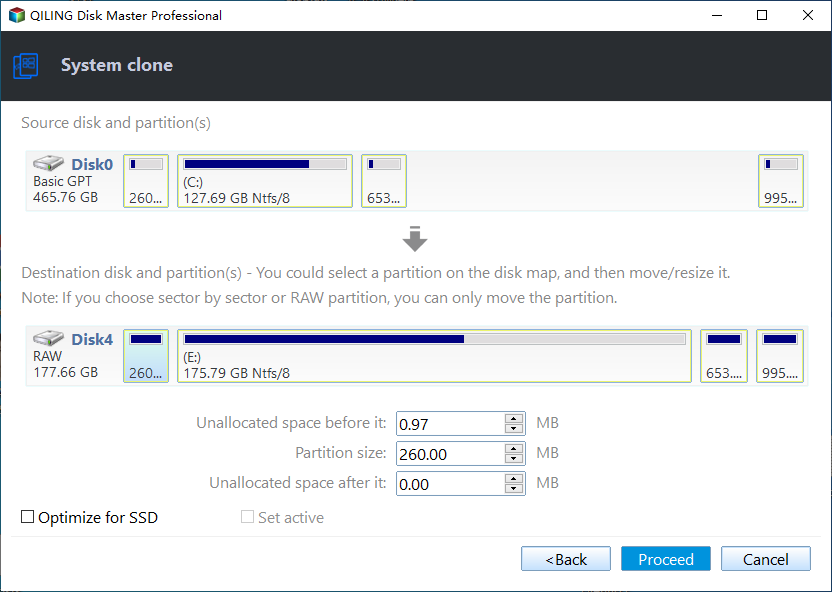
Note: You can still see "Make full use of disk space" even after cloning the system to a larger drive, as the system will allocate the unallocated space on the target disk and extend the system partition to utilize the available space.
Step 4. Install the cloned hard drive on the new computer, start it, and boot from it. If it doesn't, change the boot priority in BIOS first.

Notes:
❤ If you want to clone your hard drive to different hardware, you can still select Disk Clone in Step 1. This will not only clone your system partition but also all other data partitions, effectively cloning your entire disk.
❤ If your computer won't start, you can still create a bootable disk and use it to clone your system or disk, allowing you to recover your data.
❤ To clone a system to multiple computers, you can create a portable version of Qiling Disk Master, which can be run from a removable device, allowing you to use it on unlimited PCs or servers without needing to reinstall.
Way 2: Backup and Restore system to different hardware
The cloning method can be used on any Windows system, and is focused on continuous data protection and batch image deployment. Alternatively, the backup and restore method can also be used, which can be applied to any Windows system. This method focuses more on continuous data protection and batch image deployment.
To backup and restore your iPhone, you need to follow these steps: connect your iPhone to your computer, open iTunes, select your iPhone, and click on "Summary" or "Backup Now" to create a backup. Then, you can restore your iPhone from the backup by selecting it in iTunes and clicking on "Restore Backup". This method requires more effort than the cloning method, but it's still a reliable way to transfer data from one iPhone to another.
- Create a system image backup For System Backup, this software creates a full backup of your computer's system, including the operating system, installed applications, and settings. This type of backup is useful for restoring your computer to a previous state in case of a system failure or malware infection. The software will also back up your personal files, such as documents, photos, and videos, but only if you select that option.

- Create boot repair USB To boot a bare metal computer or when it's unbootable, go to the Tools section and use the Create Bootable Media feature.

- Prepare an external device to store the backup image.
They're all preparations for different hardware restore, followed by connecting the backup drive to the new computer and restoring the Windows image to the new hardware.
- If your new computer is bootable, install Qiling Disk Master Professional, activate it with a license key, and launch the software.
- If the computer is a bare metal machine or not bootable, insert the created bootable USB, access the BIOS, and set it as the first boot option. Wait until you see Qiling Disk Master Professional.
The steps in both situations are almost the same, only the operating environment is different, one is within Windows while the other is from Windows PE. Please follow the steps below after accessing this software:
Step 1. On the main page of Qiling Disk Master, click Restore > Select Task.
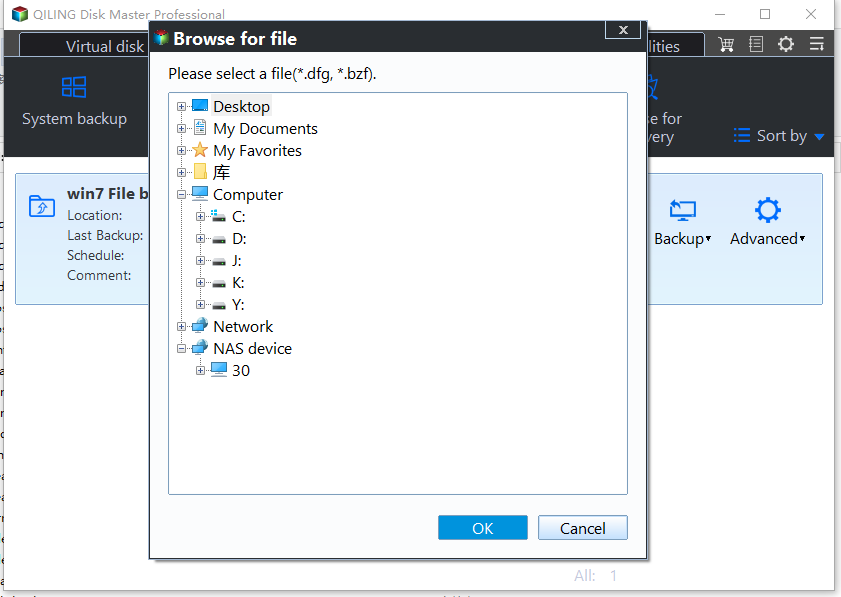
Step 2. Select system backup and click Next. If not, select the backup image manually by clicking Back and choosing Select Image File on the previous page.

Step 3. The Universal Restore feature is enabled by default when using a backup image on a new computer with different hardware. To proceed, select "Restore this system backup" and "Restore system to other location" and click "Next".

Step 4. Select the disk on the new computer and click Next.
Please note that the first partition on the target disk is the suggested location, otherwise, the system could not boot from the target disk.

Step 5. Optionally, select the SSD Alignment option to improve the reading and writing speed of the SSD disk. Then, review the operation summary and click Proceed to start the hardware restore process.

Notes:
❤ The SSD Alignment feature can also help prolong the lifespan of SSD disks, in addition to improving SSD disk performance.
❤ To continuously protect your data, you should schedule regular backups on your Windows 10 system, using features such as daily, weekly, or monthly triggers, or utilizing the USB plug-in feature to create a system image on a USB drive, which is the easiest and fastest option.
❤ To deploy images to multiple computers simultaneously, the easiest way is to use Qiling Image Deploy, which is supported by the Technician or TechPlus edition. This method requires a system image that can be booted from a network, allowing multiple computers to be imaged at once.
FAQs on cloning to dissimilar hardware
1. What is dissimilar hardware?
Dissimilar hardware refers to two computers that have distinct hardware components, including the CPU, motherboard, and chipset, which are not identical or compatible with each other.
2. Can you clone a hard drive and use it on a different computer?
Cloning a hard drive is possible, but for computers with different hardware, using the "Universal Restore" feature in Qiling Disk Master is recommended.
Wrapping things up
You can choose to clone or restore to dissimilar hardware in different situations. Cloning is easier and quicker, but limited to Windows 10 and 11, and is useful for replacing a laptop HDD with an SSD without reinstalling Windows.
The second option is more compatible and can be used on all Windows systems, providing long-term data protection and batch image deployment. For bare metal restore to dissimilar hardware within one company, Qiling Disk Master Technician or TechPlus edition is a better choice.
Related Articles
- Transfer/Migrate Windows 10 System to Computer with Dissimilar Hardware
- How to Clone Old Computer to a New One in Windows 10/8/7
- How to Migrate to a New Server with Different Hardware Easily
- How to Copy Windows 11 to USB and Make It Bootable (3 Cases)
Learn the key steps, checks, and practical tips for this related guide. - How to Clone EFI Partition to Another Drive on Windows 11/10/8/7
If you're looking for a reliable way to clone your EFI partition to another drive, Qiling Disk Copy is a great option. This tool allows you to easily clone your EFI system partition and securely copy it to another drive, making it a convenient solution for your needs. - How to Clone Hard Drive with Bootable USB | Full Guide
Learn how to clone a hard drive with a bootable USB. Create boot media and copy a disk when Windows cannot start.
Products
Articles & Tutorials
- Data Recovery
- Data Backup
- File Recovery
- File Backup
- File synchronize
- System Backup and Restore
- Disk and Partition Clone
- Technical articles
- Disk Master Help
- Windows Deleted File and Disk Recovery Tutorials
- Windows File and Data Recovery Tutorials
- More Windows Tutorials for Install, Security, Files, and PC Tips
- Windows Boot, Repair, and Recovery Environment Tutorials
- Windows Backup Tutorials
- Windows Restore Tutorials
- Windows Clone and Migration Tutorials
- Windows Server Backup, Recovery, and Management Tutorials
- Windows Disk, Partition, and Storage Management Tutorials