How to Copy Windows 11 to USB and Make It Bootable (3 Cases)
Scenarios of copying Windows 11 to a USB drive
Copying installed Windows to another storage device has become a common practice, often done to transfer the operating system to a new hard drive to expand storage space or clone it to a Solid-State Drive (SSD) to improve computer performance.
And there are some situations when you want to copy Windows 11 to a USB drive:
- Create installation media To create a bootable USB stick to install Windows 11 on other PCs, you'll need a USB drive with at least 8GB of free space. You can download the Windows 11 installation media from Microsoft's website and use a tool like Rufus or the Media Creation Tool to create a bootable USB drive.
- Make a recovery USB drive You can use a bootable USB drive with Windows 11 installation media to reinstall Windows 11 from boot when a major issue occurs. To do this, you'll need to download the Windows 11 installation media from Microsoft's official website, which will give you a bootable ISO file.
- Create a portable Windows 11 USB drive A customized OS environment allows you to run a tailored operating system on different computers, providing a consistent and optimized user experience across various devices. This can be achieved through virtualization software, cloud-based services, or specialized operating systems designed for specific industries or use cases.
To make a Windows 11 bootable USB, follow these stepwise guides. First, download the Windows 11 ISO file from Microsoft's official website. Next, create a bootable USB drive using a tool like Rufus or Microsoft's Media Creation Tool.
#1. Create Windows 11 installation media with a USB
Before creating a Windows 11 installation USB, ensure the USB drive has at least 8 GB of storage space and is empty, or backup any existing files on it to avoid losing them. Then, follow the instructions to create a Windows 11 installation USB.
1. Plug your USB drive into a USB port on your computer.
2. To create Windows 11 installation media, download the Microsoft Media Creation Tool and click the "Download Now" button under the "Create Windows 11 Installation Media" section.
3. Right-click on the MediaCreationToolW11.exe and select Run as administrator.
4. On the License terms page, select Accept.
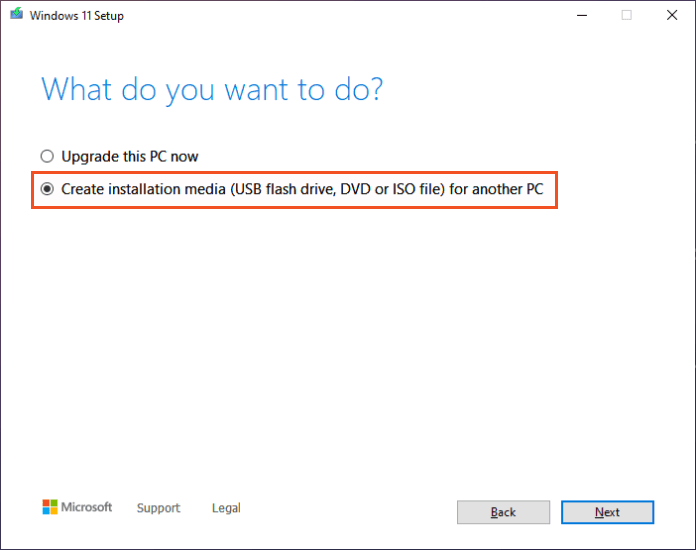
5. On the "What do you want to do?" page, select "Create installation media for another PC" and then click "Next".
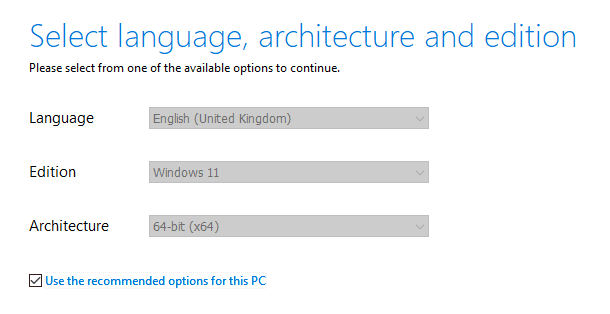
6. The Setup program automatically selects the language, edition, and architecture for Windows 11 based on the current Windows environment. However, if you want to change the default options, you can uncheck "Use the recommended options for this PC" and choose from the available alternatives.
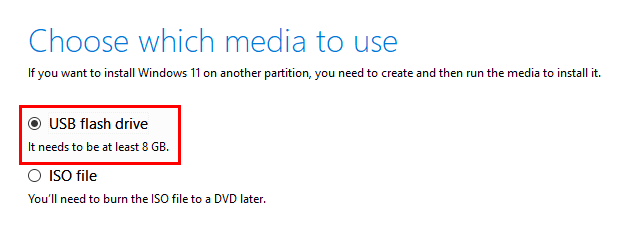
7. When prompted to choose which media to use, select USB flash drive and click Next.
8. Select the USB drive you just connected and click Next to begin Windows 11 installation media creation.
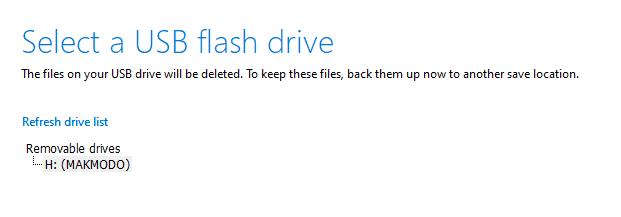
Tip: If you can't see the USB drive you need, click Refresh drive list and try again.
Install Windows 11 from the bootable USB drive
1. Attach the USB flash drive on the PC where you want to install Windows 11. Make sure it is properly inserted into a USB port.
2. To enter the BIOS, you need to boot your PC and immediately press a specific key (commonly F2, F12, Delete, or Esc) to access the BIOS settings. This is usually done right after the computer starts booting.
3. Open the boot menu and set the USB drive as the first boot device.
4. Follow the Windows Setup wizard to clean install Windows 11.
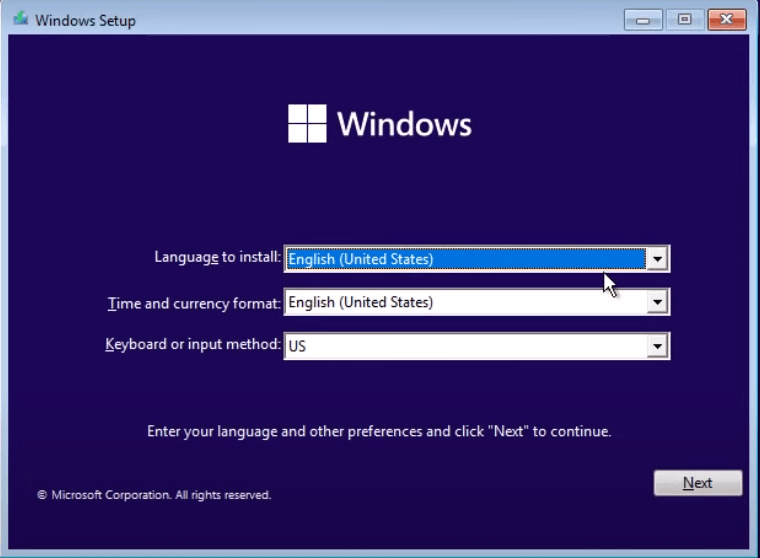
WARNING: If your PC doesn't meet the Windows 11 minimum system requirements, it's not recommended to install it, as it won't receive updates and will no longer be supported.
#2. Make a Windows 11 recovery USB for system recovery
To create a Windows 11 recovery drive, use a USB drive with at least 16 GB of storage and make sure it's empty, as the process will erase any existing data. Follow these steps to create a recovery drive in Windows 11.
1. To create a recovery drive, insert your USB drive into your PC and search for "Create a recovery drive" in the search box on the task bar. Select the result to proceed.
2. When the tool opens, select the option "Back up system files to the recovery drive" and then click "Next".
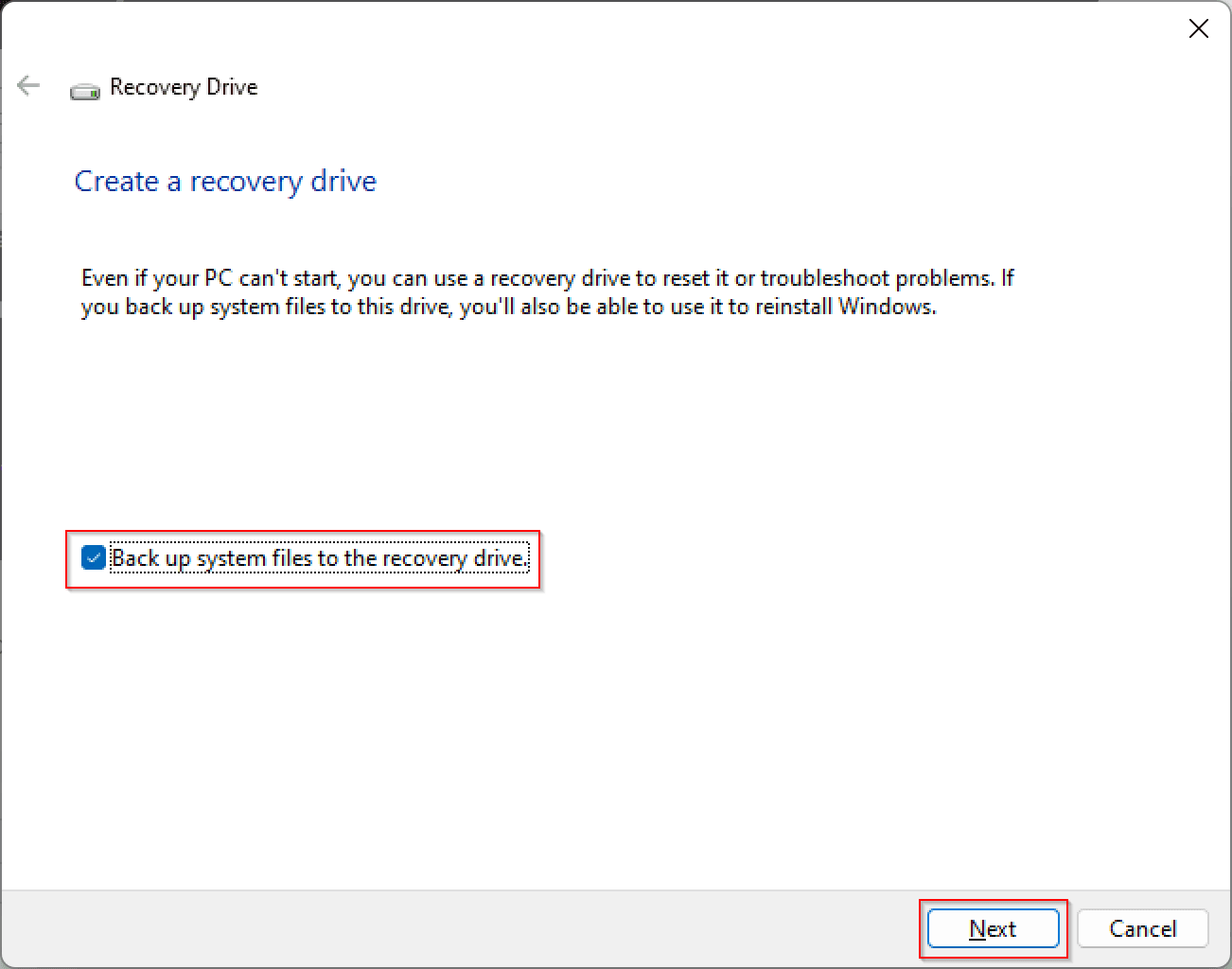
Note: Personal files and any apps that did not come with your PC will not be backed up.
3. This tool will automatically search for connected USB flash drives. When your drive is shown on the screen, select it and then select Next.
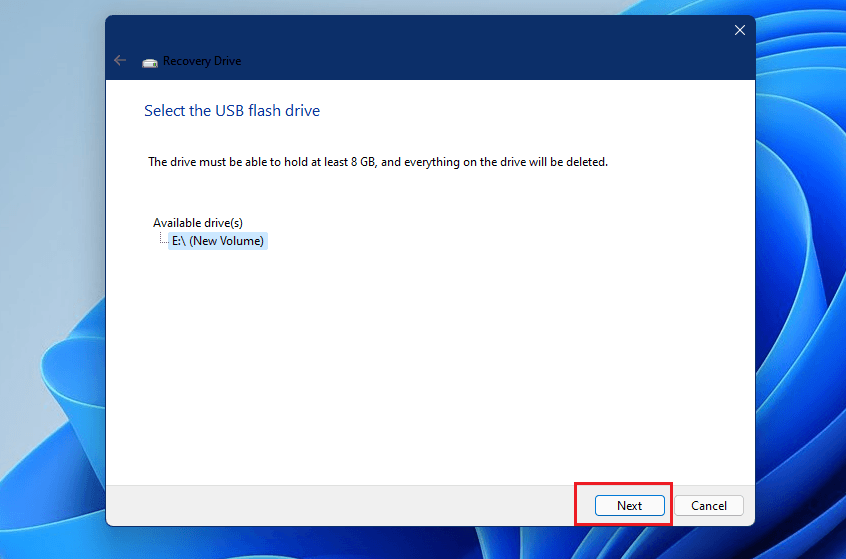
4. Please read the warning message and click the "Create" button if you are ready to proceed.
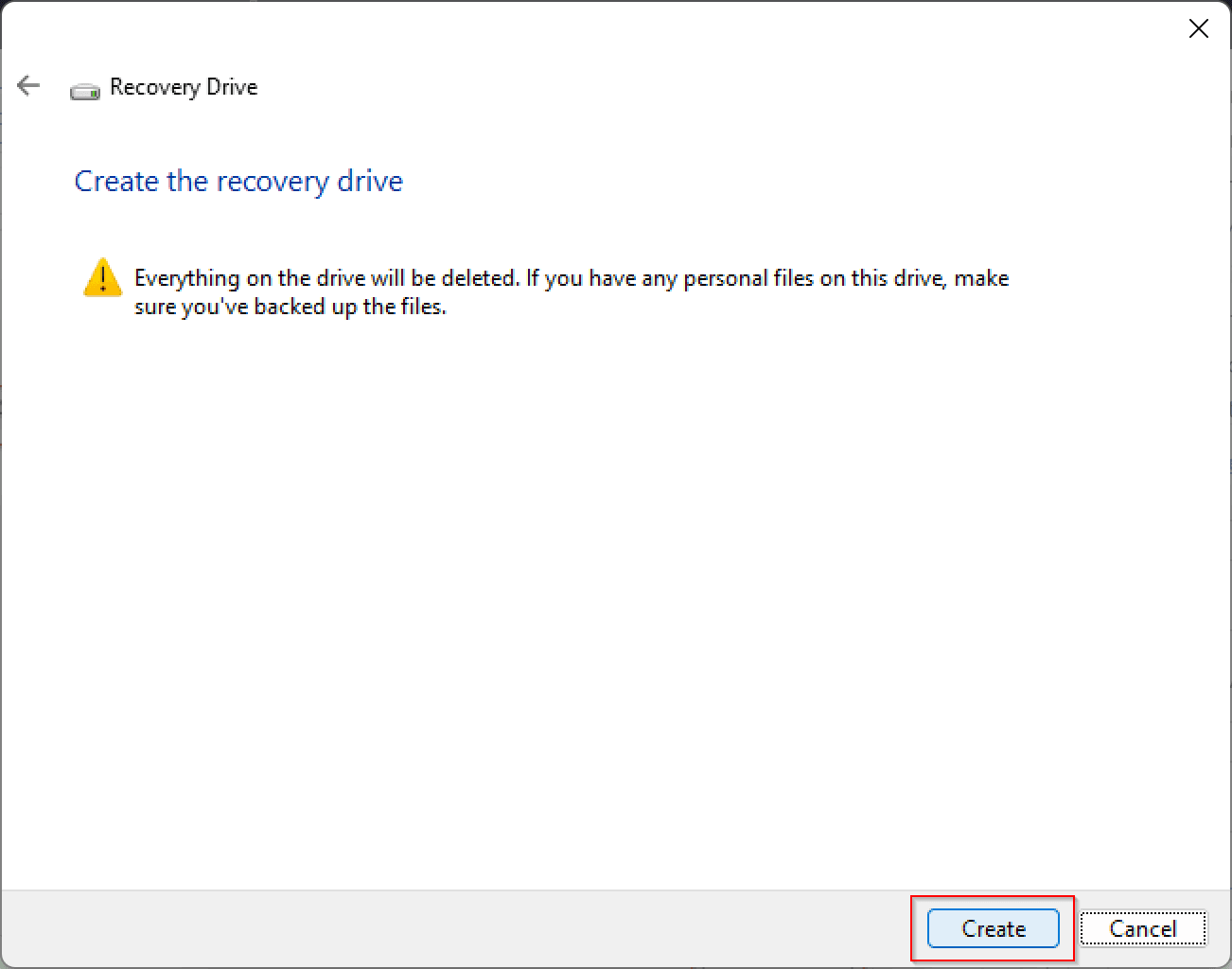
Tip: Windows updates to improve security and PC performance periodically, so it is recommended to recreate the recovery drive annually.
Reinstall Windows 11 from the USB recovery drive
1. Connect the recovery drive to your computer and boot from it.
2. Choose your keyboard layout.
3. On the Choose an option screen, select Troubleshoot, then choose Recover from a drive and follow the on-screen instructions to reinstall Windows 11.
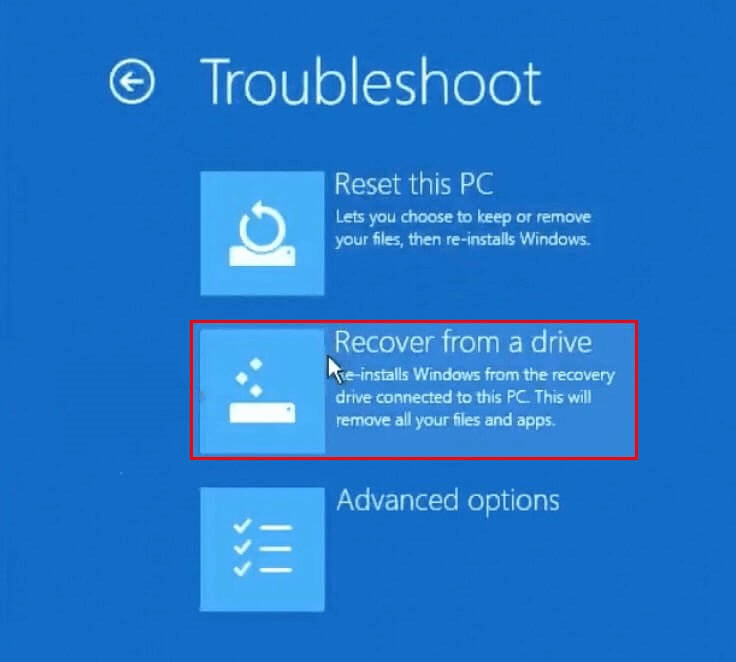
Tip: To use other recovery options like System Restore, Startup Repair and Command Prompt, you can go to Troubleshoot > Advanced options.
#3. Copy Windows 11 to a USB drive and make it bootable🔥
To create a portable copy of Windows 11 on a USB drive for customized OS environments across devices, consider using the Qiling Disk Master Professional, a top-rated OS migration tool for Windows 11/10/8/7.
★ It offers the System Clone feature to help you copy an OS to different storage devices, such as migrating Windows 11 to an SSD, HDD, or USB flash drive.
★ Qiling Disk Master provides a feature called Disk Clone, which enables users to transfer everything from one hard drive to another, including the operating system, installed programs, and personal data.
★ There are other clone settings you can use as per your needs, such as sector by sector clone to make an exact copy and SSD Alignment to improve SSD read/write speed.
To create a portable Windows 11 USB drive using Qiling Disk Master, you'll need to prepare the following: Ensure you have a valid Windows 11 ISO file, a blank USB drive with sufficient storage space, and Qiling Disk Master installed on your computer. Additionally, you should be aware of the system requirements for Windows 11 and the specifications of your USB drive to ensure a smooth installation process.
- Make sure the target USB drive is big enough to hold all data on the system drives.
- Before starting the cloning process, make sure to backup any important data on the USB drive, as the clone process will overwrite the destination disk.
- Use a USB drive in GPT partition style for better compatibility with Windows 11, and if it's currently an MBR disk, convert it to GPT first.
To copy Windows 11 to a pendrive while ensuring secure boot, follow these steps. First, create a bootable Windows 11 USB drive using a tool like Rufus or Microsoft's Media Creation Tool.
Step 1. Connect your USB drive to your computer and ensure it is detected by Windows. Next, download and install Qiling Disk Master.
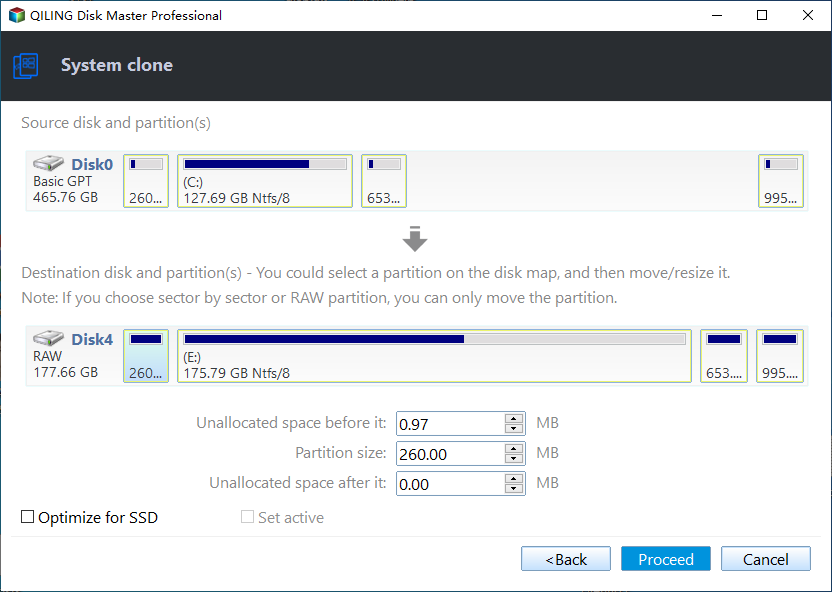
Step 2. Run Qiling Disk Master, click Clone from the left panel and select System Clone.

Step 3. The program will automatically select system related partitions and you only need to choose the USB drive as the destination location.

Step 4. To execute the operation, preview the steps to be performed and click the Proceed button to confirm the action.
Boot from the cloned USB drive
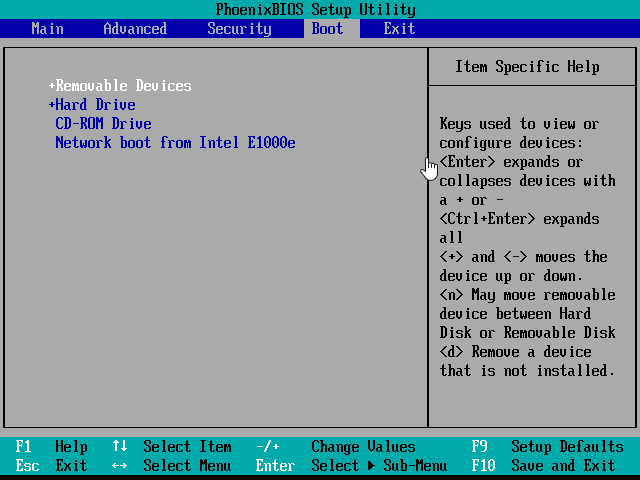
After cloning, the USB drive becomes self-bootable. To boot your computer from the cloned USB drive, simply set the USB drive as the first boot device in your computer's BIOS. If you're using a GPT USB disk with a Legacy boot mode computer, you'll also need to switch to UEFI boot mode to successfully boot from the USB disk.
Summary
To create a Windows 11 installation media or recovery drive on a USB drive, you can use the Media Creation Tool, which is available on Microsoft's website. This tool allows you to download the Windows 11 installation files and create a bootable USB drive. Alternatively, you can use a third-party tool like Rufus to create a bootable USB drive from a Windows 11 installation ISO file.
Qiling Disk Master is a powerful cloning software that also offers backup and restore capabilities. It allows users to schedule automatic backups in Windows operating systems, including 11, 10, 8, and 7. For Windows Server backup, the advanced version Qiling Disk Master Server is recommended.
Related Articles
- Quick Guide | Clone Windows 10/11 to USB Drive (Bootable)
- How to Make a Bootable Backup on Windows 11 (2 Free Ways)
- How to Copy Windows Operating System to USB Flash Drive Easily
- How to Install Windows 11 on Pendrive and Run It Directly
- How Do You Mirror a Hard Drive to SSD in Windows 7/8/10?
Learn the key steps, checks, and practical tips for this related guide. - How to Replace Your Hard Drive Without Losing Data?
Learn how to Replace Your Hard Drive Without Losing Data with clear steps, key checks, and practical tips.
Products
Articles & Tutorials
- Data Recovery
- Data Backup
- File Recovery
- File Backup
- File synchronize
- System Backup and Restore
- Disk and Partition Clone
- Technical articles
- Disk Master Help
- Windows Deleted File and Disk Recovery Tutorials
- Windows File and Data Recovery Tutorials
- More Windows Tutorials for Install, Security, Files, and PC Tips
- Windows Boot, Repair, and Recovery Environment Tutorials
- Windows Backup Tutorials
- Windows Restore Tutorials
- Windows Clone and Migration Tutorials
- Windows Server Backup, Recovery, and Management Tutorials
- Windows Disk, Partition, and Storage Management Tutorials