How to Install Windows 11 on Pendrive and Run It Directly
Why install Windows 11 in pendrive?
Windows 11 is the latest Microsoft Windows operating system, released in June 2021. You may want to install it on a USB pendrive for various reasons, such as needing a portable version of the OS for testing or demonstration purposes, wanting to have a backup of the operating system, or simply for experimenting with different versions of Windows without affecting the primary installation on your computer.
- Portable Windows: Installing Windows 11 on a pendrive allows you to have a portable operating system that you can take with you, carrying your personalized system settings, applications, and files on any computer you plug the pendrive into.
- Testing or Demo Purposes: Installing Windows 11 on a USB drive lets you test the new operating system without affecting your current computer setup, allowing you to try out features, test hardware compatibility, or demonstrate the OS to others.
- Troubleshooting and Recovery: Having a bootable Windows 11 pendrive can serve as a troubleshooting tool in case your computer encounters issues, allowing access to advanced recovery options, repair of the operating system, or recovery of data from a non-functional computer.
- How to install Windows 11 on pendrive via Rufus
- Easier way to create bootable pendrive for Windows 11
How to install Windows 11 on pendrive via Rufus
Rufus, a free app, allows you to create a portable install of Windows 11 that runs off a flash drive, making it a Windows to Go version that can be booted on any computer, even those without TPM 2.0 or compatible CPUs.
To create a portable Windows 11 installation, you can use the Windows 11 Installation Media Creation Tool to create a bootable USB drive or DVD, and then install Windows 11 on a separate partition or drive, without affecting the existing operating system on your computer. Alternatively, you can use a virtual machine software like VirtualBox or VMware to create a virtual machine and install Windows 11 on it, which will run independently of your host operating system.
1. Download the latest version of Rufus and install it on your machine.
2. Insert a blank 64GB or larger USB stick and open Rufus. You may choose a faster USB drive as this will become your main drive.
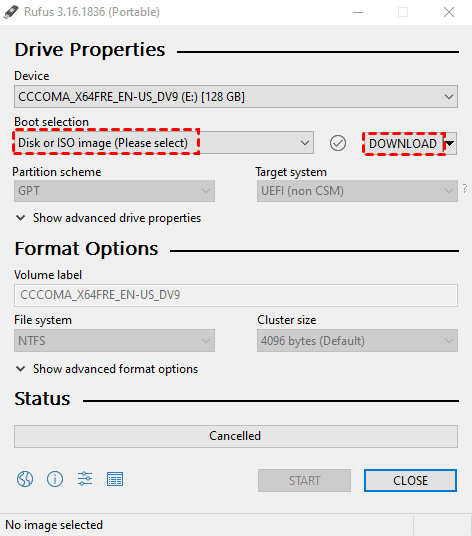
3. To install Windows 11 on a USB device, select the USB drive from the list of available devices. This will ensure that the installation process is carried out on the correct device.
4. Ensure that Boot Selection shows "Disk or ISO image" and click on DOWNLOAD.
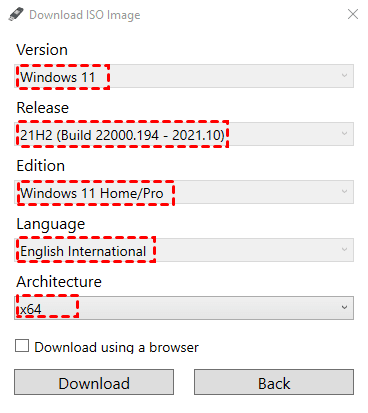
5. Select Windows 11, the latest release, your preferred language, the edition in order.
6. To download the architecture, click on the architecture and then click on Download. The ISO image can be saved to the Downloads folder or downloaded using a browser.
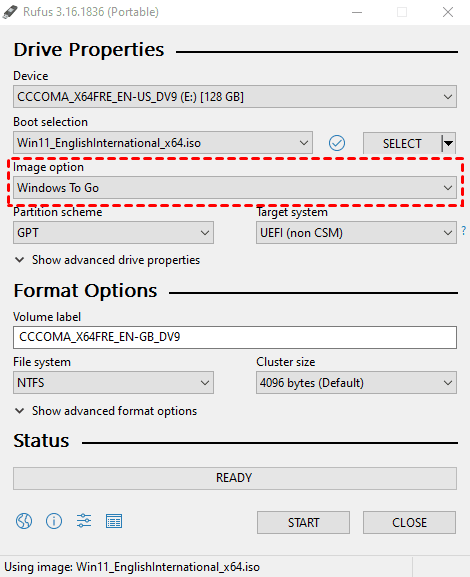
7. After downloading, click on the Image option drop down and select Windows To Go, which will install Windows 11 directly to the USB drive.
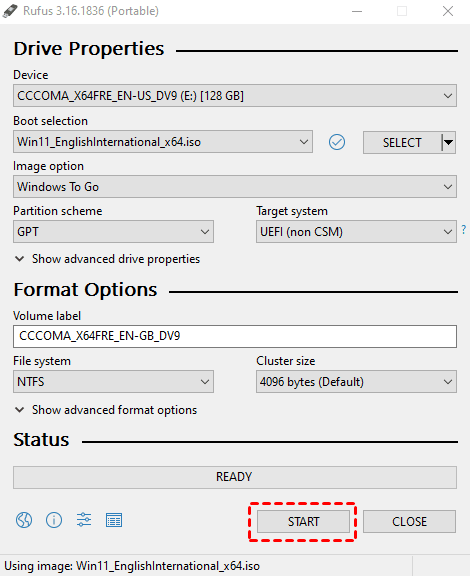
8. Make sure the correct drive is selected and click Start to initiate the installation process, which may take a while depending on the USB drive being used.
9. Restart your computer and press the key that triggers a USB boot. This will allow you to boot from the USB drive and install the operating system.
10. Select your Windows 11 boot drive and boot.
11. After installing Windows 11, follow the standard post-install script to set up your computer. This will prepare your device for use, and your USB drive will now contain a full Windows 11 installation, ready for use.
How to run Windows 11 on a USB drive
After creating a Windows 11 bootable pendrive, you can use it on different computers, but you'll be asked to verify your identity each time. If you're booting the USB on the same PC repeatedly, however, you won't be prompted to verify your identity.
To use portable Windows 11 on a new device, follow these steps: first, create a bootable USB drive with the Windows 11 installation media, then boot your device from the USB drive and follow the on-screen instructions to install Windows 11, and finally, configure your device to run Windows 11 from the USB drive without installing it on the device's internal storage, allowing you to run Windows 11 on the device without modifying its original operating system.
1. Insert the Windows 11 USB into a new device and boot.
2. To set up your PIN, go to the login screen and click on the "Setup my PIN" option, which will initiate the verification process.
3. Enter the account details used when setting up Windows 11.
4. Click on "Email [Your Email Address]" to send a verification email to your account.
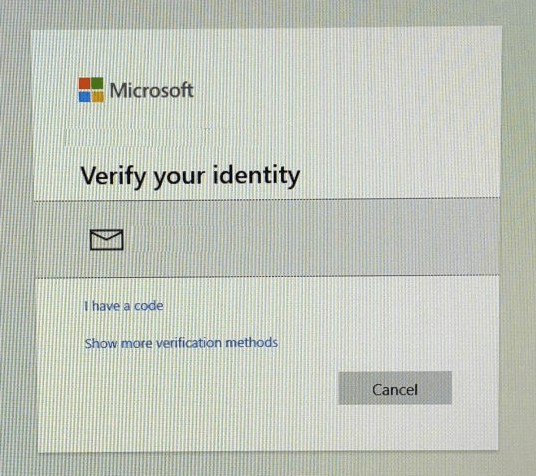
5. To complete the Windows 11 setup on your new device, open your verification email on another device and type the code into the Windows 11 prompt. This will verify your Microsoft account and allow you to set up your new Windows 11 device.
6. When asked to reset your PIN, click Continue.
7. To proceed with the login process, create a new PIN and click OK.
Easier way to create bootable pendrive for Windows 11
If you need a bootable pendrive for Windows 11 system recovery, you can try Qiling Disk Master Standard, a free, simple and reliable bootable USB creator.
✦ It allows users to create a bootable disc for either Windows PE or Linux operating systems.
✦ You can use a USB flash drive, CD, or DVD as bootable media, or export the Qiling ISO file as needed.
✦ It supports all editions of Windows 11/10/8.1/8/7/Vista/XP.
Download Qiling Disk Master now and learn how to create Windows 11 bootable USB using it as follows:
Step 1. Connect a USB drive to your computer, install and launch Qiling Disk Master, then click Tools and select Create Bootable Media.

Step 2. Select USB Boot Device and click Proceed. A prompt will appear asking if you want to format the USB drive. If you have backed up important files, click Yes to proceed with formatting the USB drive.
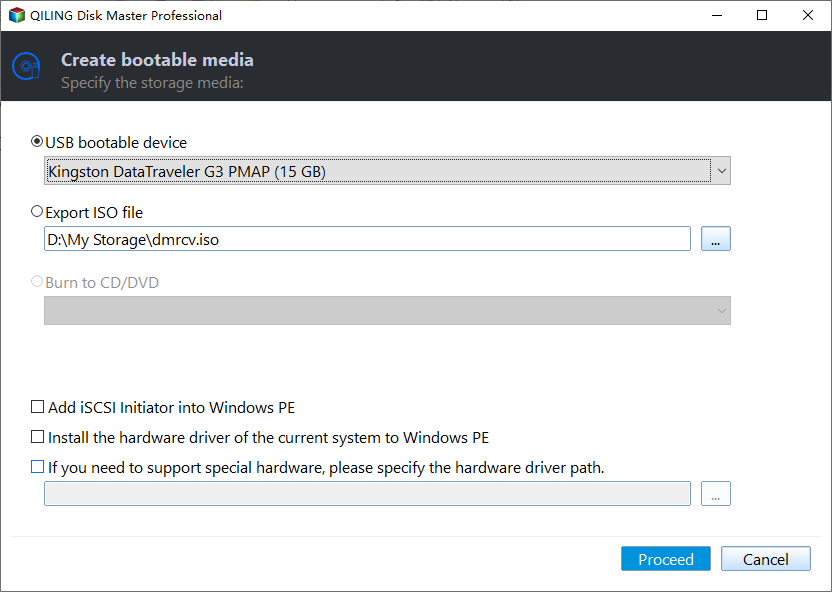
Note: After creating a bootable USB with Qiling Disk Master, it is a good idea to make a system image or disk image of your PC, allowing you to easily restore your computer to a previous working state in case of system crash or hard drive failure.
Summary
Now you know how to install Windows 11 on a pendrive using Rufus and directly run Windows 11 on a USB drive. You can also create a Windows 11 recovery USB with Qiling Disk Master, which is not only a bootable USB creator but also a professional cloning program that enables you to clone dynamic disk to basic. Just give it a shot!
Related Articles
- How to Copy Windows 11 to USB and Make It Bootable (3 Cases)
Learn how to Copy Windows 11 to USB and Make It Bootable (3 Cases) with clear steps, key checks, and practical tips. - What is The Best Windows 11 USB Creator? Try 4 Options Here!
Compare Windows 11 USB creator options and choose a reliable way to make bootable installation media. - How to Make Windows 11 Boot from USB (Top 2 Ways + 1 Tip)
In this article, you are capable of booting from USB on Windows 11 securely with the presented top 2 ways. And you can make a bootable USB to avoid errors with the best backup software introduced below. - Windows Won't Boot from CD – How to Resolve?
This guide explains Windows Won't Boot from CD – How to Resolve with clear steps, key checks, and practical tips. - How to Create Bootable USB Windows Server 2008 R2 from ISO
Here is how to create bootable USB Windows Server 2008 R2 from ISO files to recover Windows Server 2008 R2. - Step-by-Step Guide to Create Server 2019 Bootable USB
This guide explains Step-by-Step Guide to Create Server 2019 Bootable USB with clear steps, key checks, and practical tips.
Products
Articles & Tutorials
- Data Recovery
- Data Backup
- File Recovery
- File Backup
- File synchronize
- System Backup and Restore
- Disk and Partition Clone
- Technical articles
- Disk Master Help
- Windows Deleted File and Disk Recovery Tutorials
- Windows File and Data Recovery Tutorials
- More Windows Tutorials for Install, Security, Files, and PC Tips
- Windows Boot, Repair, and Recovery Environment Tutorials
- Windows Backup Tutorials
- Windows Restore Tutorials
- Windows Clone and Migration Tutorials
- Windows Server Backup, Recovery, and Management Tutorials
- Windows Disk, Partition, and Storage Management Tutorials