How to Make Windows 11 Boot from USB (Top 2 Ways + 1 Tip)
Scenario
How do I force Windows to boot from USB?
You can back up your Dell XPS 17 by creating a system image using the built-in Windows 11 feature, Windows Backup, or by using a third-party backup software such as Qiling Disk Master. You can also use an external hard drive or USB drive to back up your files and settings. This will ensure that your data and system are safe in case anything goes wrong during the process of changing settings or installing new software.
You can try pressing the Shift key while clicking on the USB option in Windows to boot from USB without going to the help system. Alternatively, you can also try checking the BIOS settings to see if you can change the boot order to prioritize the USB drive. If you're still having trouble, you might want to check the USB drive itself to make sure it's properly formatted and contains a valid bootable operating system. If you have any further questions, feel free to ask.
- Question from ElevenForum

Why need to use USB to boot Windows 11?
You may want to use USB to boot Windows 11 on your computer in various situations, including when you need to install the operating system on a new device, when you want to create a portable Windows installation for use on multiple machines, or when you need to troubleshoot and repair a Windows installation by booting from a USB drive and accessing the system files and settings.
- Boot new Windows system. If you want to try the latest Windows 11 release without affecting your current version, you can install it on a USB drive and boot from it. This allows you to test the new version without risking any instability or uncertainty on your main system.
- To troubleshoot. Your computer won't boot properly, showing a blue screen on Windows 11 or crashing due to viruses, malware, corrupted files, or system upgrades, which is when a bootable USB disk can help boot your computer properly.
- Enjoy same configurations on multiple PCs. You can copy your current computer's operating system, data, and settings to a new computer by booting the new computer from a USB bootable disk with your old system, allowing you to replicate the same computer configuration.
You can easily fix your computer by using a bootable USB drive, regardless of the reason. This article will show you two different ways to use a bootable USB drive to boot your computer in various situations.
Make Windows 11 boot from USB in 2 secure ways
You may encounter two main scenarios when trying to boot from USB on Windows 11. In the first scenario, your computer is working properly and you can access the boot disk settings from the Windows Settings app portal. In the second scenario, your computer is malfunctioning and crashes, requiring access to the boot menu to start from a USB drive in the BIOS. Let's explore each method.
- Way 1. PC can start normally – from Settings
- Way 2. PC cannot start normally – from Boot Menu
- Tip: Make a Windows 11 bootable USB with best backup freeware
Way 1. PC can start normally – from Settings
To boot Windows 11 from a USB drive without compromising your computer's performance, create a bootable USB drive using Rufus or the Windows Media Creation Tool. Then, enter the BIOS settings by pressing the corresponding key (usually F2, F12, or Del) when your computer starts, set the USB drive as the first boot device, and save your changes.
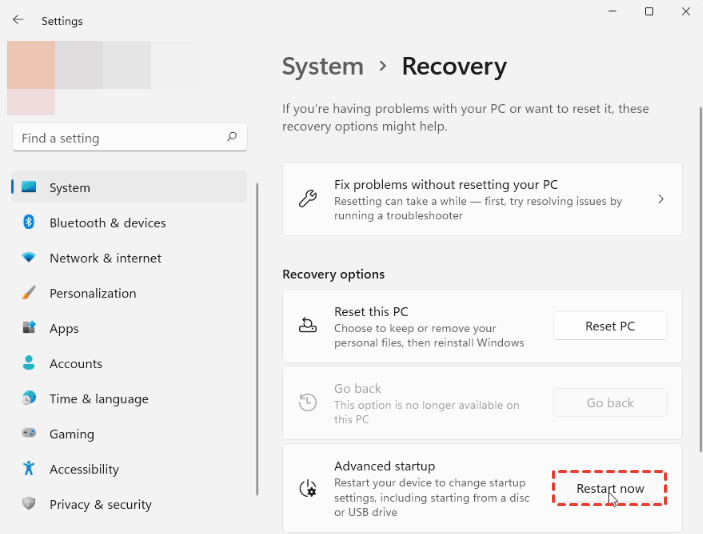
1. To boot from a USB drive on Windows 11, plug a bootable USB flash drive into a USB port, and press Windows + I to open Settings. Then, select System, followed by the Recovery option.
2. Click on the "Restart now" button to the right of "Advanced startup" and follow the prompts to restart your device.
3. After that, your PC will restart and load into recovery environment. Under Choose an option window, select the "Use a device" option.
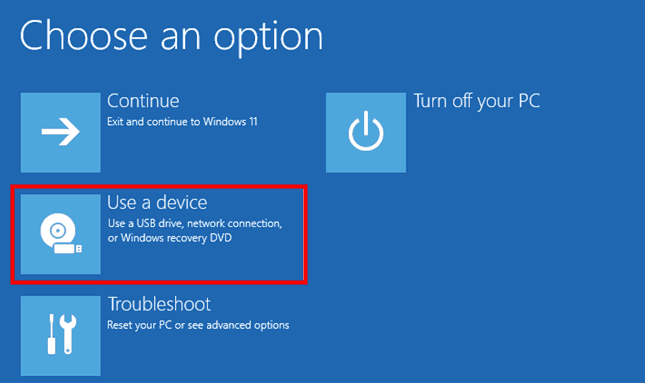
Note: If the "Use a device" option is not available, it means that the USB device you've created is not bootable.
4. Your PC will list the bootable devices that your computer can use, which includes the USB drive you have connected to your PC before, so click or tap on it.
Once you've inserted the USB drive and restarted your computer, it will boot from the USB drive you've set up, allowing you to access the operating system and complete the installation process.
Way 2. PC cannot start normally – from Boot Menu
1. Connect a bootable USB drive to your PC and press the power button. As it starts loading, press the appropriate key (such as ESC, F2, F8, or F10) to enter the BIOS setup, where you can configure boot settings.
2. To boot from a USB drive in the boot menu, look for the "Boot" order and move the USB drive you want to boot from to the top of the list.
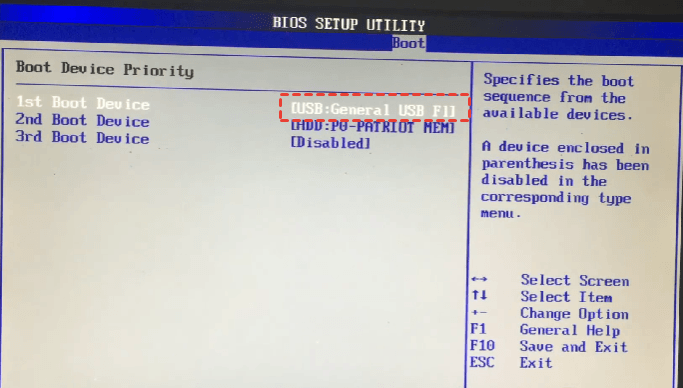
3. When you confirm your settings, press the F10 key to save and exit. This will allow your PC to boot from the USB flash drive upon exiting.
Tip: Make a Windows 11 bootable USB with best media creation tool
Before using a bootable device to boot Windows 11, you need to create one in advance. If you're unsure about the best way to do this, consider using Qiling Disk Master Standard, a professional bootable media creation tool.
With Qiling Disk Master Standard, you can create a Windows 11 recovery USB that not only works for the current computer but also for all Windows PCs, including Windows 11/10/8/7/Vista and XP (both 32-bit and 64-bit). This tool offers more powerful features.
◑ Hiren's BootCD is a bootable DVD/CD or USB that allows you to start a crashed computer of various brands, and it can boot in both BIOS and UEFI mode.
◑ This comprehensive data protection solution enables you to schedule backups of system, disk, file, and partition at intervals such as daily, weekly, or monthly to destinations like local disk, external hard drive, network share, or cloud.
Download and install the Windows 11 bootable USB media creator, Qiling Disk Master Standard, on your computer.
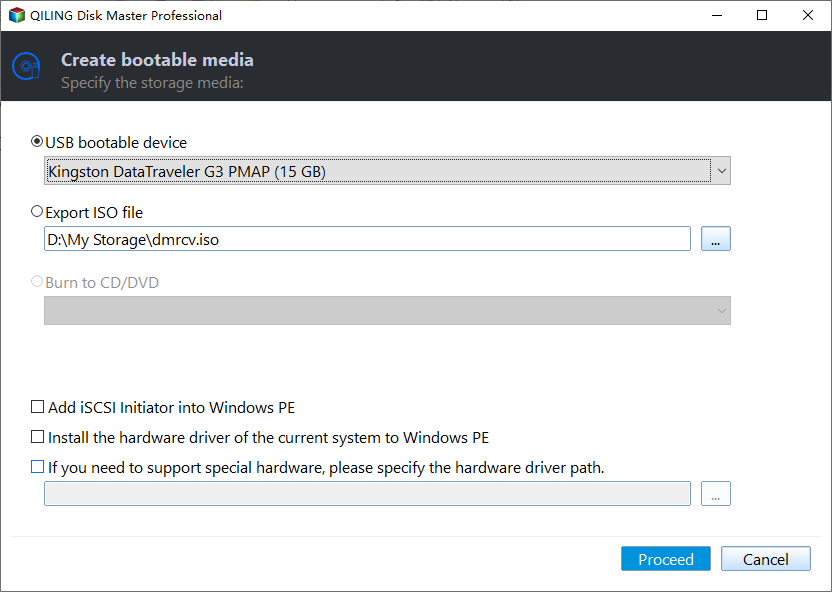
Step 1. Insert a blank USB drive into your computer, then open Qiling Disk Master, click Tools and select Create Bootable Media.

Step 2. Select the USB boot device and click Proceed to initiate the process.
Helpful tip: If you don't have a CD/DVD or USB drive, you can create a recovery environment that can be accessed from the Windows boot menu, eliminating the need for a bootable device to boot a failed system. This feature is available in higher editions of Windows.
✨ Bonus tip: create a system backup image with Qiling Disk Master:
To prepare a system image for disaster recovery, go to Backup and recovery > System Backup, where you can follow the wizard to backup Windows 11 to a USB drive or other storage devices.

Conclusion
If you want to make Windows 11 boot from USB but don't know how, this tutorial can help. You can use the best free tool, Qiling Disk Master, to create a bootable USB drive that can boot Windows 11 in case of computer failure. With this tool, you can also create a system image of your old operating system, allowing you to roll back to a normal state if needed. This makes it easy and effortless to solve the problem of making Windows 11 boot from USB.
It is an all-Synology's data protection solution offers a comprehensive set of features, including backup and recovery, clone and sync, making it the best Synology backup software. With just a few clicks, you can easily backup Windows 11/10/8.1/8/7 files to your Synology NAS, providing a reliable and efficient way to protect your data. To learn more, download and explore the solution's features on your own.
Related Articles
- How to Create Windows 11 Bootable USB | 2 Ways Included
A bootable USB of Windows 11 can help to repair or reinstall Windows 11 as necessary. Scroll down and learn two easy ways to create Windows 11 bootable USB below. - How to Copy Windows 11 to USB and Make It Bootable (3 Cases)
Learn how to Copy Windows 11 to USB and Make It Bootable (3 Cases) with clear steps, key checks, and practical tips. - How to Fix Windows 10, 11 Bootable USB Not Working (5 Ways)
Learn how to Fix Windows 10, 11 Bootable USB Not Working (5 Ways) with clear steps, key checks, and practical tips. - How to Install Windows 11 on Pendrive and Run It Directly
Learn how to Install Windows 11 on Pendrive and Run It Directly with clear steps, key checks, and practical tips. - How to Create Windows Server 2016 Recovery Disk with Different Tool
Learn how to Create Windows Server 2016 Recovery Disk with Different Tool with clear steps, key checks, and practical tips. - Create Ransomware Rescue Disk Free - Qiling Disk Master
To get encrypted files back after ransomware virus attack, you need to create a ransomware rescue disk. The stepwise guide are in the following.
Products
Articles & Tutorials
- Data Recovery
- Data Backup
- File Recovery
- File Backup
- File synchronize
- System Backup and Restore
- Disk and Partition Clone
- Technical articles
- Disk Master Help
- Windows Deleted File and Disk Recovery Tutorials
- Windows File and Data Recovery Tutorials
- More Windows Tutorials for Install, Security, Files, and PC Tips
- Windows Boot, Repair, and Recovery Environment Tutorials
- Windows Backup Tutorials
- Windows Restore Tutorials
- Windows Clone and Migration Tutorials
- Windows Server Backup, Recovery, and Management Tutorials
- Windows Disk, Partition, and Storage Management Tutorials