What Is BSOD? How To Fix Blue Screen of Death on Windows 11
- User case of blue screen of death
- What is blue screen on Windows 11?
- What is causing the blue screen of death on Windows 11?
- How to fix the blue screen of death on Windows 11
- Quick Fix: Restart Your Computer
- Fix 1. Remove Any Additional Hardware
- Fix 2. Run Memory Diagnostics Tool
- Fix 3. Scan PC for virus or malware
- Fix 4. Update System Drivers
- Fix 5. Run SFC scan
- Fix 6. Rebuild Master Boot Record
- Fix 7. Perform system restore
- The best solution to prevent all system errors
- FAQ on Blue Screen of Death (BSOD) in Windows 11
- To sum up
User case of blue screen of death
How to fix the blue screen of death on Windows 11?
Hi! I just bought my laptop a few weeks ago, an Asus TUF 15, and it worked very well! It started lagging during the Zoom call, I restarted it and a blue screen showed up. I literally tried every single option available and looked on the internet for a solution, but nothing. Someone, please help :)
- Question from Microsoft Community
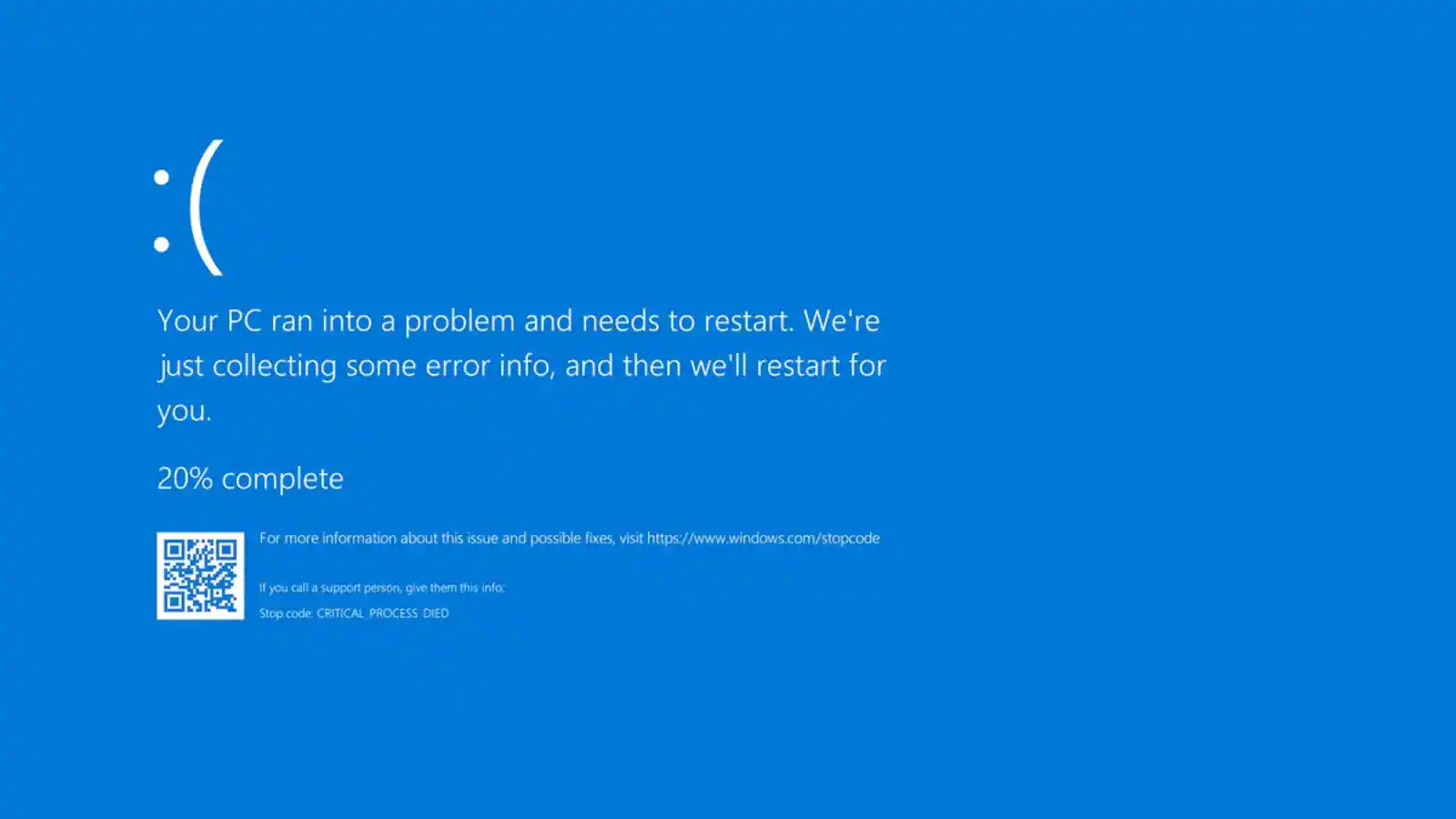
If you're struggling with the problem mentioned earlier, this article can provide the solution you're looking for.
What is blue screen on Windows 11?
The Blue Screen of Death, also known as BSOD, is a screen image displayed by Windows operating system when an unresolvable system error is encountered, aiming to protect system files. This iconic screen is typically a system crash phenomenon, displaying specific error codes and descriptions that can be scanned or searched for support.
Microsoft initially changed the traditional blue screen of death (BSOD) to a black screen of death after launching Windows 11, but later reverted back to the blue screen with the release of Windows 11 Build 22000.346 system. This change was made likely due to issues with the black screen, which often occurred when running an older version of Windows 11.
Windows 11 is plagued by the same problem, read below to learn more about the blue screen of death on Windows 11 and find out what method works best for you. The blue screen of death, also known as a stop error, is a type of error screen that appears on Windows computers when the operating system encounters a critical system failure.
What is causing the blue screen of death on Windows 11?
The Windows 11 blue screen issue, also known as the stop code, can be caused by various factors, including hardware or software conflicts, driver issues, overheating, or corrupted system files, among others.
☪ Application incompatibility issues
☪ Memory stick incompatibility/corruption or poor contact
☪ Hardware failure
☪ MBR (Master Boot Record) or system file error
☪ Driver issues
☪ Virus or malware attack
☪ BCD errors
If you're experiencing the Windows 11 Black Screen of Death error, don't worry, there are possible solutions to fix it. You can try booting in Safe Mode, checking for corrupted system files using the System File Checker (SFC) tool, running a System Restore, or using the Windows Recovery Environment (WinRE) to reset your PC.
How to fix the blue screen of death on Windows 11
Quick Fix: Restart Your Computer
When you encounter the Windows 11 blue screen of death, your first instinct is often to restart your computer, which can resolve the issue and bring your computer back to normal.
Tip: Stop Automatic Reboot
To prevent your Windows 11 computer from automatically restarting after a blue screen error, follow these steps.
- Press Win + I to open the Settings window.
- Navigate to System > Advanced system settings.
- Click on the Settings button under the Startup and Recovery section.
- In the System failure section, uncheck Automatically restart.
- Click OK to save the changes.
Note the error code displayed during a blue screen event, then reboot your computer to allow Windows to attempt automatic repairs.
If the issue persists after a restart, you might need to try additional solutions.
👉 Fix 1. Remove Any Additional Hardware
👉 Fix 2. Run Memory Diagnostics Tool
👉 Fix 3. Scan PC for virus or malware
👉 Fix 4. Update System Drivers
👉 Fix 5. Run SFC scan
👉 Fix 6. Rebuild Master Boot Record
👉 Fix 7. Perform system restore
🌟Latest News:
Microsoft has identified an issue impacting Windows endpoints that are running the CrowdStrike Falcon agent, causing error messages 0x50 or 0x7E on a blue screen and leading to a restarting state. To resolve this, users can either disable the CrowdStrike Falcon service, uninstall the Falcon agent, or update the CrowdStrike Falcon agent to the latest version.
● To enter safe mode, restart your computer and as it boots up, press the F8 key repeatedly until you see the Advanced Boot Options menu. Select "Safe Mode" from the menu and let the computer boot up. Once in safe mode, open the File Explorer and search for any files that match the name "C-00000291*.sys".
● To resolve the issue, perform a system restore to revert your computer to a previous state when it was working normally. This will roll back any recent changes or updates that may have caused the problem.
Fix 1. Remove Any Additional Hardware
External hardware can sometimes cause BSOD issues on your PC. If your computer isn't working properly with other hardware installed, try disconnecting peripheral devices like external hard drives, Bluetooth mice, keyboards, and USB devices to see if that resolves the problem.
🔔 Important: If you choose one of the six methods to fix the black screen of death error, start your computer in safe mode first to prevent any problems that may occur.
Boot Windows 11 in safe mode:
1. To enter the Windows Recovery Environment, turn your system completely off, then turn it on. Once your system starts booting, force it to shut down again. Repeat this process two more times to enter WinRE.
2. To access advanced startup settings, click on "Advanced options" followed by "Troubleshoot" and then "Advanced options" again, finally selecting "Startup Settings".
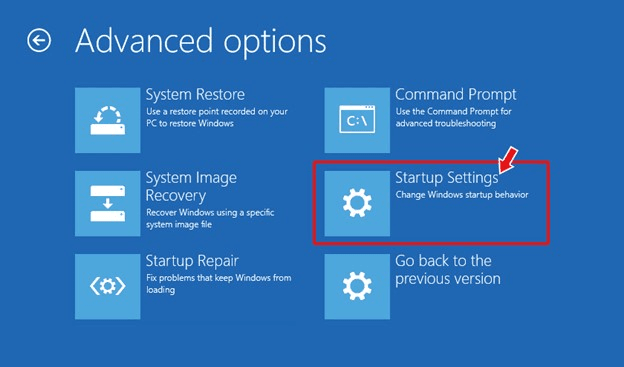
3. Press F4 to enable safe mode. Then, click Restart and once the system is rebooted, press F4 to enable safe mode.
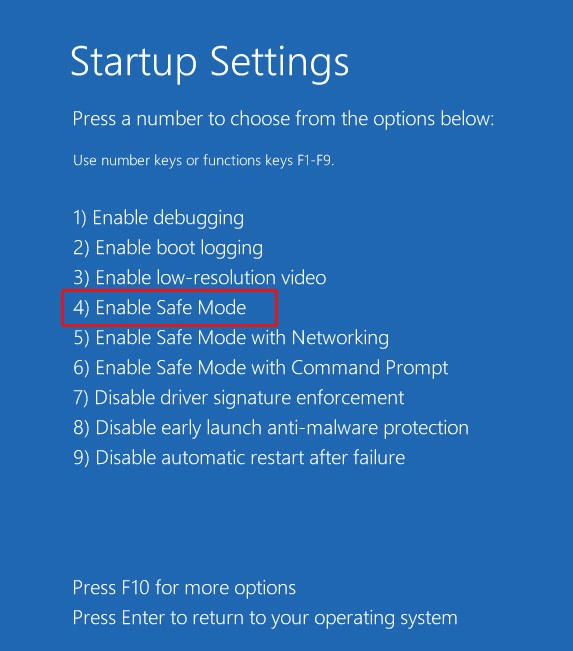
Fix 2. Run Memory Diagnostics Tool
The Memory Diagnostic Tool is a useful tool that can help correct software or hardware-related problems by testing your memory function and identifying if the BSOD is caused by a memory, motherboard, or hardware failure.
1. While your PC is in safe mode, press the Windows key + R to open the RUN dialog box, type mdsched.exe, and press Enter.
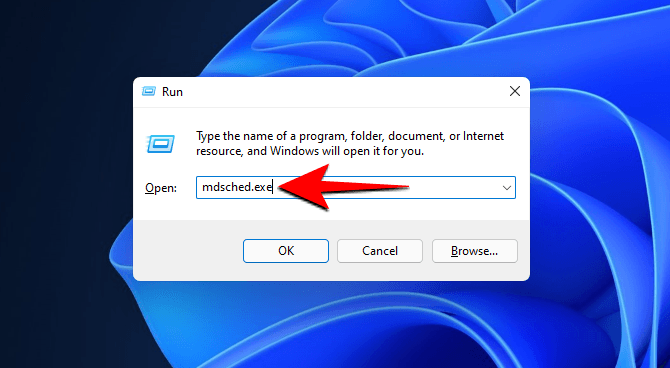
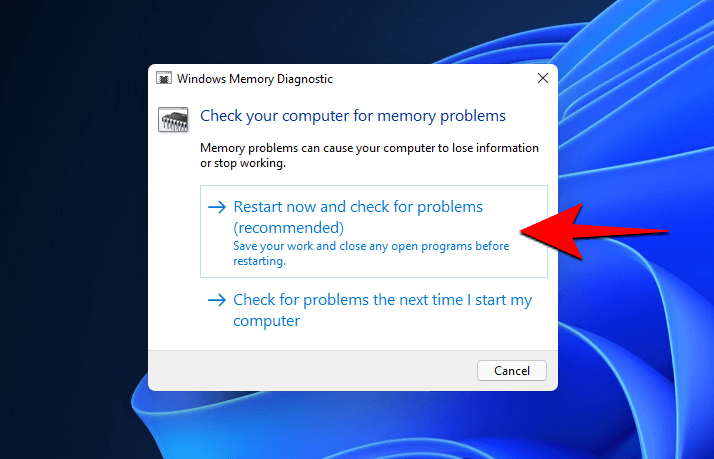
2. Click on "Restart now and check for problems" to test for RAM errors.
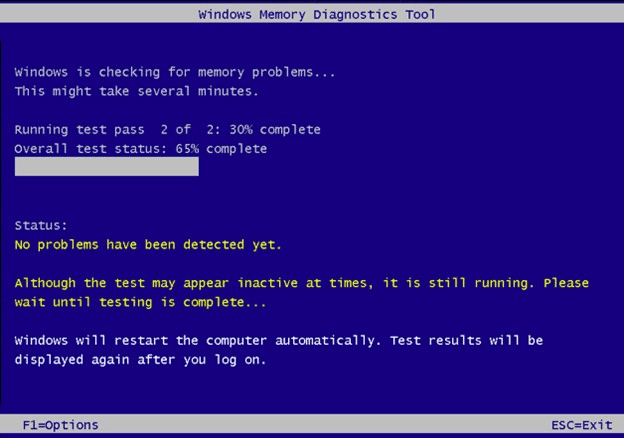
3. After your system reboots, a diagnostic test will automatically start, checking for any memory-related errors.
4. If you've completed the test, restart your PC and check if the issue is resolved. If the test reveals significant RAM issues, it may be best to replace the RAM.
Fix 3. Scan PC for virus or malware
1. To open the Windows Security app, simply click on the Start menu, type "Windows Security" into the search field, and press the Enter key. This will open the app and allow you to access various security features and settings.
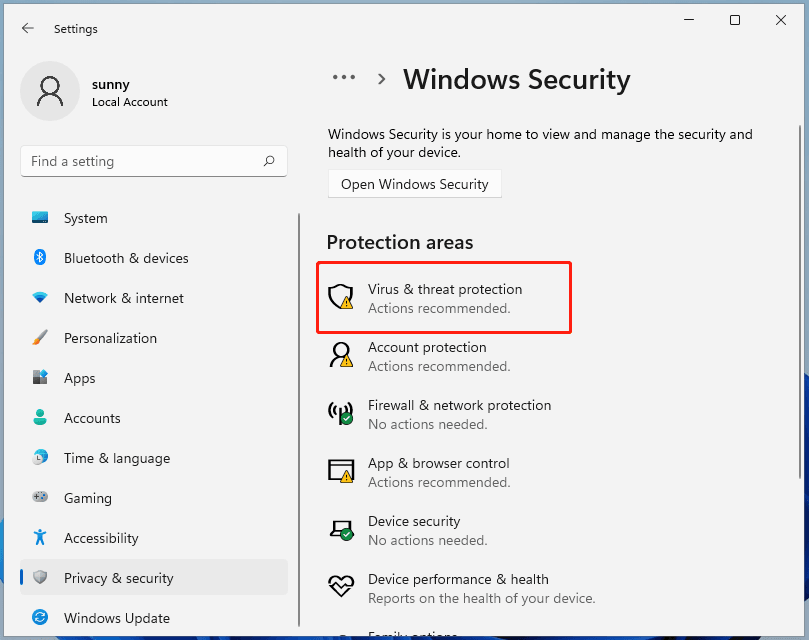
2. Click on the Virus & Threat Protection option.
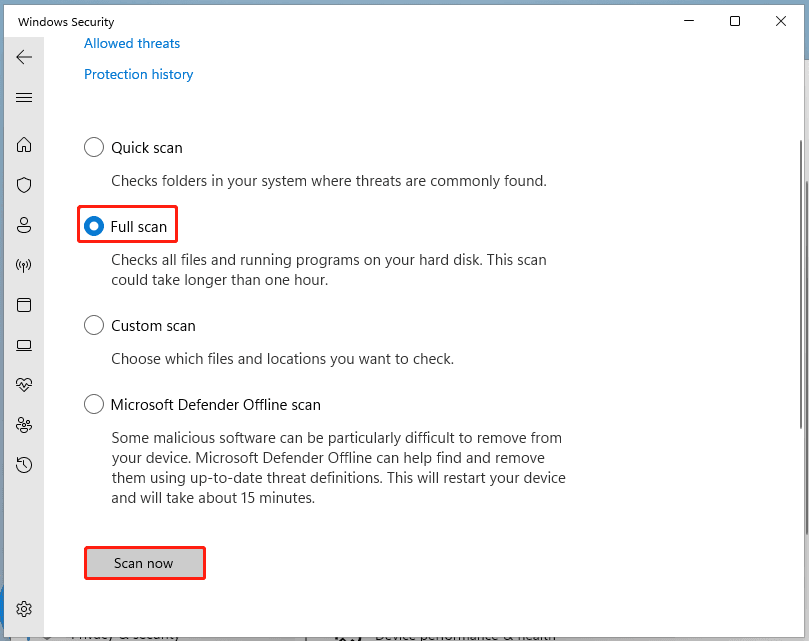
3. To start the scan, select the option for a Full scan and click the Scan Now button.
Fix 4. Update System Drivers
Your computer needs driver software to operate the hardware installed within the system. If these drivers are outdated or do not support these devices, then the system will malfunction. Therefore, you must update them regularly to ensure that defect-free drivers are installed on your computer. You can follow these steps to update your drivers.
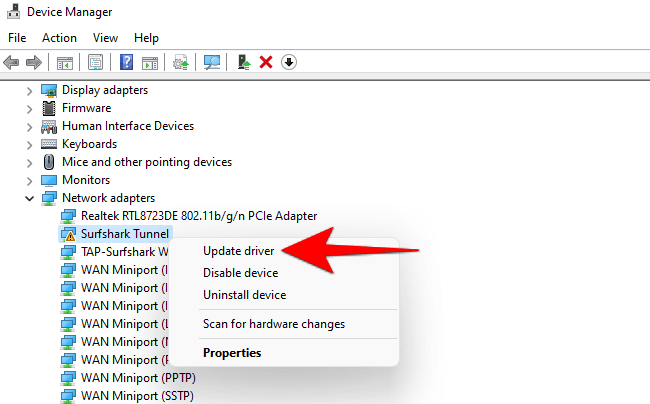
1. To open the Device Manager, press the Windows key and the "X" key at the same time, which will open a dialog box. From there, select "Device Manager".
2. If you notice a yellow triangle icon next to any entry, it indicates a potential issue with the driver. To address this, right-click on the entry and select the option to Update Driver.
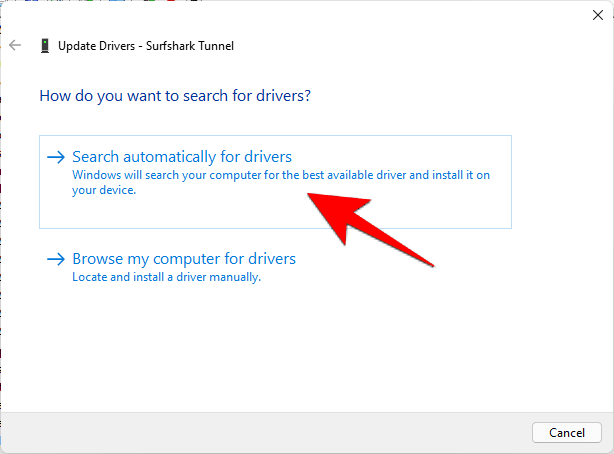
3. Click on "Search automatically for drivers" to let Windows install the necessary updates.
Fix 5. Run SFC scan
Running SFC (System File Checker) can repair corrupted or missing system files that may trigger a Windows 11 blue screen. Open Command Prompt with administrator permissions and follow the steps below.
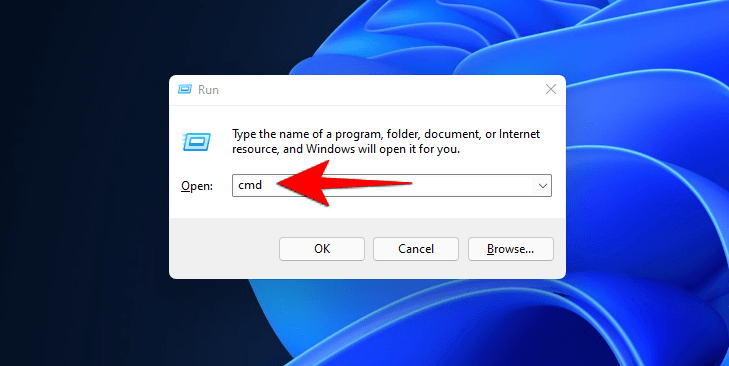
1. To open the Command Prompt, press the Windows key + R to open the RUN box, type "cmd", and press Enter. This will open a new Command Prompt window where you can type commands.
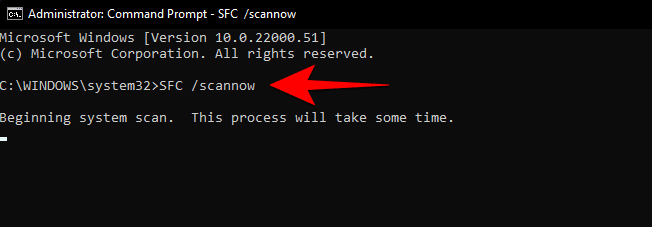
2. Right-click on the Command Prompt option, select Run as Administrator, type SFC /Scannow and press Enter to run a system file checker scan and fix errors if detected.
Fix 6. Rebuild Master Boot Record
1. To install Windows 11, insert the installation disk or USB into your PC, restart the PC, and boot from the disk or USB. Then, click "Repair your computer" on the "Install Now" screen.
2. Select Troubleshoot -> Advanced options -> Command Prompt.
3. Enter the following three commands in turn, following each by pressing the Enter key:
- bootrec /fixmbr
- bootrec /fixboot
- bootrec /rebuildbcd
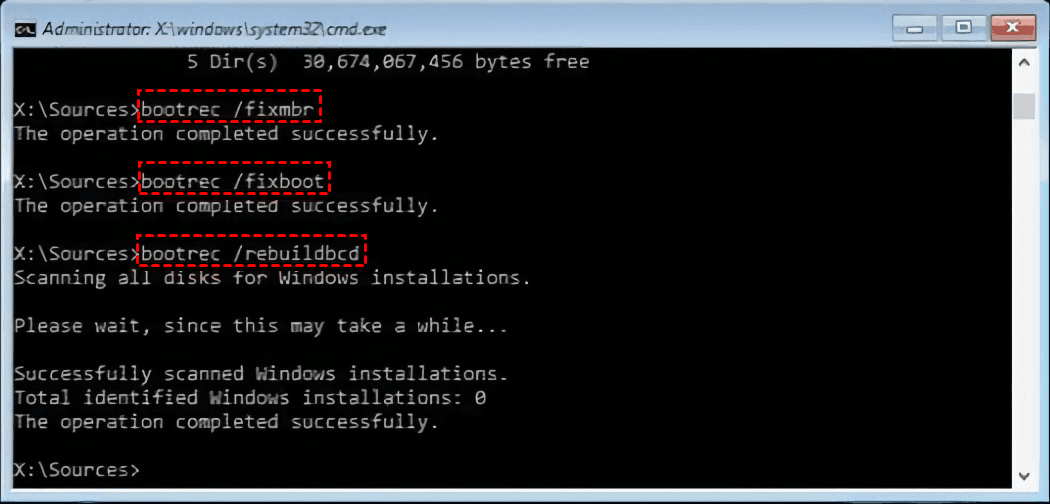
4. To confirm whether the repair was successful, restart the computer with the installation media removed. This will help determine if the issue has been resolved.
Fix 7. Perform system restore
If the Blue Screen problem still appears even after trying all of the above solutions, then you can restore your system to the previous date. Here are the detailed steps.
1. To create a System Restore point, click on the Start button, then select Search, type System Restore, and choose the option to Create a Restore Point.
2. In the pop-up window, click on System Restore, then select a date you want to revert to.
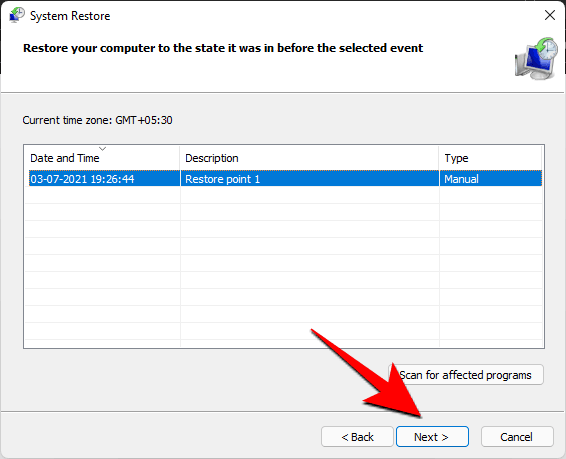
3. Click on Finish to confirm your restore point.
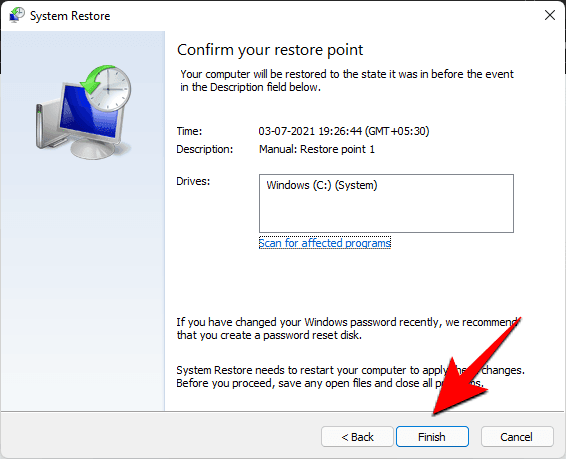
To verify that restoring the computer to a previous date solves the blue screen problem, you can try restoring the computer to a date before the blue screen issue started occurring. If the blue screen problem stops occurring after the restore, it suggests that the issue was caused by a software or system change that occurred after the restore date.
The best solution to prevent all system errors
To avoid losing data after encountering the Windows 11 blue screen of death, create a computer backup in advance using a reliable tool like Qiling Disk Master Standard. This free backup software can help you overcome system failure problems and ensure your data is safe. Its features include the ability to create a backup of your entire system, making it a valuable asset in case of a crash or other issues. By using Qiling Disk Master Standard, you can rest assured that your data is protected and can be easily restored if needed.
◊ It allows you to back up files, systems, disks, or partitions to various locations, including local disks, external hard drives, network shares, NAS devices, and cloud drives.
◊ It allows you to use incremental or differential backup to optimize backup efficiency, with differential backup available in the paid edition.
◊ In the event of a system failure or hard drive crash, you are allowed to create bootable media.
To get started, download and install Qiling Disk Master on your computer. This will give you access to its features and allow you to have a try.
✦ Backup Windows 11 to USB with Qiling Disk Master:
When you open this freeware, click Backup on the left side, and then select System Backup, which automatically chooses the system-related partition(s) as the source data. Next, simply select a destination path.

✦ Restore the system image backup when a system problem occurs:
Click Restore, then select Task or Image File. Follow the wizard to complete system recovery.

FAQ on Blue Screen of Death (BSOD) in Windows 11
1. Is the Blue Screen of Death fixable?
Restarting your computer can often resolve the issue by terminating ongoing processes and resetting the system. Windows will also perform an automatic troubleshooting and repair process to address the underlying causes of the BSOD. Disabling the automatic restart option can provide better control, allowing you to investigate and address the problem more effectively.
2. How do I find out what caused a blue screen?
You can use Driver Verifier, a tool that helps identify problematic drivers, which are responsible for about three-quarters of BSODs. This tool runs in real-time, checking the behavior of drivers and their use of memory resources to pinpoint issues.
3. Does a blue screen damage a computer?
A BSOD, or Blue Screen of Death, is a common Windows error that typically doesn't harm your computer. However, frequent occurrences can lead to data corruption, so it's essential to take precautions. To safeguard against this, regularly back up your important files, keep your system updated, and ensure it is free from malware. This will help prevent data loss and keep your computer running smoothly.
To sum up
To fix the Blue Screen of Death (BSOD) on Windows 11, try restarting your computer, checking for driver updates, running a System File Checker, or disabling recently installed software. If these methods don't work, creating a system backup with software like Qiling Disk Master can help you restore your computer to a previous healthy state, making it easier to recover from system problems. This can be a lifesaver if you encounter any issues, as it allows you to quickly restore your computer to a point where it was working properly.
This software is a full-featured freeware that can assist with various issues, including cloning an SSD to another SSD on Windows 11, and is available for immediate exploration and use.
Related Articles
- Windows 11 22H2 blue screen
Check driver changes and recovery options after a 22H2 crash. - Fixed: Windows 11 Black Screen After Update
Recently, some users have encountered Windows 11 black screen after update. Microsoft is changing the screen color of BSOD error from Blue to Black. You can find the cause and 7 solutions of this error in this tutorial. - Proceed for All Drives with Wbadmin or Effective Tool
To protect data and system on all drives, you can run Wbadmin to proceed with backing up all drives. Alternatively, there's a simpler way to achieve this. - How to Restore Windows 10 from System Image Backup
Restoring Windows 10 from a system image backup allows you to keep all personal data and installed programs without having to reinstall from scratch. - What Is BSOD? How To Fix Blue Screen of Death on Windows 11
To fix the blue screen of death on Windows 11, follow our simple steps to troubleshoot and resolve this common issue quickly. - How to Save Outlook Emails When Leaving Job | 2 Available Options
If you're leaving your job, you may want to save your Outlook emails before you go. You can do this by backing them up using a backup tool or exporting them to a PST file. - How to Schedule A Weekly Backup to Microsoft OneDrive[3 Tips]
Learn how to schedule a weekly backup to Microsoft OneDrive and keep selected files protected in cloud storage.
Products
Articles & Tutorials
- Data Recovery
- Data Backup
- File Recovery
- File Backup
- File synchronize
- System Backup and Restore
- Disk and Partition Clone
- Technical articles
- Disk Master Help
- Windows Deleted File and Disk Recovery Tutorials
- Windows File and Data Recovery Tutorials
- More Windows Tutorials for Install, Security, Files, and PC Tips
- Windows Boot, Repair, and Recovery Environment Tutorials
- Windows Backup Tutorials
- Windows Restore Tutorials
- Windows Clone and Migration Tutorials
- Windows Server Backup, Recovery, and Management Tutorials
- Windows Disk, Partition, and Storage Management Tutorials