Proceed for All Drives with Wbadmin or Effective Tool
Why and how to Proceed for all drives
In Windows Server, you can use Windows Server Backup to manually add all drives to a backup, ensuring all data is backed up. However, in client OS, Windows Backup and Restore only allows you to add drives with a drive letter, excluding critical volumes. This limitation may not be suitable for users who want to back up their entire hard disk, including data not stored in file or folder type.
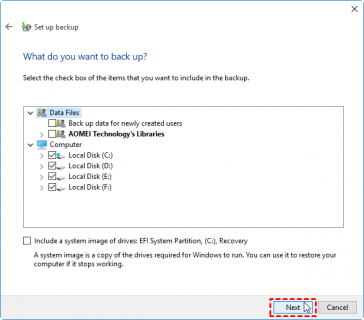
Windows PC and Server users can use the Wbadmin utility to backup an entire disk from the command line. Although Microsoft doesn't provide a Wbadmin backup disk full switch, you can use the "–include: [drive letter]" switch to add all drives to the backup, or use volume GUIDs to specify drives without letters.
For those with good computer knowledge, manually backing up individual partitions can be a viable option. However, for a more efficient and intuitive experience, using a powerful free backup tool with a graphical user interface (GUI) can be a better choice, especially for backing up the entire disk containing all partitions.
Way 1. Run Wbadmin to backup an entire disk
To use Wbadmin, you need to open an elevated command prompt with administrator privileges. You can type "CMD" in the search box, right click the top listed result, and click "Run as administrator." From there, run the wbadmin commands to perform the backup.
✤ Example 1:
To create a backup including C: drive, D: drive, E: drive, and the recovery partition to a shared folder over NAS, use the following command:
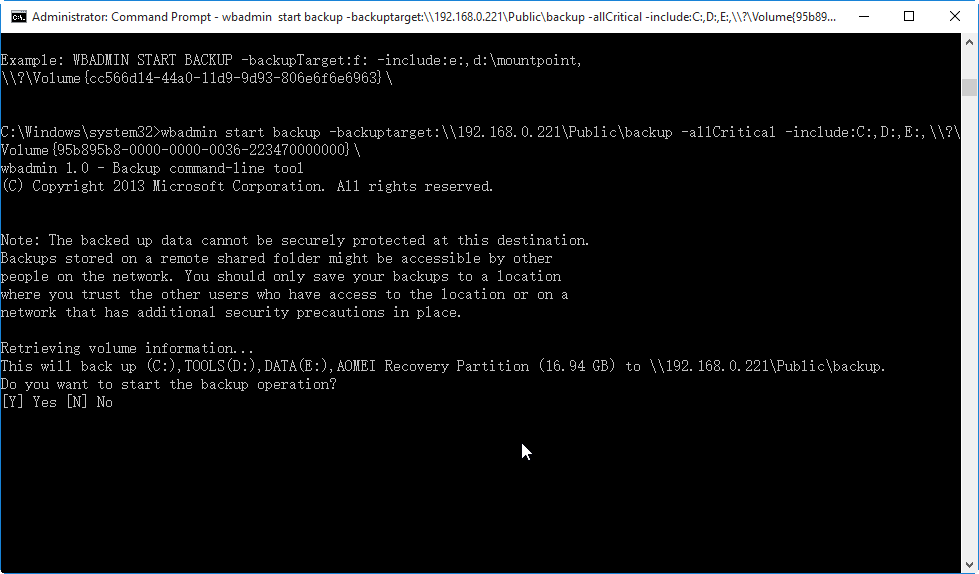
✍ Tips: To specify the recovery partition without a drive letter, use the volume GUID obtained from the "mountvol" command, as the recovery partition does not have a drive letter, you must use volume GUID to specify this drive. You can use "mountvol" command to get the volume GUID information. This allows you to access and utilize the recovery partition for your intended purposes.
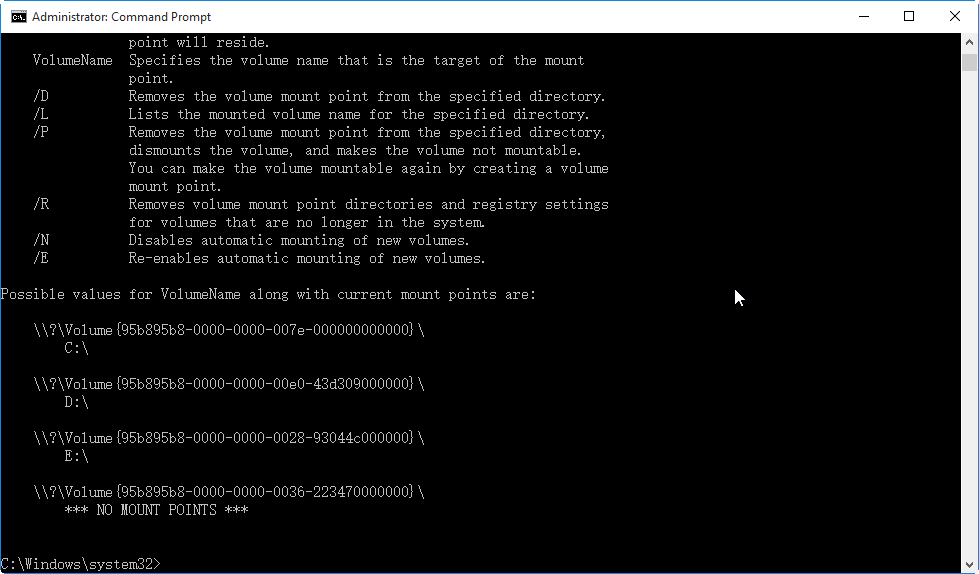
✤ Example 2:
If you don't want to be prompted to run the backup, you can add the "-quiet" switch. To backup an entire disk containing system reserved partition, C: drive, E: drive to an external hard drive (F: drive), use the following command:
✍ Tips: Running this command will initiate the backup process immediately without prompting the user, and the "--vssCopy" option is not necessary as it does not affect the items included in the backup.
To backup an entire disk with Wbadmin, you can simply use the command "wbadmin backup -backuptarget:C:\backup -allcritical -systemstate -vssfull -quiet" to backup the entire disk, including all partitions and system state. This command will automatically detect all partitions on the disk and backup them, including hidden partitions, making the process more efficient and less cumbersome.
Way 2. More efficient tool to backup all drives at once
Qiling Disk Master is a Windows backup tool that offers various backup options, including system, disk, partition, and file backup, accessible through both graphical user interface and command line. It caters to all Windows users, regardless of their edition.
This software allows you to schedule backups daily, weekly, or monthly, and also compress or encrypt backup images. It can backup only used sectors, making the process more efficient, or create an exact backup of all sectors, including unused ones. Additionally, it serves as a disk cloning software, enabling you to migrate your operating system to another drive, move your OS to a solid-state drive (SSD), and more.
The software is available for download in a free version that supports Windows 11, 10, 8, 7, Vista, and XP, and also has an advanced Server edition for Windows Server.
How to backup all drives with effective backup software:
1. Install and launch the correct version of the tool, then go to the Backup tab and select Disk Backup to back up the entire hard drive.

2. Select the disk that includes all the drives you want to back up, and specify a destination path to receive the backup image.

3. To prevent data from not being backed up, such as hidden recovery partitions, click on "Options" at the bottom and select "Make an Exact Backup" instead of Intelligent Sector Backup in the "Backup Mode".
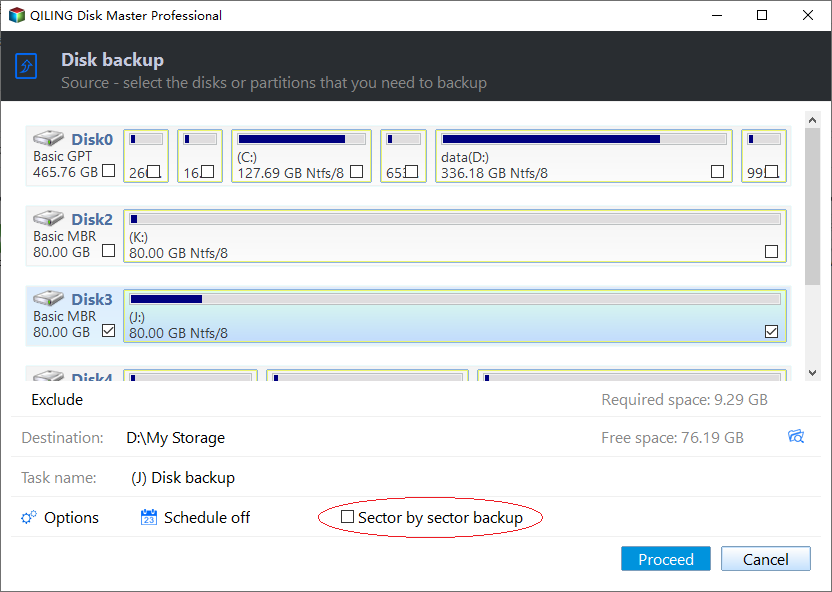
4. You can customize the backup with more options, such as backup compression, encryption, etc., before proceeding.
✎Schedule Backup: The backup feature can be automated to run daily, weekly, and monthly, with advanced editions also allowing for scheduling based on specific events or USB plug-in.
✎Backup Scheme: Perform a full, incremental or differential backup. You can also enable automatic backup cleanup and create a retention policy to auto delete old backups, available in the Professional edition.
Summary
Qiling Disk Master is more efficient than running Wbadmin for all drives, and it offers additional features such as cloning a hard drive to an SSD.
If you're a computer expert, you can control Qiling Disk Master via the command line instead of the GUI by referring to the Qiling Disk Master command lines.
Related Articles
- How to Create Bare Metal Backup with Wbadmin(3 Ways included)?
- Step-by-step to Create Incremental Backup with WBADMIN Tool
- Use Wbadmin Start Systemstatebackup to Backup Your Computer
- (Solved) No Disks Are Available for Use as a Backup Storage Destination
If you have a problem fixing the 'no disks are available for use as a backup storage destination' error, click on this article and learn 5 effective solutions. - Bese Free SQL Backup Software
You can download a highly recommended free SQL Server backup software from Qiling and use it for free with a 30-day trial to effectively back up your SQL database. - How to Free Backup Windows 10 to OneDrive
To sync files and data from your Windows 10 device to OneDrive, follow these steps. First, ensure you have a Microsoft account and have installed the OneDrive app on your computer.
Products
Articles & Tutorials
- Data Recovery
- Data Backup
- File Recovery
- File Backup
- File synchronize
- System Backup and Restore
- Disk and Partition Clone
- Technical articles
- Disk Master Help
- Windows Deleted File and Disk Recovery Tutorials
- Windows File and Data Recovery Tutorials
- More Windows Tutorials for Install, Security, Files, and PC Tips
- Windows Boot, Repair, and Recovery Environment Tutorials
- Windows Backup Tutorials
- Windows Restore Tutorials
- Windows Clone and Migration Tutorials
- Windows Server Backup, Recovery, and Management Tutorials
- Windows Disk, Partition, and Storage Management Tutorials