Use WBAdmin Start Systemstatebackup Command for System Protection
What can Wbadmin do for you?
Wbadmin.exe is a backup command-line utility in Windows Vista, 7, 8, 10, Server 2008, Server 2012, and Server 2008 R2, replacing NTBackup, which was used in Windows 2000, XP, and Server 2003.
The WBAdmin utility allows you to backup and restore your Windows operating system, volumes, files, folders, and applications from a command prompt or its interface. You can access the utility from the command line using its simple commands.
- Click Start and type cmd and hit enter.
- Right-click Command Prompt and choose Run as Administrator.
- Then run Wbadmin commands to backup.
To view all supported backup and restore commands in your Windows version, type the command "wbadmin/?".
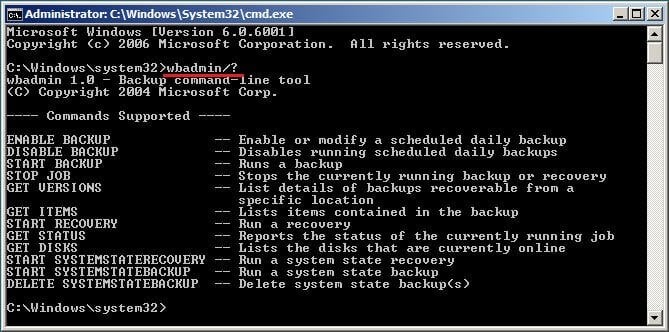
★ Important: To perform all the backup tasks, you must have membership in the Backup Operators group or the Administrators group, or have the appropriate permissions.
How to use Wbadmin start systemstatebackup command
The Wbadmin start systemstatebackup command is used to create a system state backup on Windows Server 2008 and later operating systems, including Windows Server 2008 R2, Windows Server 2012, and others.
The system state backup includes all operating configuration files that can be used for disaster recovery, such as boot files, active directory, sysvol, certificate services, cluster database, registry, performance counter configuration, and component services class registration database. This information can be used to restore the system to the same state on the same server or another server with similar hardware.
To backup a Windows Server 2008 (R2) system, you can use the Wbadmin system state backup command with the following syntax: `wbadmin start systemstatebackup -backuptarget:d:\backup -allcritical -vssfull -quiet` where `d:\backup` is the target location for the backup and `vssfull` ensures a full backup is performed. This command will backup the system state, which includes the system registry, event logs, and certificates, and save it to the specified location.
wbadmin start systemstatebackup –backuptarget:{volumename} [-quiet]
★ Notes:
1. {} are the required parameters; [] are the optional parameters.
2. The volumename requires a drive letter, a GUID-based volume name, or network share.
3. Quiet means execute the backup without prompts.
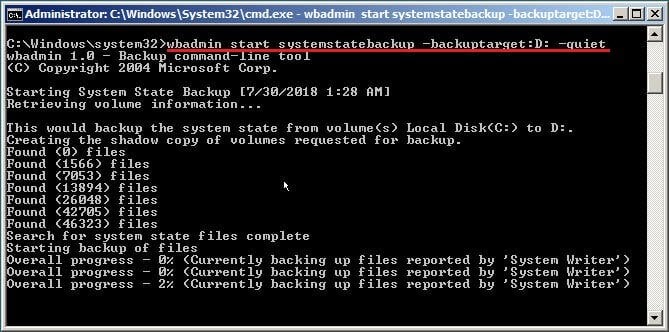
Here is the WBAdmin start systemstatebackup example:
Wbadmin start systemstatebackup –backuptarget: D: -quiet
✍ Tip on how to use Wbadmin start sysrecovery command:
After using the Wbadmin start systemstatebackup command to create a backup, you may need to perform a system state recovery. The following syntax can be used:
wbadmin start sysrecovery -version:-backupTarget:{|}[-machine:][-restoreAllVolumes] [-recreateDisks] [-excludeDisks] [-skipBadClusterCheck] [-quiet]
To recover information from a backup, you can specify the date, time, drive, and computer name in the backup file name, such as "WIN-9814GD4FH95_2016-06-01_06-48-00_E__backup.7z". This will allow you to recover specific data from a particular backup session.
Wbadmin start sysrecovery –version: 6/1/2016-06:48 –backuptarget:E: -machine:WIN-9814GD4FH95
★ Important: If you don't know the version Identifier, you could use wbadmin get versions.
How to use Wbadmin start backup for bare metal backup
Besides using the Wbadmin start systemstatebackup command, Wbadmin also provides a feature to create a bare metal backup in Windows 7/8/10 and Windows Server 2008/2012. This can be done using the "wbadmin proceed bare metal" syntax, which allows for the creation of a bare metal backup.
wbadmin start backup –backuptarget:{/} –allcritical [–systemstate] -quiet
★ Important:
1. The target volume for a critical-volume backup should be a local drive, but it must exclude any volumes that are being backed up.
2. If you save a backup to a remote shared folder, it will be overwritten if you use the same folder to back up the same computer again, potentially losing your data. If the backup operation fails, the older backup will be lost and the newer one will be unusable.
WBAdmin Proceed example:
wbadmin start backup –backuptarget:H: –allcritical –systemstate -quiet
✍Tip on how to use Wbadmin start recovery command:
The command to restore a system state backup image created by `wbadmin start systemstatebackup` is `wbadmin start recovery`. This command is used to recover a system state backup image that was previously created using the `wbadmin start systemstatebackup` command. The syntax for this command is `wbadmin start recovery -ab -systemstate -item:BackupId` where `BackupId` is the ID of the backup image you want to recover.
wbadmin start recovery -version:[VersionIdentifier] -itemType:[Type] -items:[ItemsToRecover] -backupTarget:[TargetLocation] [-recoveryTarget:[TargetLocation]] [-quiet]
★ Important:
1. The items parameter is used in conjunction with the -itemtype parameter to specify the volumes, apps, files, or folders you want to recover.
2. The recovery target requires specifying if you want to restore a backup image to a different location instead of its original location.
Wbadmin start recovery example:
wbadmin start recovery -version:03/31/2020-09:00 -itemType:App -items:Registry -recoverytarget:d:\
Easier way to create a system backup to protect data on it
Using Wbadmin to protect your system can be complex, especially for those unfamiliar with the command line or the tool itself. Before using it, you need to learn the various parameters and options available, which can be prone to errors. Furthermore, not all computers support all of Wbadmin's functions, making it a less-than-ideal solution for general users.
Many users seek an easier way to protect their system and data, and using backup software with a graphic user interface can be a suitable alternative to Wbadmin. Qiling Disk Master Server is a great option that allows creating a system image including data on the system partition, as well as backing up an entire disk with everything on it, offering several advantages.
- Backup system or disk automatically: It supports 5 schedule backup options, including daily, weekly, and monthly, as well as event trigger and USB plug-in for backup frequency.
- Save disk space: It provides various settings to minimize backup size, including compression levels, sector backup, incremental or differential backup, and backup schemes. One of the most effective methods is to delete old backup images using the backup scheme.
- Support all the Windows systems: The supported operating systems include Windows 10, 8.1, 8, 7, Server 2003, 2008(R2), 2012(R2), 2016, and 2019.
It provides a command line or GUI to backup data and supports restoring systems in both Windows and non-Windows environments, including a Qiling Disk Master Recovery Environment.
Here are the steps to create a system backup via Qiling Disk Master Server:
1. Download Qiling Disk Master Server for a 30-day free trial and install it. Run the software to access its features.
2. Click Backup -> System Backup on the main window.

3. To create a system state backup image, enter the task name and select the destination where you want to save the backup. This will allow you to easily identify and manage your backups.

★ Tip: The program will automatically select the system partitions associated with system files, eliminating the need for manual selection.
4. To create a system state backup, press the "Proceed" button. This will initiate the backup process for Windows PCs and Servers, capturing the system state.
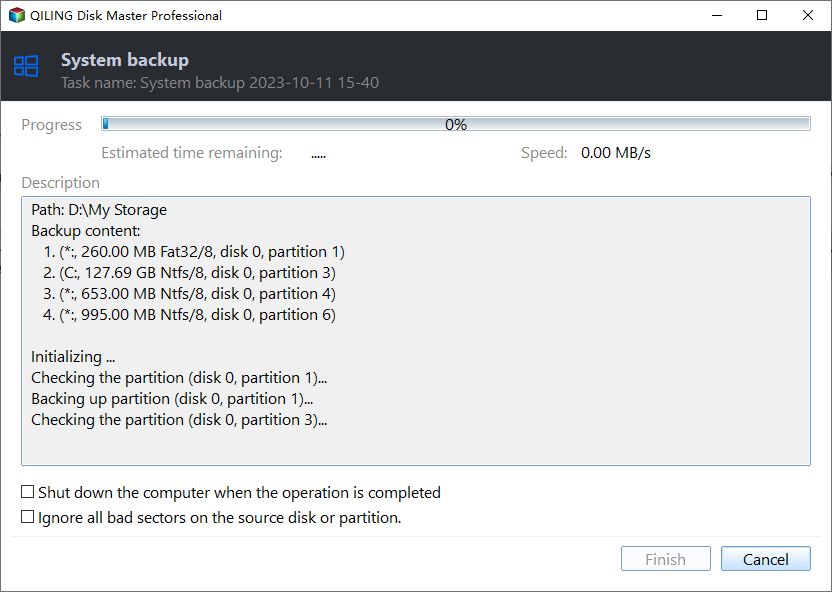
★ Tips:
✍ You can schedule backups to run daily, weekly, or monthly, and also set triggers for specific events or when a USB device is plugged in. Additionally, you can add comments, compress, encrypt, or split the system state backup.
✍ Backup Scheme allows you to automatically delete old backup images when they meet the retention policy, helping to manage disk space. Additionally, you can set incremental or differential backup to save disk space by only backing up changed files.

Qiling Disk Master provides a reliable Windows backup and restore process, consider using a robust backup solution that can safeguard your files, applications, and operating system. Look for a tool that offers automatic backups, incremental backups, and versioning, allowing you to restore your system to a previous state in case of data loss or system failure.
Summary
Creating a system backup can be easily done with the Wbadmin start systemstatebackup command or the Wbadmin start backup command for professionals. However, for those who are not familiar with these commands, the process can be difficult and error-prone. In such cases, using Qiling Disk Master Server is a more suitable option.
With this tool, you can easily create a system image backup for Windows PCs and Servers without any technical expertise, making it accessible to both home users and professionals. The process is straightforward and simple to operate, and you can schedule backups to ensure you always have enough space for new backups. Additionally, its command line utility feature (DiskMasterUI.exe) makes it a versatile tool that can be used in various situations.
To protect unlimited computers or servers, you can try Qiling Disk Master Technician Plus, which also allows you to create bootable media and take it with you.
Related Articles
- Create Files and Folders Backup with Wbadmin Command Line
- How to Use Wbadmin start backup Backuptarget
- How to Perform System State Recovery with Wbadmin
- Windows 10 Upgrade Keeps Restarting (Fixed with 3 Ways)
Learn the key steps, checks, and practical tips for this related guide. - How to Factory Reset a Laptop in Windows 10/8/7?
Learn how to Factory Reset a Laptop in Windows 10/8/7 with clear steps, key checks, and practical tips. - How to Fix Bad Sectors on External Hard Drive?
Learn how to Fix Bad Sectors on External Hard Drive with clear steps, key checks, and practical tips.
Products
Articles & Tutorials
- Data Recovery
- Data Backup
- File Recovery
- File Backup
- File synchronize
- System Backup and Restore
- Disk and Partition Clone
- Technical articles
- Disk Master Help
- Windows Deleted File and Disk Recovery Tutorials
- Windows File and Data Recovery Tutorials
- More Windows Tutorials for Install, Security, Files, and PC Tips
- Windows Boot, Repair, and Recovery Environment Tutorials
- Windows Backup Tutorials
- Windows Restore Tutorials
- Windows Clone and Migration Tutorials
- Windows Server Backup, Recovery, and Management Tutorials
- Windows Disk, Partition, and Storage Management Tutorials