How to Use Wbadmin start backup Backuptarget
Wbadmin Schedule backup to network share
Windows Server Backup supports backing up to internal hard drives, external hard drives, and shared folders over a NAS network, but creating a scheduled backup to a shared folder is not supported in Windows Server 2008.
To resolve the issue, use the Wbadmin command to create a scheduled backup to a network share. This will allow you to automatically back up your system to a network location, eliminating the need for manual intervention.
To backup the C: drive and recovery partition to a shared folder, you can use the wbadmin command with the following options: wbadmin start backup -backuptarget:\\192.168.0.221\Public\backup -include:C:,\\?\Volume{95b895b8-0000-0000-0036-223470000000}\
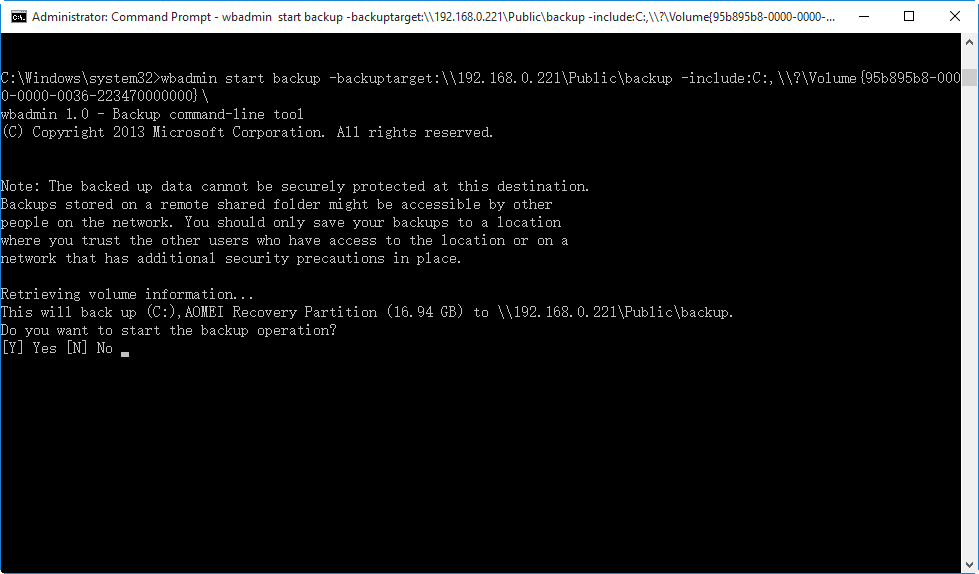
The problems to use Wbadmin start backup backuptarget
The command line wbadmin tool allows for scheduling backups to a shared folder, but it also introduces other problems.
When backing up using wbadmin, specifying a local disk or volume as the target using its drive letter or GUID-based path is not allowed if the volume is included in the backup. This results in an error message stating that the location for backup is a critical volume.
The backup will be overwritten at the next time, and if a backup is specified to a shared folder, the next backup will overwrite the previous one before even starting, risking the loss of all backups if the running backup fails.
Few tricks to Wbadmin start backup backuptarget
Configuring a backup using Wbadmin start backup has several restrictions and limitations, but some can be overcome with solutions or workarounds.
1. Modify registry line before backing up to critical volume.
Windows backup utility won't allow you to backup to critical volumes, throwing an error message like "Error - the location for backup is a critical volume". To resolve this, you can modify certain Registry entries to enable backup to critical volumes.
Modifying the registry incorrectly can lead to serious problems, and it's only recommended when necessary to save backups to critical volumes.
2. To create a scheduled backup to a NAS shared folder, you can use the Task Scheduler feature in Windows. This involves creating a new task that runs a backup program, such as Windows Backup or a third-party utility, at a specified time and frequency, and directing it to save the backups to a shared folder on the NAS device. This ensures that your data is regularly backed up to a secure and accessible location.
To create a scheduled task that performs a bare metal backup to a network shared folder named DailySystemBackup every day at 00:00, you can use the following command:
SCHTASKS/Create/SCDAILY/TN DailySystemBackup/RL HIGHEST /ST 00:00 /TR "WBADMIN start backup -backupTarget:\\192.168.0.221/Public/Schedule -allcritical -include:systemstate -quiet >> C:\backupLogs.txt"
You can use the SCHTASKS command to create a daily schedule backup task using the following syntax: SCHTASKS /Create /SC DAILY /TN/RL HIGHEST /ST/TR. This will create a task that runs daily, with the highest priority, starting at the time specified by the /ST option.
3. To create an incremental backup to a network share using a virtual hard disk, you can create a VHD on the network share and use it as the backup target. This allows incremental backups to be stored without overwriting previous ones.
To avoid being overwritten by the next backup, create a virtual hard disk (VHD) in the shared location, initialize and format it with NTFS, then use it as the backup target location to run incremental backups. This makes Windows think the shared folder is a local disk, allowing the backup to run without overwriting existing backups.
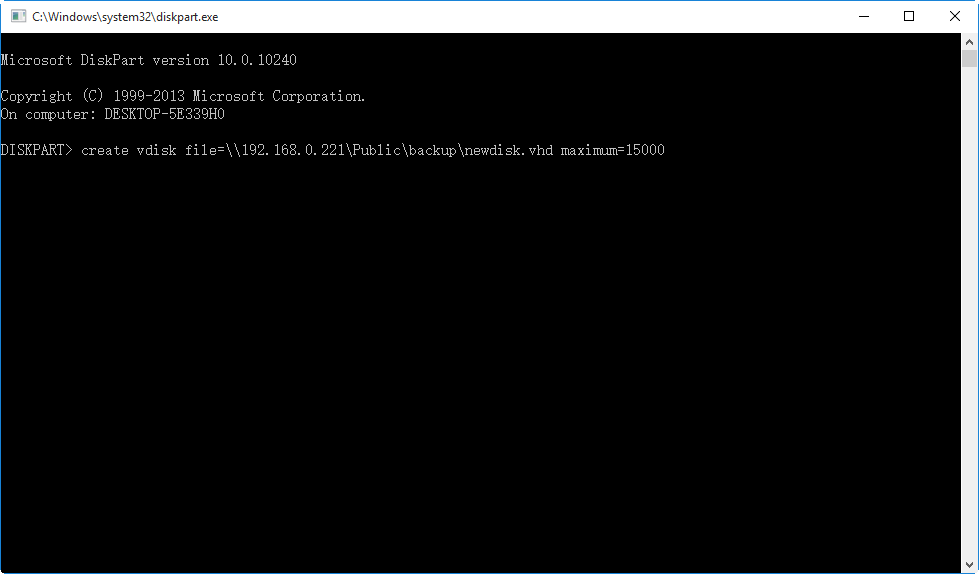
To create a virtual hard disk in a shared location, you can use the command "create vdisk file=shared_location maximum=disk_size" where shared_location is the path to the shared location and disk_size is the maximum size of the virtual disk. For example, "create vdisk file=\\server\shared_folder maximum=10g" would create a virtual hard disk in the shared_folder on the server with a maximum size of 10GB.
create vdisk file=\\192.168.0.221\Public\backup\newdisk.vdh maximum=15000
Windows only supports one scheduled backup at a time, and scheduled backups will fail if a backup is already running at the scheduled time. If you're not comfortable with these workarounds, consider using third-party software like Qiling Disk Master Professional.
More flexible way to backup to network share with DiskMasterUI.exe
Compared to Wbadmin, Qiling Disk Master Professional is a more flexible command line backup software in Windows 7, 8, 8.1, 10, 11, but for server computers like server 2008, 2012, 2016, 2019, 2022, Qiling Disk Master Server is a better option.
Qiling Disk Master is a powerful tool that offers a range of features. It can clone, backup, and restore disks, including hard drives, solid-state drives, and USB drives. It also supports disk imaging, allowing users to create a bit-for-bit copy of a disk, which can be useful for creating a backup or for forensic purposes.
Qiling Disk Master enables you to create backups of disks, systems, partitions, and more, with options for incremental, differential, sector-by-sector, and encryptd backups. It also allows for scheduling multiple backup tasks and saving multiple versions of backups as desired.
This software allows for backup to multiple targets, such as local disks, external disks, SSDs, USB drives, CDs/DVDs, NAS, hardware RAID, and dynamic disks, and does not overwrite existing backups.
1. Download, install and launch Qiling Disk Master Professional.
2. To open Command Prompt with administrator rights, you can type 'cmd' in the search box, right-click the Command Prompt icon that appears, and select 'Run as administrator'.
3. To install Qiling Disk Master, navigate to the installation directory path and press Enter, for example: cd C:\Program Files (x86)\Qiling Disk Master.
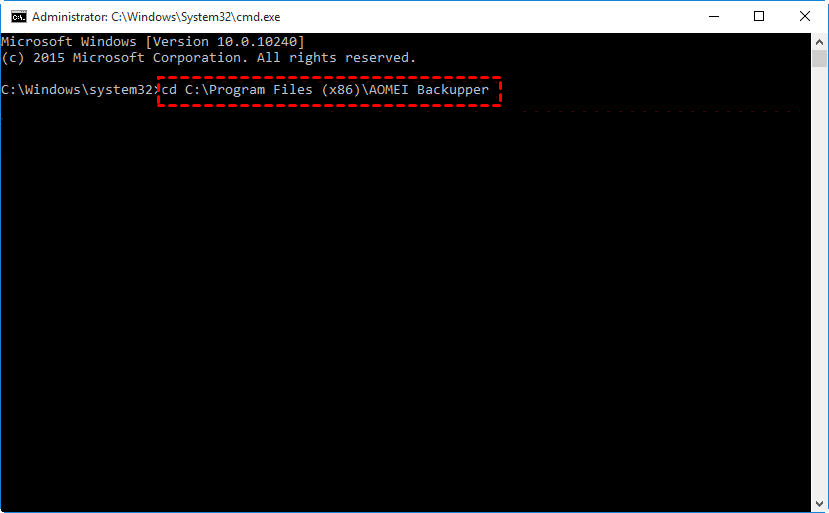
4. To create a system backup on your network, type the command "DiskMasterUI.exe /b new /t system / /d '\\192.168.0.100\Share\Imgfile.fvd' /n 'BackupToShare' /u 'admin' /p '123456'" and press Enter.
Here are some parameter in the commands you need to know. For more command line, you can go to this website and learn details.
{/b} refers to the backup type of this operation, including new, dif, inc, full.
{/t} specifies the type of source, containing, system, disk, partition.
{/d} is destination path to your backup.
[/n] implies the name of this backup task.
[/u] means the username of a network you want to backup to.
[/p] indicates the password of a network you will backup to.
Tips:
• Qiling.exe supports backup, restore, and clone operations through command line, allowing users to perform these tasks as needed.
• Qiling Disk Master offers a user-friendly graphic interface (GUI) in addition to its command line utility, making it suitable for beginners. The GUI provides a fixed and straightforward process, minimizing the risk of errors, as all the steps are clearly defined. This makes it easier for users to navigate and complete tasks without encountering issues.
Related Articles
- Use Wbadmin in Windows Server 2016 for Backup and Recovery
This article will introduce you to 3 very classis examples of Windows Server 2016 wbadmin, which help you safely protect the system and data on it. For novices, try the easier way! - Use Wbadmin to Perform Windows Server 2012 Backup and Recovery
This article is to illustrate how to use Windows Server 2012 Wbadmin or an easier alternative to backup, restore or delete images. Get it now! - How to Create Bare Metal Backup with Wbadmin(3 Ways included)
You will learn 3 ways to create bare metal backup to protect data and system, namely, Wbadmin command line, Qiling.exe and GUI-based backup software. - WBAdmin Start Systemstatebackup Command for Windows PCs and Servers
You can easily protect your system with Wbadmin start systemstatebackup command as well as other 2 alternatives. Learn more below. - Use Wbadmin Start Systemstatebackup to Backup Your Computer
Learn how to use Wbadmin start systemstatebackup command to backup system state of your computer from an elevated command prompt so that you can perform disaster recovery when system crashes. - Clone Multiple Partitions to HDD/SSD
Cloning multiple partitions to a new HDD/SSD can be done in just three simple steps. If you need to migrate or transfer specific partitions with data to a new disk drive, you can follow this method to clone several partitions at once without losing any data.
Products
Articles & Tutorials
- Data Recovery
- Data Backup
- File Recovery
- File Backup
- File synchronize
- System Backup and Restore
- Disk and Partition Clone
- Technical articles
- Disk Master Help
- Windows Deleted File and Disk Recovery Tutorials
- Windows File and Data Recovery Tutorials
- More Windows Tutorials for Install, Security, Files, and PC Tips
- Windows Boot, Repair, and Recovery Environment Tutorials
- Windows Backup Tutorials
- Windows Restore Tutorials
- Windows Clone and Migration Tutorials
- Windows Server Backup, Recovery, and Management Tutorials
- Windows Disk, Partition, and Storage Management Tutorials