How to Use Windows 7 Backup and Restore for Data Protection
Quick Navigation:
- Backup and Restore in Windows 7/8/10
- How to Use Backup and Restore in Windows 7
- Windows 7 Backup and Restore Not Working
- Best Free Windows 7 Backup and Restore Alternative
- Summing Up
Windows 7 Backup and Restore Overview
Backup and Restore in Windows 7 allows you to backup files, system drive, and other partitions using Volume Shadow Copy Service, backing up only changed files with incremental backup by default, and scheduling backups every Sunday at 7:00 am.
The Backup and Restore feature in Windows allows you to create backups of your files and system, providing two types of backup options. The file backup is saved as a ZIP file, while the system image is a full system backup in the .vhd file format without compression. You can choose to save the backups to various locations, including local disks, external hard drives, CDs/DVDs, USB flash drives, or network locations. For IT professionals, the WBAdmin command-line interface is also available.
Note: Windows 7 Backup and Restore could not backup these files: program files, files stored in FAT file system, files stored in Recycle Bin, Temporary files on drives smaller than 1 GB.
How to Use Backup and Restore in Windows 7
Windows 7 Backup and Restore offers two backup types. To access this software, you can open it using various methods. Once opened, you'll be introduced to both backup types.
Way 2: Use Search box. Open search box and search backup and restore in it. Then, select the top result in the list.
After opening this software, you can choose to create a file backup or system image, depending on your specific needs and situation.
- If you've never used it before, click "Set up backup" to create a full file backup.
- To manage space on your hard disk, you can create a new backup manually and delete old backups. If you've created a backup before, you can change the backup settings and create a new one, or simply delete the old backups to free up space.
- If you want to create a system image separately, click "Create a system image" at the left panel. This will allow you to select a destination to store the backup image, as it will include the system partition or all the boot files necessary for system startup.
Windows 7 Backup and Restore Create an Image
To protect your data, we highly recommend saving the Windows 7 backup image to an external hard drive, as the size will depend on the amount of data you have, which can be checked in Windows Explorer.
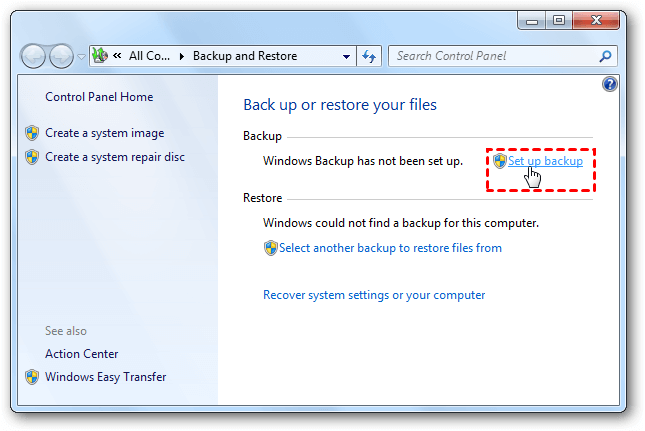
- In the Backup and Restore window, click Set up backup.
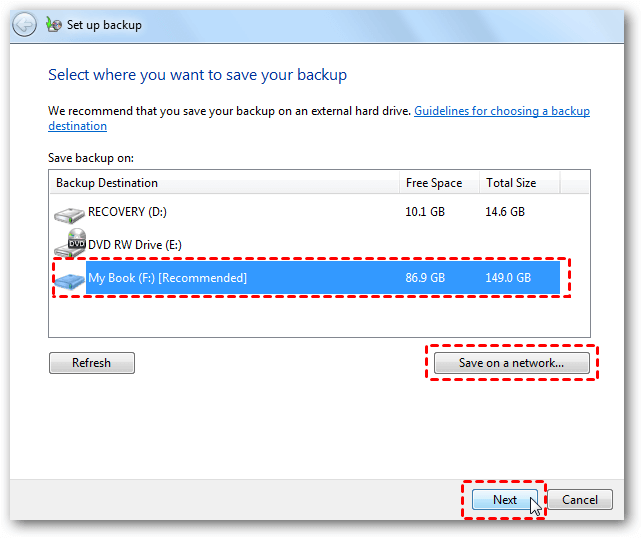
- Select an external hard drive To save the Windows 7 backup, connect an external hard drive in advance. You can then use the built-in Backup and Restore feature in Windows 7 to create a system image and save it to the external hard drive. This will allow you to restore your system to its current state in case of a system failure or other issues.
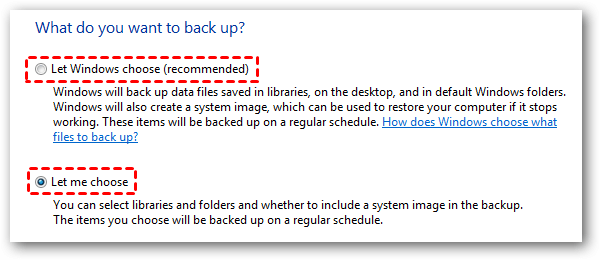
- Let me choose the option if you want to backup other non-system partition or specific files. Then, hit Next.
- To backup files or drives, select them and click Next. It's recommended to keep a system image backup, which can help restore the computer to an earlier date.
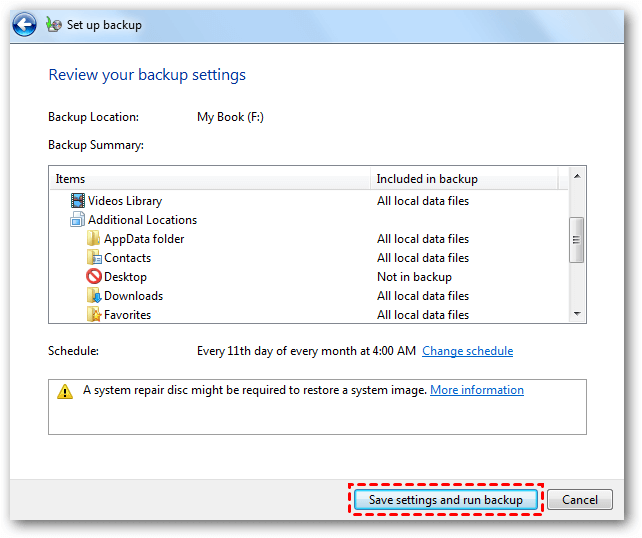
- Review your backup settings, and click "Save settings and run backup" to initiate the backup process. You can change the schedule to daily, weekly, or monthly by clicking the "Change Schedule" option, which defaults to every Sunday at 7:00 am.
★ Tips:
✿ You'll need to insert a CD/DVD and create a system repair disc with it, which will allow you to restore the system image without booting into Windows.
✿ If you don't want to schedule Windows 7 backups, you can uncheck the "Run backup on a schedule (Recommended)" option.
✿ The current system image backup will be replaced when you create a new one.
Perform Windows 7 File Image Recovery
After the backup is finished, the destination disk will have a folder named WindowsImageBackup containing the .VHD backup file. You can then use this backup to restore your computer by connecting the external hard drive containing the Windows 7 system image and following the steps to recover your system.
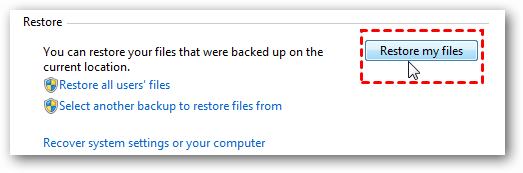
- To restore your files, open Windows 7 Backup and Restore, and click the Restore my files button.
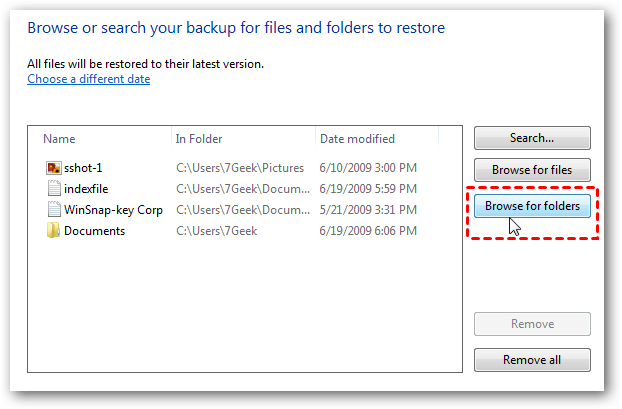
- Choose "Browse for files" or "Browse for folders" to select the files or folders to restore, and then click "Next".
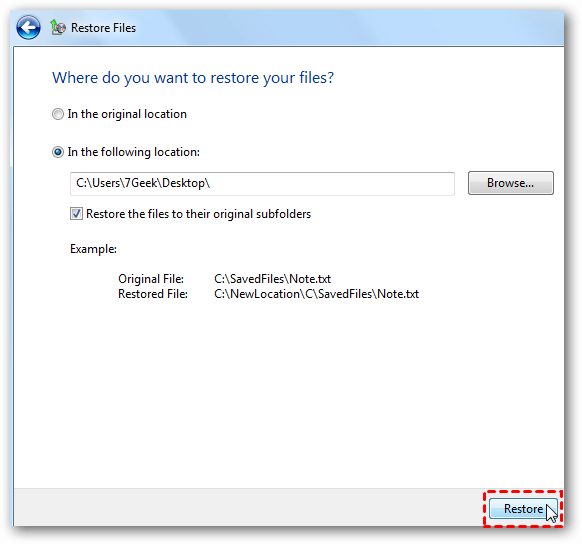
- To restore files, select the destination as either the original location or a specified location, and then click the "Restore" button.
★ Tips:
✿ If you don't want to overwrite the original files/folders, select another location to restore them to. Otherwise, choose the original location.
✿ If you just want to restore all your data files, click Restore all users' files.
✿ In the recovery environment, you can still restore a system image to a new hard drive, but the destination disk must be larger than the disk containing the image, or you will get a system image restore failed error.
You can restore a Windows 7 backup to Windows 10 by following these steps. The process allows you to recover your data and settings from a previous backup, even if you've upgraded to a newer operating system. To do this, you'll need to access the System Restore tool, which can be found by searching for it in the Start menu, and then select the backup you want to restore from the list of available restore points.
- Open Backup and Restore (Windows 7) in Windows 10 computer.
- Tap the Select another backup to restore files from.
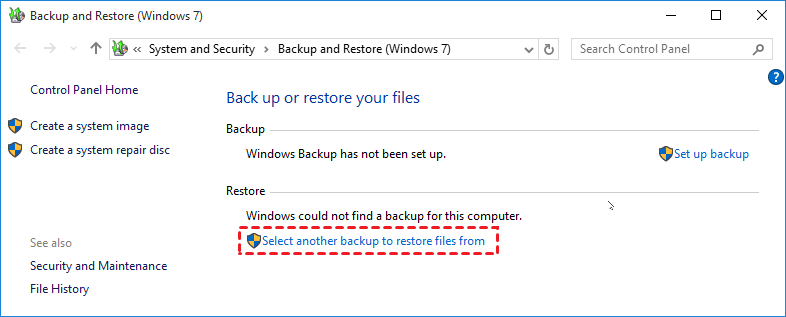
- To restore a Windows 7 image backup, select the backup file you want to restore and click on it to choose it. Alternatively, you can browse your network location to select a backup saved on the network.
Windows 7 Backup and Restore Not Working
Windows 7 Backup and Restore is not working for some users, possibly due to security software or malware interference or third-party software use. To resolve this, users can try enabling the essential backup service or restoring their computer to an earlier date. For more detailed steps, please refer to the Backup and Restore Windows 7 not working page.
Some users may encounter an issue where they cannot find a system image on their computer during the restore process, possibly due to reasons like a changed folder name for the system image, migration of the folder to another location, or backing up Windows 7 to a USB drive. For more information and detailed steps to resolve this issue, please visit the Windows cannot find a system image on this computer page.
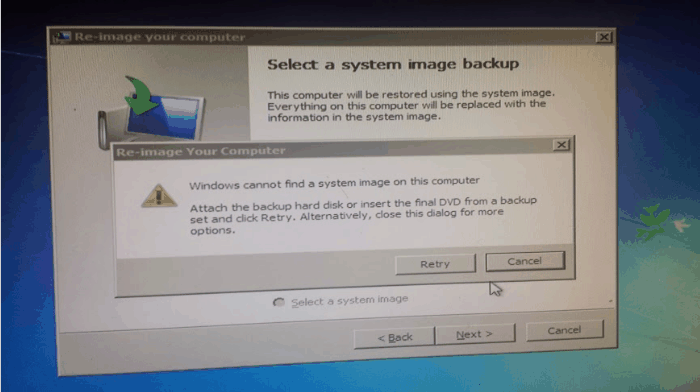
You may want the Windows 7 Backup and Restore alternative if you are in these situations. And I'll introduce you an all-in-one backup software to protect your data and ensure you always have a copy of them.
Best Free Windows 7 Backup and Restore Alternative
Qiling Disk Master Standard is a top-notch free Windows 7 backup and restore software that makes it easy to backup and restore in Windows 7. It supports all backup solutions, including file, system, partition, and disk backup, and is compatible with Windows XP, Vista, 8, 8.1, 10, 11. With Qiling Disk Master Standard, you can enjoy the benefits of easy backup and restore, available across multiple Windows versions.
- Perform all the backup solutions automatically: It allows for daily, weekly, and monthly schedule backups, and can wake the computer to run tasks at inconvenient times or during off-peak hours.
- Backup only changed files: This software uses incremental backup as its default backup method, which only backs up changed files, saving time and disk space compared to full backup.
- Other useful backup options: Besides, it is able to compress image, automatic splitting image, backup only used sectors of file systemThey further reduce the size of backup images. This allows you to store more backups at the same time.create bootable USB or CD/DVD To boot your computer in case of system failure, you can try pressing the F2, F12, or Del key repeatedly during the boot process to access the BIOS settings. From there, you can select the boot device or restore the system to an earlier point in time. Alternatively, you can try booting from a USB drive or CD/DVD with a bootable operating system, or use a system repair tool like System Restore or a bootable antivirus scan.
Please download Qiling Disk Master Standard and we will guide you through the steps to create a Windows 7 system image, including the OS, installed programs, settings, and drivers.
This version of Qiling Disk Master only supports Windows XP, Vista, 7, 8, 8.1, 10, and 11, with server users advised to try Qiling Disk Master Server instead.
Create a System Image Backup in Windows 7
1. After installing Qiling Disk Master Standard, run the program and click on the "Backup" tab, followed by "System Backup" to initiate a system backup.

2. Select a destination path to save the Windows 7 system image file. You can backup Windows 7 to various locations, including USB, external drive, a network location, or more.

3. To create a system image for Windows 7, tap the Proceed button.
You can enjoy advanced features, such as USB plug in, with this product.differential backupTo resolve the backup disk full issue, you can implement automatic backup cleanup by setting up a script or using a tool to delete old backups on a regular basis. This can be done by specifying a retention period for backups, after which they are automatically deleted. Additionally, you can consider using a more efficient backup solution that takes up less disk space, such as incremental backups or compression.upgrade to the professional version.
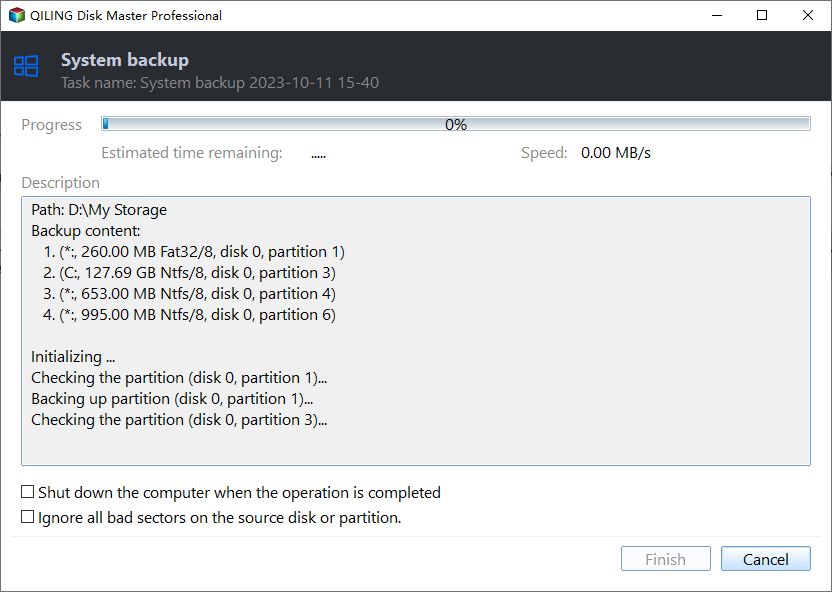
After the backup finishes, you'll have a Windows 7 system image with a .fvd suffix on your destination path. This image can be used to restore the system or individual files. Additionally, you can even restore the system to a different computer with dissimilar hardware.
To prevent computer failure due to system crashes or other issues, create a bootable USB or CD/DVD. This allows you to boot up your computer even if it's unbootable. If you don't have a storage device, you can try the recovery environment in Qiling Disk Master.

Windows 7 System Image Restore
For system restore, there are two general scenarios: your computer is bootable or not. In the first case, you can access the system restore feature through the Control Panel or Settings, and follow the prompts to restore your system to a previous point.
If you're in a situation where you need to restore your system to a previous state, you can simply open the software and select the option to restore a system image. This will allow you to revert back to a previous point in time, effectively undoing any changes or updates that have been made since then.
If your computer won't turn on, insert a bootable USB or CD, boot from it, and then use Qiling Disk Master in the recovery environment to restore your system image. If you created a recovery environment in Windows 7, simply restart your computer and select the option to enter Qiling Disk Master.
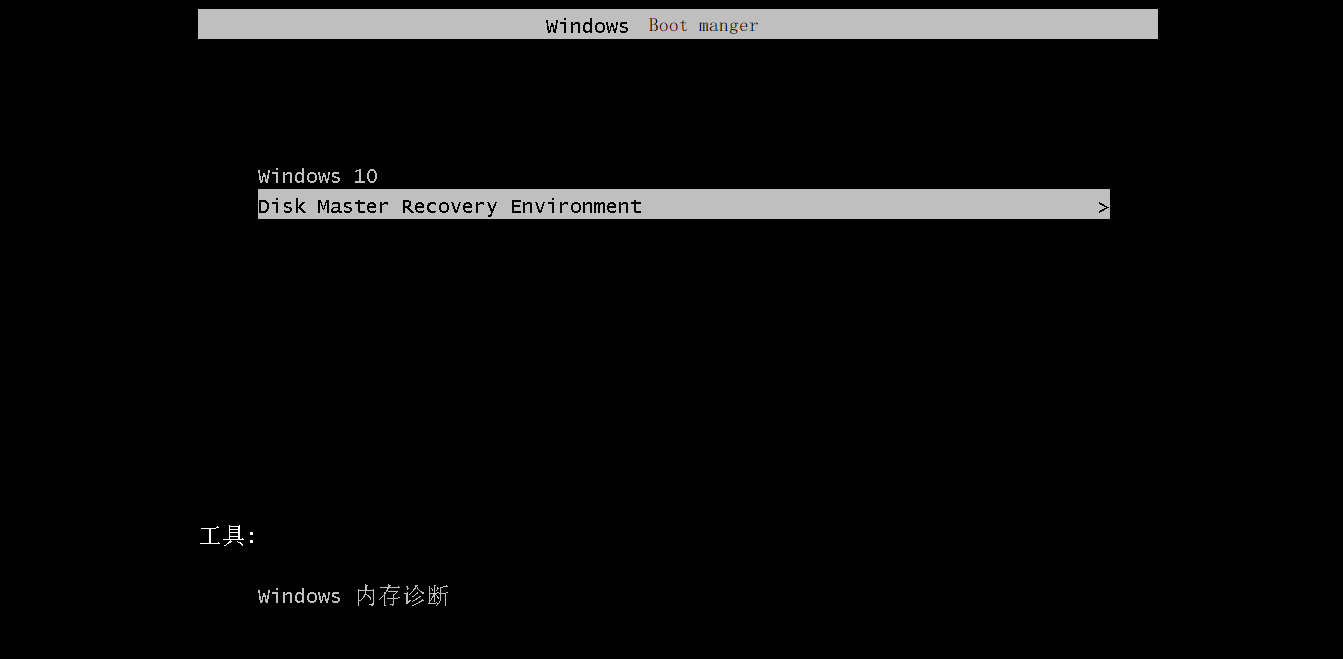
To perform system image recovery in Windows 7, you can follow these steps. First, you'll need to insert the Windows 7 installation media and restart your computer. Next, you'll need to boot from the installation media and select the option to repair your computer.
1. To restore Windows 7 on your computer, open the software, click "Restore" and then select the task to choose the Windows 7 system image.

2. To proceed, select a system image from the available options and click Next >>. If the system image is not found on the computer, select the option to manually choose the image file.

3. To upgrade your hard drive to a larger capacity, select the "Restore this system backup" option and "Restore system to other location". Then, click Next >>.

4 (optional). You will be asked to select a restoration path if you tick Restore system to other location. Then, hit Next.
5. Confirm this operation and press Proceed >>.

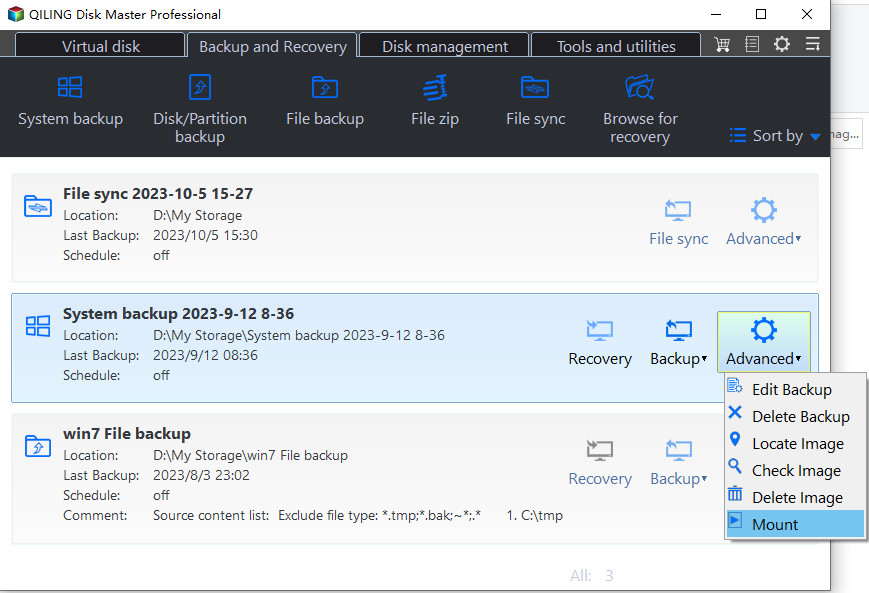
Restoring a Windows 7 system image is a relatively straightforward process. If you only need to restore specific files, you can use the Explore Image feature to browse through the system image and copy and paste the desired files to restore them individually. This selective file restore approach can be more efficient than a full system restore.
Summing Up
If you're having trouble with Windows 7 Backup and Restore, you may want to consider using an alternative like Qiling Disk Master Standard, which can be a good option for backing up files, system, or recovery.
Qiling Disk Master contains all the features of Windows built-in tools, plus more advanced features like backup partition, backup disk, USB plug-in, event trigger, backup scheme, and more. It also allows for simultaneous deployment of images to multiple computers, making it ideal for batch operations such as installing systems on 25 computers at once. The technician or TechPlus edition is recommended for these advanced capabilities.
Related Articles
- Best Free Alternative to Windows 7 Backup and Restore Tool
- How to Fix Backup and Restore Windows 7 Not Working?
- How to Create a System Image Using Windows 7 Backup and Restore
- How Does Windows 7 Backup Boot Disk Successfully?
Sometimes Windows 7 backup boot disk will fail out of various reasons. This tutorial will instruct you to solve these issues with the best freeware, Qiling Disk Master Standard. - Simple Steps to Backup Xbox 360/One HDD for Free
It's important to backup Xbox 360 or Xbox One hard drive (HDD) in case of data loss due to system crashes, hard drive failure or replacement. - The Best Powerful Backup4all Alternative in Windows 7/8/10
This guide explains The Best Powerful Backup4all Alternative in Windows 7/8/10 with clear steps, key checks, and practical tips.
Products
Articles & Tutorials
- Data Recovery
- Data Backup
- File Recovery
- File Backup
- File synchronize
- System Backup and Restore
- Disk and Partition Clone
- Technical articles
- Disk Master Help
- Windows Deleted File and Disk Recovery Tutorials
- Windows File and Data Recovery Tutorials
- More Windows Tutorials for Install, Security, Files, and PC Tips
- Windows Boot, Repair, and Recovery Environment Tutorials
- Windows Backup Tutorials
- Windows Restore Tutorials
- Windows Clone and Migration Tutorials
- Windows Server Backup, Recovery, and Management Tutorials
- Windows Disk, Partition, and Storage Management Tutorials