How to Create a System Image Using Windows 7 Backup and Restore
Quick Navigation:
- About “Create a system image” in Windows 7
- How to create a system image using Windows 7 utility
- Problems of Windows 7 Backup and Restore
- Advanced software to create a system image - Qiling Disk Master
- Steps to create a Windows 7 system image to USB drive
About “Create a system image” in Windows 7
Windows 7 Backup and Restore offers a helpful feature of creating a system image, which is an exact copy of the entire drive, allowing users to back up their system.
A system image backup includes the Windows OS, system configurations, installed programs, and created files. It allows you to restore everything on your computer if the hard drive or system fails.
When restoring from a backup image, all current programs, system settings, and files on the hard drive will be replaced with those from the backup image, which contains only the drives that Windows needs to run. If you want to include other data drives, you can manually create a system image.
How to create a system image using Windows 7 utility
If you want to store the backup image outside, please first connect the external device. It's suggested to store the system image separately from the running system to avoid damage in case of bad luck.
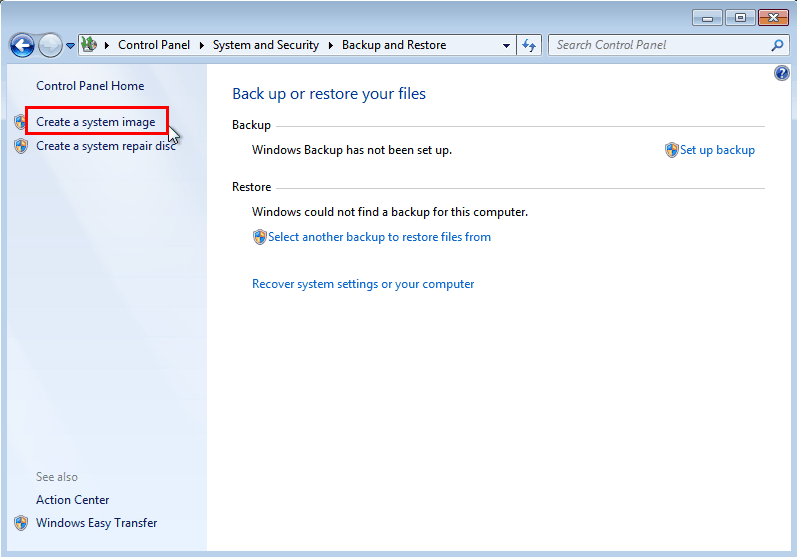
To create a system image in Windows 7, go to Start, then Control Panel, followed by System and Security, then Backup and Restore, and finally select "Create a system image" from the left pane.
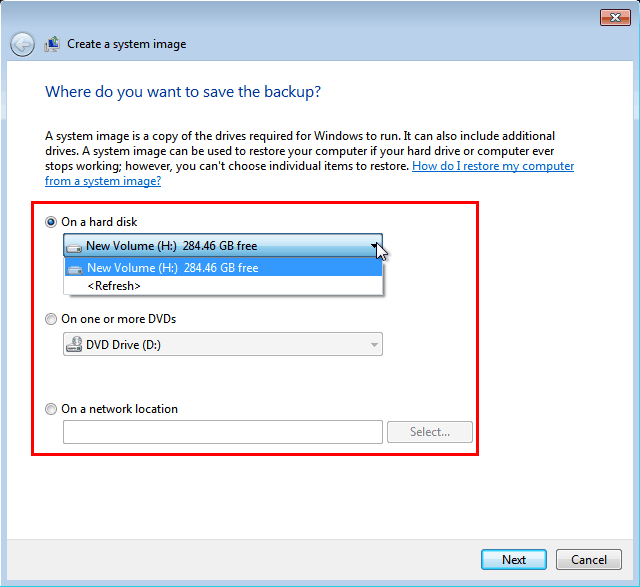
After selecting the backup option, the system will search for available backup locations before displaying a window where you can select the desired backup location. For this example, we will choose to back up the system to a new volume.
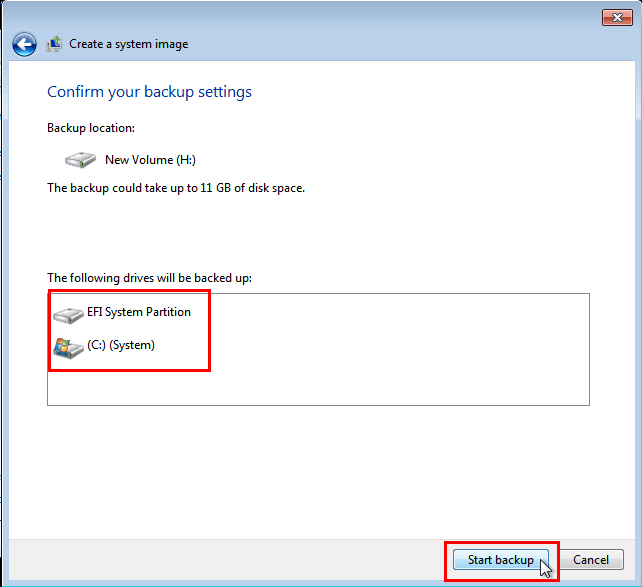
Confirm the backup settings by clicking Proceed to ensure the backup contains the EFI System Partition and entire C drive, including installed applications and personal files.
Tips:
- You need to format the hard drive to NTFS file system before you can use it as the backup storage.
- If you choose network location as the backup storage, only the latest system image will be saved, and any previous images will be deleted.
Problems of Windows 7 Backup and Restore
Creating a system image in Windows 7 using Backup and Restore is a relatively simple process. However, it's worth noting that this feature also has some drawbacks that cannot be ignored.
- In Windows, restoring a system image doesn't allow for individual item restoration, meaning you must either restore the entire image to get the desired files or backup system and personal files separately.
- The Windows 7 Backup and Restore feature cannot create a system image to a USB flash drive, likely due to Microsoft's initial perception of USB drives as unreliable for storing system images, despite their improved reliability over time. This results in a warning message that the drive is not a valid backup location, preventing the backup from continuing. This limitation is frustrating, given the convenience of USB drives.
- You can create a system image on your current hard disk and then copy it to a USB drive, which can help solve the problem. However, keep in mind that system images on removable devices like USB drives are more susceptible to unauthorized access if not encrypted.
Advanced software to create a system image - Qiling Disk Master
As you see, it is quite necessary to find an all-around Windows 7 Backup and Restore alternative, and Qiling Disk Master Professional is a backup utility that offers full backup solutions.
- You can use it to create a system image, create image of entire disk, or backup individual files as per your need.
- It offers you Full/Incremental/Differential backup types.
- You can schedule a backup to run daily, weekly, or monthly, etc.
- The system will automatically delete old backups if a backup scheme is set up.
- You can encrypt the backup image during the backup process.
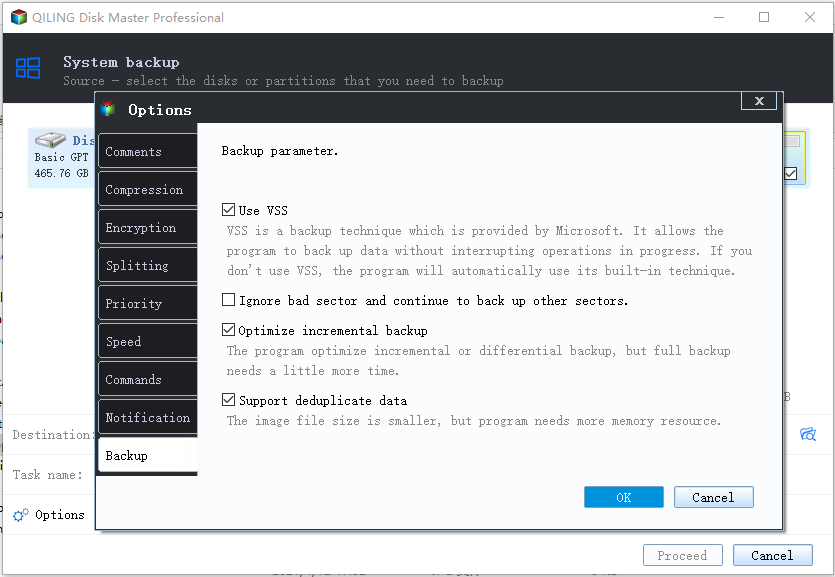
To perform a system backup in this software, you can follow these steps: First, navigate to the "Backup" section of the software's settings. Then, select the type of backup you want to perform, such as a full system backup or a partial backup.
Steps to create a Windows 7 system image to USB drive
1. Download Qiling Disk Master Professional 30 days free trial.
2. Install and run Qiling Disk Master, then click Backup and select System Backup.

3. The system drive C and the hidden EFI partition are selected by default, but the destination path should be changed to the USB drive.

4. (Optional) Do more settings according to your situation.
- Options: you can set password encryption, email notification, image compression, etc.
- Schedule Backup: The backup frequency can be set to Daily, Weekly, Monthly, Event-trigger, or USB plug in, allowing users to choose the schedule that suits their needs best.

- Backup Scheme: Choose a backup method such as Full, Incremental, or Differential, and set up automatic deletion of old backups to maintain a healthy backup system.
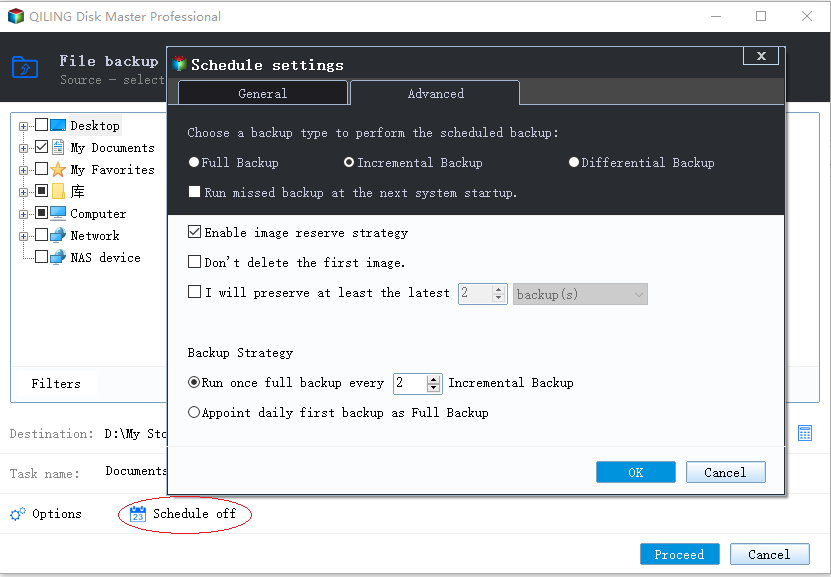
5. Then click Proceed.
Tip: For advanced users, Qiling Disk Master allows the creation of a system image using a command line function through the DiskMasterUI.exe program.
Creating a system image with Qiling Disk Master is straightforward and safeguards your system, allowing you to create a bootable USB drive for backup and transfer Windows 7 to a new hard drive using the Clone feature.
Related Articles
- How to Creating System Image to an External HDD
- How to Create a System Image Backup in Windows 7 Easily?
- How to Create Windows 10 System Image Backup and Restore it?
- Download Qiling Backup Free 13.0 (Official)
Download Qiling Backup Free 13.0 with license code and serial key. You can not only back up files for free but also get official technical support. Get this backup and recovery software to protect your data now. - How to Create ASUS Recovery Disk in Windows 10 Efficiently
ASUS recovery disk is very useful when you're having problems with your computer. Learn how to create one in Windows 10 efficiently from this page. - Asus Recovery Partition Missing? |Complete Solutions
You can choose to fix Asus Recovery Partition missing by recreating a new one and this article offers you two effective methods.
Products
Articles & Tutorials
- Data Recovery
- Data Backup
- File Recovery
- File Backup
- File synchronize
- System Backup and Restore
- Disk and Partition Clone
- Technical articles
- Disk Master Help
- Windows Deleted File and Disk Recovery Tutorials
- Windows File and Data Recovery Tutorials
- More Windows Tutorials for Install, Security, Files, and PC Tips
- Windows Boot, Repair, and Recovery Environment Tutorials
- Windows Backup Tutorials
- Windows Restore Tutorials
- Windows Clone and Migration Tutorials
- Windows Server Backup, Recovery, and Management Tutorials
- Windows Disk, Partition, and Storage Management Tutorials