Create a System Image Backup in Windows 7, 8, 10 Easily (2 Ways)
Need of creating a system image backup
In computing, a system image is an exact copy of a computer system, including system settings, programs, files, and required drivers. Creating a system image backup in Windows is essential for various reasons, such as recovering the system to its original state in case of a system failure, reinstalling Windows without having to reinstall all programs and files, and transferring the system to a new computer. This backup also allows for easy recovery of the system to a previous state, making it a valuable tool for maintaining system integrity and minimizing downtime.
- Get prepared for possible computer errors. You may encounter system crashes due to virus attacks, hardware or software failures, or incorrect operations. Having a system image can help you easily and safely restore your system to a normal state.
- Avoid operating system and application reinstallation. Restoring a system from a system image allows you to recover not only the operating system but also all installed applications on the system partition, saving you the time and effort of reinstalling them.
To create a system image backup in Windows 7/8/10, you can follow these top two easy methods. Firstly, you can use the built-in Windows Backup and Restore feature to create a system image backup. To do this, go to Control Panel > Backup and Restore (Windows 7) or Settings > Update & Security > Backup (Windows 8/10), and follow the instructions to create a system image.
Method 1: Create a system image backup in Windows 7 via a handy freeware
Qiling Disk Master Standard, a top-rated free backup utility for Windows 7/8/10, provides comprehensive backup solutions.
★ There are four types of backups available: System/Disk/Partition/File Backup, allowing users to create a system/disk image or backup specific folders.
★ In Windows 7/8/10, you can create a system image on a USB drive, external hard drive, network location, NAS device, or cloud service. This allows you to back up your system and easily restore it in case of a problem.
★ To automate the backup process, you can use the Schedule Backup feature to set the frequency of backups from daily to monthly.
★ The backup tool allows you to create a full copy of the system every time or backup only changed files using incremental backup, which helps improve efficiency and save storage space.
To backup your Windows OS using Qiling Disk Master, follow these steps:
Step 1. Download, install, and launch Qiling Disk Master. Click the "Backup" option and select "System Backup" from the menu.

Step 2. The system partition(s) is selected by default, and you can choose a destination path by clicking the second bar.

Step 3. To confirm the operation and execute a system image backup in Windows 7, click "Proceed" after verifying the operation. This process can also be applied to Windows 10 and other systems.

>> Options: You can enable email notification, choose the compression level for the backup image file, and select between intelligent sector backup or sector-by-sector backup.
>> You can schedule automatic and periodic backups of your data at regular intervals, such as daily, weekly, or monthly, or even set up event triggers and USB plug-ins for added convenience.
>> Backup Scheme: This program will automatically delete old image files to save disk space, but only available in the professional version. Differential backup is recommended over incremental backup as it allows for quicker restoration without needing all previous backups.
If a major disaster occurs, you can restore your computer with the system image you've created as follows:
- >Click Restore > Select Task.
- To restore a system backup, select the relevant task from the list and follow the on-screen instructions to complete the restoration process.

Tips:
★ If you can't find your system backup, go back to the Restore tab and select the "Select Image File" option to manually locate the image file. This will allow you to choose the correct backup file.
★ To resolve boot failure, create bootable media with Qiling Disk Master in advance.
★ To restore an image file without booting Windows, you can create a recovery environment with Qiling Disk Master in advance.
★This software allows you to create a system image of Windows for another computer, compatible with Windows 8 and 10.
Method 2: Create a system image backup in Windows 7 with Windows built-in tool
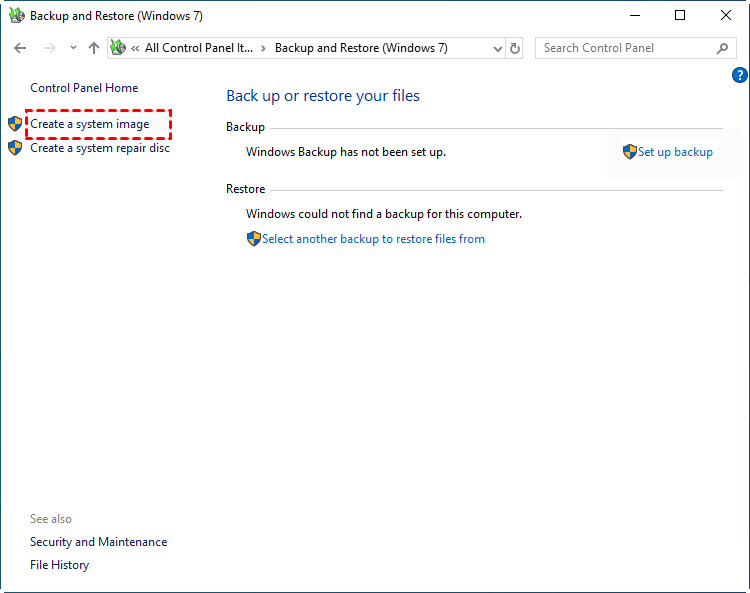
There is a built-in create a system image using Backup and Restore in Windows, follow these steps: Open Backup and Restore by searching for it in the Start menu, then select "Create a system image" from the left-hand menu. Choose the drive where you want to save the image, select the location, and click "Next". Select the drive you want to back up, then choose whether you want to include the system files, user accounts, and other data. Click "Next" and then "Finish" to start the backup process.
Step 1. Open Backup and Restore. Different systems have different methods.
▶ In Windows 7, click Start, then select Control Panel, followed by System and Security, and finally Backup and Restore.
▶ To access System Image Backup in Windows 8, navigate to the Search bar, type "File History," and select it. Then, click on the "System Image Backup" link located at the lower left corner of the window.
▶ To access backup settings in Windows 10, type "backup settings" in the search bar, select the result, and scroll down to the "Looking for an older backup" section. From there, click "Go to Backup and Restore (Windows 7)" to access the older backup feature.
Step 2. In the left pane, choose Create a system image.
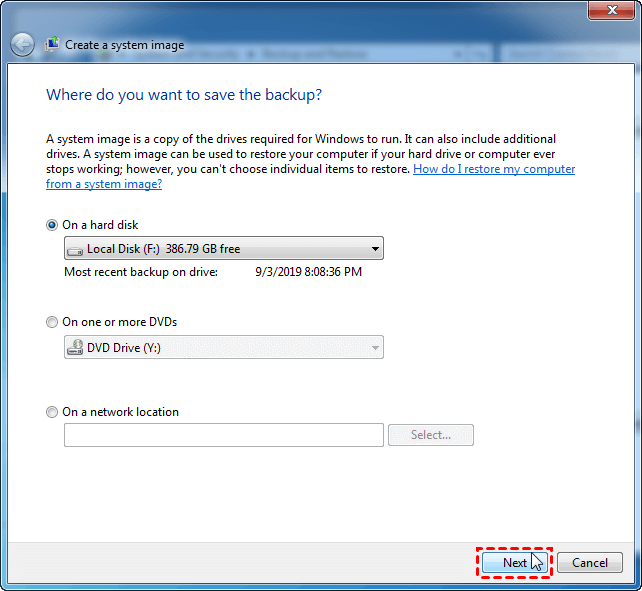
Step 3. Save your system image to a chosen location, such as a USB drive, and then click the "Next" button.
Tips:
★ To avoid losing the system image, it's advisable to save it to a different physical disk from your system drive, so that if one disk fails, the other will remain intact.
★ A hard disk must be formatted to NTFS in order to be used as the backup location.
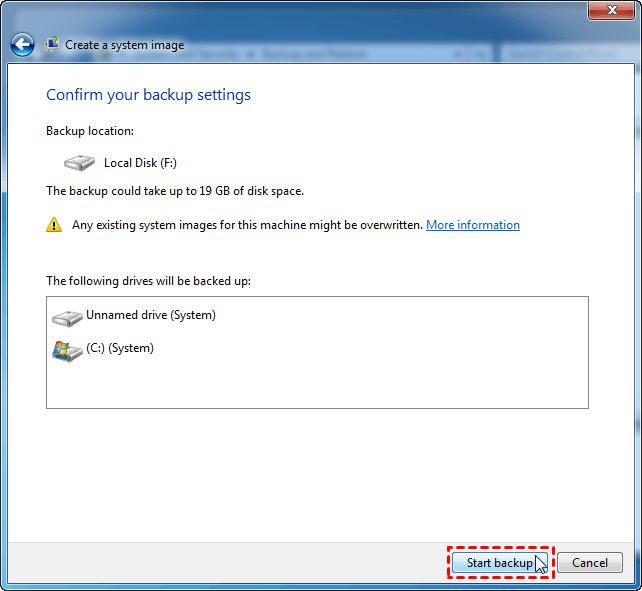
Step 4. The required drives for Windows to run are selected by default. You can add other drives to be backed up and click Next.
Step 5. Confirm the backup settings, then click Proceed to create a system image in Windows 7.
If your computer stops working or experiences issues, you may want to restore your system image to get it back up and running. To do this, follow these steps:
- Open Backup and Restore as mentioned in Method 2.
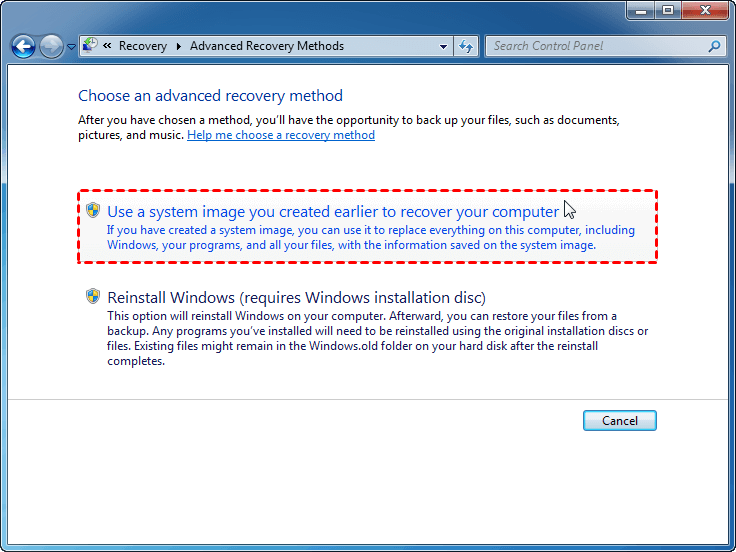
- Click Recover system settings or your computer > Advanced recovery methods.
- To recover your computer, click on "Use a system image you created earlier" and follow the wizard to complete the recovery process.
Tip: In case of boot failure, create a system repair disc using Backup and Restore beforehand, allowing you to perform System Image Recovery in Windows 7 from it.
Verdict
To create a system image backup in Windows 7/8/10, you can use either Qiling Disk Master or Backup and Restore. Qiling Disk Master offers all-around backup solutions and is easy to operate due to its intuitive interface, making it a great option. Additionally, it is a hard drive transfer software that can be used to transfer everything from an HDD to an SSD, making it a valuable tool to have. Give it a try and discover more!
Related Articles
- How to Create Windows 10 System Image Backup and Restore it
- Easy Way to Fix “Windows Cannot Find a System Image on This Computer” Issue
- 5 Methods to Fix System Image Backup Failed in Windows 10/8/7
- Error: Windows 10 Inaccessible Boot Device After Clone [Solved]
This article provides 5 solutions for the error of Windows 10 Inaccessible Boot Device after clone. It also introduces a better intelligent cloning software. - Backup Windows Server 2022 to USB Drive in 3 Steps
To protect your Windows Server 2022, it's essential to back it up to a USB drive, and this article will guide you through the process step by step. - Windows Server 2022 Recovery Disk Creator - Fastest and Safest
You can learn how to create a Windows Server 2022 recovery disk with the most reliable software in this article.
Products
Articles & Tutorials
- Data Recovery
- Data Backup
- File Recovery
- File Backup
- File synchronize
- System Backup and Restore
- Disk and Partition Clone
- Technical articles
- Disk Master Help
- Windows Deleted File and Disk Recovery Tutorials
- Windows File and Data Recovery Tutorials
- More Windows Tutorials for Install, Security, Files, and PC Tips
- Windows Boot, Repair, and Recovery Environment Tutorials
- Windows Backup Tutorials
- Windows Restore Tutorials
- Windows Clone and Migration Tutorials
- Windows Server Backup, Recovery, and Management Tutorials
- Windows Disk, Partition, and Storage Management Tutorials