How to Create a System Repair Disc (on USB) in Windows 7/10
What Is a System Repair Disc Used for?
A system repair disc is a bootable CD/DVD disc that contains a set of system repair tools, allowing you to fix serious problems with your computer. To create one, you'll need to use the Windows 7 Backup and Restore feature, which also enables the Create a system repair disc function. This disc can be used to troubleshoot and repair issues with your system.
To create a system repair disc, you can follow the steps in Windows 7 or 10. This disc is useful for troubleshooting and repairing issues with your computer, such as boot problems or system crashes.
- Recover Windows from a serious error. Windows OS is prone to various risks such as viruses, hacker attacks, and physical damage, despite best protection efforts. Additionally, even with regular maintenance, hard drive failure can occur after extended use, rendering the system unusable. Creating a system repair disc and saving it to a USB flash drive or other safe location can be a lifesaver in such situations, allowing users to easily fix system errors and restore their system to a working state.
- Install or reinstall Windows system image. To clean install Windows using a system image, you can use the "System Image Recovery" function on the system repair disc, which contains system recovery tools and startup programs.
- Create a system repair disc for another computer. A system repair disc created on one computer with the same hardware can be used to repair another computer with the same hardware, essentially serving as a universal repair tool.
How Do You Create a System Repair Disc in Windows 7?
Creating a system repair disc in Windows 7 or 10 is a straightforward process. To do this, go to the Control Panel, click on "System and Security," and then select "Backup and Restore." Click on "Create a system image" and follow the on-screen instructions.
1. To insert a CD/DVD into a computer, place the disc with the label facing up into the CD/DVD-ROM drive. Ensure the disc is properly seated and the drive can detect it.
2. To create a system repair disc, go to Start, then click on Control Panel, and finally click on Backup your computer. From there, select Create a system repair disc. This will allow you to create a disc that can be used to boot your computer and access system repair tools.
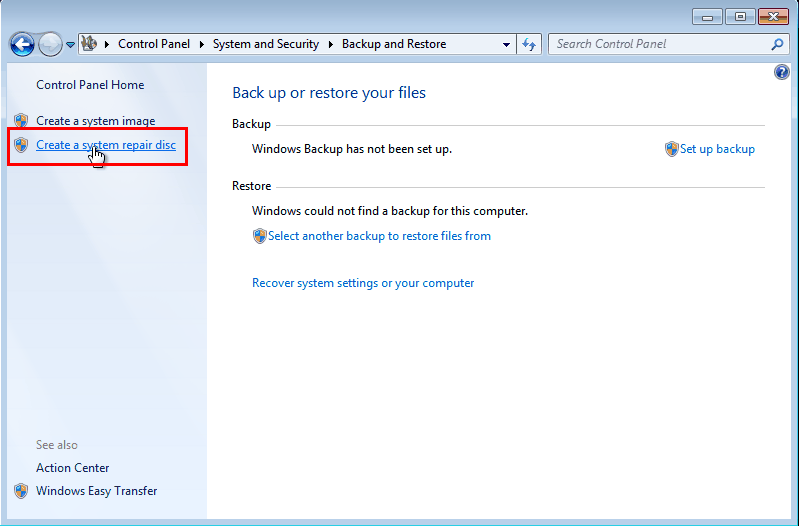
3. In the pop-up window, select your CD/DVD and click Create disc. Wait for the process to be completed.
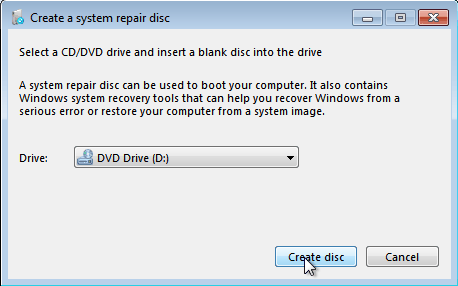
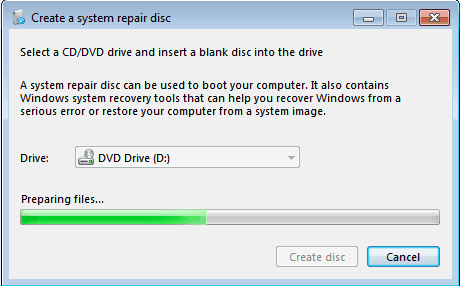
Tips: To resolve the issue, you may need to change the boot order in the BIOS settings. This involves entering the BIOS (usually by pressing a key like F2, F12, or Del during boot-up), navigating to the Boot Order or Priority section, and rearranging the devices so that the CD/DVD drive or USB drive is listed above the hard drive.
Creating a Windows 7 repair disk using Backup and Restore is a relatively straightforward process, but it also comes with some limitations.
- You can't create a system repair disc on a USB drive, but you can create a bootable USB drive with a Windows installation media, which can be used to repair or reinstall Windows.
- You can use a tool like Rufus to create a system repair disc and then save it as an ISO file, which can be easily moved to other places.
- You cannot create a system repair disc without a CD/DVD drive, as the built-in tool does not support creating one directly on a USB flash drive.
Best Alternative to Windows 7 Backup and Restore
If you're unable to create a Windows 7/10 system repair disc using the built-in tool, it's a good idea to look for a reliable alternative. Qiling Disk Master Professional is a powerful software that can help you achieve this.
- This software enables the creation of a bootable rescue drive using a CD, DVD, or USB flash drive, and also allows the export of an ISO image file to other locations.
- It provides various backup options such as system backup, disk backup, partition backup, and file backup.
- It supports all editions of Windows XP/Vista/7/8/10/11.
Download the free trial and explore it by yourself.
Create Bootable Rescue Media in Windows 7 or 10 with Qiling Disk Master
1. To create a bootable USB drive or keep an ISO file, plug in the USB flash drive if desired and start Qiling Disk Master.
2. At the main interface, click "Tools" and then "Create Bootable Media".

3. Select the desired storage media for the installation, which can be a CD/DVD, a USB bootable drive, or an ISO file exported to a desktop or other location. Click "Next" to proceed.
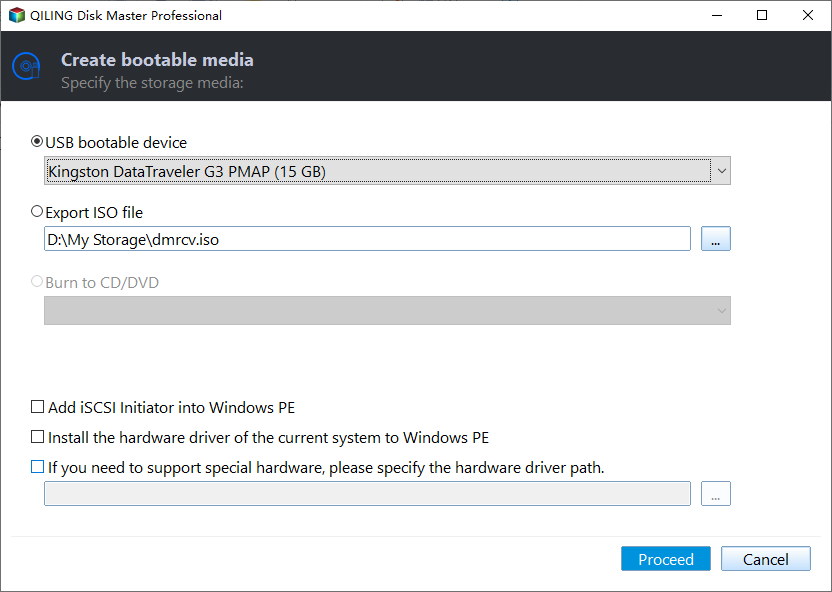
4. Wait for the process to be finished.
Tips:
◑ The selected USB drive will be formatted beforehand. Please make sure to back up any important files beforehand.
◑ You can create a bootable drive for Windows 8/8.1 using this software, and for users running Windows XP or earlier, you'll need to install AIK before starting.
Create a system image in advance
To restore your computer to an earlier date, you need to have a system image created beforehand, which you can do by clicking Backup and then System Backup, following the wizard to create one.

Summary
In Windows 7 and 10, you can create a system repair disc using various tools, each suited for different situations. Besides creating bootable media, you can also use Qiling Disk Master to clone a bootable USB drive to another location. This is a useful option to consider.
Related Articles
- Best Free Bootable Backup Software Disc
Learn how to create backup with the best free bootable backup software. You can also create a recovery USB to start a faulty computer and perform system recovery in WinPE. - Western Digital Disk Cloning Free Software
In this article, you will find the best Western Digital (WD) disk cloning software to help you clone HDD to SSD easily and safely. The cloned drive will boot without any issues after cloning. - Free USB Clone Tool for Cloning Bootable USB Drive
This guide explains Free USB Clone Tool for Cloning Bootable USB Drive with clear steps, key checks, and practical tips. - Migrate OS to SSD with Secure Boot in Windows 10/8/7 (2 Ways)
You will get the best software to migrate OS to SSD or HDD without reinstalling, even for smaller ones. The steps will be introduced in the following. - Best 2 Ways to Fix "Virtual Disk Service Error Clean Is Not Allowed"
This guide explains Best 2 Ways to Fix "Virtual Disk Service Error Clean Is Not Allowed" with clear steps, key checks, and practical tips. - Windows Cannot Format The System Partition On This Disk [Solved]
When receive 'Windows cannot format the system partition on this disk' error, you can refer this post to solve it.
Products
Articles & Tutorials
- Data Recovery
- Data Backup
- File Recovery
- File Backup
- File synchronize
- System Backup and Restore
- Disk and Partition Clone
- Technical articles
- Disk Master Help
- Windows Deleted File and Disk Recovery Tutorials
- Windows File and Data Recovery Tutorials
- More Windows Tutorials for Install, Security, Files, and PC Tips
- Windows Boot, Repair, and Recovery Environment Tutorials
- Windows Backup Tutorials
- Windows Restore Tutorials
- Windows Clone and Migration Tutorials
- Windows Server Backup, Recovery, and Management Tutorials
- Windows Disk, Partition, and Storage Management Tutorials