Backup Windows Server 2022 to USB Drive in 3 Steps
Information About Windows Server 2022
Windows Server 2022 is the most secure version of Windows Server to date, featuring new innovations in security, Azure hybrid integration and management, and application platform. It also includes the Azure Edition of Windows Server 2022 Datacenter, which enables you to leverage cloud benefits to keep your VMs up to date while minimizing downtime.
Many users upgrade their Windows Server systems, such as from Windows Server 2019 to 2022, or from older versions like Windows Server 2016 and Windows Server 2012.
There is a possibility of encountering unexpected errors, such as system crashes, virus attacks, or physical damage, similar to previous systems.
Many users choose to backup Windows Server 2022 to a USB drive to prevent data loss, seeking an easy and efficient method to ensure quick recovery in case of disasters.
Why Backup Windows Server 2022 to USB Drive?
Backing up Windows Server 2022 to a USB drive is essential for several reasons. Firstly, it allows you to create a copy of your system, which can be used to restore your server in case of a disaster or system failure.
- Protect data security: Backing up Windows Server 2022 to a USB drive can protect data from virus attacks, hard disk crashes, and disk corruption by creating a secure copy of important files and system information.
- Easy to carry: The USB disk can be taken anywhere and if your computer has issues, you can restore the backup from the USB disk and use your system as usual.
Best Software for Backing up Windows Server 2022 to USB Drive
Backing up Windows Server 2022 is a good way to protect your data, and reliable software is necessary to help you with this task. Qiling Disk Master Server is a worthy option, allowing you to create backups with ease.
- To create a backup system, you can use a USB drive to save a copy of your important data, such as files, folders, or even an entire disk or partition. This allows you to have a secure and portable backup that you can store safely, and easily restore in case of data loss or system failure.
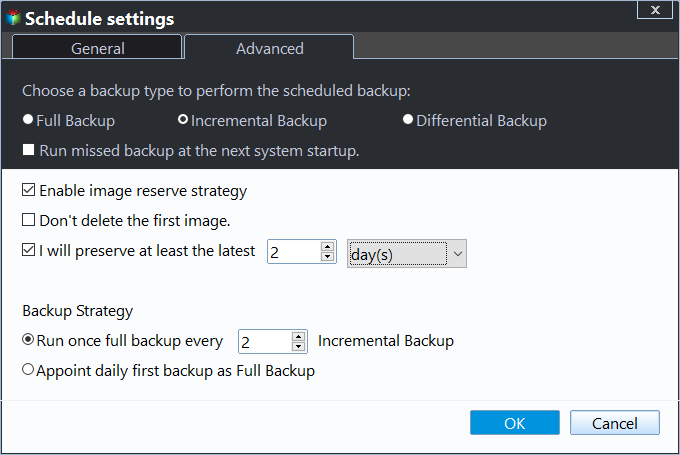
- To schedule backups on Windows Server 2022, you can set up automated backups on a daily, weekly, or monthly basis, or use event triggers and USB plug-ins to initiate backups. This allows for streamlined data protection and ensures that critical data is safely preserved in case of system failures or other issues.
- To create a backup of your data, you can choose from three types: full backup, incremental backup, and differential backup. A full backup will copy all your data, while incremental and differential backups will only copy the changes made since the last backup, saving disk space.
- Select a backup scheme (By quantity, By time, By daily/weekly/monthly, or By space) to automatically delete old backup images.
How to Backup Windows Server 2022 to USB Drive
To prepare for backing up Windows Server 2022 on a USB drive, you'll need to ensure the USB drive is properly formatted and compatible with the system. This involves checking the USB drive's capacity and formatting it to NTFS, if necessary, to accommodate the backup data.
- To connect your USB drive to your computer, simply insert the drive into a USB port on your computer. Ensure that the drive is securely seated, and the computer recognizes it.
- Download The best backup software is Qiling Disk Master Server, which allows for unlimited PCs and servers. For this, try the Qiling Disk Master TechPlus edition. To install it, simply follow the installation instructions.
To create a Windows Server backup, you can follow the graphic tutorial below, which will guide you through the process of setting up a backup system for your server. This will ensure that your server's data and settings are safely stored and can be easily restored in case of a disaster or system failure.
Step 1. Open Qiling Disk Master Server and click Backup > System Backup.

Step 2. The system partitions and boot-related partitions are selected by default. Simply choose the USB drive as the destination path.

Step 3. Confirm your operations and click Proceed to backup Windows Server 2022 to the USB drive.

There are some helpful features you can set up:
- Options: You can write comments and set email notifications for backups, split or compress backup images, and encrypt backups for added security.
- Schedule Backup: Windows Server 2022 can be automatically backed up with various triggers, including daily, weekly, and monthly schedules, as well as event triggers. Additionally, a plug-and-pull backup feature allows for automatic backups to a USB drive every time it is connected, eliminating the need for a specific time or event-based scheduling.

- Backup Scheme: To save target disk space, you can use a script to automatically delete old backup images. Options include running the script daily, weekly, or monthly, with the latter suggested for keeping old backups as long as possible. This approach helps maintain a balance between preserving backup data and conserving disk space.
Summary
Backing up Windows Server 2022 to a USB drive using reliable server backup software like Qiling Disk Master Server is a simple and effective way to protect your data. The process can be completed in just 3 steps, and you can also customize your backup settings in Options, Schedule Backup, and Backup Scheme to run it more flexibly.
Using a system backup on a USB drive can help you restore your computer to a previous good state if it experiences problems. Additionally, this software can also be used to clone your hard drive to a new one, such as replacing it with a solid-state drive (SSD), making it a useful tool for computer maintenance. You can learn how to clone Windows Server 2022 to a new hard drive and boot directly from the cloned disk by clicking the provided link.
Related Articles
- How to Delete or Create Windows Server 2022 Recovery Partition
Learn how to Delete or Create Windows Server 2022 Recovery Partition with clear steps, key checks, and practical tips. - Easy Steps to Create New Logical Partition in Windows 11/10/8/7
To create a logical partition in Windows 10, there are two methods. One way is to combine Windows Disk Management and Diskpart, which allows you to create a new logical partition. Alternatively, you can use a third-party tool to achieve the same result. - How to Extend C Drive in Windows 10 without Formatting? [3 Ways]
To extend the C drive in Windows 10 without formatting, there are three methods you can use. The first method involves using the built-in Disk Management tool to shrink a different drive and then extend the C drive. - How to Install Windows 10 on New SSD without CD or USB?
To install Windows 10 on a new SSD without a CD or USB, follow these steps. First, ensure your computer can boot from the SSD, then create a bootable Windows 10 installation media using the Media Creation Tool on another computer. - How to Defragment External Hard Disk in Windows 10
Learn how to defragment external hard disk with Windows tool and with an external hard drive defrag software. - How to Defragment Partition and Hard Drive?
Before using Partition Assistant we highly recommend you do a complete defragment on the partition which you want to resize.
Products
Articles & Tutorials
- Data Recovery
- Data Backup
- File Recovery
- File Backup
- File synchronize
- System Backup and Restore
- Disk and Partition Clone
- Technical articles
- Disk Master Help
- Windows Deleted File and Disk Recovery Tutorials
- Windows File and Data Recovery Tutorials
- More Windows Tutorials for Install, Security, Files, and PC Tips
- Windows Boot, Repair, and Recovery Environment Tutorials
- Windows Backup Tutorials
- Windows Restore Tutorials
- Windows Clone and Migration Tutorials
- Windows Server Backup, Recovery, and Management Tutorials
- Windows Disk, Partition, and Storage Management Tutorials