How to Install Windows 10 on New SSD without CD or USB?
- User case
- When need to install Windows 10 to SSD without CD?
- Specific steps to install Windows 10 on new SSD without CD
- Summary
User case
Hey, I am running Windows 10 on my computer and just bought an SSD. I want to know if it's possible to install the Windows 10 on the new SSD drive and change the boot device? And if so, how should I do it? Do I need to remove the HDD before booting into the OS in the SSD. Can someone provide step by step guide?
When need to install Windows 10 to SSD without CD?
Installing Windows 10 on a new SSD can give your computer a fresh start, especially when it's running slowly on a traditional hard disk drive. However, doing a fresh install can be time-consuming and requires the installation media, which not everyone has. As a result, many users are looking for a way to install Windows 10 to a new SSD without a CD, DVD, or USB.
How to install Windows 10 on new SSD without CD/USB step by step?
To install Windows on a new solid state drive without a CD or USB, you can migrate Windows from the current hard drive to the new SSD using a software like Qiling Disk Master Professional. This tool has a "Migrate OS to SSD Wizard" feature that allows you to transfer the entire Windows operating system, including Windows 11, 10, 8, 7, XP, or Vista, from the current disk to the new SSD and boot from it successfully. You can download the demo version to simulate the operation.
Part 1. Preparation before moving OS to the new SSD
1. Connect the SSD to your Windows 10 computer. Typically, desktops have an extra disk bay for an SSD drive. If using a laptop, the SSD may need to be placed in an enclosure or connected via a USB-to-SATA adapter, then connected to the laptop via USB cable.
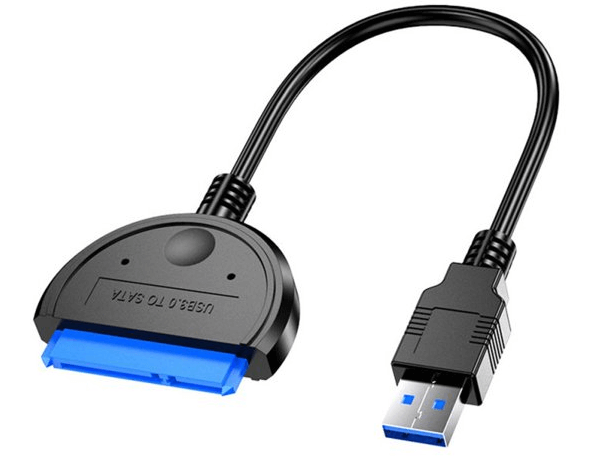
2. Initialize the SSD if it is a completely new drive. The choice between Master Boot Record (MBR) and GUID Partition Table (GPT) for an SSD largely depends on the boot mode supported by your motherboard. It's recommended to initialize the SSD with the same partition style as your current system disk, so you won't need to switch between Legacy BIOS and UEFI boot modes when migrating your OS.
3. Ensure the SSD has unallocated space To upgrade to a larger SSD, first, ensure the new SSD is larger than the current OS partition. If not, backup personal data from the OS drive, then shrink the system partition to make it smaller and easier to fit on the new SSD.
Part 2. Start installing Windows to a new SSD via "Migrate OS to SSD Wizard"
1.Install and open Qiling Disk Master Professional. To clone and migrate the operating system, click on "Clone" and then select "Migrate OS" from the dropdown menu. After reading the introduction, click on "Next" to proceed.

2. Select the unallocated space on the SSD drive and click on "Next". If there are partitions on the SSD, you can tick "I want to delete all partitions on the disk to migrate system...".

3. Here, you can resize the new system partition on the destination SSD drive or change its drive letter as you like. Click "Next" to continue.

4. Now, you can preview the result. After verifying everything is OK, you can click on "Proceed" to actually execute it.
5. Take a look at the boot Note and click on "Finish".

The process allows you to move the entire Windows 10 partition to a new SSD without the need for an installation CD, DVD, or USB flash drive. Once completed, the whole Windows 10 partition will be on the new SSD, and you can even align the SSD partition to enhance its performance.
Part 3. Boot from the new SSD drive
To boot from your new SSD, first physically install it on your desktop or laptop by removing the back panel, lifting the old drive, and pulling it out (you can also keep both drives on the computer if you have a spare bay). Then, install the SSD in the place of the old hard drive and put the back panel back on. This will allow you to start using your new SSD and Windows 10 installation.
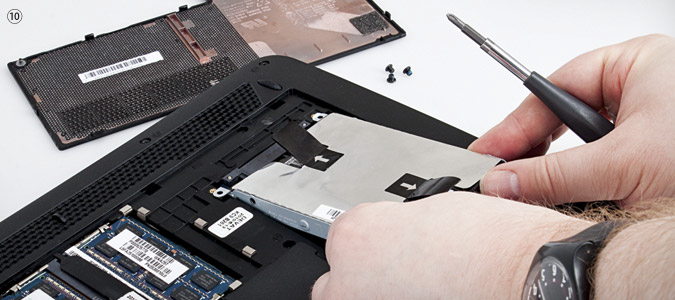
To access the BIOS menu and change the boot order, turn on your computer and press a specific key (such as F2, F10, or Esc) during the initial process. You can also Google your motherboard's model to find out which key to press. Once in the BIOS menu, navigate to the boot order or boot sequence screen and move the SSD to the top of the list. After making the change, restart your computer and it should now boot from the destination SSD.
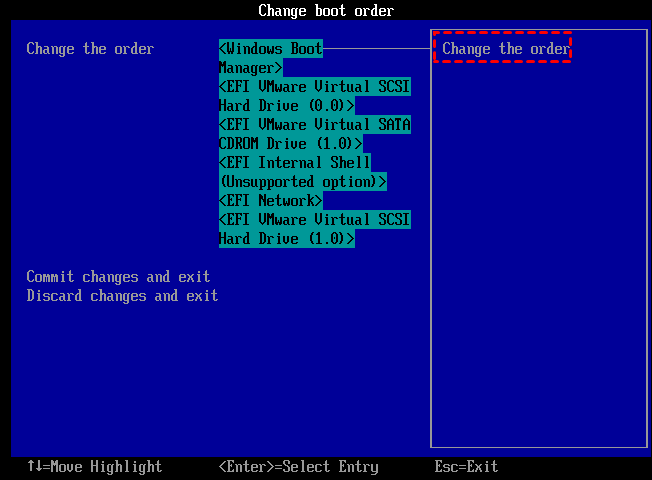
When moving from an MBR disk to a GPT SSD or vice versa, ensure that the BIOS mode is compatible with the disk type. Change Legacy BIOS to UEFI or switch UEFI to BIOS as needed.

Summary
To install Windows 10 on a new SSD without a CD or USB drive, follow these steps. The same process can also be applied to install Windows 8.1, Windows 8, and Windows 7 onto an SSD. Alternatively, if you want to move Windows 10 and everything else on the old hard drive to the SSD, you can use the "Disk Clone Wizard" to clone the entire disk to another one. For Windows Server users, the Qiling Disk Master Server is a suitable option.
Related Articles
- 2 Methods to Install Windows 10 on M.2 SSD Drive Step by Step
If you want to install Windows 10 on M.2 SSD drive, you can refer to this article, which not only shows how to clean install Windows on M.2 SSD, but also introduces how to directly transfer Windows 10 on M.2 SSD drive. - How to Install Windows 10, 8, 7 to USB as Portable OS Device?
Installing Windows to USB drive allows you to directly run OS on other computers with this portable bootable USB flash drive. - Best Strategy of Using SSD for OS and HDD for Storage in Windows 10, 8, 7
This guide explains Best Strategy of Using SSD for OS and HDD for Storage in Windows 10, 8, 7 with clear steps, key checks, and practical tips. - Partition WD External Portable Hard Drive in Windows 10/8/7
The simple steps to partition WD (Western Digital) external potable hard drive, so you can make your Windows 10/8/7 files better organized by separating data into multiple sections. - How to Add Drive to RAID Without Losing Data?
This is a tutorial on how to use Qiling Disk Master Server to add drives to RAID. It can help improve computer performance and data security. - How to Convert Dynamic Disk to Basic without Data Loss in Windows
Learn how to Convert Dynamic Disk to Basic without Data Loss in Windows with clear steps, key checks, and practical tips.
Products
Articles & Tutorials
- Data Recovery
- Data Backup
- File Recovery
- File Backup
- File synchronize
- System Backup and Restore
- Disk and Partition Clone
- Technical articles
- Disk Master Help
- Windows Deleted File and Disk Recovery Tutorials
- Windows File and Data Recovery Tutorials
- More Windows Tutorials for Install, Security, Files, and PC Tips
- Windows Boot, Repair, and Recovery Environment Tutorials
- Windows Backup Tutorials
- Windows Restore Tutorials
- Windows Clone and Migration Tutorials
- Windows Server Backup, Recovery, and Management Tutorials
- Windows Disk, Partition, and Storage Management Tutorials