2 Methods to Install Windows 10 on M.2 SSD Drive Step by Step
- "Can I install Windows 10 on M.2 SSD drive"
- Why install Windows 10 or Windows 11 on M.2 SSD drive?
- Two methods to install Windows 10 on M.2 SSD drive
- Method 1. Installing Windows 10 on M.2 drive using Windows installation media
- Method 2. Install Windows 11/10/8/7 on M.2 SSD via OS migration software
- Summary
"Can I install Windows 10 on M.2 SSD drive"
To install Windows 10 on your new Samsung EVO 960 M.2 SSD, you'll need to clone the existing OS from the old hard disk to the new SSD. You can use a cloning software like Qiling Disk Master to make an exact copy of the OS, including all installed programs and settings. Alternatively, you can perform a clean install of Windows 10 on the new SSD and then reinstall all programs and settings. Make sure to back up any important files and data before proceeding with the installation process. Additionally, ensure that your system's UEFI firmware is set to AHCI mode, which is required for M.
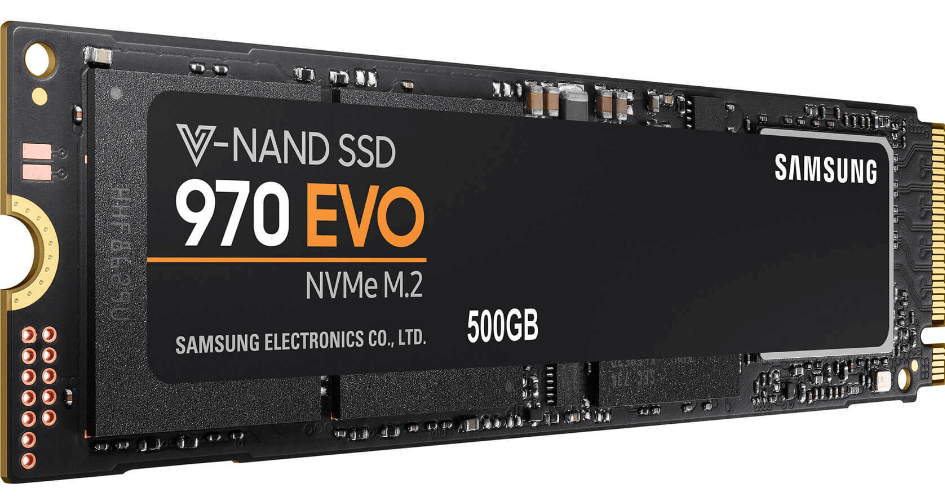
Why install Windows 10 or Windows 11 on M.2 SSD drive?
The M.2 SSD is a small, high-performance Solid State Drive that is designed to be internally mounted in a computer, conforming to a specific industry specification. Its compact size, similar to a USB stick, provides advantages over mSATA SSDs, including improved performance and reduced space requirements.
- M.2 SSDs are smaller in size compared to traditional SSDs and have become a popular storage option in notebooks and laptops due to their compact design and high storage capacity.
- M.2 SSDs outperform SATA SSDs in terms of speed, with M.2 capable of reaching speeds of up to 4GB per second, whereas SATA SSDs have a maximum speed of 600MB per second.
- Some M.2 SSDs use the NVME protocol, which provides lower latency than mSATA SSDs.
Installing Windows on an M.2 SSD drive is the fastest way to improve Windows loading and running performance.
Two methods to install Windows 10 on M.2 SSD drive
Generally speaking, there are two ways to install Windows operating system to M.2 SSD drive. One is cleaning install Windows 10 onto SSD and another one is directly transferring current Windows 10 to SSD drive. Next is a detailed explanation about those two different methods.
- Method 1. Clean install Windows onto M.2 SSD using Windows installation media
- Method 2. Install Windows on M.2 SSD via OS migration software
Method 1. Installing Windows 10 on M.2 drive using Windows installation media
Before installing Windows 10 on an NVME m.2 SSD with Windows installation media, make the following preparations:
- Notes:✎...
- To create Windows installation media, you'll need an empty USB drive with at least 8GB of storage space.
- Access to Download Windows Media Creation Tool.
- Back up important files on the current system before installation, as everything will be deleted afterwards.
- To upgrade your computer's storage, you should first disconnect the old system disk and then attach the M.2 SSD (make sure only the SSD is connected to the PC).
Step 1. Download the Media Creation Tool on another PC (connected to the internet) and run it.
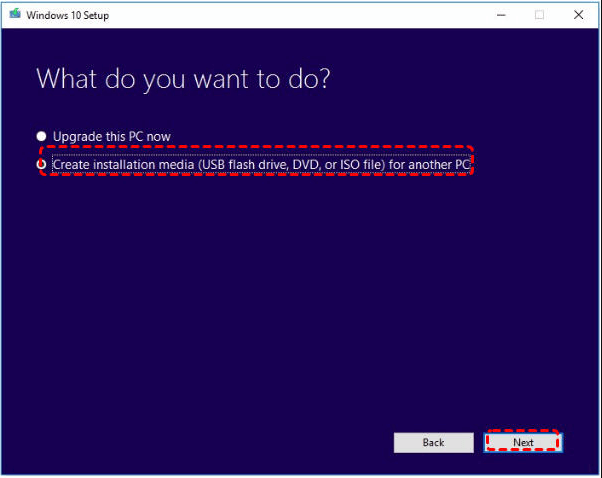
Step 2. In the Windows 10 Setup screen, select "Create installation media (USB flash drive, DVD, or ISO file) for another PC" and click "Next".
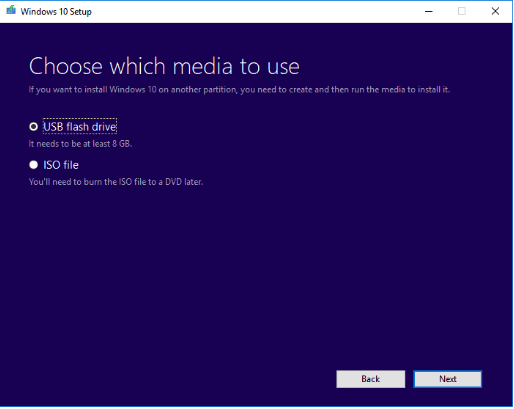
Step 3. The installation process will ask you to choose the media to use, select "USB flash drive", click "Next" and follow the on-screen instructions to create a bootable USB drive for installation.
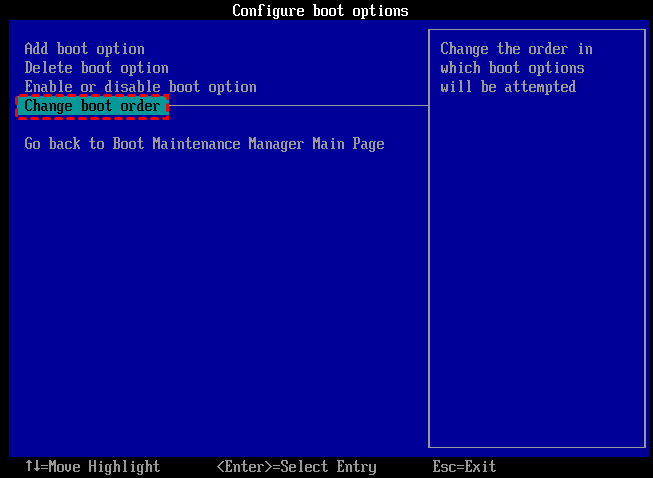
Step 4. Insert the bootable USB, change the BIOS boot order to prioritize the USB, and reboot from the installation media to install the OS on the M.2 SSD.
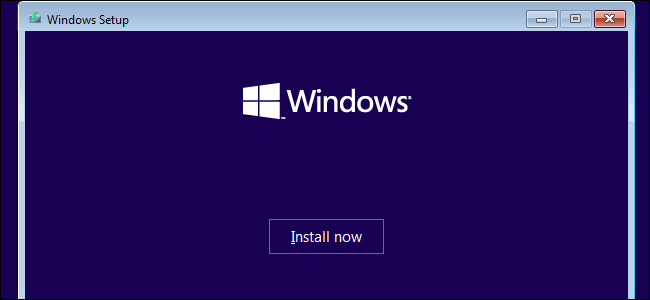
Step 5. Once the PC boots from the USB drive, Windows 10 will automatically enter setup mode, where you select the language and other preferences, and then click on "Next" > "Install now".
Step 6. Input the license key, or skip it by clicking "I don't have a product key" and activate it after Windows install completes.
Step 7. Click on "Custom: install Windows only (advanced)" and select your M.2 SSD drive to start the Windows 10 installation process.
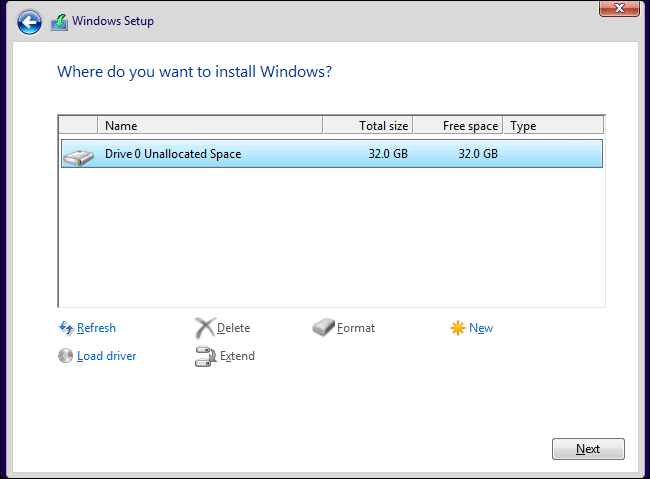
Note: If you encounter the error message "Windows cannot be installed to this disk. The selected disk is of the GPT partition style", refer to the provided page for guidance on resolving the issue.
Step 8. Press F2/F12/DEL to enter BIOS, change the boot order to boot from the M.2 SSD, and restart your PC.
After reinstalling Windows, you can put the old system disk back, restart the computer, and install all necessary drivers on the new OS. Additionally, you can delete the system partition and use it for personal data storage.
Method 2. Install Windows 11/10/8/7 on M.2 SSD via OS migration software
To install Windows 10 on an M.2 SSD, you can either back up previous data, download applications again, and then migrate to the new SSD, which is a time-consuming process. Alternatively, you can use Qiling Disk Master Professional to directly migrate the current OS to the M.2 SSD, transferring the Windows OS partition without affecting the original OS, programs, and data on the system drive, making it a much easier and faster option.
- Precautions:✎...
- The SSD total capacity should exceed the system or boot drive space, or you can first shrink system partition to make it smaller.
- It's recommended to set the M.2 SSD partition style to match the source system disk's partition table, either by initializing or converting the SSD to GPT/MBR. If the partition styles don't match, you'll need to change the boot mode from BIOS to UEFI or vice versa after migration to ensure a successful boot.
- The M.2 SSD should be displayed as unallocated in Disk Management, if not, necessary files should be backed up and all partitions should be deleted first.
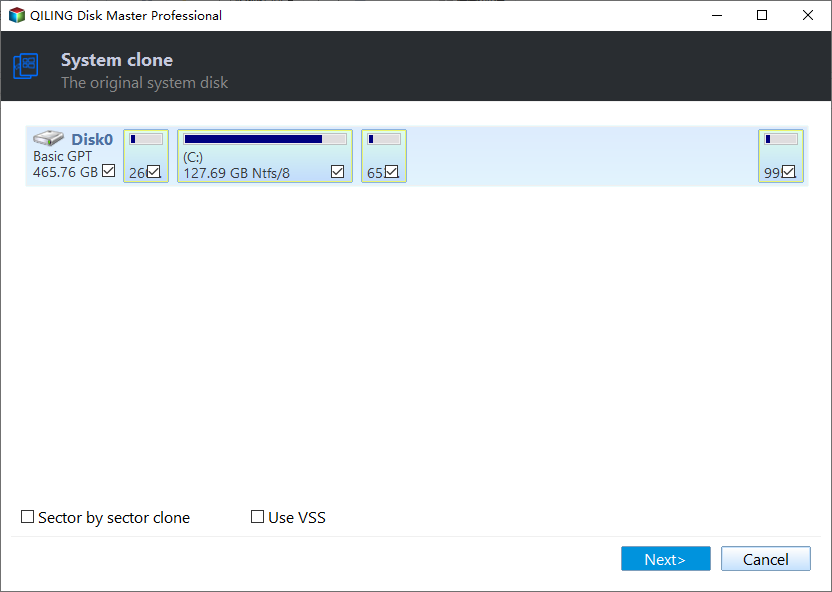
Step 1. To clone a system, launch Qiling Disk Master Professional and select "System clone" from the "Tools and utilities" tab page.
Step 2. Select an unallocated space on the destination M.2 SSD and click "Next".
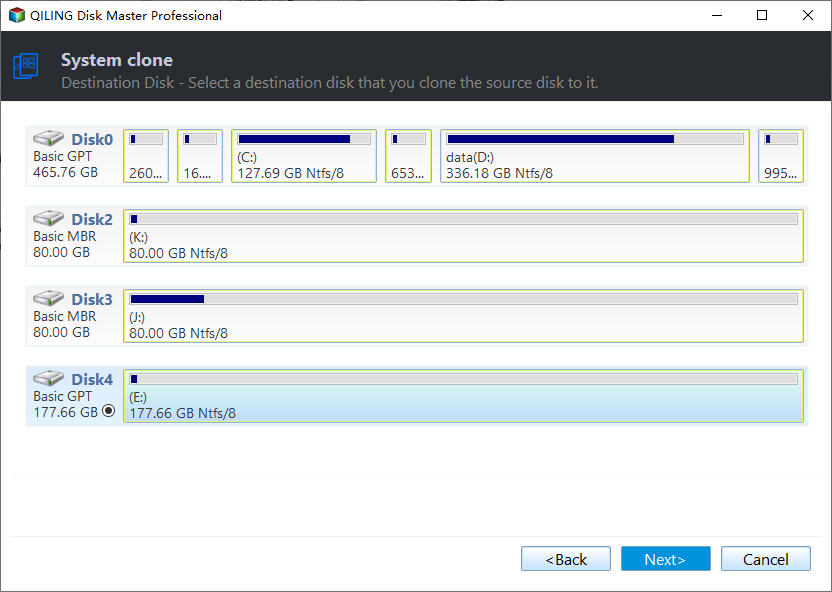
Note: If there are partitions on the M.2 SSD, you can select the option to delete all partitions on this disk to migrate the system to the disk.
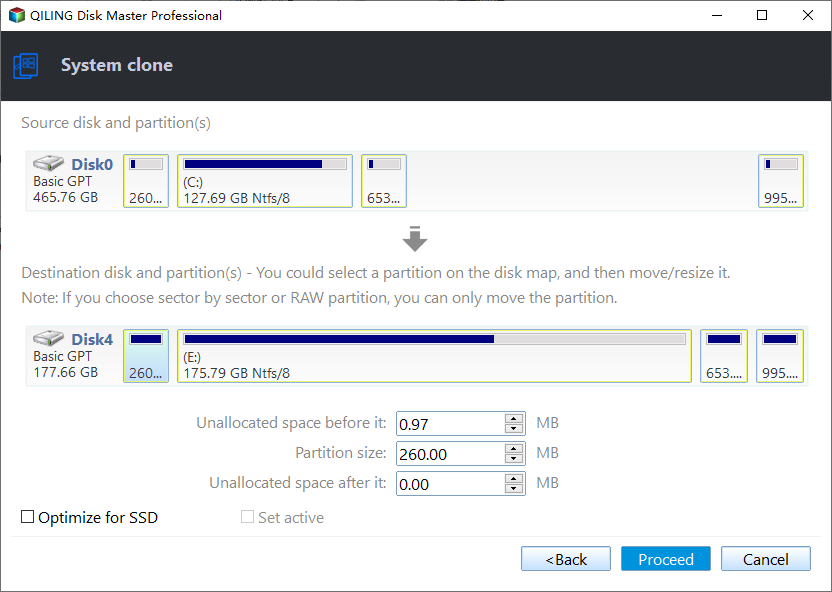
Step 3. Resize the partition being created on the M.2 SSD drive and click "Proceed" to finish the installation process of Windows 10 on NVME M.2 SSD.
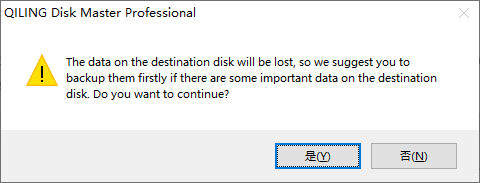
Step 4. Read the note about how to boot OS from the destination SSD and click "Yes".
To change the boot order in BIOS, locate the boot order settings, select the M.2 SSD drive as the primary boot device, and save the changes. If the cloned SSD won't boot, check the BIOS settings and ensure that the M.2 SSD drive is set as the primary boot device.
Summary
Installing Windows 10 on an M.2 SSD can be done using two methods, both of which are efficient for installing Windows 11, Windows 10, Windows 8.1, Windows 8, or Windows 7 on an M.2 SSD to reduce OS loading time and improve PC performance. However, the second method is recommended as it is easier and more time-saving.
Qiling Disk Master Professional supports cloning an entire system hard disk to SSD, including system partition and other data partitions, using the Disk Clone Wizard. It also aligns SSD partitions to enhance data writing and reading performance.
Related Articles
- How to Create a Bootable USB Stick on Windows 10/8/7?
If you need to create a bootable USB stick on Windows, you can read through this page. It explains how to create a bootable Windows USB via CMD or a piece of professional software. - How to Install Windows Server 2008 on USB Flash Drive?
No matter you want to install Windows Server 2008 on USB for a portable Server, install OS or repair the boot issues, you can find the stepwise guide in this article. - How to Make Cloned Drive Bootable in Windows 11/10 [5 Tips]
If you are confused by how to make cloned drive bootable in Windows 10, 8, 7, this article may help you to solve this problem with detailed guidance. - Clone Hard Drive in Windows Server 2003/2008/2012 without Reinstalling
We will introduce you to one server cloning software that is able to clone hard drive in Windows Server 2003, 2008, 2012, 2016, 2019, 2022, etc. Scroll down to get it now if you are looking for such software! - Clone HDD to SSD vs. Clone SSD to HDD in Windows 7
Whether you want to clone SSD to HDD in Windows 7 or clone hard drive to SSD, you could use the best free disk cloning software to make it. - How to Clone SSD to HDD in Windows 10,8,7 with Secure Boot?
Learn how to Clone SSD to HDD in Windows 10,8,7 with Secure Boot with clear steps, key checks, and practical tips.
Products
Articles & Tutorials
- Data Recovery
- Data Backup
- File Recovery
- File Backup
- File synchronize
- System Backup and Restore
- Disk and Partition Clone
- Technical articles
- Disk Master Help
- Windows Deleted File and Disk Recovery Tutorials
- Windows File and Data Recovery Tutorials
- More Windows Tutorials for Install, Security, Files, and PC Tips
- Windows Boot, Repair, and Recovery Environment Tutorials
- Windows Backup Tutorials
- Windows Restore Tutorials
- Windows Clone and Migration Tutorials
- Windows Server Backup, Recovery, and Management Tutorials
- Windows Disk, Partition, and Storage Management Tutorials