How to Make Cloned Drive Bootable in Windows 11/10 [5 Tips]
- Problem: Cloned drive won’t boot in Windows 10
- Why cloned SSD won’t boot
- How to make cloned drive bootable in Windows 10/11
- Way 1. Change boot order to boot from the cloned SSD
- Way 3. Remove/wipe the previous drive
- Way 4. Fix corrupted BCD
- Way 5. Restart the cloning process in an error-free way
- Conclusion
Problem: Cloned drive won’t boot in Windows 10
Cloning a hard drive to an SSD or cloning a smaller drive to a larger one can be a convenient way to upgrade performance or capacity, or even create a backup by cloning an internal drive to an external one. However, a common issue that arises is when the cloned drive won't boot, affecting Windows 11/10/8/7 users.
You successfully cloned your HDD to a new SSD using a USB to SATA cable, but now the BIOS is unable to boot from the SSD, claiming there's no hard drive. This is likely due to the BIOS not recognizing the SSD as a boot device. You may need to configure the BIOS settings to prioritize the SSD as the primary boot device. Can I help you with that?
The possible causes of the cloned SSD not being bootable include incorrect cloning software, incomplete cloning, or corrupted boot sectors. To make the cloned SSD bootable, you can try re-cloning the SSD using a different software, such as Qiling Disk Master, which can create a bootable clone.

Why cloned SSD won’t boot
Here are some common reasons why a cloned drive may not boot:
- The cloned drive is not set to be the first boot option, which means the computer will still be booting from the original drive instead of the cloned one. This needs to be changed in the BIOS settings to ensure the cloned drive is used as the primary boot device.
- The boot mode isn't compatible with the cloned GPT/MBR disk.
- The unique SID (system identification number) has been cloned to the target disk as well. This means that the target disk now has the same SID as the original disk, making it virtually indistinguishable from the original disk.
- The boot configuration data (BCD) got corrupted during migration.
- Cloning a drive can be affected by various errors, including the presence of bad sectors on the source drive, which can be migrated to the target drive during the cloning process.
How to make cloned drive bootable in Windows 10/11
To resolve the cloned drive won't boot issue, ensure the cloning process was successful and error-free. If the cloning process was successful, try booting the cloned drive from a different computer or using a different USB port. If the issue persists, check for BIOS updates and update the firmware if necessary.
When using cloning tools, it's possible they might miss copying the boot sector or essential partition information, so ensure that these critical components were properly cloned.
 Use reliable clone tool to ensure disk bootable
To ensure that your target disk is bootable, perform a complete and successful system and data clone. This involves creating an exact replica of your original disk, including all operating system files, applications, and personal data, onto the target disk. This process ensures that the target disk is a precise duplicate of the original, with all necessary files and settings in place, making it ready for booting and use.
To ensure a computer can boot from a cloned drive, several methods can be employed. One approach is to clone the original drive to an external drive using a cloning software, then physically swap the original drive with the cloned drive in the computer.
Way 1. Change boot order to boot from the cloned SSD
If your computer has multiple hard drives and you encounter booting issues, it's possible that the boot device is not set correctly. This could be a simple fix by adjusting the boot order in your BIOS or UEFI settings to point to the correct hard drive.
To access the BIOS or UEFI settings, you'll typically need to press a specific key (like F2, F8, F12, or Del) when powering on your computer, and then change the boot order to prioritize the cloned SSD. This allows your computer to recognize and boot from the cloned drive instead of the original one.

Way 2. Switch BIOS mode to UEFI (GPT) or Legacy (MBR)
To clone a MBR HDD to a GPT SSD or vice versa, it's essential to switch the boot mode accordingly, as MBR disks work with Legacy BIOS and GPT disks work with UEFI. If the boot mode is incorrect, the SSD may not boot after cloning.
To change the boot mode, you need to enter BIOS during startup, then select the boot mode (usually under Boot tab) as Legacy or UEFI.
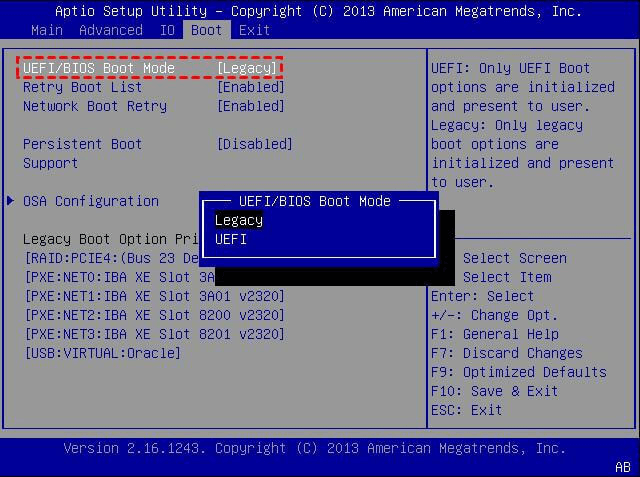
If your computer only supports Legacy BIOS mode, you can convert the GPT partition table to MBR to make it compatible.
Way 3. Remove/wipe the previous drive
Many cloning software have their own SID generation utilities, but some exceptions exist. If the software copies the drive's unique SID, it may cause confusion for the system, as it won't know where to boot from.
In this scenario, you can make only one of the drives usable by removing or wiping the original drive.
Way 4. Fix corrupted BCD
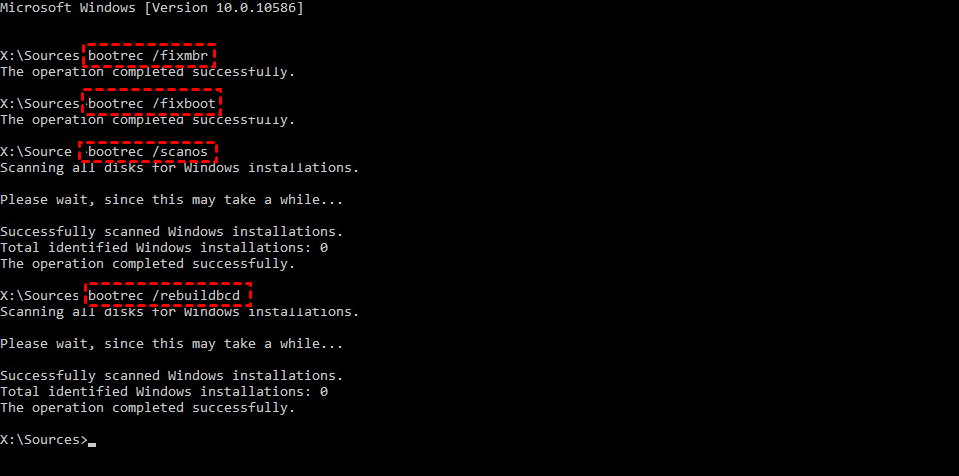
If the cloned drive fails to boot due to a corrupted BCD, you can access the Windows recovery environment and use Startup Repair or run bootrec.exe commands in Command Prompt to rebuild the BCD.
Bootrec /fixmbr
Bootrec /fixboot
Bootrec /scanos
Bootrec /rebuildbcd
Way 5. Restart the cloning process in an error-free way
If you encounter errors during the cloning process, you can either resolve the issue or restart the cloning process using specialized tools.
Before, during, and after the cloning process, there are several considerations that can help prevent a cloned system from becoming unbootable. These include properly configuring the BIOS settings, ensuring the correct boot order, and verifying that the cloned system is compatible with the original hardware. Additionally, it's essential to update the cloned system's firmware and drivers to match the original system's specifications.
Cloning Windows 10 boot drive with reliable software
It's recommended to use Qiling Disk Master Professional to clone a hard drive to a solid state drive (SSD) with ease, and the software can even make the SSD bootable in Windows 10.
Qiling Disk Master is a reliable software that can clone Windows boot drives safely and efficiently, running in intelligent mode by default to skip bad and unused sectors during cloning.
By following these steps, we can enjoy a faster cloning speed and avoid potential booting problems, making it easier to clone larger drives to smaller ones or vice versa.
Steps of Windows 10 cloning boot drive
▪ The target disk will be overwritten after cloning, so it's recommended to perform a backup of the target disk before cloning to ensure that no important data is lost.data backup in advance.
▪ The Professional edition supports cloning data and system disks of all brands and partition styles, including MBR to MBR, MBR to GPT, GPT to GPT, and GPT to MBR, making it compatible with various boot modes.
Step 1. To start, connect the SSD to your computer and ensure it can be detected. Next, download and install Qiling Disk Master, then launch the application.
The features of the clone in the free trial can only be demonstrated, not used to actually clone anything.upgrade for full functionality.
Step 2. To clone a disk, click on the "Disk Clone" option under the "Clone" tab. If you only want to clone the operating system, select the "System Clone" option instead.

Step 3. Select the HDD as the source disk and click Next.

Step 4. Select SSD as the destination disk.

Step 5. To speed up the reading and writing speed of the SSD, select the SSD Alignment option and click Proceed.

🚀Other useful options:
- Sector By Sector Clone: This feature allows for the cloning of all sectors on the source disk, including unused ones, making it ideal for cloning system reserved partitions. However, it's not recommended for cloning to a smaller destination drive due to potential size limitations.
- SSD Alignment: If your target drive is an SSD, you can enable this option to boost its write & read speed and extend its lifespan.
- System Clone: To clone only the operating system to the target drive, you can use the option to clone Windows 10 to an NVMe SSD, for example. This allows you to transfer the OS and all its associated files to the new drive, creating a duplicate of your current system setup.
- Edit Partitions: When cloning a small disk to a larger one, you can select "Add unused space to all partitions" or "Manually adjust partition size" to utilize the full capacity of the larger disk.
Conclusion
If you encounter issues with cloned drives not booting in Windows 10, try the methods mentioned to resolve them. Alternatively, you can use Qiling Disk Master, a reliable disk cloning software, to clone your hard drive easily and error-free. This software also offers excellent compatibility, making it suitable for cloning to an M.2 SSD and migrating Windows 10 to it.
Qiling Disk Master offers features beyond cloning, including backup and restore capabilities. It also allows you to keep the cloned version installed and set up continuous data protection for your computer.
Related Articles
- Cloned drive shows BOOTMGR is missing
Check boot partitions and independent startup after cloning Windows 10. - Create Windows 10 Bootable Clone (with Video)
You will learn the best way to create a bootable clone of Windows 10 or 11 and boot from it successfully. You don't need to reinstall Windows. - Best Bootable Hard Disk Clone Software for Windows 10/8/7
This article is written for users like you who want to clone boot drive with bootable disk clone software in Windows when system fails to boot. - How to Clone SSD to HDD in Windows 10 (Secure Boot)?
Learn how to Clone SSD to HDD in Windows 10 (Secure Boot) with clear steps, key checks, and practical tips. - Perform a Bootable Clone on Windows 11- No Data Loss
This page explains how easy it is to perform a bootable clone on Windows 11 without losing any data. Continue reading for details on how to migrate your system and data. - How to Clone Windows System to SSD in Windows 10/8/7 without Boot Issue?
Cloning Windows system to SSD drive can help speed up Windows computer. This post will show you how to clone Windows system partition or disk to SSD in Windows 11/10/8/7 and how to boot from the destination disk. - How to Fix Cloned Drive Won't Boot Windows 11 Easily (5 Ways)
This article provides you with five solutions about your cloned drive won't boot windows 11, including a built-in tool as well as a reliable third-party software - Qiling Disk Master.
Products
Articles & Tutorials
- Data Recovery
- Data Backup
- File Recovery
- File Backup
- File synchronize
- System Backup and Restore
- Disk and Partition Clone
- Technical articles
- Disk Master Help
- Windows Deleted File and Disk Recovery Tutorials
- Windows File and Data Recovery Tutorials
- More Windows Tutorials for Install, Security, Files, and PC Tips
- Windows Boot, Repair, and Recovery Environment Tutorials
- Windows Backup Tutorials
- Windows Restore Tutorials
- Windows Clone and Migration Tutorials
- Windows Server Backup, Recovery, and Management Tutorials
- Windows Disk, Partition, and Storage Management Tutorials