How to Clone HDD to SSD with Free Hard Drive Clone Software
Why clone HDD to SSD?
Cloning HDD to SSD is one of the easiest ways to upgrade an old computer. Instead of reinstalling Windows, applications, drivers, and personal files one by one, you can copy the entire hard drive to an SSD and keep the same system environment.
Compared with a traditional HDD, an SSD usually provides faster startup, quicker file access, lower noise, and better shock resistance. If your computer takes a long time to boot, programs open slowly, or the hard drive is nearly full, moving from HDD to SSD can make daily use much smoother.
Some users also clone HDD to SSD as a disk backup before replacing the old drive. With a complete clone, you can boot from the new SSD and continue working with less downtime.
Reliable software to clone HDD to SSD
Windows does not provide a built-in tool to clone a hard drive directly to an SSD. To copy the operating system, installed programs, boot files, and personal data safely, you need professional disk cloning software.
Qiling Disk Master Standard can help you clone HDD to SSD in Windows 11/10/8.1/8/7. It supports disk clone and partition clone, so you can migrate a whole hard drive or copy selected partitions according to your needs.
When the destination SSD is smaller than the source HDD, the software can clone only used sectors as long as the SSD has enough space for the existing data. When you need an exact copy, you can use sector by sector clone. If the target disk is an SSD, SSD alignment can help improve read and write performance after cloning.
The Standard edition is suitable for cloning data disks. If you want to clone a system disk, migrate Windows to SSD, or use more advanced clone options, you can try the Professional edition.
How to clone HDD to SSD step by step?
Before cloning, connect the SSD to your computer and make sure it can be detected by Windows. If the SSD contains important files, back them up first because the cloning process will overwrite the destination disk.
Tips: If you are cloning a laptop HDD to SSD and there is only one drive bay, connect the SSD with a SATA-to-USB adapter, enclosure, or docking station first. After cloning, replace the old HDD with the SSD.
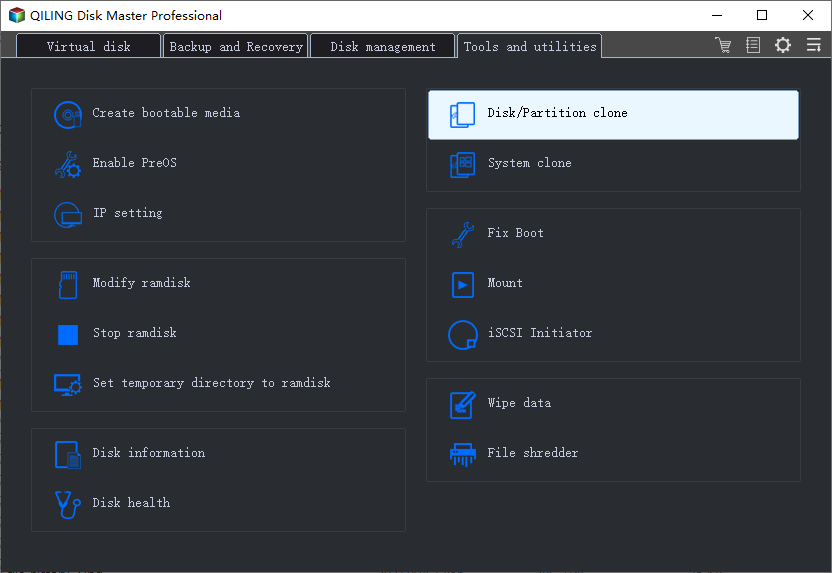
Step 1. Install and open Qiling Disk Master. Click Tools and choose Disk Clone.
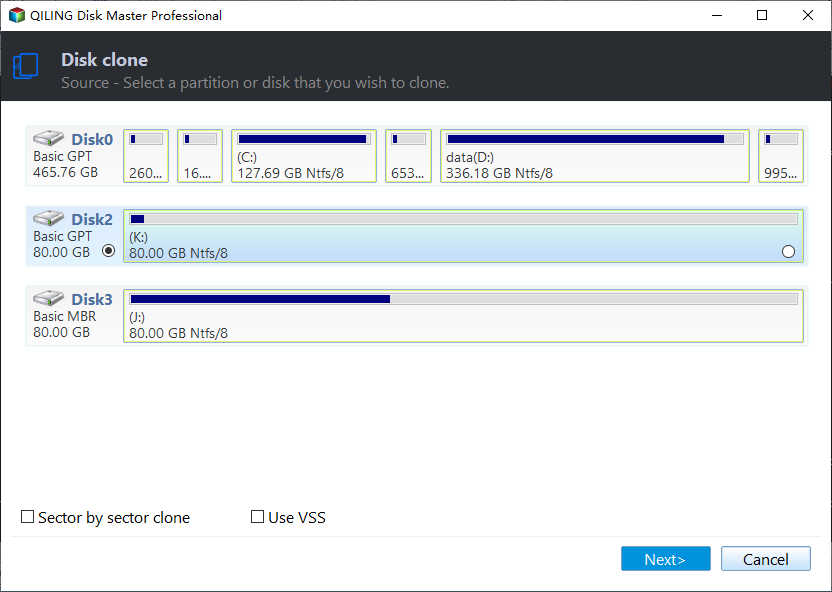
Step 2. Select the original HDD as the source disk. Then click Next.
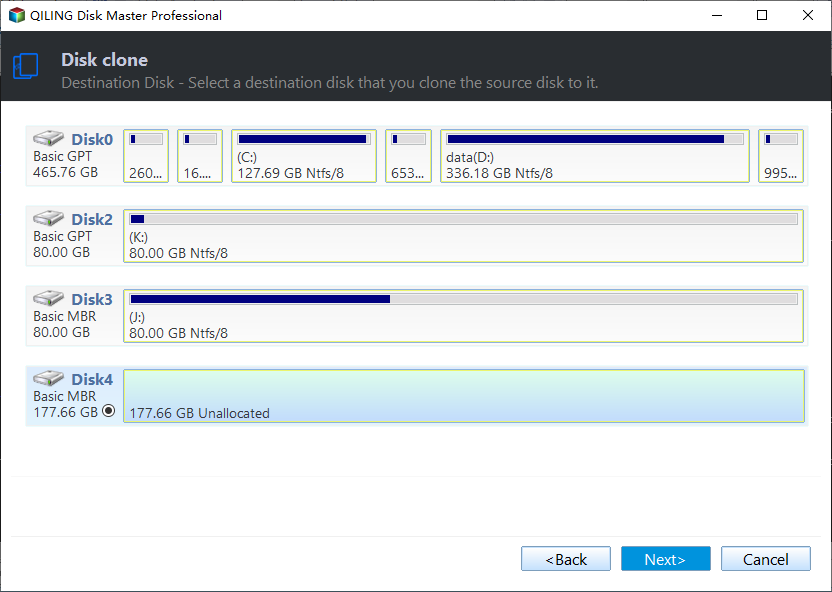
Step 3. Select the SSD as the destination disk and click Next.
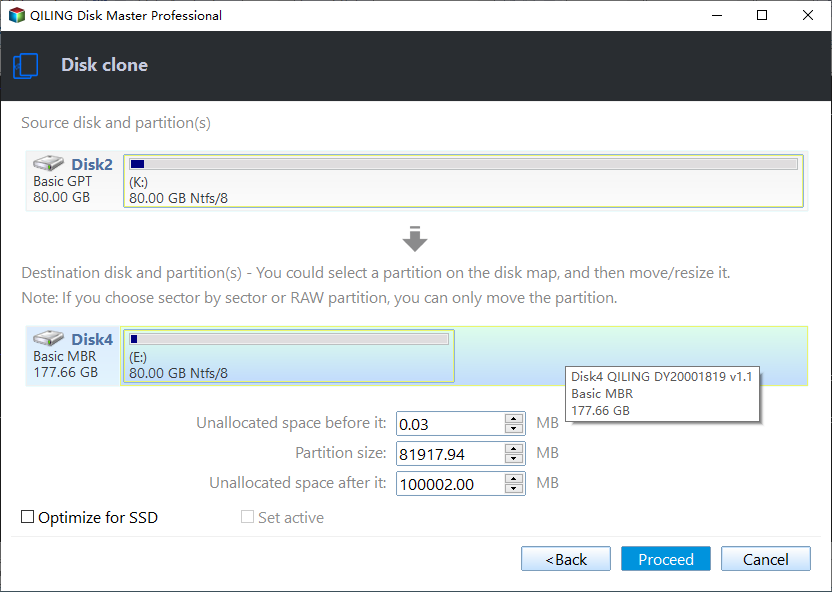
Step 4. Confirm the clone settings. If available, enable SSD alignment to optimize the SSD. Then click Proceed to start cloning HDD to SSD.
Step 5. After the clone finishes, shut down the computer. Replace the old HDD with the cloned SSD, or enter BIOS/UEFI and set the SSD as the first boot device.
Tips:
- If the cloned SSD does not boot, check the boot order, disk connection, and boot mode in BIOS/UEFI.
- If you clone from a larger HDD to a smaller SSD, clean unnecessary files first and make sure the used space is smaller than the SSD capacity.
- After confirming the SSD works properly, you can keep the old HDD as a backup disk or format it for extra storage.
Verdict
Cloning HDD to SSD lets you upgrade storage and improve computer performance without reinstalling Windows from scratch. With Qiling Disk Master, you can copy your hard drive to an SSD through a clear wizard and keep your files, programs, and system settings. For system disk migration and advanced clone needs, the Professional edition offers more complete support.
Related Articles
- How to Clone a Hard Drive in Windows 10 Easily
Learn how to clone a Windows 10 hard drive to another HDD or SSD, keep your files and system, and make the new disk bootable with reliable cloning software. - How to Clone HDD to SSD in Windows 10
This guide explains how to move Windows 10 from an HDD to an SSD, avoid reinstalling programs, and boot from the cloned SSD after the upgrade. - How to Clone C Drive to SSD/HDD in Windows 10/8/7 Easily?
Learn how to Clone C Drive to SSD/HDD in Windows 10/8/7 Easily with clear steps, key checks, and practical tips.
Products
Articles & Tutorials
- Data Recovery
- Data Backup
- File Recovery
- File Backup
- File synchronize
- System Backup and Restore
- Disk and Partition Clone
- Technical articles
- Disk Master Help
- Windows Deleted File and Disk Recovery Tutorials
- Windows File and Data Recovery Tutorials
- More Windows Tutorials for Install, Security, Files, and PC Tips
- Windows Boot, Repair, and Recovery Environment Tutorials
- Windows Backup Tutorials
- Windows Restore Tutorials
- Windows Clone and Migration Tutorials
- Windows Server Backup, Recovery, and Management Tutorials
- Windows Disk, Partition, and Storage Management Tutorials