How to Clone C Drive to Move Windows to SSD/HDD [Bootable]
- Why clone C drive to SSD/HDD?
- Clone C drive to new HDD/SSD with reliable software
- How to clone C drive in Windows 10 without reinstalling
Why clone C drive to SSD/HDD?
When people talk about cloning C drive in Windows, it actually means cloning the entire Windows OS, including system reserved partition, installed applications, and personal settings, which are all located on the C drive.
Cloning the C drive may be necessary in certain situations, such as when you need to create a backup of your operating system, replace a failed hard drive, or transfer your OS to a new computer. This process involves creating an exact copy of the C drive, including all installed programs, files, and settings, which can be used to restore your system to its previous state or set up a new machine with the same configuration.
- Replace the old HDD: You can replace the old hard drive with a larger one and clone the C drive to the new drive to avoid reinstalling the OS and applications.
- Upgrade to SSD: If your computer runs slowly after a long time of use, consider upgrading the hard drive to a faster one, such as an SSD, which can improve booting and data accessing speed. It's a good idea to move Windows to the new SSD and use it as the boot disk.
Cloning the C drive can be a challenging task due to the complexity of system files involved. However, a simple and reliable method exists to accomplish this task.
Clone C drive to new HDD/SSD with reliable software
Sure there's a built-Windows has a feature that allows you to create a system image, including the system partition, but it may fail due to various reasons and is often slow.
Cloning the C drive directly can be a more efficient and convenient option compared to performing a backup and then restoring. This is because cloning creates an exact replica of the original drive, including all files, settings, and applications, which can be restored in its entirety.
Many disk cloning software options are available, but they often only allow cloning of the entire hard drive. This can be limiting if you want to migrate only the operating system (OS) to a new solid-state drive (SSD) or hard drive (HDD), which can be a more complex process.
You can choose a reliable software to accurately clone what you want, such as Qiling Disk Master Professional, which offers options for Disk Clone, Partition Clone, and System Clone, allowing you to select the best option for your needs.
💬To clone your C drive, System Clone is the recommended choice, saving you time and energy by not requiring a full system reinstall, and ensuring a secure boot on the cloned SSD or HDD.
If you want to clone a hard drive, Qiling Disk Master can do that for you. It has an intelligent clone mode that lets you clone only used sectors, which means you can even clone a larger drive to a smaller SSD. This feature is useful if you're looking to upgrade to a faster SSD but don't have a matching size.
How to clone C drive in Windows 10 without reinstalling
Before cloning, you need to do the following preparations first:
◆ To transfer the OS to an SSD, first connect the SSD to your computer, using a USB-SATA connection cable if necessary for laptops. Ensure the selected drive is large enough to contain the system partitions.
◆ Before cloning the target hard drive, please back up any important files on the target disk to an external hard drive to avoid data loss.
To clone the C drive using Qiling Disk Master Professional, download and install the software, then launch it and follow the on-screen instructions to clone the C drive.
Step 1. Select the "System Clone" option on the left column to clone the entire system. This will create a duplicate of the entire system, including all its components, settings, and data.

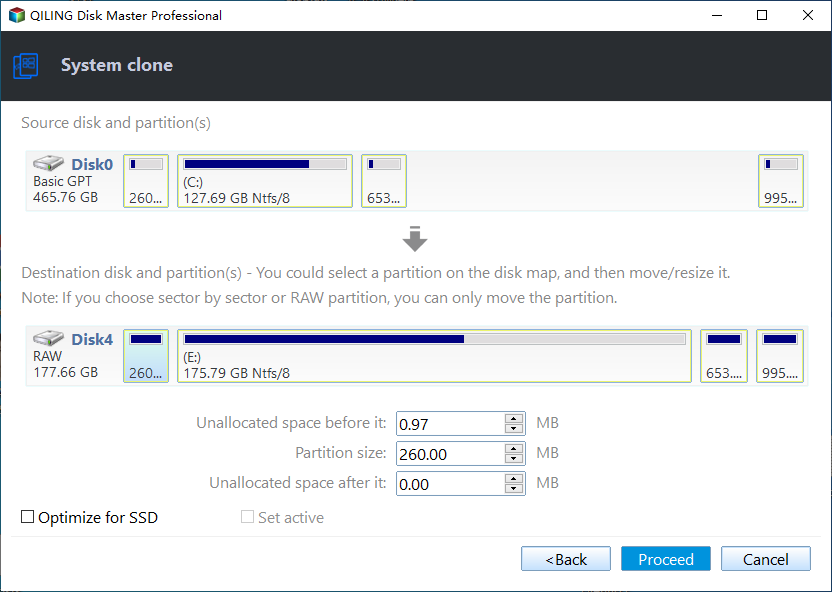
Step 2. The system and boot related partitions are chosen by default. The connected SSD or HDD is selected as the destination location, and then Next is clicked.

Step 3. Confirm the operation by ticking the SSD Alignment option if your target disk is an SSD, then click Proceed.
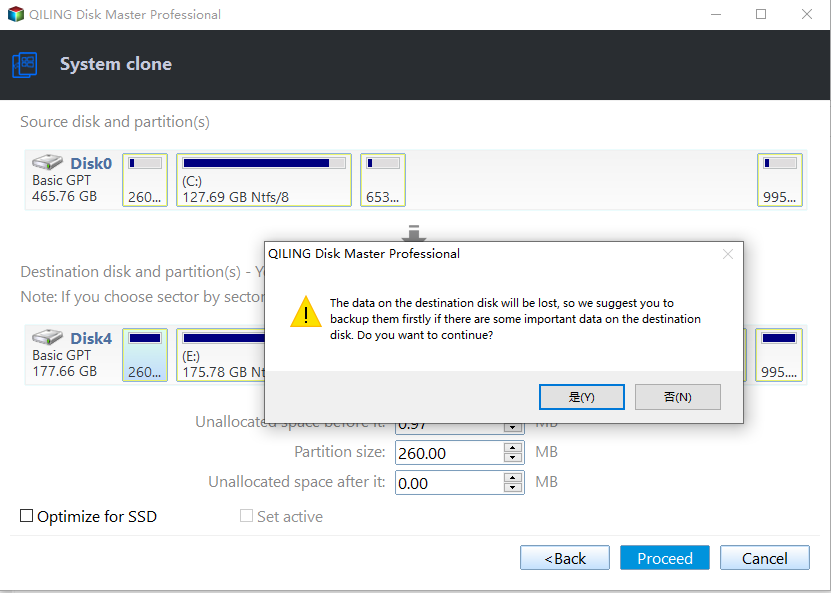
Step 4. If the selected location is a used partition, a window will appear, warning that the partition will be deleted or overwritten. Clicking OK will proceed with the operation.
✍Tips:
▪ If the destination is an SSD, checking the SSD Alignment option can improve performance by accelerating reading and writing speeds.
▪ The cloning process will be done in intelligent mode by default, but for encrypted system drives, all sectors will be cloned, including unused ones, by default.
▪ If you're looking to clone the single C drive, you can manually select the Partition Clone option, but if your goal is to clone the Windows OS, System Clone is the better choice.
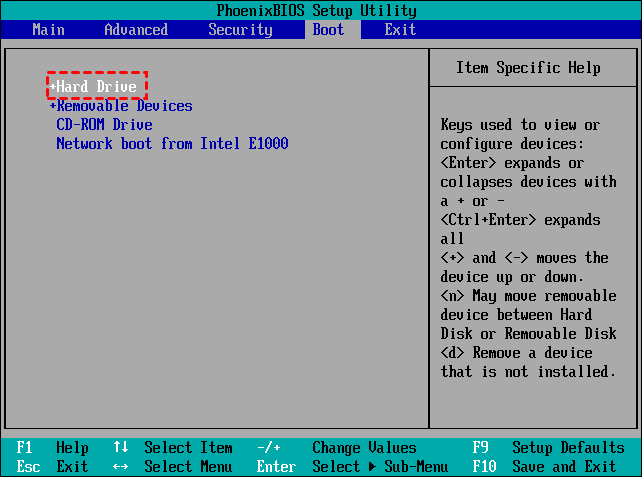
After cloning, shut down the computer, remove the source drive, restart, and enter BIOS to set the cloned system disk as the first boot device, then boot from the destination disk.
Conclusion
To clone C drive quickly and safely, a professional and reliable third-party software can be a big help, such as Qiling Disk Master Professional, which only requires 4 steps to clone C drive to a new SSD or HDD.
Qiling Disk Master is a comprehensive software that allows users to migrate their operating system, partition, and files, and also serves as a backup and restore tool, enabling users to protect their important data during daily use.
Related Articles
- Clone C Drive to SSD in Windows 10 for Great Performance
You will find the easiest way to clone C drive to SSD in Windows 10 to move Windows 10 installation to SSD for better performance, just refer to the detailed steps to clone. - How to Do System Clone or System Migration to HDD/SSD?
You will learn the system clone meaning and how to perform system clone to SSD or HDD easily in this article. - Use Freeware to Clone Windows 7 to New Hard Drive Without Reinstallation
This guide explains Use Freeware to Clone Windows 7 to New Hard Drive Without Reinstallation with clear steps, key checks, and practical tips. - Clone C Drive to External Hard Drive-Best Cloning Software
Learn how to Clone C Drive to External Hard Drive-Best Cloning Software with clear steps, key checks, and practical tips. - How to Clone BitLocker Encrypted Hard Drive [Proven Way]
To clone BitLocker drive in Windows 11/10/8/7, you can use Qiling Disk Master. - How to Clone Failing Hard Drive in Windows 11, 10, 8, 7?
Learn how to Clone Failing Hard Drive in Windows 11, 10, 8, 7 with clear steps, key checks, and practical tips.
Products
Articles & Tutorials
- Data Recovery
- Data Backup
- File Recovery
- File Backup
- File synchronize
- System Backup and Restore
- Disk and Partition Clone
- Technical articles
- Disk Master Help
- Windows Deleted File and Disk Recovery Tutorials
- Windows File and Data Recovery Tutorials
- More Windows Tutorials for Install, Security, Files, and PC Tips
- Windows Boot, Repair, and Recovery Environment Tutorials
- Windows Backup Tutorials
- Windows Restore Tutorials
- Windows Clone and Migration Tutorials
- Windows Server Backup, Recovery, and Management Tutorials
- Windows Disk, Partition, and Storage Management Tutorials