Clone C Drive to Move Windows 10 installation to SSD Safely
- Can You Move Windows 10 Installation to SSD?
- Best Windows OS Migration Software - Qiling Disk Master
- How to Clone C drive in Windows 10 without Reinstalling?
- The Epilogue
Can You Move Windows 10 Installation to SSD?
If you're experiencing issues migrating your Windows 10 installation to an SSD, you can try the following: disconnect all other storage devices, ensure the SSD is properly connected and recognized by the system, and perform a clean installation of Windows 10 on the SSD. This will ensure a fresh start and avoid any potential conflicts with the old installation. Additionally, you can also try using a USB drive to boot from and perform the installation from there.
In Windows 10, system files are typically stored in the C:\Windows folder, which contains DLL library files and .exe utilities, as well as the root folder of the C drive, holding the page file (pagefile.sys) and hibernation file (hiberfil.sys). As a result, cloning only the C drive to an SSD is sufficient for system migration in Windows 10.
Best Windows OS Migration Software - Qiling Disk Master
Windows 10 offers two free backup software options: Backup and Restore, and File History. However, Backup and Restore, which can backup the OS and restore it to a new hard drive, requires two storage devices and creates a backup image that is specific to the current computer, making it unusable on other devices.
Given the complexity of operation and poor compatibility, it's suggested to use disk cloning software directly. Qiling Disk Master Professional is a good choice to clone C drive to SSD easily and safely, and it works well in Windows 11, 10, 8.1, 8, 7, Vista, and XP (both 32-bit and 64-bit versions), providing two helpful ways.
- System Clone:This feature allows you to migrate Windows 10 to an SSD entirely, whether it's on a MBR or GPT system disk, including the C drive, system reserved partition, EFI system partition, or Recovery partition (if exists).
- DYou can clone your entire Windows 10 system, including the operating system, programs, settings, and personal files, to a new SSD, provided the SSD can hold all the data from the original system disk, and it works with both MBR and GPT disk types.
Improving SSD performance and lifespan can be achieved through SSD Alignment. When migrating Windows 10 from an HDD to a larger SSD, you can choose to fully utilize the storage space on the SSD during cloning. This feature, called "Make full use of disk space" in System Clone or "Edit Partition" in other cloning tools, allows you to make the most of your new SSD.
How to Clone C drive in Windows 10 without Reinstalling?
★ Before cloning C drive to SSD in Windows 10, there are some preparations:
✿ If your computer only has one hard drive slot, you'll need an external adapter, dock, or enclosure to connect your SSD drive, but this isn't necessary if it has room for two hard drives.
✿ To prepare a new SSD drive, you'll need to initialize and format it with either MBR (Master Boot Record) or GPT (GUID Partition Table) partition style, depending on your specific requirements.
✿ Check bad sectors on the source disk and repair.
✿ Download Qiling Disk Master Professional and have it a try. For server users, try Qiling Disk Master Server.
The Clone features in Free Trial can only be demonstrated, and to access them, you need to upgrade now, which comes with a 20% discount for one computer.
1. Connect your SSD to your computer, verify it's detected, then open Qiling Disk Master Professional. Choose 'Clone' and then 'System Clone' in sequence.

2. Choose a partition of the SSD to store the Windows 10 system files.

★ Tip:
✿ Please backup any important files on the SSD drive before starting the cloning process, as the destination partition will be overwritten.
✿ The system will automatically select the C drive and other system-related partitions, such as system reserved, recovery, or EFI, so manual selection is not necessary.
3. To clone the C drive to an SSD in Windows 10, tick the SSD Alignment box and click Proceed. This will allow for a seamless and efficient cloning process.
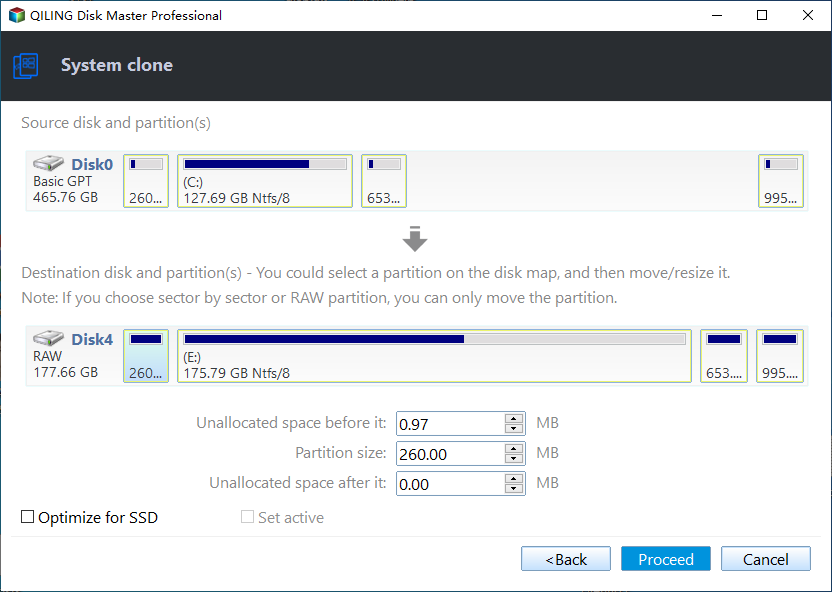
★ Tip: The Sector By Sector Clone is only available while cloning a disk to a larger disk, which clones all sectors on the Windows 10 source partitions, and it will take much longer time.
After the cloning process reaches 100%, click Finish to complete it. This will give you a Windows 10 bootable clone copy. To ensure the cloned SSD works, check if you can boot from it in Windows 10 by following the provided steps.
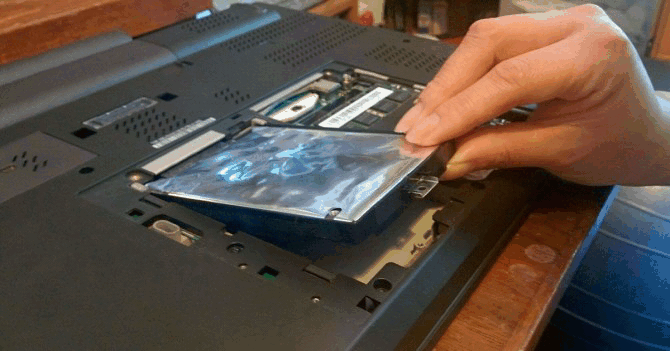
Step 1: Replace HDD with SSD via screwdriver
- Turn off your computer and remove the back panel.
- To remove a hard drive, you need to unscrew the screws holding it in place, then gently pull it out at a 30 or 45-degree angle. This will allow you to access the drive and perform any necessary maintenance or upgrades.
- Install the cloned SSD at the original location of the HDD and put the back panel back on.
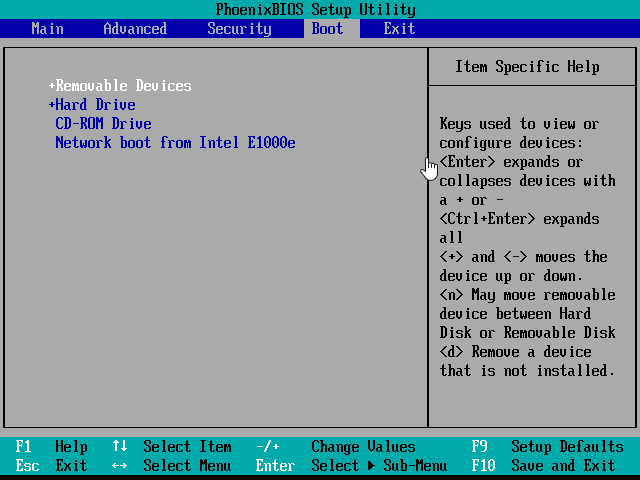
Step 2. Set the cloned SSD as the first boot device
- To enter the BIOS, start your computer and press the F2, F10, F12, or ESC key, depending on your computer manufacturer.
- In the Boot tab, set the SSD as the first boot option by clicking the "+" button, then press F10 to save and exit.
Step 3. Boot from the cloned SSD
restart your computer and it will boot from the cloned SSD drive directly. That's it.
The Epilogue
You can clone your C drive to an SSD in Windows 11/10/8/7 using Qiling Disk Master, which also boosts SSD performance. This software has a notable feature - it clones only used sectors by default, making it easier to transfer your OS from a larger HDD to a smaller SSD.
This software allows cloning an OS from a hard drive to a larger drive without leaving unallocated space at the end, enabling the extension of the system partition or adjustment of partition size manually or automatically. It can boot successfully from both MBR and GPT disks.
To deploy an image to multiple computers, it's recommended to backup the C drive and then restore the image using Qiling Image Deploy, which is available on the Technician or TechPlus edition.
Related Articles
- How to Transfer C Drive to SSD in Windows 10/8/7 Easily
- Tutorials: Clone Hard Drive to Samsung SSD (Secure Boot) in Windows
- How to Clone Hard Drive via Command Prompt in Windows 10/8/7 Simply
- Top 3 Ways to Fix Invalid Partition Table in Windows 7/8/10 Dell PC
Learn the key steps, checks, and practical tips for this related guide. - How to Move Steam Games to Another Drive without Redownloading 2021?
Learn how to Move Steam Games to Another Drive without Redownloading 2021 with clear steps, key checks, and practical tips. - Best Free Norton Ghost Alternative for Windows 10 or 11
Qiling Disk Master Standard is the best free Norton Ghost alternative for Windows 10 or 11, allowing you to easily create a ghost of your hard drive within Windows or from a boot device.
Products
Articles & Tutorials
- Data Recovery
- Data Backup
- File Recovery
- File Backup
- File synchronize
- System Backup and Restore
- Disk and Partition Clone
- Technical articles
- Disk Master Help
- Windows Deleted File and Disk Recovery Tutorials
- Windows File and Data Recovery Tutorials
- More Windows Tutorials for Install, Security, Files, and PC Tips
- Windows Boot, Repair, and Recovery Environment Tutorials
- Windows Backup Tutorials
- Windows Restore Tutorials
- Windows Clone and Migration Tutorials
- Windows Server Backup, Recovery, and Management Tutorials
- Windows Disk, Partition, and Storage Management Tutorials