2 Tutorials: Clone Hard Drive to Samsung SSD (Secure Boot)
Quick Navigation:
- Benefit from Samsung SSD Cloning
- How Do I Clone HDD to Samsung SSD?
- Clone Hard Drive to Samsung SSD with Samsung Data Migration
- Need Samsung Data Migration Alternative
- Clone Disk to Samsung SSD with Qiling Disk Master
- FAQs
- Summary
Benefit from Samsung SSD Cloning
With the growing popularity of SSDs (Solid State Drives), many users are opting to replace their traditional HDDs with faster SSDs or upgrade to larger capacity SSDs, such as Samsung's 970 EVO Plus, 860 EVO, 970 PRO, 860 EVO, 850 EVO, 860 QVO, and Portable T5, to enjoy improved performance, increased storage, and enhanced portability.
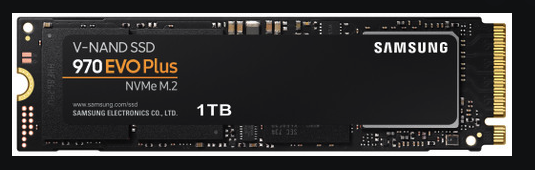
● Enjoy better performance. Samsung SSDs, a leading storage brand, incorporate advanced technologies that enhance user experiences, particularly in gaming, with their high-performance capabilities.
● Improve device configurations. Upgrading from an old hard drive to a new SSD can be a cost-effective and efficient way to improve your computer's performance, especially if the old drive is failing. With prices for SSDs becoming more affordable, it's a good time to consider replacing your old hard drive with a new one. This can help to boost your computer's speed and responsiveness, making it feel like a brand new machine.
● Better storage arrangement. Many computer users split their storage by using an SSD for their operating system and applications, while using a HDD for data storage, allowing them to take advantage of the benefits of both storage types.
How Do I Clone HDD to Samsung SSD?
To start a Samsung SSD clone, you can either use the Samsung Magician software or a third-party cloning tool such as Qiling Disk Master. The Samsung Magician software is a free tool that allows you to clone your Samsung SSD to another drive, while the third-party tools may offer more advanced features and flexibility.
#1: clean and install the Windows operating system. This method is effective, but it may cause issues with familiar system configurations and many applications, requiring at least a reinstallation.
#2: backup system and restore system image to Samsung SSD. This method allows you to move your entire Windows installation, including system settings, programs, and files, to a new drive.
Many users find the manual methods of cloning a hard drive to a Samsung SSD to be time-consuming, labor-intensive, and prone to errors. As a result, they often opt for specialized Samsung SSD cloning software, such as Samsung Data Migration and Qiling Disk Master Professional, to simplify and streamline the process.
Clone Hard Drive to Samsung SSD with Samsung Data Migration
Samsung provides its own Samsung SSD cloning software called Samsung Data Migration (SDM) for users, which can be downloaded from the official website. This software is specifically designed to transfer existing files and programs from a current HDD or SSD to a new Samsung drive, but should not be used if the SSD is not produced by Samsung.
1. To set up your new SSD, connect it to your PC via SATA for desktop users or use the adapter cable for laptop users. Next, install and open the Samsung Data Migration tool, which will automatically scan for any connected storage devices, making the process easy and straightforward.
2. To start the disk scan and diagnosis, click the "Start" button. Then, follow the wizard to select the source disk and target disk. If you'd like to add a new partition on the new SSD, click the plus icon in the top right corner.
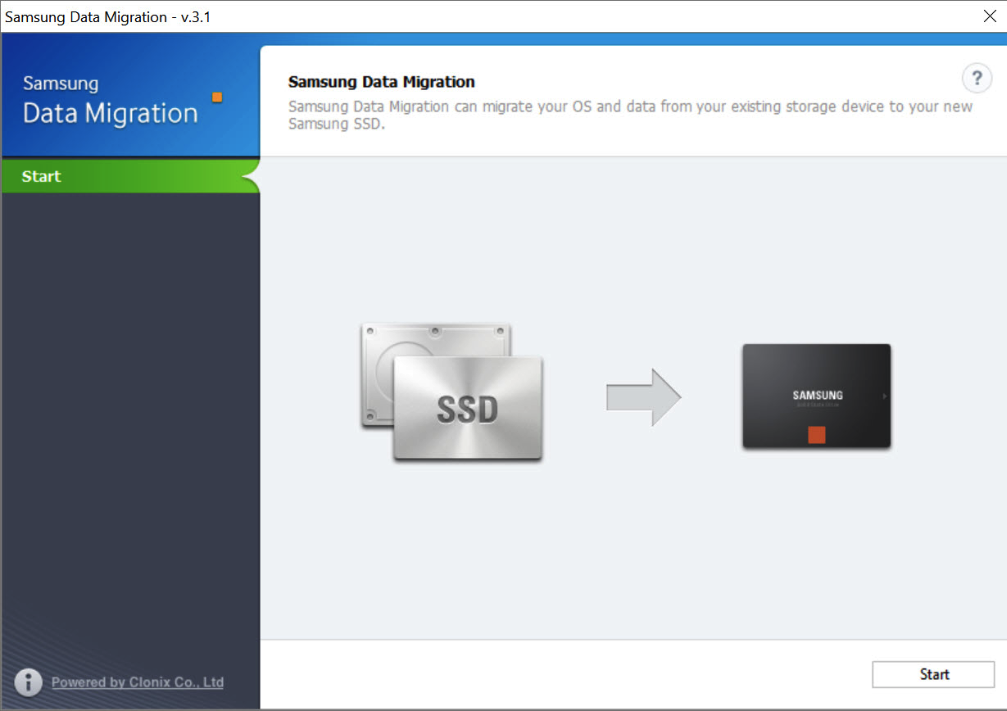
3. First, start the cloning process by clicking Start. Once it's finished, shut down your system. Next, swap out the old HDD for the new SSD.
Need Samsung Data Migration Alternative
Cloning a hard drive to a Samsung SSD with Samsung Data Migration can be straightforward, but users have reported issues such as getting stuck at 99% during verification, or at the boot screen with no display, or the software not responding at all.
In addition, The software has certain restrictions that can be learned from its user manual, such as requiring the operating system to be installed on the source disk and needing the Samsung NVMe driver for proper function on a Samsung NVMe SSD.
If you're experiencing issues with migrating data from a Samsung HDD to an SSD, don't worry, as having a backup plan, such as using Qiling Disk Master Professional, can help you complete the task smoothly. To do this, follow the step-by-step guide below to ensure a successful transfer.
Clone Disk to Samsung SSD with Qiling Disk Master
Qiling Disk Master Professional is a reliable hard drive cloning software that supports Windows 11/10/8/7/XP/Vista and is popular for home and personal use.
- Clone HDD/SSD and MBR/GPT disks, even with different size. This software uses the Intelligent cloning method as its default, which clones only the used sectors of a drive.
- 3 cloning methods. The software offers three cloning modes: intelligent clone, sector by sector clone, and hot clone. This allows it to clone only used sectors, minimizing disruption to ongoing tasks.
- Highlight cloning features: SSD Alignment and Edit Partitions tools are designed to address common SSD-related issues, including poor performance, incorrect disk size displays, and boot problems caused by incorrect partition styles.
- USB bootable clone. You can create a bootable USB drive or CD/DVD disc, and then use it to clone your SSD without needing to load Windows.
This software supports cloning all types of SSD disks, regardless of size, brand, or interface, and can also be used to clone HDD to various SSD brands such as Samsung, Seagate, SanDisk, and Intel, as well as clone Windows 10 to NVMe.
Step 1. Install and launch Qiling Disk Master Professional. Select "Clone", and then "Disk Clone".

Step 2. Select the old HDD as the source disk.

Step 3. Select the new Samsung SSD as the destination disk.

Note: The Professional edition supports cloning both data disk and system disk, whether the disk type is the same or different, while the free edition, Qiling Disk Master Standard, is recommended for data disk cloning.
Step 4. Check the "SSD Alignment" box to enhance SSD performance and then click "Proceed" to execute the Samsung SSD clone.

You can use the "Sector by sector clone" feature to keep the old partition layout or the "Edit Partitions" feature to adjust the partition size on the destination disk. The latter is more practical as it resolves two potential issues during the cloning process.
#1: The cloned drive not show full capacity.
To avoid making an exact copy of the source disk during cloning, you can try one of the following three options. By default, most cloning software creates an exact replica of the source disk unless you modify the partition size during the cloning process. However, you can change this by adjusting the partition size while cloning, which will result in a modified copy of the source disk.
👉 Copy without resizing partitions: It will not resize the partition size.
👉 Add unused space to all partitions: It will redistribute the unused space on the target disk to each partition, taking into account the disk's size.
👉 Manually adjust partition size: It allows you to extend unallocated space to any partition on the destination disk you want.
#2: The cloned drive not bootable after cloning.
One of the main reasons for this issue is that the destination and source disks have different partition styles, which haven't been converted to the same before cloning. To resolve this, you can check the option to convert the destination disk from MBR to GPT or vice versa, matching the partition style of the source disk.
MBR and GPT are two different disk types for data storage. To distinguish them, you can check their disk properties in Disk Management. Both types have their own characteristics, but the overall steps to identify them remain the same.
- Open the Run window by pressing Win + R, then type "diskmgmt.msc" and press OK to access disk management.
- Then, right-Click the disk you want to clone and select Properties in the pop-up window.
- In the Properties window, select the Volume tab and confirm the partition style, which can be MBR (Master Boot Record) or GPT (GUID Partition Table).

- If the destination disk is still in MBR partition style, you can directly clone the hard drive to the Samsung SSD without converting the disk partition style. However, if it has been converted to GPT, you will need to convert it back to MBR using the Edit Partitions feature before cloning.
Step 5. After completing the cloning process, shut down the computer. It's recommended to replace the original hard drive with a cloned Samsung SSD to thoroughly test the boot process. Alternatively, you can simply change the boot order in the BIOS.
Tips:
👉 If you want to clone your SSD to a larger SSD for more storage or to recover a Samsung SSD's recovery partition, try the Disk Clone feature.
👉 If you want to transfer your OS to a Samsung SSD or there's not enough space to clone all your data on the disk, try the System Clone feature.
FAQs
1. How do fix "Samsung Data Migration cloning failed" error?
Samsung Data Migration cloning failed due to various limitations, including disabling Hibernation mode or page file, decrypting BitLocker, and using chkdsk to check for bad sectors, which can be resolved by referring to specific operations.
2. How do I make a cloned SSD bootable?
Cloning issues after cloning a drive can be caused by bad sectors on the source drive, system corruption, missing boot drives, incorrect boot settings, or conflicts between MBR and GPT. This can be resolved by addressing these specific causes.
3. How do I update my Samsung SSD firmware?
To update the SSD firmware in Samsung Magician, select the drive you want to update, click on Firmware update, and the software will diagnose if an update is available, suggesting a file backup before proceeding.
Summary
You can choose to clone your HDD to a Samsung SSD using any method that you find helpful, but using Qiling Disk Master Professional can help avoid potential issues.
The software supports cloning disks from/to Samsung SSD without issues, including cloning disks from other brands like Western Digital (WD). It also supports advanced cloning methods, such as cloning only the system drive to an SSD, and cloning a hard drive using command lines.
Besides keeping the software installed after cloning, it also offers auto system or files backup solutions, which can help protect your computer. This can be a good option for IT experts or computer geeks who want to try it out.
Related Articles
- How to Clone SSD to HDD in Windows 10 via Freeware (Secure Boot)
- How to Clone Dell Laptop Hard Drive to SSD?
- 6 Ways to Fix Samsung Magician This Drive Is Not Supported
- Samsung Data Migration Cannot Change Source Disk [Solution]
- [Solved]Transfer Data From One SD Card to Another
Learn the key steps, checks, and practical tips for this related guide. - Excellent Tool: Transfer OS to New Hard Drive without Reinstalling
If you wish to transfer OS to new hard drive without reinstallation Windows 11, 10, 8, and 7, you can download the Qiling Disk Master Professional. Its "Migrate OS to SSD Wizard" can help you move Windows OS to a new hard drive and boot from it successfully.
Products
Articles & Tutorials
- Data Recovery
- Data Backup
- File Recovery
- File Backup
- File synchronize
- System Backup and Restore
- Disk and Partition Clone
- Technical articles
- Disk Master Help
- Windows Deleted File and Disk Recovery Tutorials
- Windows File and Data Recovery Tutorials
- More Windows Tutorials for Install, Security, Files, and PC Tips
- Windows Boot, Repair, and Recovery Environment Tutorials
- Windows Backup Tutorials
- Windows Restore Tutorials
- Windows Clone and Migration Tutorials
- Windows Server Backup, Recovery, and Management Tutorials
- Windows Disk, Partition, and Storage Management Tutorials