Samsung Data Migration Cannot Change Source Disk [Solution]
Quick Navigation:
- Error: cannot change source disk in Samsung Data Migration
- Why Samsung Data Migration cannot change source disk?
- Samsung Data Migration limitations
- Best Samsung Data Migration alternative for all Windows
- How to clone HDD to Samsung SSD in simple steps
- Summary
Error: cannot change source disk in Samsung Data Migration
Case 1: You were trying to clone an old HDD to a new Samsung 850 EVO SSD using Samsung Data Migration, but you accidentally selected the wrong disk first and now can't change the source disk.
Case 2: You're experiencing an issue with the Samsung Data Migration tool where it's recognizing your SSD as both the source and target disk. To resolve this, you can try the following: ensure the new SSD is properly connected and powered on. Then, restart your computer and try running the migration tool again. If the issue persists, you can try selecting the source disk manually by clicking on the '...' button next to the source disk field and selecting the correct disk from the list. If you're still having trouble, you can try reinstalling the tool or seeking further assistance from Samsung support.
The Samsung Data Migration software may not work properly when cloning an HDD to a Samsung SSD, resulting in a change source disk issue. This could be due to various reasons such as incompatible software versions, incorrect settings, or issues with the source or target disk. To resolve this, users can try updating the software, checking the disk settings, and ensuring the source and target disks are compatible. If the issue persists, it may be necessary to seek further assistance or consider alternative cloning software.
Why Samsung Data Migration cannot change source disk?
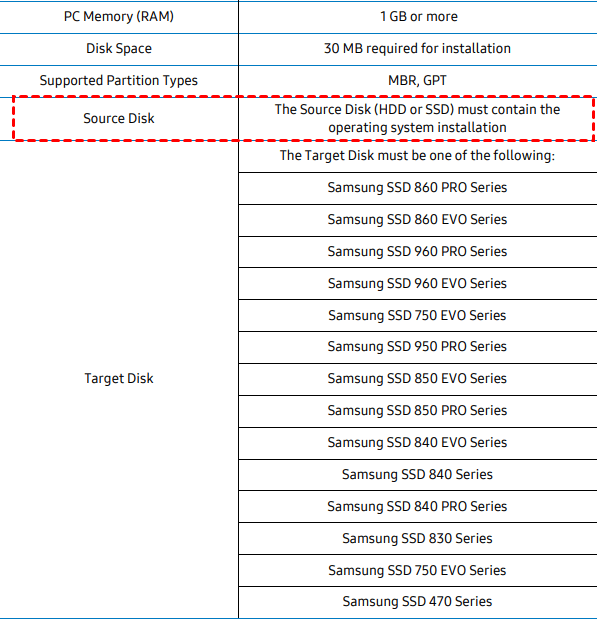
The Samsung Data Migration software (SDM) cannot switch the source disk because of system requirements and limitations, as stated in the user manual.
The Source Disk must contain the operating system installation.
This software will only run on the Source Disk where the operating system is installed, and will not work on disks without an operating system.
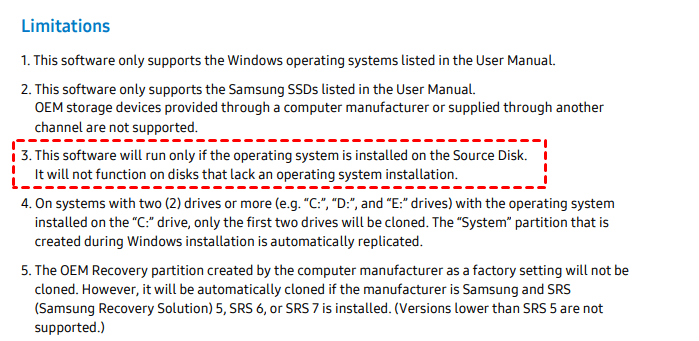
Both statements has only one purpose that is telling you:
Samsung Data Migration Software only clone Windows operating system, applications, and user data from a system disk to Samsung SSD. And Samsung Data Migration change source disk not supported.
Unfortunately, due to compatibility issues, migrating data from a data drive to the new Samsung SSD may not be possible.
Samsung Data Migration limitations
Besides, there are other situations that can cause Samsung Data Migration not responding or cloning failed error, such as software compatibility issues, corrupted system files, or incorrect setup of the software.
- Bad sectors on the source disk.
- Dynamic disk.
- Bitlocker encrypted disk.
- Use a Samsung NVMe SSD as the Target Disk without Samsung NVMe Driver installation.
Given the potential issues with Samsung Data Migration, it's recommended to explore alternative third-party cloning software to avoid cloning failures, such as SDM failed to gather information from the source disk, and ensure a successful hard drive cloning process.
Best Samsung Data Migration alternative for all Windows
Qiling Disk Master Professional is a reliable disk cloning software that helps copy hard drive to Samsung SSD in easy steps, designed for Windows 11, 10, 8.1, 8, 7, Vista, XP, including 32-bit and 64-bit systems.
It's is capable of doing the following things:
- The software enables users to switch between different source disks at their convenience, without being limited by the original disk's intended use.
- You are allowed to clone system disk and non-system disks.
- Support all brands of SSDs and HDDs, including Samsung SSDs.
- Skip all bad sectors on source disk while cloning by default.
- It could clone dynamic disk and Bitlocker encrypted disk.
You can easily clone a single data partition of your system disk to a Samsung SSD, and UEFI GPT cloning is also available.
The tool has a user-friendly interface that makes cloning as easy as ABC, impressing users with its simplicity and effectiveness.
How to clone HDD to Samsung SSD in simple steps
This software will only clone used sectors to the target disk by default, allowing large HDDs to be successfully cloned to smaller SSDs, provided the target disk has enough space to hold all the data on the source disk.
1. Install or connect the Samsung SSD to your computer, and ensure it can be detected by the system.
2. Install and launch Qiling Disk Master Professional on your computer, then click Clone and select Disk Clone.

3. Select the HDD as source disk.

4. Select the Samsung SSD as target disk.
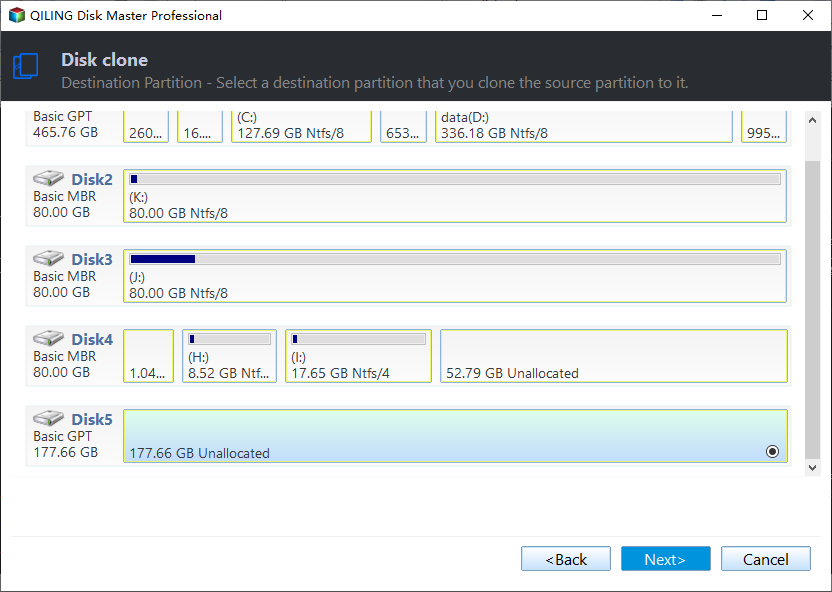
5. To optimize SSD performance, check the box before "SSD Alignment" and then click "Proceed" to clone the HDD to the Samsung SSD.

6. If you've cloned your system disk onto a Samsung SSD, you can either shut down your PC, replace the old HDD with the new SSD, and then change the boot order in the BIOS to have it boot from the cloned disk, or you can change the boot order in the BIOS to have it boot from the cloned disk without replacing the old HDD.
★Tips:
✍Edit Partitions: This feature allows you to modify the size of partitions on the target disk to your liking. Additionally, it supports converting the disk partition style. However, if you check the "Sector by sector clone" option, this feature will be unavailable.
- Copy without resizing partitions: It will not resize the partition size.
- Add unused space to all partitions: The script will redistribute the unallocated space to each partition of the target disk, taking into account the disk's total size.
- Manually adjust partition size: It allows you to extend unallocated space to any partition on the destination disk as you want.
- Convert the destination disk from MBR (GPT) to GPT (MBR): It helps to convert the partition style of the destination disk if it is different from that of the source disk.
✍ If you're copying from a GPT disk with more than 4 primary partitions to an MBR disk, ensure the "Convert the destination disk from MBR to GPT" option is selected to avoid copying only up to 3 partitions due to partition style limitations.
✍By selecting this option, Qiling Disk Master will clone every sector of the source disk, including unused sectors, to the target disk, provided the target disk is of equal or larger capacity than the source disk.
✍Qiling Disk Master is also operating system cloning software that enables copying only the OS to a Samsung SSD.
Summary
The Samsung Data Migration software can only clone the operating system to a new Samsung SSD if the operating system is installed on the source disk. If the operating system is not on the source disk, the software will not run. This means it's only suitable for moving the operating system to a new Samsung SSD, not for cloning other data.
If you're copying a disk with no operating system or imaging a data drive to a Samsung SSD, consider using another disk cloning software like Qiling Disk Master. This alternative software also offers backup features such as system backup, disk backup, file backup, and real-time sync to help safeguard your newly-built computer.
Related Articles
- Samsung Data Migration on Non Samsung SSD – How to Deal with It?
- Samsung Data Migration Cloning Failed, How to Fix It?
- (Fixed) Samsung Data Migration: Please Connect a Samsung SSD
- How-to | Samsung Data Migration Multiple Partitions Clone
- 6 Ways to Fix Samsung Magician This Drive Is Not Supported
- Fix SSD Slow Boot on Windows 10 with 8 Effective Methods
Learn the key steps, checks, and practical tips for this related guide.
Products
Articles & Tutorials
- Data Recovery
- Data Backup
- File Recovery
- File Backup
- File synchronize
- System Backup and Restore
- Disk and Partition Clone
- Technical articles
- Disk Master Help
- Windows Deleted File and Disk Recovery Tutorials
- Windows File and Data Recovery Tutorials
- More Windows Tutorials for Install, Security, Files, and PC Tips
- Windows Boot, Repair, and Recovery Environment Tutorials
- Windows Backup Tutorials
- Windows Restore Tutorials
- Windows Clone and Migration Tutorials
- Windows Server Backup, Recovery, and Management Tutorials
- Windows Disk, Partition, and Storage Management Tutorials