Clone Dell Hard Drive to SSD in Windows 10/11 (Bootable)
Quick Navigation:
- User case: how do I clone my Dell hard drive to SSD?
- Why clone Dell hard drive to SSD?
- The best Dell hard drive cloning software
- How to clone Dell hard drive to SSD with secure boot🔥
- How to back up Dell hard drive with an encrypted recovery partition to SSD🔥
- Create disk image of Dell hard drive
- Restore disk image to SSD
- Conclusion
User case: how do I clone my Dell hard drive to SSD?
While cloning has become increasingly popular, many still struggle with cloning Dell hard drives, which often presents various challenges.
You cloned the HDD to the SSD, swapped the drives, but now the laptop can't find a bootable device. This suggests that the cloning process may not have worked correctly. Try re-cloning the HDD to the SSD, or use a different cloning software to ensure the process is done properly. If you're still having issues, you might need to reinstall the operating system on the SSD, but that's a more involved process. Start by re-cloning the HDD to the SSD. If that doesn't work, you can try reinstalling the OS on the SSD. If you're not comfortable with the process, it might be worth seeking the help of a professional.
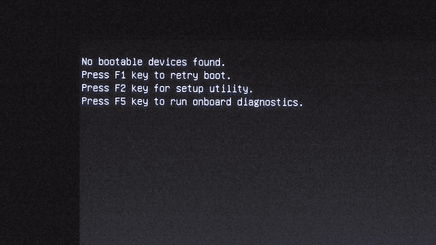
If the cloning process appears to have been successful, but the cloned SSD won't boot, several factors could be contributing to this issue. These may include incorrect settings in the BIOS, a boot order that doesn't prioritize the cloned SSD, or the cloned SSD being recognized by the system but not being properly initialized or configured, potentially due to differences in firmware or other settings.
- Missing recovery partition or boot-related partition(s). If the new SSD has a larger capacity, you can try another cloning software to clone all sectors of the hard drive to the new SSD. However, if the new SSD has a smaller capacity, you'll need to free up space on the old drive by deleting large files or uninstalling unnecessary programs to make room for the clone.
- Encrypted recovery partition. In this case, you can't clone the hard drive, so you'll need to use a backup and restore solution. Note that on older systems with Dell Backup and Recovery installed (pre-Windows 10), the software can't restore to a physical disc smaller than the one the image was delivered on, so you'll need an all-in-one disk cloning software with backup feature.
Why clone Dell hard drive to SSD?
Cloning a hard drive to a solid state drive (SSD) is primarily done to upgrade and experience improved performance, including faster running speeds, a quieter work environment, and enhanced disk management capabilities, which is particularly relevant for Dell computer users. This process is often used to upgrade the operating system and storage drive, with many users opting for an SSD for the OS and a traditional HDD for storage. However, for laptops like the Dell XPS, where space is limited, this approach may not be as straightforward.
To improve laptop performance, it's recommended to clone the internal hard drive (HDD) to a solid-state drive (SSD) and then install the SSD inside the laptop. This approach is preferable to keeping the system disk externally for convenience and security reasons, allowing for better performance and a more streamlined system.
Hard drive failure Upgrading a Dell PC's hard drive can become necessary after a few years, potentially leading to a disk upgrade. This often requires hard drive cloning to ensure a seamless transition.
Cloning a Dell hard drive in Windows 7/8/10 provides an intact duplication, backing up the OS and data, allowing for the system to be restored to life at any time. The process involves running the clone HDD to SSD, which can be achieved by following further steps.
The best Dell hard drive cloning software
When cloning a Dell hard drive, especially when upgrading to an SSD, using reliable disk cloning software is crucial. This software should be able to clone the entire hard drive, including the system partition (C drive), Recovery partition, OEM partition, data partitions, and more, to ensure a complete and accurate copy. Additionally, when cloning a Dell laptop hard drive to an SSD, the software must also support secure boot functionality to ensure a stable and seamless cloning process.
Qiling Disk Master Professional is a powerful cloning software designed for various Windows versions, allowing users to clone Dell hard drives with recovery partitions to SSDs and ensure secure booting on the cloned SSD, making it the best choice for cloning Dell HDDs to SSDs.
✦ The software has features such as Disk Clone, System Clone, and Partition Clone, which allows for the exact function needed for Dell SSD upgrades, cloning the entire hard drive to the new SSD without reinstalling Windows and applications.
✦ This software offers two cloning options: Sector by Sector Clone and Intelligent Clone. The Intelligent Clone option allows for cloning a large hard drive to a smaller one by only copying used parts of the disk.
✦ The tool is capable of accelerating the reading and writing speed of SSD disk with its "SSD Alignment" feature.
This software clones Dell hard drives and integrates with backup and restore solutions. If issues arise, such as "No bootable Devices Found" or "your device needs to be repaired", users can backup the hard drive and then restore the image to a new or smaller SSD.
✦ It offers multiple backup types, including System/Disk/Partition/File Backup, Cloud Backup and Email Backup.
✦ It allows you to create automatic backups using the Schedule Backup feature.
✦ This software supports backing up to various storage devices, including internal and external hard drives, USB sticks, network shares, NAS, and cloud drives.
Qiling Disk Master offers a user-friendly interface, making it easy for non-technical users to clone a Dell hard drive to an SSD in just a few minutes, requiring no expert assistance.
To clone a Dell laptop hard drive, simply use an all-in-one Dell hard drive cloning software. This software allows you to learn how to clone a Dell laptop hard drive, or use it as a backup and restore solution.
How to clone Dell hard drive to SSD with secure boot🔥
Connect your SSD to your computer, make sure it's recognized by Windows. If you're using a laptop, you may need an external enclosure or USB-to-SATA cable. Download and install Qiling Disk Master Professional, a HDD to SSD cloning software.
1. Launch Qiling Disk Master Professional, then click on "Clone" and subsequently on "Disk Clone".

2. The Dell hard drive was selected as the source disk and the next step was taken.

3. Select the SSD as the destination disk and click Next.

4. To optimize the performance of the destination SSD, tick the SSD Alignment box and click Proceed to start the Dell clone from HDD to SSD process.

If your Dell laptop has other hidden partitions or you want to keep the partition status the same as the current HDD, select 'Sector by Sector Clone' to ensure the SSD is equal to or larger than the HDD.
If the destination disk is larger, edit the partition size using Edit Partitions to avoid unallocated space after cloning. You can also convert the disk type if it differs from the source disk, such as cloning GPT to MBR.
- Copy without resizing partitions: It will not resize the partition size.
- Add unused space to all partitions: The software will redistribute the unused space on the target disk to each partition, taking into account the disk's size.
- Manually adjust partition size: It allows you to extend unallocated space to any partition on the destination disk as you want.
- Convert the destination disk from MBR to GPT: It helps to convert the partition style of the destination disk if it is different from the source disk.
5. To upgrade your Dell laptop's storage, remove the current HDD and replace it with a new SSD. Be cautious and patient during this process, as it can be delicate. A Phillips #0 screwdriver may come in handy for uninstalling the HDD. Once the HDD is removed, boot up your Dell laptop using the new SSD.
Tips:
✍ You may want to wipe the HDD and use it as a second storage after cloning.
✍ The steps for upgrading a hard drive to an SSD are applicable to various computer brands, including Dell Inspiron, HP, Lenovo, Asus, Acer, Toshiba, Microsoft, Sony, and Compaq, among others.
✍ If you don't have a tool to connect your SSD to your Dell laptop for disk cloning, you can try the backup and restore method, which involves backing up your original drive, installing the operating system on the new SSD, and then restoring the backed-up data to the new drive.
How to back up Dell hard drive with an encrypted recovery partition to SSD🔥
In Windows 10, if your recovery partition is encrypted by Dell, you can back up your Dell hard drive to an SSD using the "Disk Backup" and "Disk Restore" features. To do this, you'll need to create a bootable media in advance, which will allow you to boot your computer after removing the original HDD. This will enable you to restore your system to the SSD using the backed-up data.
Create disk image of Dell hard drive
1. Launch Qiling Disk Master Professional, go to Backup, and select Disk Backup.

2. To add the Dell hard drive, click on the "Add Disk" button and select the Dell hard drive from the list, then click the "Add" button.

3. Save the backup image of your current hard drive to an external drive or network location for safekeeping. This way, you can access it later when you replace the HDD with an SSD.

4. To customize your backup settings, click Options, Schedule Backup, Backup Scheme. Then, click Proceed and wait for the process to complete.
Restore disk image to SSD
With a backup copy of Dell hard drive, you can restore backup image to new SSD as follows:
1. Remove the old HDD, install the new SSD, connect the bootable USB and disk image (if on an external drive), and boot from the USB.
2. Qiling Disk Master loads up automatically. Go to "Restore" and choose "Select Task".

3. Select the backup image you want to restore and click Next.

4. Select Restore the entire disk and click Next.
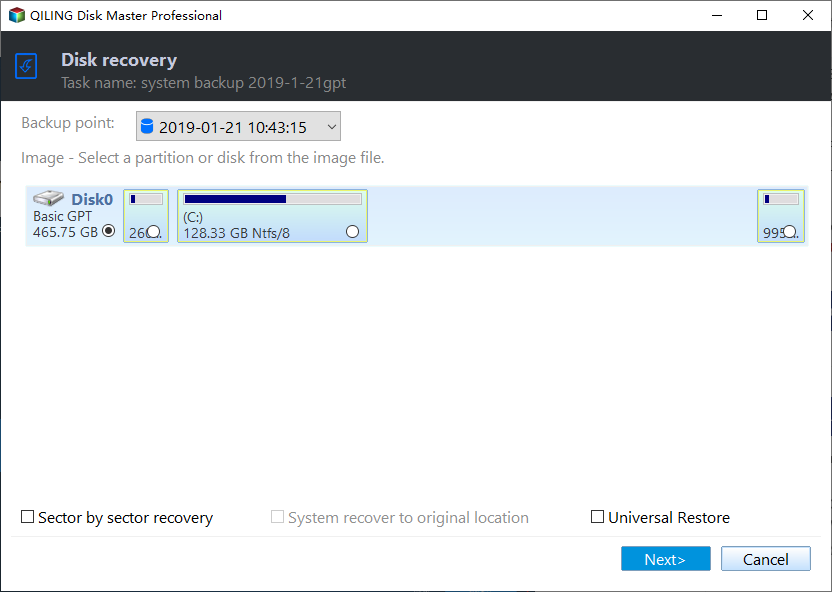
5. Select the new SSD as destination disk and click Next.
6. To optimize the performance of an SSD, enable SSD Alignment by selecting it in the settings and then clicking Proceed. This will improve the drive's performance by aligning the SSD's sectors to match the host computer's sector size, resulting in faster data access and transfer times.

Conclusion
Cloning a Dell hard drive to an SSD can be easily done with the help of Dell hard drive cloning software like Qiling Disk Master Professional. The cloning time will vary depending on the data capacity on the source hard drive, with sector-by-sector cloning taking longer but ensuring all sectors, including recovery partitions, are cloned.
In Windows 10, the Dell partition may be encrypted, preventing cloning. To overcome this, you can backup the Dell hard drive and then restore the backup using a software.
Qiling Disk Master supports various disk operations such as copying USB to USB, replacing hard drives in ASUS laptops, backing up Windows 10 to network drives, and backing up external hard drives to another external hard drive, in addition to upgrading Dell SSDs.
Related Articles
- How to Clone Dell/HP/Lenovo OEM Partition to SSD in Windows 7/8/10?
- How to Copy Dell Recovery Partition?
- Safely Clone Dell XPS SSD to Larger SSD | 2 Simple Ways
- Windows 10 Backup Error Code (0x807800C5) – Why & How to Fix
Learn the key steps, checks, and practical tips for this related guide. - How to: Clone Internal Hard Drive to External Hard Drive Step-by-Step
This guide explains How to: Clone Internal Hard Drive to External Hard Drive Step-by-Step with clear steps, key checks, and practical tips. - How to Clone Large HDD to Smaller SSD without Data Loss?
Use this guide for How to Clone Large HDD to Smaller SSD without Data Loss?, with cloning or migration steps, boot checks, and tips to keep data safe during the move.
Products
Articles & Tutorials
- Data Recovery
- Data Backup
- File Recovery
- File Backup
- File synchronize
- System Backup and Restore
- Disk and Partition Clone
- Technical articles
- Disk Master Help
- Windows Deleted File and Disk Recovery Tutorials
- Windows File and Data Recovery Tutorials
- More Windows Tutorials for Install, Security, Files, and PC Tips
- Windows Boot, Repair, and Recovery Environment Tutorials
- Windows Backup Tutorials
- Windows Restore Tutorials
- Windows Clone and Migration Tutorials
- Windows Server Backup, Recovery, and Management Tutorials
- Windows Disk, Partition, and Storage Management Tutorials