How to Clone a Hard Drive in Windows 10
Why clone a hard drive in Windows 10?
Cloning a hard drive in Windows 10 creates a complete copy of the source disk, including Windows system files, boot partitions, installed programs, personal files, and settings. It is useful when you want to upgrade to a new HDD or SSD, replace a failing drive, or migrate everything to another disk without reinstalling Windows.
Compared with manually copying files, disk clone can keep hidden partitions and boot information together. After cloning a system disk, you can boot Windows 10 from the target drive if the clone is completed correctly.
You may need to clone a Windows 10 hard drive in these situations:
- Upgrade an old hard drive to a faster SSD.
- Replace a small disk with a larger HDD or SSD.
- Move Windows 10, applications, and files to a new drive.
- Create a complete disk copy before hardware replacement.
- Protect important data from disk failure or system issues.
Best software to clone Windows 10 hard drive
Windows 10 does not provide a direct built-in option to clone an entire hard drive. Qiling Disk Master can help clone a Windows 10 hard drive to another HDD or SSD, including system partitions, data partitions, boot files, applications, and personal files.
The software supports disk clone, partition clone, system backup, and drive backup. It can be used for SSD upgrades, hard drive replacement, data migration, and full disk backup. If you clone a disk that contains Windows, the Professional edition or its free trial is recommended.
Before cloning, connect the target drive to your computer and make sure Windows can detect it. Back up important files on the target drive first, because the cloning process may overwrite the destination disk.
How to clone a hard drive in Windows 10 step by step?
Follow the steps below to clone a hard drive in Windows 10. The exact interface may vary by version, but the main process is similar.
Step 1. Install and open Qiling Disk Master. Connect the target HDD or SSD to your Windows 10 computer.
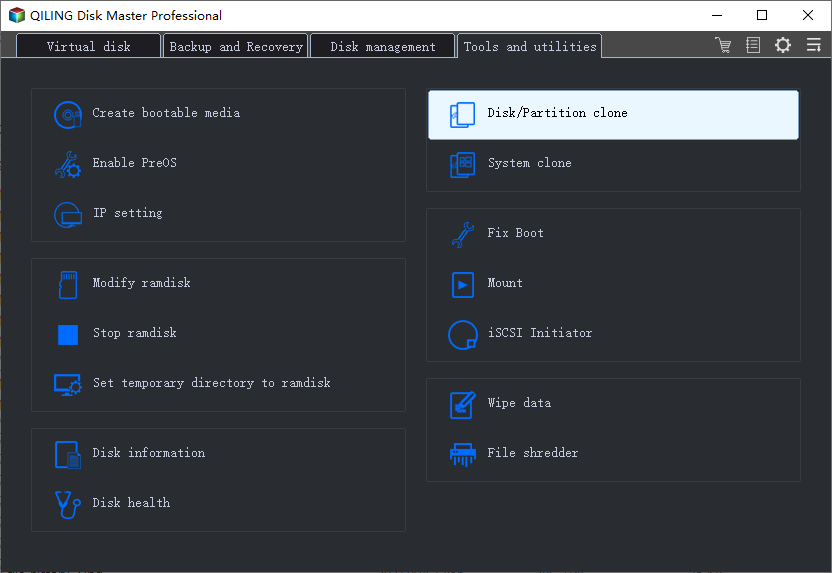
Step 2. Click Tools and choose Disk Clone to start cloning the hard drive.
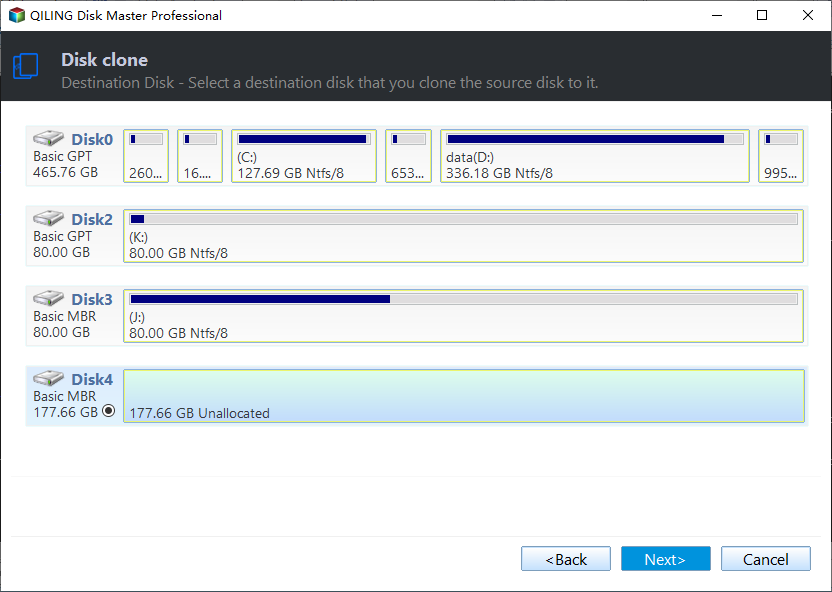
Step 3. Select the Windows 10 hard drive you want to clone as the source disk, and then click Next.
Step 4. Select the target HDD or SSD as the destination disk, and then click Next.
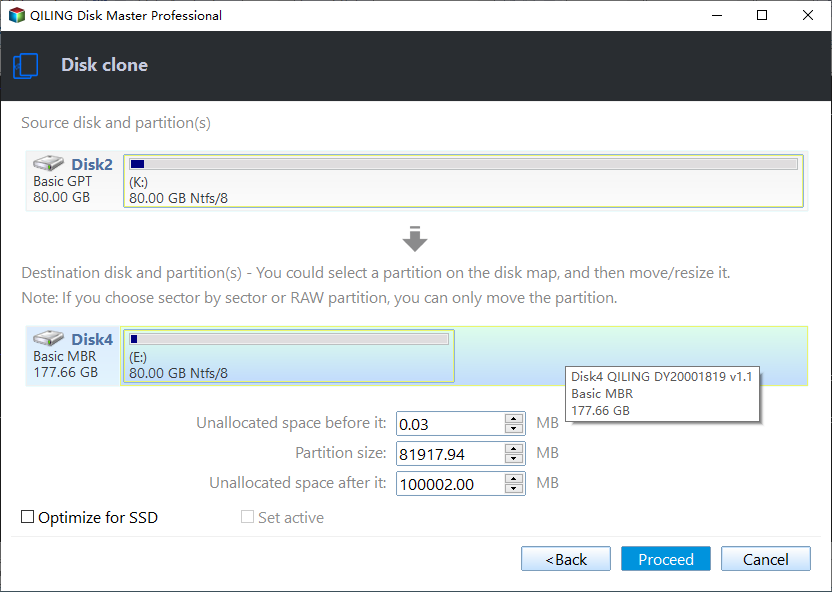
Step 5. Confirm the source and destination information. If the target disk is an SSD, enable SSD alignment if the option is available. Click Proceed to clone the hard drive in Windows 10.
After cloning, shut down the computer and install the cloned drive as the boot drive if needed. You can also enter BIOS or UEFI settings and set the cloned disk as the first boot device.
Tips:
- Do not disconnect either drive before the cloning process is complete.
- If the cloned drive does not boot, check the boot order and boot mode in BIOS or UEFI.
- Keep the old hard drive unchanged for a while until you confirm the cloned disk works normally.
- After successful migration, you can use the old disk as backup storage or extra space.
Verdict
Qiling Disk Master helps clone a hard drive in Windows 10 with simple steps. Whether you want to upgrade to an SSD, replace a failing drive, or move everything to a larger disk, disk clone can save time and avoid reinstalling Windows and applications.
Related Articles
- How to Clone HDD to SSD in Windows 10
Learn how to clone HDD to SSD in Windows 10, move the operating system, apps, and files, and boot from the new SSD successfully. - How to Transfer Windows 10 to SSD
Learn how to transfer Windows 10 to SSD, move boot files, programs, settings, and personal data, and boot from the new SSD successfully. - How to Clone HDD to SSD with Free Hard Drive Clone Software
Learn how to clone HDD to SSD without reinstalling Windows, transfer files and programs, and upgrade to a faster SSD safely. - How to Clone C Drive to SSD/HDD in Windows 10/8/7 Easily?
Learn how to clone C drive to SSD or HDD in Windows and migrate the operating system without reinstalling Windows. - Free Disk Cloning Software for Windows 11/10
Find free disk cloning software for Windows 11/10 and learn how to clone disks for backup, upgrade, or migration. - How to Clone McAfee Encrypted Hard Drive with Ease
Learn how to clone a McAfee encrypted hard drive for upgrade or backup and follow step-by-step cloning instructions. -
C Drive Clone Software
Clone C drive and related boot partitions to a new SSD or hard drive.
Products
Articles & Tutorials
- Data Recovery
- Data Backup
- File Recovery
- File Backup
- File synchronize
- System Backup and Restore
- Disk and Partition Clone
- Technical articles
- Disk Master Help
- Windows Deleted File and Disk Recovery Tutorials
- Windows File and Data Recovery Tutorials
- More Windows Tutorials for Install, Security, Files, and PC Tips
- Windows Boot, Repair, and Recovery Environment Tutorials
- Windows Backup Tutorials
- Windows Restore Tutorials
- Windows Clone and Migration Tutorials
- Windows Server Backup, Recovery, and Management Tutorials
- Windows Disk, Partition, and Storage Management Tutorials