Free Disk Cloning Software for Windows 10/11
Disk cloning is the most effective way to preserve data and software on a PC, and cloning software is the most efficient method. While disk imaging and other copying methods exist, they can't match the efficiency of cloning software. This guide explores free disk cloning software for Windows 10 and Windows 11, highlighting how cloning tools work and popular options available.
For hardware duplication scenarios, compare this software guide with hard drive duplicator options.
- Quick Navigation
- Part 1. The Main Reasons For Why Need To Clone Disk
- Part 2. Best Disk Clone Software for Windows 10/11
- Part 3. Top 5 Free Cloning Software for Windows 10/11
- Part 4. Frequently Asked Questions for free disk clone Windows 10/11
Part 1. The Main Reasons For Why Need To Clone Disk
Having a convenient backup of all data stored on storage media is a good idea, regardless of whether it's a hard disk drive or other media. If you think you don't need to know about free cloning software for Windows 10, think again. There are solid reasons to clone your disk immediately.
- Hard drives have a limited lifespan and will eventually wear out, causing data loss. To prevent this, you can clone the data from an HDD to a more durable SSD, which can withstand the wear and tear of time.
- Cloning a hard drive allows users to make a smooth upgrade by duplicating the system and software onto a new drive, providing a backup in case something goes wrong.
- When you clone a drive, you'll have a backup of your data, so you won't worry about losing files if your system crashes or gets infected with a virus, or if the drive itself fails mechanically.
- A complete backup of your PC, including the operating system, installed applications, and all data stored on the PC, will be created.
The reasons mentioned might be enough for users who have experienced data loss, making them understand the importance of data backup and recovery solutions.
Part 2. Best Disk Clone Software for Windows 10/11
Qiling Disk Master Pro stands out as the ultimate tool for cloning, offering unparalleled effectiveness and reliability. This free disk cloning software for Windows 10/11 boasts an extensive feature set and user-friendly interface, allowing users to maximize data and OS protection levels.
Your Reliable Free Drive Cloning Software for Windows 10/11
- You can clone your hard drive to a more durable SSD (solid state drive) to prevent data loss when your hard drive eventually wears out.
- Cloning allows users to make a hard drive upgrade as smooth as possible by having a backup of the system software and applications on another drive, just in case.
- Cloning a drive provides a backup of your data, ensuring its safety in case of a system crash, virus attack, or mechanical failure, giving you peace of mind.
- The process will create a complete backup of your PC, including the operating system, installed applications, and all data stored on the device, providing a comprehensive safeguard against potential data loss or system failures.
Here is the step-To clone a disk using Qiling DBackup on a Windows PC, follow these steps: First, download and install Qiling DBackup on your computer. Next, launch the software and select the source disk you want to clone from the "Source Disk" dropdown menu.
- Download and install the tool on your system
- Connect the external drive to the computer and let the system automatically detect the drive before proceeding.
- To clone a drive, use the best disk cloning software, select the "Backup Drive" option, and specify the drive you want to back up.
- To set up the path to save the backup file and choose between the automatic backup or sector by sector options, you can follow these steps: Determine the desired location for the backup file, such as an external hard drive or a cloud storage service. Choose between automatic backup, which backs up the entire drive at once, and sector by sector, which allows for more control over the backup process.
- After arranging everything, click on the "Next" button and wait as the clone hard drive Windows 10 free software creates a clone disk.

You can now store the clone drive backup file safely until you need it.
Part 3. Top 5 Free Cloning Software for Windows 10/11
1: Acronis True Image
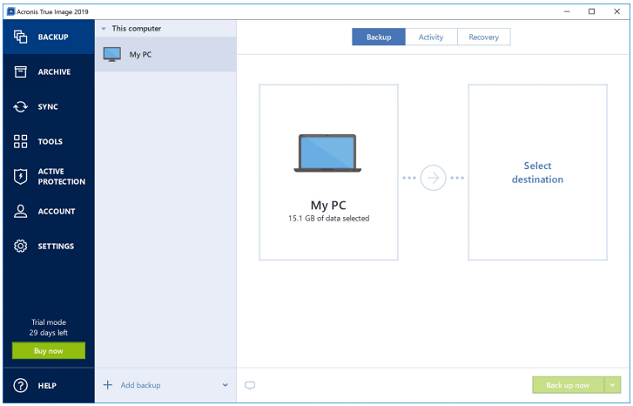
To clone a hard drive in Windows 11 or Windows 10, consider using free software like Acronis True Image, which enables you to replicate your PC's entire OS, software, patches, and drives in one go.
- Main Features:
- Provide complete image backup of your PC
- Secure the disk using stringent security features
- Offers an easy way to back up and clone disks
- Advantages:
- 1Support various formats and ease to use
- Free demo available
- Disadvantages:
- Demo version has limited features
- Only compatible with Windows
2: EaseUS Todo Backup
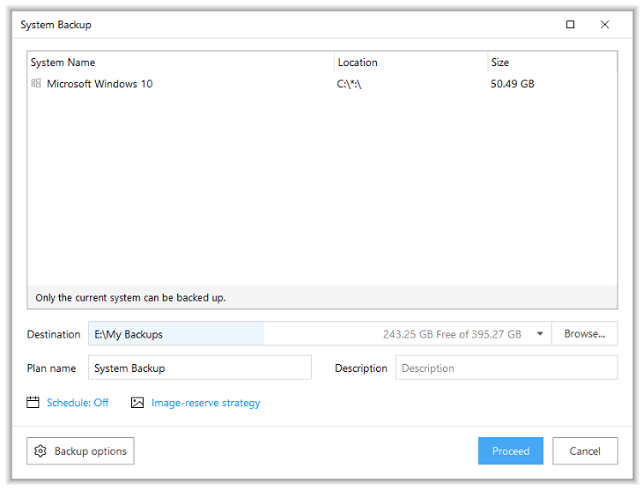
When you need to clone a hard disk drive (HDD) to a solid-state drive (SSD) on Windows 11/10 for free, using EaseUS Todo Backup is a good option. This tool simplifies the process of cloning a drive to a larger capacity disk, also improving performance.
- Main Features:
- Clone MBR disk to GPT disk and vice versa
- To clone one or multiple partitions simultaneously, users can utilize the "Clone" feature in the software. This feature allows users to select the source and destination disks, as well as choose which partitions to clone.
- Also, support data recovery and backup features
- Advantages:
- Complete functionality and excellent user interface
- The software offers a wide range of backup modes, including support for both cloning and migration, allowing users to choose the best approach for their specific needs.
- Disadvantages:
- It lacks Linux support
3: AOMEI Backupper
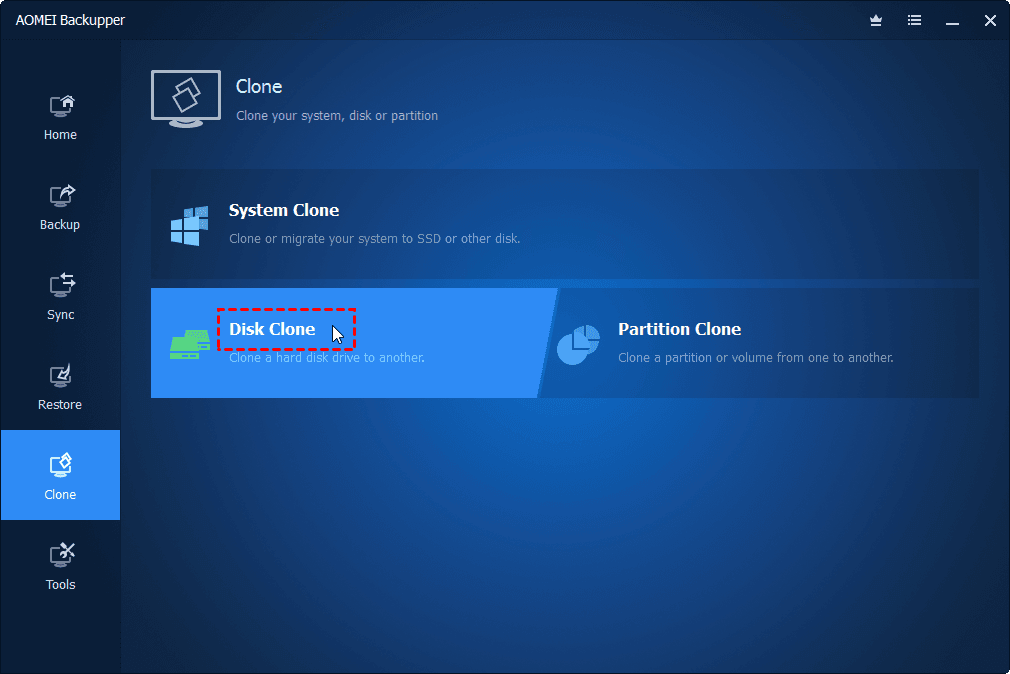
AOMEI Backupper is a free disk clone software for Windows 10 that allows you to migrate your operating system to another disk or drive without reinstallation and data loss.
- Main Features:
- Cloning one drive to another is now possible without interfering with the operating system.
- Sector by sector cloning is possible
- The software supports cloning a hard disk drive (HDD) to another HDD, solid-state drive (SSD) to another SSD, or HDD to SSD for data migration and upgrades.
- Advantages:
- Backup & restore easily and quickly
- Free trial version is available
- Disadvantages:
- Slow backup speed
4: MiniTool Partition Wizard
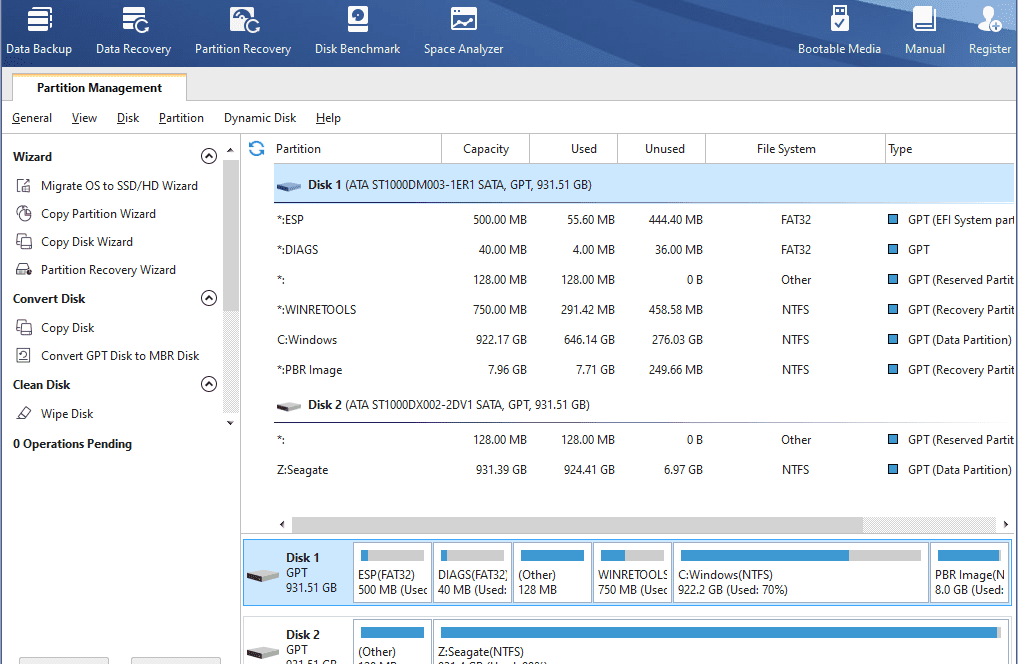
With this free hard drive cloning software for Windows 10, you can control disk partitions and review the file system. This software can help you copy your operating system to another SSD or HDD or clone a whole disk.
- Main Features:
- Let you resize or move the partition
- Supports to convert NTFS to FAT format
- It enables you to recover data and partition
- Advantages:
- Easy installation
- Free trial version is available
- User-friendly interface
- Featuring portable mode
- Disadvantages:
- Supports Windows only
- With the free version, you can't control dynamic drives
5: Clonezilla
Clonezilla is a free cloning software that supports various operating systems, including Windows 10 and other versions, as well as Intel-based Mac OS, FreeBSD, and GNU/Linux. It allows for easy cloning of these operating systems.
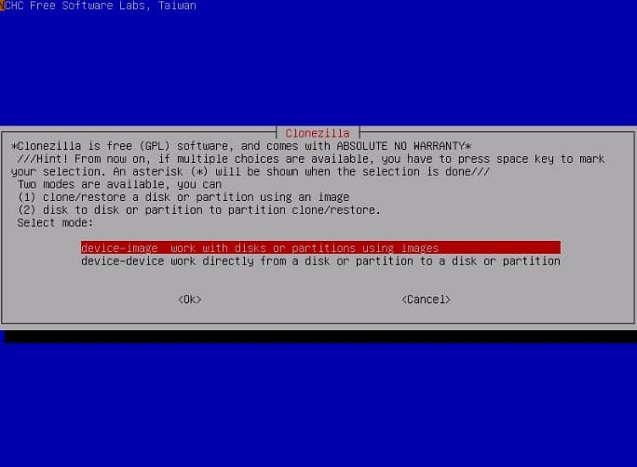
- Main Features:
- Supports multicasting
- Restore several local devices
- Customize your cloning and imaging
- Advantages:
- Free to use
- Supports cloning, disk imaging and portioning
- Compatible with Linux as well as Windows OS
- Disadvantages:
- Bad interface
For Windows 10 and Windows 11 users, we have listed the best free disk cloning software available on the internet. With these tools, you can easily clone your entire system, creating a safe and secure backup of your data. These software options allow you to create a duplicate of your hard drive, which can be used to restore your system in case of any issues or data loss. By using any of the listed software, you can ensure that your system is protected and can be easily restored to its original state.
Part 4. Frequently Asked Questions for free disk clone Windows 10/11
Q:How do I clone a disk for free?
You can use free disk clone software for assistance, but be aware that the free versions often have limitations. I still recommend trying the full version of Qiling backup for a more comprehensive solution.
Q:Does Windows 10 have disk cloning software?
Windows 10 has a built-in disk cloning software tool called System Image, but it only works for cloning a hard drive to a larger one, not for selected partition cloning.
Q:Can you clone a hard drive without software?
While Windows has a built-in System Image feature, it's not ideal for creating an exact copy of a hard drive. Instead, it's better to use clone software to ensure a precise and error-free copy of your hard drive. This approach provides a more reliable solution for backing up and duplicating your hard drive's contents.
Related Articles
- Best Free Data Migration Software for Windows 7/10
- How to Clone Hard Drive in Windows 10
- How to Clone HDD to SSD with Free Hard Drive Clone Software
- Samsung Disk Clone Software - 2 Ways to Clone Samsung Disk
- Clone HDD to Kingston SSD Software Free Download
- How to Clone WD HDD to SSD
- How to Backup/Clone RAID Array
- Best Free Raw Data Recovery Software
Products
Articles & Tutorials
- Data Recovery
- Data Backup
- File Recovery
- File Backup
- File synchronize
- System Backup and Restore
- Disk and Partition Clone
- Technical articles
- Disk Master Help
- Windows Deleted File and Disk Recovery Tutorials
- Windows File and Data Recovery Tutorials
- More Windows Tutorials for Install, Security, Files, and PC Tips
- Windows Boot, Repair, and Recovery Environment Tutorials
- Windows Backup Tutorials
- Windows Restore Tutorials
- Windows Clone and Migration Tutorials
- Windows Server Backup, Recovery, and Management Tutorials
- Windows Disk, Partition, and Storage Management Tutorials