How to Backup/Clone RAID Array (Backup RAID to a Single Drive)
Quick Navigation:
- Part 1. Overview of RAID Array
- Part 2. Reasons for Why Need to Clone/Backup RAID
- Part 3. How to Backup/Clone RAID Array
- Part 4. Frequently Asked Question for RAID Backup/Clone
- Q: Is RAID 0 better than a single drive?
- Q: Can Acronis clone a RAID 0 to single drive? Acronis clone RAID 5 to single drive?
- Q: Can you clone RAID 1 to single drive?
Thanks to RAID technology, websites and data read, write, and transfer speeds have been significantly improved, making it a popular choice for databases and servers. However, RAID technology can be vulnerable to failures that result in data loss, highlighting the importance of backing up RAID arrays to ensure data security. To address this, it's necessary to clone and backup the RAID array to a single drive, providing an additional layer of protection against data loss.
For RAID data-loss cases, review RAID data recovery before cloning or rebuilding the array.
Part 1. Overview of RAID Array
RAID, or Redundant Array of Independent Disks, is a storage solution that uses two or more disks to store data in sequential order, significantly boosting read, write, and transfer speeds compared to a single drive. This approach effectively resolves the issue of virtual data storage sluggishness for large data volumes.
There are various levels of RAID (Redundant Array of Independent Disks), each designed to meet specific needs for virtual storage requirements. The main levels of RAID include different configurations, such as RAID 0, RAID 1, RAID 5, and RAID 6, among others, offering unique features to optimize storage performance, data integrity, and redundancy. Each level has its own strengths and weaknesses, and the choice of RAID level depends on the specific requirements and priorities of the user.
- Level
- Features
- Disadvantages
- RAID 0
- RAID 0 is a storage configuration that uses two or more disks to stripe data evenly across each one, significantly improving data reading, writing, and transferring speeds. This setup is ideal for users seeking fast performance.
- RAID 0 data stripping is a vulnerable configuration where data is split across multiple disks. If any disk fails or is damaged, the entire array will stop functioning and data will be lost, making it the most vulnerable RAID level.
- RAID 1
- RAID 1, or mirroring, involves two or more disks where one disk serves as the main drive for data reading, writing, and transferring, while the others create identical copies of the main drive. This setup ensures that if one disk fails, the data is still accessible from the mirrored copy, preventing data loss and minimizing downtime.
- RAID 1 efficiently prevents any disk failure or data loss, but it wastes unused space on disks by creating mirror copies, making it impractical for large data storage needs that require very large capacity disks.
- RAID 5
- RAID (Redundant Array of Independent Disks) requires a minimum of three disks. It works by dividing data into blocks, not individual bytes, and adding a parity block for each stripe on each disk, providing a level of redundancy and fault tolerance.
- If more than one disk in a RAID 5 system fails, the entire system will fail and data will be lost.
- RAID 10
- RAID 10 is a combination of RAID 0 and RAID 1, maintaining great performance and the ability to create mirror copies.
- Only 50% of the total storage capacity is usable, and if two drives in the same mirrored pair fail, data will be lost.
Part 2. Reasons for Why Need to Clone/Backup RAID
The vulnerability of each RAID level is evident, with RAID 0 being the most susceptible to data loss due to any single hard disk failure. RAID 1, RAID 5, and RAID 10 are also at risk, with data loss occurring only when two disks fail simultaneously. Rather than attempting RAID data recovery, the best course of action is to back up the RAID array or clone it to a single drive.
Part 3. How to Backup/Clone RAID Array
Cloning a RAID setup to a single drive can be a time-consuming and space-wasting process, especially for large datasets. Unlike manual backups, which can be tedious and inefficient, using professional backup and disk cloning software for Windows 10/11 can automate the process, compress the backup file, and run in the background, saving you time and storage space. This is particularly important for RAID 0 setups, which can be challenging to back up manually. By leveraging specialized software, you can ensure a seamless and efficient backup process, even for complex RAID configurations.
Qiling Disk Master is a reliable tool that can backup and clone entire hard drives. It can also backup and clone RAID 0 to a single drive, and clone RAID to a single SSD or drive, regardless of the RAID level. Additionally, it allows for selective backup of folders and hard drives, making it a simple and easy-to-use solution for RAID backup.
- To prepare a hard drive for backing up and cloning data from a RAID hard drive, you'll need a drive with sufficient capacity to hold the data from the RAID setup. This will typically be a single hard drive with a capacity equal to or greater than the total capacity of the RAID array.
- Download and install the RAID clone software on your Windows PC, which is fully compatible with all Windows OS.
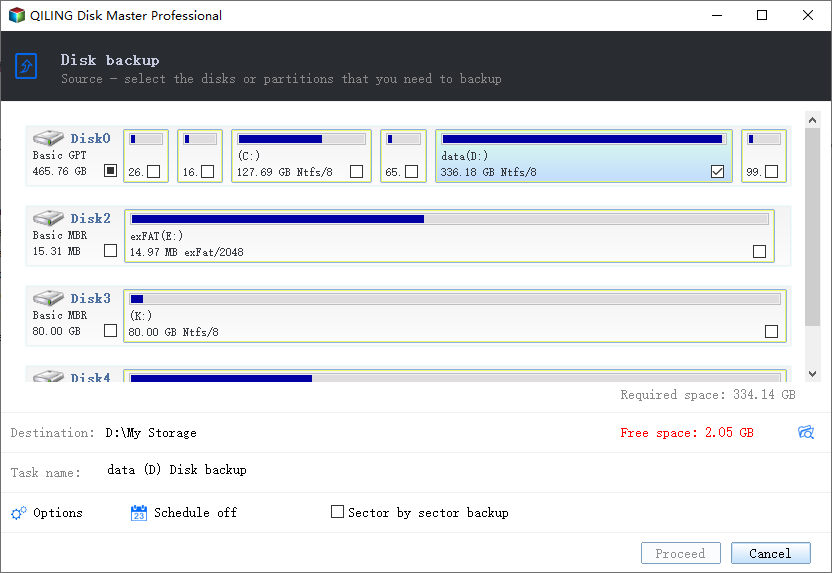
- Launch the RAID backup software. Select the RAID as the target hard drive to clone, and choose the prepared hard drive in the Storage Location area. You can also enable Automatic Backup to schedule backups. Click "Start" to initiate the cloning process.
- Wait for the cloning process to finish, then see a completion message.
Part 4. Frequently Asked Question for RAID Backup/Clone
Q: Is RAID 0 better than a single drive?
RAID 0 is faster than a single drive for reading and writing, but less secure as data is lost if one drive fails.
Q: Can Acronis clone a RAID 0 to single drive? Acronis clone RAID 5 to single drive?
Acronis users have reported that the software doesn't recognize RAID 0 drives, and Acronis tech support has explained that this is because RAID 0 is not cloneable by Acronis, which only supports cloning MBR disks.
Q: Can you clone RAID 1 to single drive?
With software like Qiling Disk Master, you can clone RAID 1 to a single drive, but the resulting drive will have duplicate content due to RAID 1's mirror feature. To achieve this, you can follow the steps below.
- To prepare a single drive for a RAID 1 backup, you would need to create a single drive that can accommodate the entire size of the RAID 1 backup file. This typically involves formatting the drive to a single, contiguous partition that spans the entire drive, allowing it to hold the entire RAID 1 backup file without any fragmentation or partitioning issues.
- Download and install Qiling Disk Master.
- Connect the single drive with your PC.
- Launch the hard drive clone software, locate the RAID 1 hard drive by clicking "+", and set up the storage location as the connected hard drive. Then, click "Start" to initiate the clone process, and wait for it to finish.
- To clone the RAID 1 array, you'll need to clone each hard drive individually, one by one. This process involves creating a bit-for-bit copy of each drive, including all data, operating system, and configuration.
Related Articles
- How to Clone Hard Drive in Windows 10
- How to Clone Raspberry Pi SD card in Windows 10/7/11
- Best Free Disk Cloning Software to Download
- How to Clone HDD to SanDisk SSD
- Samsung Disk Clone Software
- How to Clone HDD to Western Digital SSD
- How to Duplicate Hard Drive in Windows 10
Products
Articles & Tutorials
- Data Recovery
- Data Backup
- File Recovery
- File Backup
- File synchronize
- System Backup and Restore
- Disk and Partition Clone
- Technical articles
- Disk Master Help
- Windows Deleted File and Disk Recovery Tutorials
- Windows File and Data Recovery Tutorials
- More Windows Tutorials for Install, Security, Files, and PC Tips
- Windows Boot, Repair, and Recovery Environment Tutorials
- Windows Backup Tutorials
- Windows Restore Tutorials
- Windows Clone and Migration Tutorials
- Windows Server Backup, Recovery, and Management Tutorials
- Windows Disk, Partition, and Storage Management Tutorials