How to Clone HDD to SanDisk SSD
Quick Navigation:
- Part 1: Reasons Why Need to SanDisk Clone HDD to SSD
- Part 2: The Best Software to Clone HDD to SanDisk SSD
- Your Reliable Free Drive Cloning Software for Windows 10/11
- Part 3: Step-by-step Guide for How to clone HDD to SanDisk SSD with Qiling Disk Master
A hard disk drive (HDD) is a non-volatile storage device that stores data on a physical hard disk, allowing for reading and writing of data, and is commonly used as the primary storage device in computers.
For a general SSD migration workflow, compare this guide with HDD to SSD cloning freeware.
The solid-state drive (SSD) has become a popular alternative to traditional hard disk drives (HDDs), offering improved features and performance. SanDisk SSD is a well-known brand in this space, and many users are now opting to replace their old HDDs with a new SSD, making drive cloning a crucial step in this process.
We'll show you how to perform a SanDisk clone from an HDD to an SSD using the best drive clone software available, allowing you to transfer your data to a faster storage device.
Part 1: Reasons Why Need to SanDisk Clone HDD to SSD
Computers have become an essential part of our daily lives, and with technological advancements, a new storage device called SSD (Solid-State Drive) has been invented, offering faster speeds and a more peaceful working environment.
Upgrading from a traditional hard drive (HDD) to a SanDisk solid-state drive (SSD) can be done without reinstalling the operating system or losing data, by simply cloning the old HDD to the new SanDisk SSD.
Part 2: The Best Software to Clone HDD to SanDisk SSD
The internet is flooded with clone HDD to SanDisk HDD tools, but using the right one makes a significant difference in the end results. Upgrading your HDD to a new SanDisk SSD can be done perfectly with software that ensures no data loss or reinstallation, and Qiling Disk Master is the best solution for this task.
With this all-InDrive Clone and Backup software offers a secure and easy solution to clone your HDD to a SanDisk SSD, providing not only a copy of your data but also higher security and support in case of any computer issues. With its user-friendly interface and straightforward process, you can easily clone your HDD to a SanDisk SSD in a hassle-free manner, making it the top choice in the market for a secure and easy close solution.
Your Reliable Free Drive Cloning Software for Windows 10/11
- Clone your drive safely and easily for data protection or other purposes. This process allows you to create an exact copy of your drive, ensuring that your important files and programs are preserved in case of hardware failure, software corruption, or other issues.
- Protects your data on the computer by backing up files, hard drive, partition, system, or external storage devices.
- Three backup modes allow you to personalize your backup location, types, and schedules.
- Quick hard drive recovery solution when any disk or system issue occurs.
- A software that allows users to clone a hard drive to another in Windows 10, 8, 7, 11, and XP.
Part 3: Step-by-step Guide for How to clone HDD to SanDisk SSD with Qiling Disk Master
When upgrading your HDD to SSD or migrating HDD data to SSD, cloning the drive is the best approach, as it's faster and more efficient than reinstalling the operating system. To clone your HDD to a SanDisk SSD using Qiling, a free disk cloning software, is a great solution.
- Select the target hard drive
- Choose the SSD
- Close HDD to SanDisk HDD
After installing the program, run it on your computer and select the hard drive you want to clone from the main interface by clicking the "Backup Drive" option. Before creating a drive image or backup, set the program to automatically backup and clone the drive sector by sector, which ensures that all files, including lost or hidden data, are cloned.
To start the cloning process, select the file path and make any desired settings to customize the process. Once ready, click the "Start" button to begin cloning your HDD.
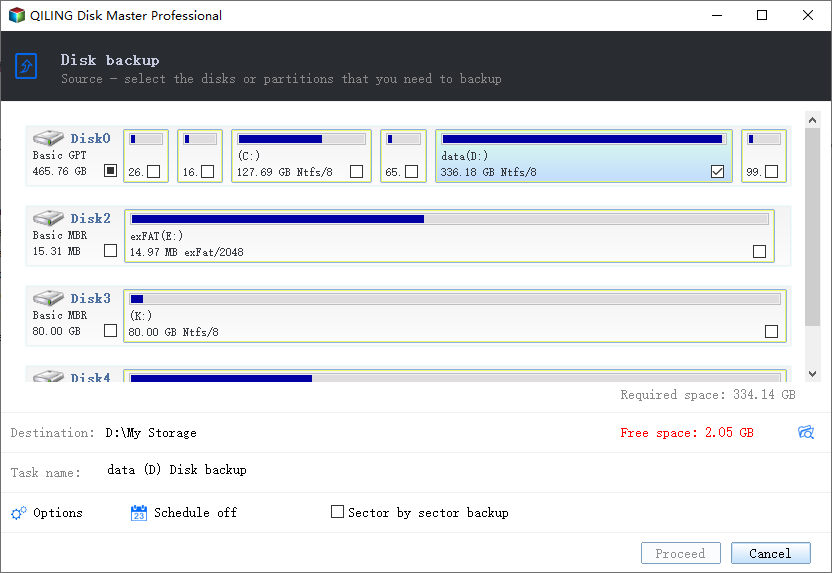
The software will take a certain amount of time to back up, depending on the number of files and their sizes, so please be patient until the process is fully completed.
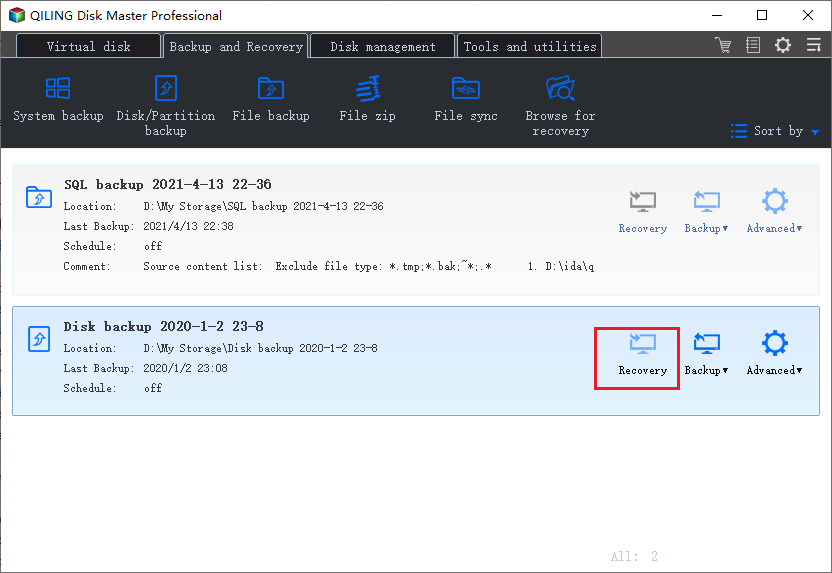
Select the "Drive Backup" option, then click on the "Restore" button to initiate the cloning process to the SSD.
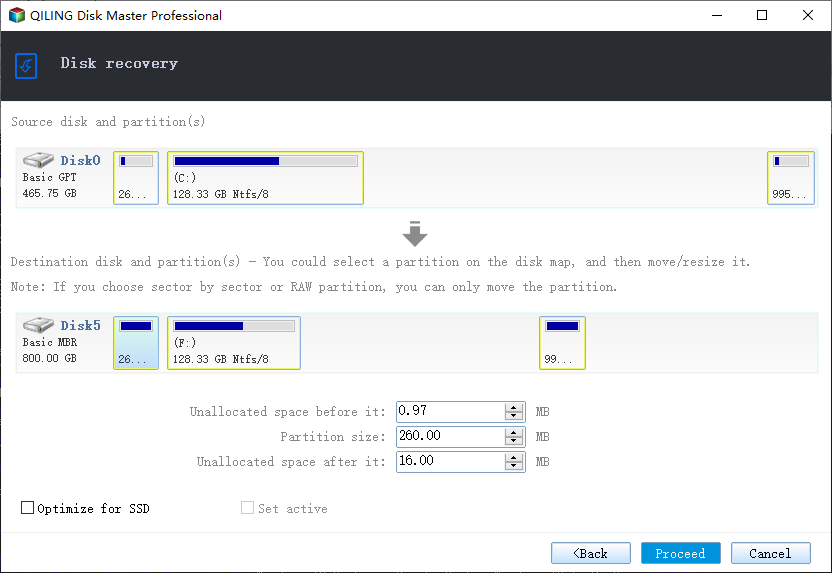
Before migrating data from an HDD to a SanDisk SSD, choose the hard drive and click "Next" to continue. Next, select the destination SSD and click "Next" to proceed with the process.
Review the clone information, then click on the "Proceed" button to initiate the cloning process from your HDD to the SanDisk SSD.
Using Qiling Disk Master, you can easily clone your old HDD to a new SanDisk SSD, taking advantage of the faster speeds offered by SSDs. This software simplifies the drive cloning process, allowing you to get started with just a few clicks. By cloning your old drive to a new SSD, you can enjoy the benefits of a faster and more efficient storage device on your computer.
Cloning a hard drive to a SanDisk SSD has become a crucial task, especially for graphic artists, gamers, and those seeking a smoother computer experience. SanDisk SSDs offer a superior solution, and the best way to perform this task is by using Qiling Disk Master, which provides a reliable and efficient way to clone your hard drive to a SanDisk SSD.
Related Articles
- How to Clone HDD to Western Digital SSD
- How to Clone HDD to SSD in Windows 7
- Free Disk Cloning Software for Windows 11/10
- How to Clone WD HDD to SSD
- How to Clone Hard Drive in Windows 11/10
- How to Backup/Clone RAID Array
- How to Clone Raspberry Pi SD card
- HDuplicate Hard Drive in Windows 7/10/8/11
- How to Clone HDD to Kingston SSD in Windows 10/8/7/XP
- SanDisk Repair Tool to Perform SanDisk Memory SD Card/USB/HDD/SSD Repair
Products
Articles & Tutorials
- Data Recovery
- Data Backup
- File Recovery
- File Backup
- File synchronize
- System Backup and Restore
- Disk and Partition Clone
- Technical articles
- Disk Master Help
- Windows Deleted File and Disk Recovery Tutorials
- Windows File and Data Recovery Tutorials
- More Windows Tutorials for Install, Security, Files, and PC Tips
- Windows Boot, Repair, and Recovery Environment Tutorials
- Windows Backup Tutorials
- Windows Restore Tutorials
- Windows Clone and Migration Tutorials
- Windows Server Backup, Recovery, and Management Tutorials
- Windows Disk, Partition, and Storage Management Tutorials