How to Clone WD HDD to SSD
Quick Navigation:
- Part 1: Why clone WD HDD to SSD?
- Part 2: Best WD HDD to SSD cloning software
- Reliable drive cloning software for Windows
- Part 3: How to clone WD HDD to SSD step by step
Western Digital hard drives are widely used for system storage, personal files, games, and business data. When the old WD HDD becomes slow, runs out of space, or shows signs of aging, cloning it to an SSD is a practical way to improve performance without reinstalling Windows or moving files manually.
For another Western Digital migration path, compare this guide with cloning HDD to Western Digital SSD.
With reliable WD HDD to SSD cloning software, you can copy the operating system, installed programs, settings, and personal data from the source WD hard drive to a new SSD. After cloning, you can boot from the SSD and keep using the computer with less downtime.
Part 1: Why clone WD HDD to SSD?
Compared with traditional HDDs, SSDs offer faster startup, quicker program loading, lower noise, and better shock resistance. If your computer still runs Windows from a WD HDD, moving the disk data to an SSD can make the system feel more responsive.
Cloning is also useful when you want to replace a failing WD hard drive, upgrade to a larger SSD, migrate Windows to a new disk, or keep an exact copy of the old drive before making hardware changes.
Part 2: Best WD HDD to SSD cloning software
Windows does not provide a simple built-in tool to clone a whole hard drive directly to an SSD. Qiling Disk Master offers a straightforward way to clone WD HDD to SSD, including system files, boot records, partitions, applications, and user data.
The software helps reduce the risk of missing boot files or losing data during migration. It supports common Windows systems and can be used for disk upgrade, drive replacement, and HDD to SSD migration.
Reliable drive cloning software for Windows
- Clone a WD hard drive to an SSD while keeping Windows, programs, and personal files.
- Support disk clone, partition clone, system backup, and disk backup for flexible migration needs.
- Help protect data before replacing an old or failing hard drive.
- Work with Windows 11, 10, 8.1, 8, 7, and other common Windows systems.
- Provide a clear interface so users can finish WD HDD to SSD cloning with simple steps.
Part 3: How to clone WD HDD to SSD step by step
Before starting, connect the target SSD to your computer and make sure it can be detected. Back up important files on the SSD first, because the cloning process may overwrite data on the destination disk.
- Select the source WD hard drive
- Choose the target SSD
- Start cloning WD HDD to SSD
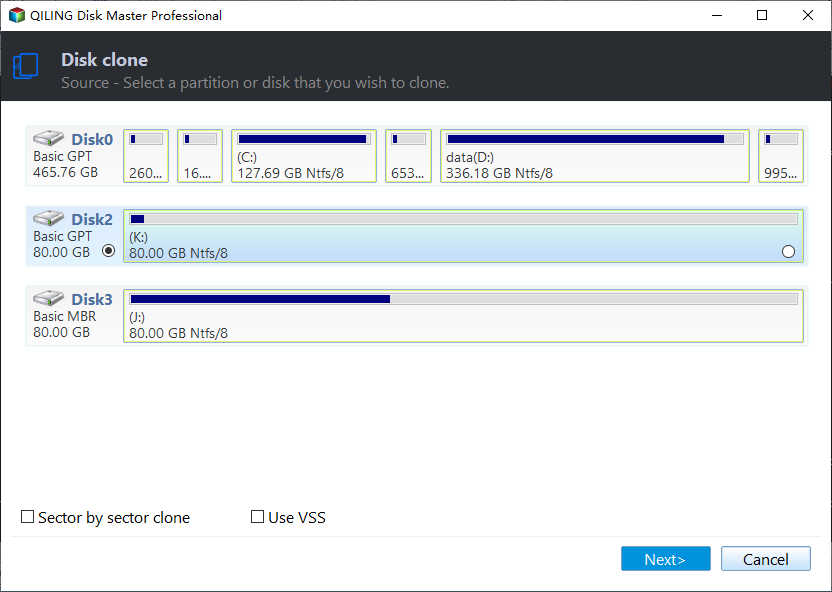
Install and launch Qiling Disk Master. Choose the clone or drive backup function according to the available option, then select the WD HDD that contains Windows, programs, and files as the source disk.
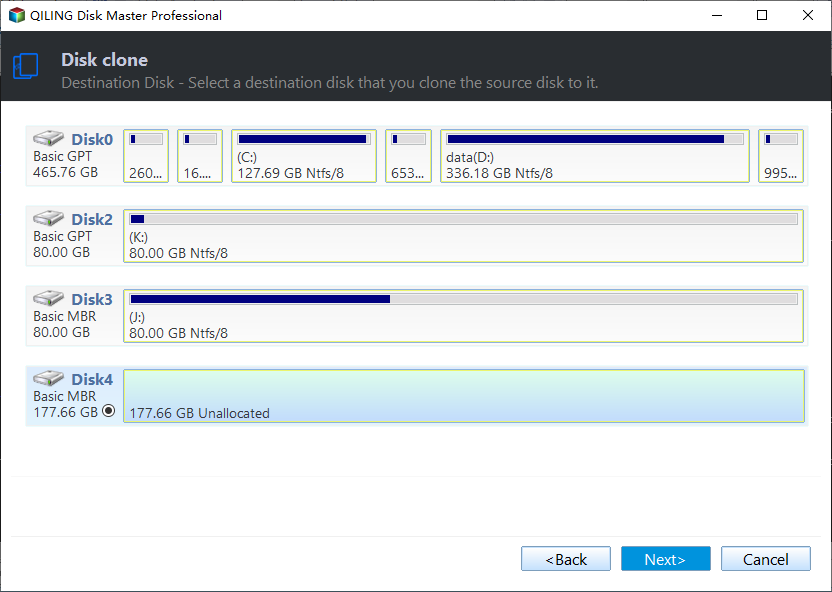
Select the connected SSD as the destination disk. Confirm that the SSD has enough capacity to hold the used data on the WD hard drive.
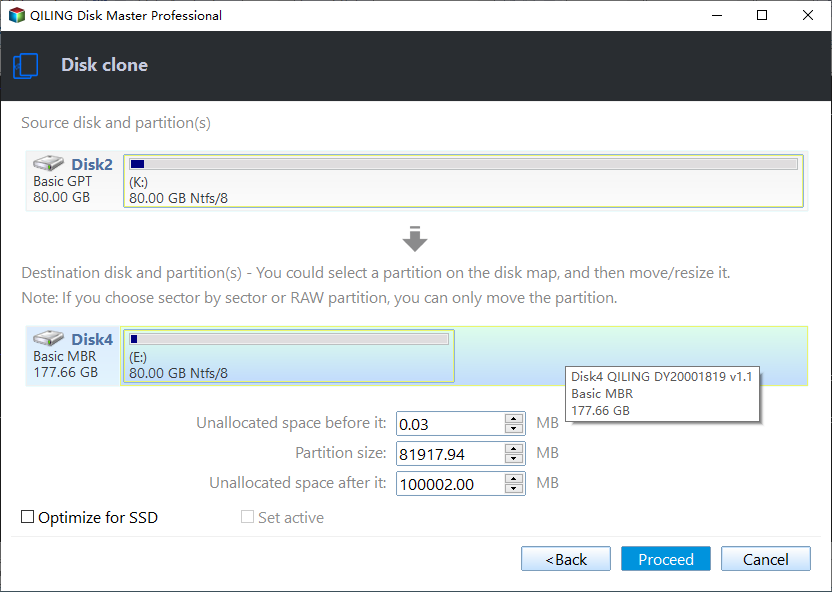
Review the source and destination disk information carefully. If everything is correct, click "Proceed" to clone the WD HDD to the SSD. Wait until the process is complete.
After cloning, shut down the computer and replace the old WD HDD with the SSD if needed. You can also enter BIOS or UEFI settings to set the cloned SSD as the first boot device. Once Windows starts normally from the SSD, keep the old WD drive as a backup or use it for extra storage after confirming that all data is safe.
Using Qiling Disk Master to clone WD HDD to SSD saves time compared with reinstalling Windows and applications. It is a practical option for users who want a faster computer, a safer disk upgrade, or a complete migration from Western Digital HDD to SSD.
Related Articles
- How to Clone HDD to Western Digital SSD
- How to Clone HDD to SanDisk SSD
- How to Clone HDD to SSD in Windows 7
- Free Disk Cloning Software for Windows 11/10
- How to Clone Hard Drive in Windows 11/10
- How to Clone HDD to Kingston SSD in Windows 10/8/7/XP
- Samsung Disk Clone Software - 2 Ways to Clone Samsung Disk
- How to Clone HDD to SSD with Free Hard Drive Clone Software
Products
Articles & Tutorials
- Data Recovery
- Data Backup
- File Recovery
- File Backup
- File synchronize
- System Backup and Restore
- Disk and Partition Clone
- Technical articles
- Disk Master Help
- Windows Deleted File and Disk Recovery Tutorials
- Windows File and Data Recovery Tutorials
- More Windows Tutorials for Install, Security, Files, and PC Tips
- Windows Boot, Repair, and Recovery Environment Tutorials
- Windows Backup Tutorials
- Windows Restore Tutorials
- Windows Clone and Migration Tutorials
- Windows Server Backup, Recovery, and Management Tutorials
- Windows Disk, Partition, and Storage Management Tutorials