How to Fix SanDisk Memory SD Card/Pen Drive/USB/SSD
SanDisk is a well-known brand for SD cards, USB flash drives, pen drives, HDDs, and SSDs, but any storage device can run into problems. Before repairing a SanDisk device, recover lost or inaccessible data with Deep Data Recovery to avoid further data loss. After your files are safe, follow the matching SanDisk repair tool solutions below to fix write protection, recognition errors, format prompts, and other common SanDisk drive issues.
If the SanDisk card contains missing photos or documents, this SanDisk corrupted SD card recovery guide can help before repair.
- Quick Navigation
- Part 1. Recover Files before Repairing a SanDisk Device to Avoid Data Loss
- Part 2. Fix SanDisk Drive Error by SanDisk Repair Tool (4 Ways)
Part 1. Recover Files before Repairing a SanDisk Device to Avoid Data Loss
Before using a SanDisk repair tool, recover files from the SD card, USB drive, pen drive, HDD, or SSD first. Some repair operations, especially formatting, can erase data or make recovery harder. To reduce that risk, use a professional data recovery tool like Deep Data Recovery.
Your Safe & Effective SanDisk Data Repair Tool
- It supports 800+ file types, including Word, Excel, PowerPoint, PDF, photos, music, videos, archives, emails, and more.
- The best SanDisk recovery software can recover data from SanDisk drives after accidental deletion, formatting, crashes, RAW file system errors, virus attacks, and other data loss cases.
- The SanDisk data repair tool or SanDisk format tool helps recover files from SanDisk drives on Windows or macOS.
Simple steps to recover data from SanDisk
To start SanDisk recovery with Deep Data Recovery, download and install the correct version on your Windows PC or Mac. Then connect the problem SanDisk device and scan it before attempting any repair.
- Connect the SanDisk device to your computer with a card reader or USB cable. Once connected, the SanDisk SD card, USB drive, HDD, or SSD should appear as an external drive.
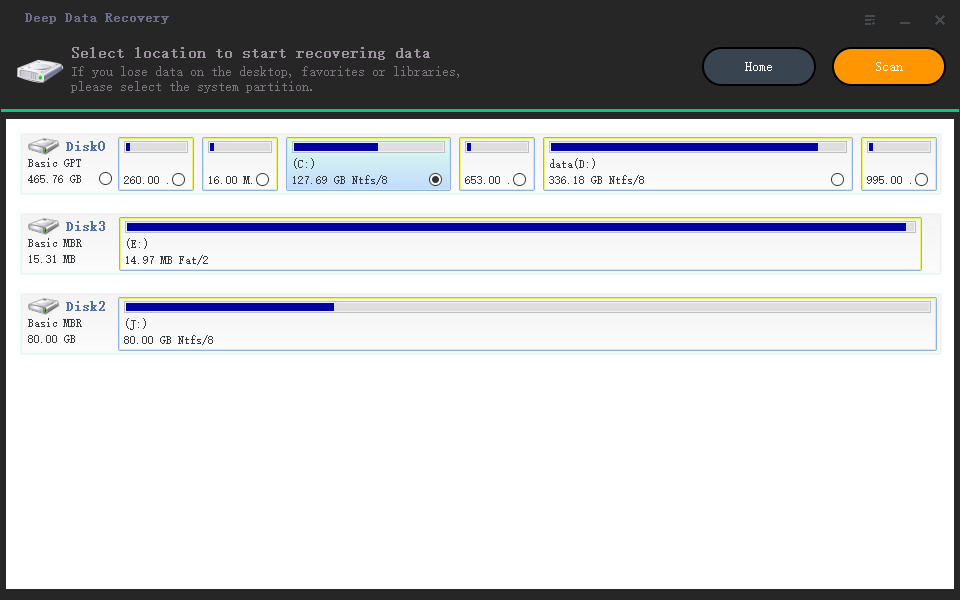
- Launch the SanDisk recovery software and select the SanDisk device you want to scan. If the device is detected correctly, click the "Scan" button to search for lost, deleted, or formatted files.
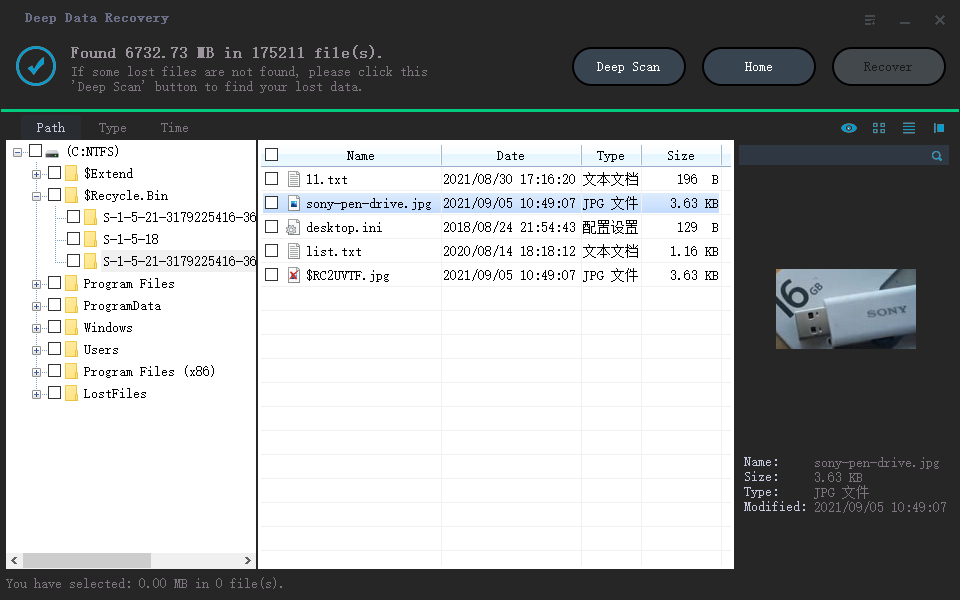
- The SanDisk recovery tool will scan the SD card, USB drive, HDD, or SSD for lost and formatted data. After the scan, preview the found files, select what you need, and click the "Recover" button to save them to a safe location.
Fix SanDisk Drive Error by SanDisk Repair Tool
A reliable SanDisk memory card or USB drive is important for storing photos, videos, documents, and backups, but errors can still happen. Instead of formatting the device immediately, identify the symptom first and choose the right SanDisk repair method. The following fixes cover locked or write-protected cards, unrecognized drives, repeated format prompts, and files that only appear as thumbnails.
#1. SanDisk Memory Card Locked or Write Protected
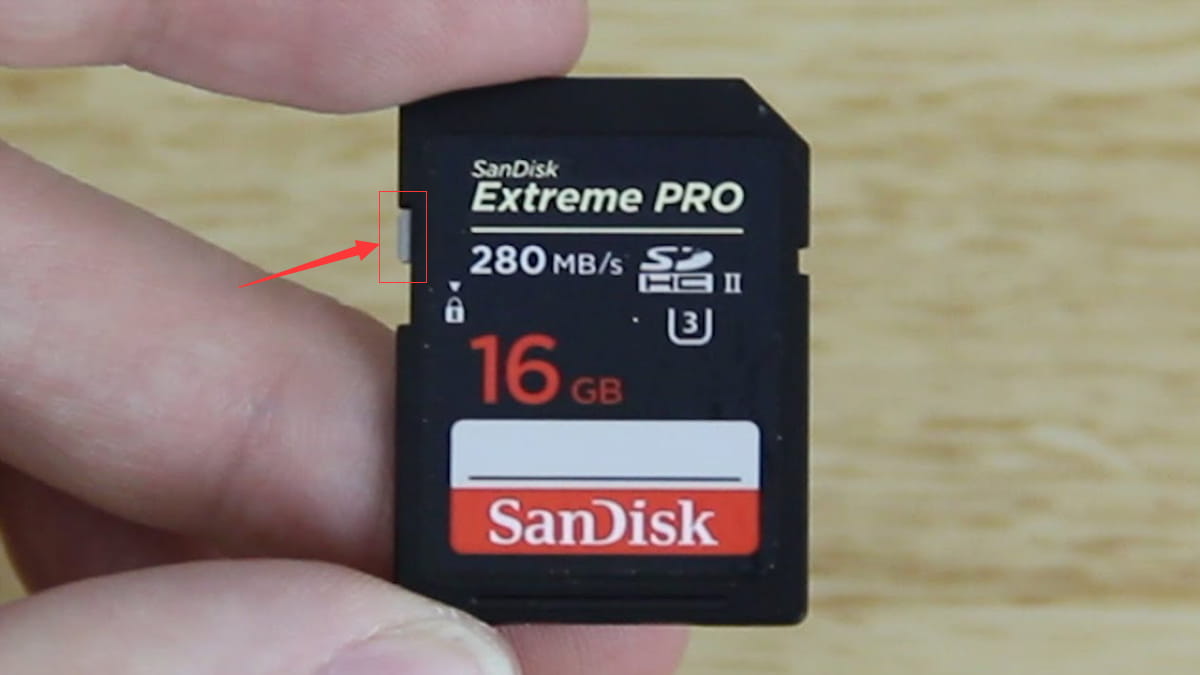
If your SanDisk SD card is locked, start with the physical lock switch.
Check whether the switch on the left side of the card is in the locked position. If it is locked, you cannot save new data, modify files, or delete files on the SD card.
If your SanDisk SD card is write-protected, remove the protection before saving, deleting, or transferring files. You can try the following CMD method on a Windows PC.
If your camera reports that the SD card is locked, it may block photo capture, deletion, and data transfer. In this case, remove write protection from the SanDisk memory card with CMD.
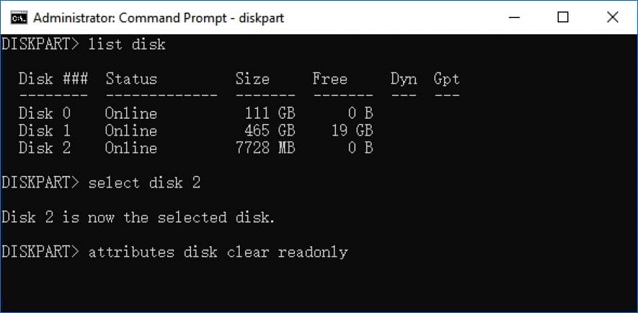
- On a Windows PC, click the Start button, type CMD, and press Enter.
- In the new window, type diskpart and press Enter.
- Type list disk and press Enter.
- Type select disk * and press Enter to select the SanDisk drive.
- Type attributes disk clear readonly and press Enter to remove write protection.
(* represents the number of your write-protected SanDisk drive.)
#2. SanDisk Drive Not Recognized by the Computer
If your SanDisk USB drive or memory card is not recognized by the computer, try these basic troubleshooting steps first:
- Reconnect the SanDisk device to another USB port or card reader.
- Disconnect the device and restart the computer to reset the connection.
- Install available drivers. Visit the SanDisk official site, check whether drivers are available for your model, and install them on your computer if needed.
#3. SanDisk Pen Drive or SD Card Keeps Asking to Format
If your camera or computer keeps asking you to format the SanDisk device, do not format it before recovering important files. Formatting can cause data loss, but professional unformat SD card software can help retrieve files first. If an "operation failure" message appears during formatting, cancel the process. Then click the Start button, open My Computer/Computer, and select the SanDisk device. If you can access it, you can format it properly after backup or recovery. If the message still appears, the card reader or USB port may not work correctly. Try another USB port or card reader.

#4. SanDisk Files Become Thumbnails
If files on the SanDisk device become thumbnails or disappear after connecting it to a computer, the card may be affected by a virus or file system error. First recover accessible data, then scan the device with antivirus software. If the problem continues, format the memory card and use a SanDisk format tool or recovery tool to restore files from the formatted SanDisk drive.
Related Articles
- SanDisk Extreme PRO Recovery
- SanDisk Corrupted SD Card Recovery & Repair It
- A Complete Guide to Recover Deleted Files
This guide explains SanDisk Extreme PRO Recovery SanDisk Corrupted SD Card Recovery & Repair It A Complete Guide to Recover Deleted Files with clear steps, key checks, and practical tips. - Hard Drive Recovery| Recover Files from a Hard Disk
Learn how to recover hard drive data on Windows 11/10/8/7 and restore hard drive data on Mac with clear, practical recovery methods. - [Solved] PS4 Not Recognizing/Reading External Hard Drive 2023
If your PS4 is not recognizing or reading an external USB hard drive, follow these steps to troubleshoot the connection and make the drive usable again. - 6 Ways to Recover Deleted/Corrupted/Crashed PSD Files
Recover PSD files after accidental deletion, corruption, crash, or temporary file loss with clear Photoshop file recovery methods.
Products
Articles & Tutorials
- Data Recovery
- Data Backup
- File Recovery
- File Backup
- File synchronize
- System Backup and Restore
- Disk and Partition Clone
- Technical articles
- Disk Master Help
- Windows Deleted File and Disk Recovery Tutorials
- Windows File and Data Recovery Tutorials
- More Windows Tutorials for Install, Security, Files, and PC Tips
- Windows Boot, Repair, and Recovery Environment Tutorials
- Windows Backup Tutorials
- Windows Restore Tutorials
- Windows Clone and Migration Tutorials
- Windows Server Backup, Recovery, and Management Tutorials
- Windows Disk, Partition, and Storage Management Tutorials