Hard Drive Duplicator – Duplicate Hard Drive in Windows 7/10/8/11/XP
Quick Navigation:
- Your Safe & Reliable Hard Drive Duplicator Software
- Steps for How to Duplicate Hard Drive in Windows 7/10/8/11/XP
"Any hard drive duplicator recommend? I really need to have to hard drive on Windows 10 upgraded, for I'm afraid if I'll ditch the computer for the storage and slow response. If you have any idea of hard disk duplicator or how to duplicate a hard drive easily, please tell me. Thanks!"
For Windows 10 and 11 cloning software, see free disk cloning software.
In Windows 11 and Windows 10, duplicating a hard drive is crucial to prevent data loss due to system changes, updates, or hard drive replacements. Unlike Mac's Time Machine, Microsoft doesn't provide a built-in solution, making it essential for users to manually duplicate their hard drive to ensure their important data is safely backed up. This process can be time-consuming, but it's a necessary step to avoid losing valuable information.
- Due to limited storage capacity, people often need to duplicate their hard drive, copying all data, and then transfer it to a larger external hard drive. This allows them to free up space on their original drive and expand their storage capacity.
- To ensure the security of important files, duplicating the hard drive is an effective way to back them up.
- Before doing a factory reset on your old computer or hard drive, it's a good idea to duplicate the hard drive to ensure you don't lose any important files. This way, you can transfer the data to your new device and still have a backup of your old one.
- In that case, the user needs to clone their system hard drive to create a duplicate, which can be useful for upgrading or reinstalling the operating system without losing any data.
Duplicating a hard drive manually is not feasible due to the time-consuming process of copying files one by one, which also occupies storage space. Using a hard drive duplicator can significantly shorten the time and compress the hard drive into an image file, making it easier to save.
I recommend trying Qiling Disk Master, a professional tool designed to duplicate files, clone RAID arrays, hard drives, and more, featuring a user-friendly interface, high-speed data transfer, and support for various file systems and disk formats.
Your Safe & Reliable Hard Drive Duplicator Software
- Duplicate a hard drive quickly and easily, with the process running in the background without disrupting any current operations. This allows you to schedule the duplication task and have it completed swiftly, making it a convenient and hassle-free process.
- The backup options include the full image, incremental, or differential. You can choose the one that suits your needs.
- To duplicate a selected hard drive, external hard drive, USB drive, flash drive, or any other type of storage device, you would need to use a process called imaging or cloning. This involves creating an exact copy of the original device's contents, including all files, folders, and system data, onto a new, identical device.
Steps for How to Duplicate Hard Drive in Windows 7/10/8/11/XP
To use the hard drive duplicator to duplicate a hard disk in a Windows PC, download and install the duplicator software, which is compatible with all Windows operating system versions. Connect the external hard drive you want to duplicate or the drive where you'll store the duplicate files to your computer, ensuring it's detected by the computer. Follow the software's instructions to complete the duplication process.
- To backup a hard drive, click the "Backup Drive" button in the main window, select the hard drive to be duplicated, and choose the duplicate preference, including the path to save the duplicate file and whether to set up automatic or sector-by-sector backup. Then, click the "Start" button to initiate the backup process.
- Once you've duplicated the hard drive, you can manage the duplicate hard drive file in a few ways. You can choose to keep the duplicate as a separate entity, allowing you to work on both the original and duplicate simultaneously.

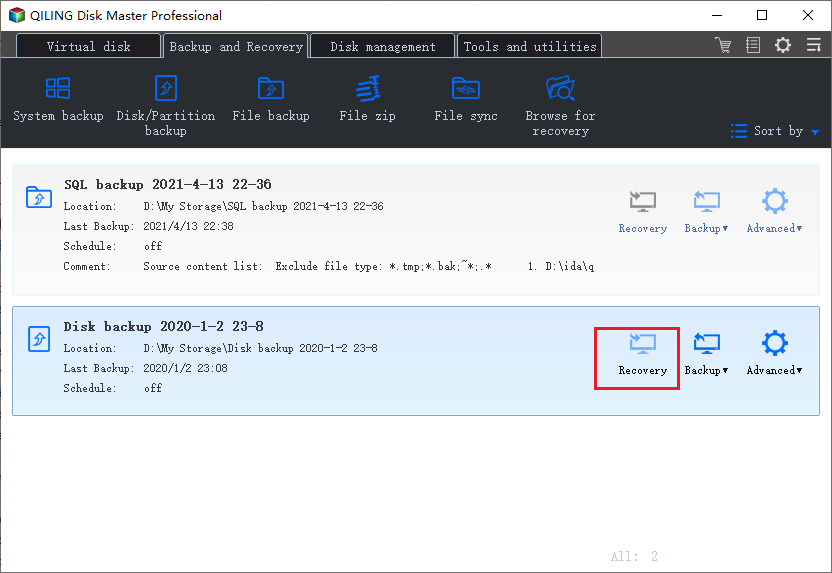
If you've lost the entire drive, you can try the restore feature to recover the drive with the duplicate file.
Backup settings: there are 3 types of backup.
- A full backup, also known as a disk image, involves copying all sectors of a disk, including empty space and unused areas, to a backup image file. This includes all files, folders, and operating system data, creating a complete and exact duplicate of the original disk.
- Incremental backup refers to the process of backing up only the data that has changed since the last backup, resulting in a more efficient use of storage space and time.
- A differential backup is a type of backup that only duplicates the files that have changed on a drive since the last full backup, rather than backing up the entire drive again. This approach is more efficient than a full backup, which copies all files, and can be used in conjunction with a full backup to create a backup strategy.
Related Articles
- How to Duplicate Hard Drive in Windows 10
- How to Clone Raspberry Pi SD card in Windows 10/7/8/Vista/XP
- How to Clone HDD to SanDisk SSD
- How to Clone HDD to SSD in Windows 10
- Best Free Disk Cloning Software to Download
- How to Clone HDD to SSD with Free Hard Drive Clone Software
- Free Disk Cloning Software for Windows 10 Download
- Disk Clone - How to Clone Hard Drive in Windows 10
- How to Clone HDD to Western Digital SSD
Products
Articles & Tutorials
- Data Recovery
- Data Backup
- File Recovery
- File Backup
- File synchronize
- System Backup and Restore
- Disk and Partition Clone
- Technical articles
- Disk Master Help
- Windows Deleted File and Disk Recovery Tutorials
- Windows File and Data Recovery Tutorials
- More Windows Tutorials for Install, Security, Files, and PC Tips
- Windows Boot, Repair, and Recovery Environment Tutorials
- Windows Backup Tutorials
- Windows Restore Tutorials
- Windows Clone and Migration Tutorials
- Windows Server Backup, Recovery, and Management Tutorials
- Windows Disk, Partition, and Storage Management Tutorials